When WhatsApp on your phone will not link to WhatsApp Desktop, start the link from Linked devices on the phone itself, and switch to the phone number code if the QR scan keeps failing.
This guide covers the iPhone and Android link steps, the code method, the four-device limit, the 14-day rule and fixes for each failure people search for.
How to link WhatsApp on iPhone to WhatsApp Desktop
The link always starts on your primary phone. Scanning the desktop QR code with the iPhone Camera app does not work; the scanner inside WhatsApp does.
- Open WhatsApp Desktop on your Windows PC or Mac so the QR code shows on screen.
- Open WhatsApp on your iPhone.
- Tap Settings or your profile picture, then tap Linked devices > Link device.
- Unlock with Face ID, Touch ID or your iPhone passcode when asked.
- Point the iPhone at the computer screen and scan the QR code.
- Tap Link device if WhatsApp asks you to confirm an unrecognized device.
How to link WhatsApp on Android to WhatsApp Desktop
- Open WhatsApp Desktop or WhatsApp Web on the computer.
- Open WhatsApp on your Android phone.
- Tap the More options menu (three dots), then Linked devices > Link a device.
- Confirm with your fingerprint, face unlock or phone PIN.
- Scan the QR code on the computer screen.
Link WhatsApp Desktop with phone number instead of QR code
Use this route when the phone camera cannot read the screen, or the QR scan fails every time.
- On the computer, click Link with phone number or Log in with phone number.
- Select your country, type the phone number of your WhatsApp account and click Next.
- Note the eight-character code shown on the computer.
- On the phone, tap the Enter code to link new device notification from WhatsApp.
- Check the device name and location, then tap Confirm.
- Verify your identity, then enter the eight-character code on the phone.
No notification? Open Linked devices on the phone, tap Link a device or Link device, then tap Link with phone number instead and enter the code.
Why WhatsApp cannot link device: common causes
If the desktop app is not installed yet, get WhatsApp for Windows or Mac from the official store first. A browser tab running WhatsApp Web in your browser links the same way.
| What you see | Likely cause | What to do |
|---|---|---|
| QR code will not scan | Camera app used, glare, or a small or dim screen | Scan from Linked devices in WhatsApp, or use the phone number code |
| Linking fails with four devices already listed | WhatsApp allows up to four linked devices per phone | Log out of a device you no longer use |
| Desktop logs itself out | Primary phone not opened for over 14 days, or the desktop unused for 30 days | Open WhatsApp on the phone, then link again |
| Account warning after using another app | An unofficial WhatsApp client was linked | Link only the official WhatsApp apps and WhatsApp Web |
| Desktop stuck connecting | Outdated app or no internet on one side | Update both apps and check each connection |
Fix WhatsApp Desktop not linking
Why cannot connect WhatsApp to WhatsApp Web or Desktop
One side is offline or running an old version.
- Confirm the phone and the computer both have a working internet connection.
- Update WhatsApp on the phone from the App Store or Google Play.
- Update WhatsApp Desktop from the Microsoft Store or Mac App Store.
- Close WhatsApp Desktop fully, reopen it and scan the new QR code.
WhatsApp link device not working because the limit is reached
Up to four devices can be linked to one primary phone.
- Open WhatsApp on the phone and go to Linked devices.
- Tap a device you no longer use.
- Tap Log out.
- Return to Link device and scan the QR code again.
Why is WhatsApp not connecting after it was linked
Linked devices sign out when the phone goes unused for over 14 days.
- Open WhatsApp on the primary phone so it connects.
- Check Linked devices to see whether the computer is still listed.
- If it is missing, link it again with the QR code or phone number.
Could not link device on a work or school PC
The camera prompt or app may be blocked, or the network filters WhatsApp.
- Try the phone number code instead of the QR code.
- Try WhatsApp Web in a supported browser on the same PC.
- Ask the PC administrator whether WhatsApp is allowed on that network.
This account cannot use WhatsApp
WhatsApp can ban accounts linked to unofficial apps or websites.
- Remove any unofficial WhatsApp app from your devices.
- Open Linked devices and log out of anything you do not recognize.
- Follow the in-app steps to request a review from WhatsApp.
Check WhatsApp Desktop is linked
- Look at WhatsApp Desktop: your chat list should load in place of the QR code.
- On the phone, open Linked devices and find the computer in the list.
- Send a test message from the desktop and confirm it appears on the phone.
Recent chat history can take a while to show. Keep both devices online until it finishes.
WhatsApp Desktop linking FAQ
Why my WhatsApp cannot link device?
The most common reasons are a failed QR scan, four devices already linked, an outdated app or no internet on one side. Log out of an unused device, update both apps and try the phone number code.
Why I cannot link my WhatsApp to my computer?
You need to start the link from Linked devices inside WhatsApp on your primary phone. The phone's camera app cannot complete it. If scanning still fails, click Link with phone number on the computer.
Why cannot connect WhatsApp to WhatsApp Web?
WhatsApp Web needs the same steps as the desktop app and a supported browser. Check the internet connection on both devices, update WhatsApp on the phone and reload the WhatsApp Web page to get a fresh QR code.
Why is WhatsApp not connecting on desktop after a few weeks?
Linked devices log out if you do not use your primary phone for over 14 days. WhatsApp also disconnects a linked device after 30 days of inactivity. Open the phone app and link the desktop again.
Can I link WhatsApp without my phone?
No. In the way WhatsApp accounts and devices work, your primary phone registers the account and approves every new linked device. After the link, WhatsApp Desktop keeps working while the phone is off, until the 14-day limit is reached.
Why WhatsApp not working on desktop but working on phone?
The desktop app may be outdated, offline or signed out. Update WhatsApp Desktop, check the PC's connection and look in Linked devices on the phone to see whether the computer is still listed.
How many devices can I link to WhatsApp?
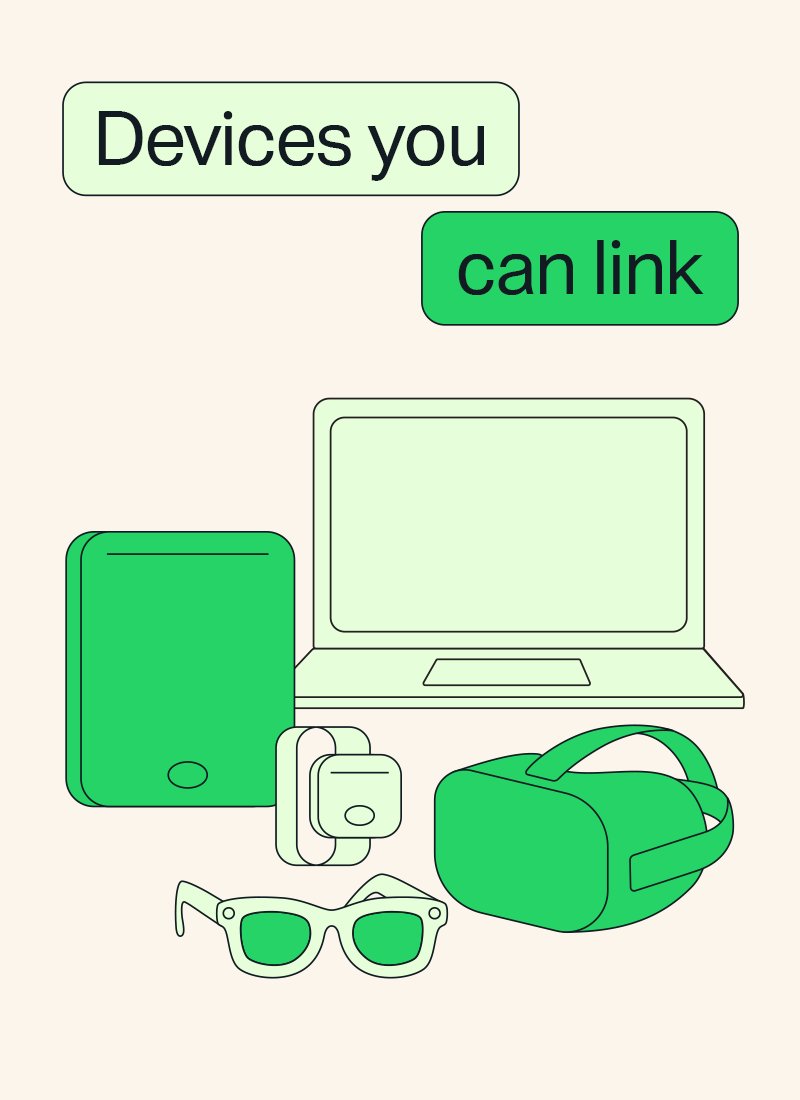
You can link up to four devices at the same time to one primary phone. Supported linked devices include Windows, Mac, WhatsApp Web, iPad, Android tablets and Wear OS watches.