Microsoft shipped the first Canary and Dev builds of its Chromium-based Edge on April 8, 2019, through what it called the Microsoft Edge Insider Channels. Canary updated daily and Dev weekly, and both ran on Windows 10. The new Edge came with its own add-ons store, but some popular extensions were not easy to find there at first. uBlock Origin was one of them: a store page for it existed, but you had to open the listing directly rather than find it by browsing.
Install uBlock Origin from its direct Edge Add-ons link
- Open Microsoft Edge (an Insider build in 2019, or any Chromium-based Edge).
- Go to the uBlock Origin listing on the Edge Add-ons site. Its address ends in odfafepnkmbhccpbejgmiehpchacaeak, the extension’s ID, and the publisher is Raymond Hill (gorhill).
- Select Get.
- Review the permissions in the prompt and select Add extension.
- A final prompt confirms the extension has been added, and the uBlock Origin icon appears next to the address bar.
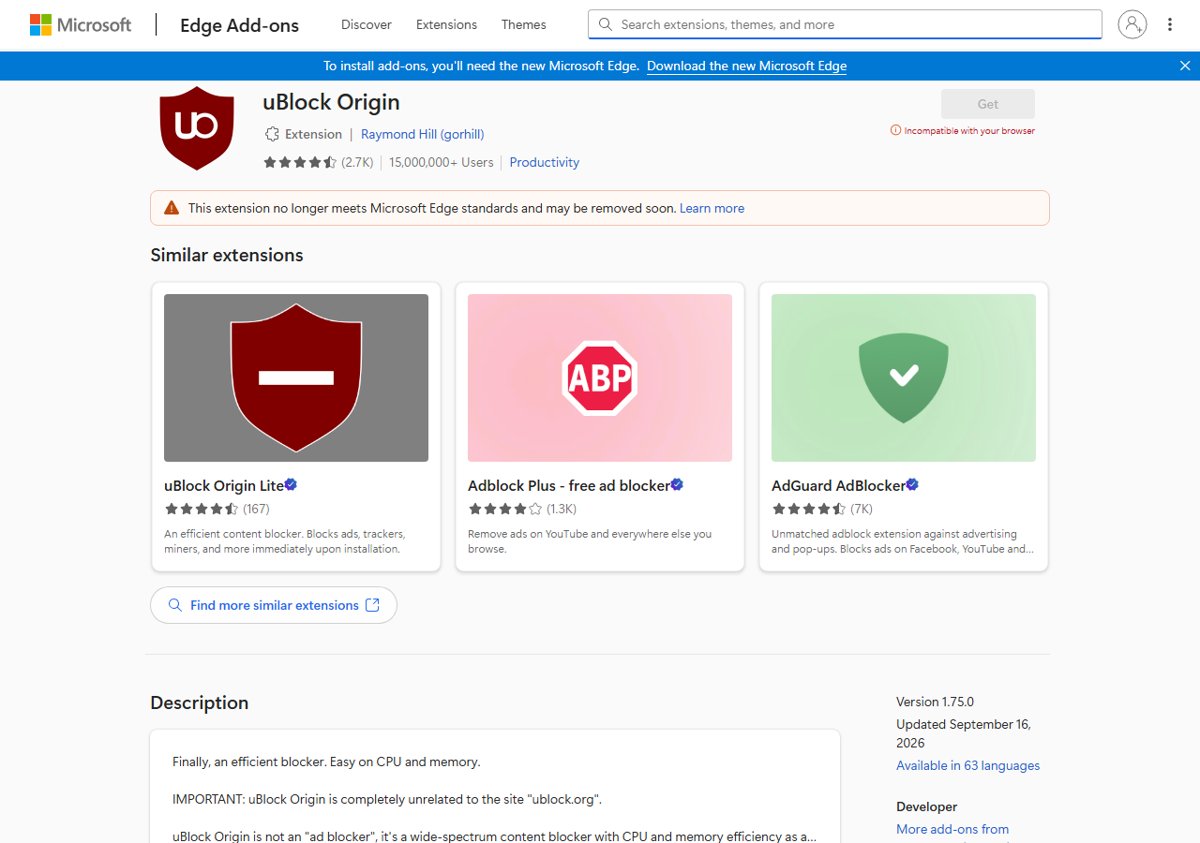
Always check the publisher name before installing. The Edge listing itself warns that uBlock Origin “is completely unrelated to the site ublock.org”. The genuine extension is free, open source under GPLv3, and loads the uBlock filters, EasyList, EasyPrivacy, Peter Lowe’s ad server list and the Online Malicious URL Blocklist out of the box.
Set up uBlock Origin after installing
uBlock Origin works straight away, but its dashboard has more to offer. Open the extension’s settings to add more filter lists, such as Annoyances for cookie warnings and overlays, or hosts-based lists. You can also point and click to block JavaScript on one site or everywhere, and write your own rules that override the filter lists. The developer describes it as a wide-spectrum content blocker with CPU and memory efficiency as its main goal, rather than just an ad blocker.
Install it from the Chrome Web Store instead
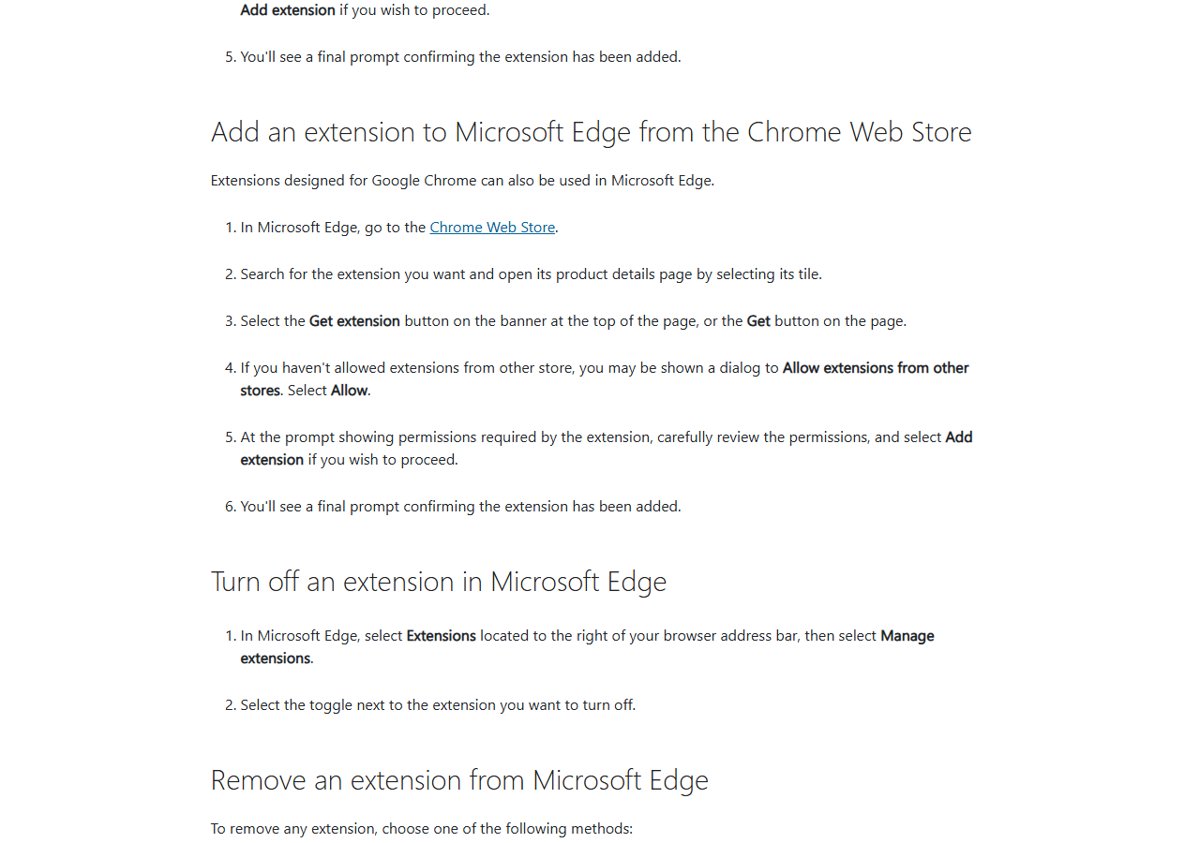
Because the new Edge is built on Chromium, it can also install Chrome extensions. Microsoft’s steps are:
- In Microsoft Edge, open the Chrome Web Store.
- Search for the extension and open its page.
- Select Get extension on the banner at the top, or the Get button on the page.
- If Edge asks to Allow extensions from other stores, select Allow.
- Review the permissions and select Add extension.
Today
The uBlock Origin listing is still on Edge Add-ons with more than 15 million users. It now carries a notice that the extension “no longer meets Microsoft Edge standards and may be removed soon”, and it shows as incompatible with current Edge. The store suggests uBlock Origin Lite, the developer’s newer version that blocks ads, trackers and miners as soon as it is installed. Our guide on adding uBlock Origin to Edge covers the current options. For other add-ons worth trying, see this list of Microsoft Edge extensions.