To scan a document to PDF in Windows 11 or Windows 10, scan each page with the Scan app as a JPEG or PNG image, then print those pages to Microsoft Print to PDF to get one PDF file.
Microsoft lists only JPEG, PNG, TIFF and Bitmap as the Scan app's file types, so this guide covers the scan itself, page order, the PDF step, checking the result and fixes for the usual failures. If the scan comes out too dark or too large, look at your Windows scanner settings before scanning again.
Scan the document with Windows Scan
This is the whole job in one list. Each step has its own section below if you need more detail.
- Turn the scanner on and place the first page face down on the flatbed, or load the pages in the document feeder.
- Right-click Start, select Search, type Windows Scan and select Scan under Apps.
- Pick your scanner in the Scanner list and set Source to Flatbed, Feeder or Auto-configured.
- Set File type to JPEG or PNG, then select Show more and choose a folder under Save file to.
- Select Scan, then Close, and repeat for every page that the feeder did not take.
- Open Microsoft Word, select Insert > Pictures > This device, and insert the pages in reading order.
- Select File > Print, choose Microsoft Print to PDF as the printer, select Print, and give the PDF a name and folder.
Word can also write the PDF directly with File > Save a Copy and PDF in the file-type list, which skips the printer step.
Prerequisites and compatibility
| Requirement | What to check | Why it matters |
|---|---|---|
| Windows version | Windows 11, or Windows 10 | Windows 10 support ended on October 14, 2025, so its drivers stop getting fixes |
| Scanner or all-in-one printer | Listed in Printers & scanners with Scanner settings on its page | The Scan app only sees scanners Windows has installed |
| Windows Scan app | Shows up as Scan when you search for Windows Scan | Free from Microsoft and installed from the Microsoft Store when missing |
| A tool that writes PDF | Microsoft Print to PDF, or Word's PDF save type | The Scan app saves images, not PDF files |
| Connection | USB cable at both ends, or the same Wi-Fi network (SSID) as the PC | A network scanner on another SSID never appears in the list |
Confirm that Windows can see the scanner
An all-in-one printer often appears only as a printer. The Scanner settings option on its page is the sign that Windows also installed the scanner half.
| Windows version | Where to look | What confirms the scanner |
|---|---|---|
| Windows 11 | Start > Settings > Bluetooth & devices > Printers & scanners | The scanner is listed, or the printer's page shows Scanner settings |
| Windows 10 | Start > Settings > Devices > Printers & scanners | The scanner appears in the list of printers and scanners |
| Not listed on either | Select Add device next to Add printer or scanner (Windows 11) or Add a printer or scanner (Windows 10) | Windows searches for a few minutes, then offers Add device next to the scanner |
If the scanner still does not show, work through connecting a scanner in Windows 11 before you go on.
Install Windows Scan if it is missing
Windows Scan is a free Microsoft app. If a search for it returns nothing, it is not installed yet.
- Right-click Start and select Search.
- Type Windows Scan and look under Apps for Scan.
- If nothing appears, open the Microsoft Store and search for Windows Scan.
- Open the Windows Scan listing from Microsoft and install it.
- Search for Windows Scan again and open Scan from the results.
Load the document correctly
| Scanner type | How to load the page | Source setting in Scan |
|---|---|---|
| Flatbed only | Face down on the glass, then close the cover | Flatbed |
| Document feeder (ADF) | Stack the pages in the feeder; check the scanner's manual for face up or face down | Feeder |
| Flatbed and feeder | Use either one; the feeder is faster for a stack of loose pages | Feeder or Flatbed to match, or Auto-configured |
Use the flatbed for stapled, torn or glossy pages. Wipe the glass first with a soft, lint-free cloth and a little glass cleaner, never sprayed straight onto the glass.
Choose the scanner, source, image format, and destination
These four settings sit on the Scan page of the app. Set them before every scan, because the wrong Source is the most common reason a scan fails.
| Setting | Options | Best choice for a PDF |
|---|---|---|
| Scanner | Every scanner Windows has installed | The scanner the pages are loaded in |
| Source | Flatbed, Feeder, Auto-configured | Auto-configured in most cases, or the exact place you loaded the paper |
| File type | JPEG, PNG, TIFF, Bitmap | JPEG for photos and small files, PNG for sharp text |
| Save file to | Any folder, shown after you select Show more | A new, empty folder for this document so the pages stay together |
If you do not pick a folder, the app saves to the Scans folder inside Pictures in your user folder.
Scan the pages
- Make sure the scanner is on and the first page is loaded.
- Select Scan at the bottom of the Scan app window.
- Wait for the scan to finish; the app saves it to your chosen folder automatically.
- Select View to check the page in the Photos app, or Close to finish this scan job.
- Load the next page on the flatbed and select Scan again.
- Repeat until every page of the document is saved in the folder.
Put pages in the intended PDF order
The PDF keeps whatever order the pages are in when you insert or print them, so fix the order now rather than after the PDF exists.
- Right-click Start and select File Explorer.
- Open the folder you picked under Save file to.
- Select View > Details so you can see each file's date and time.
- Rename each scan with a number in reading order, such as 01, 02, 03, so they sort correctly.
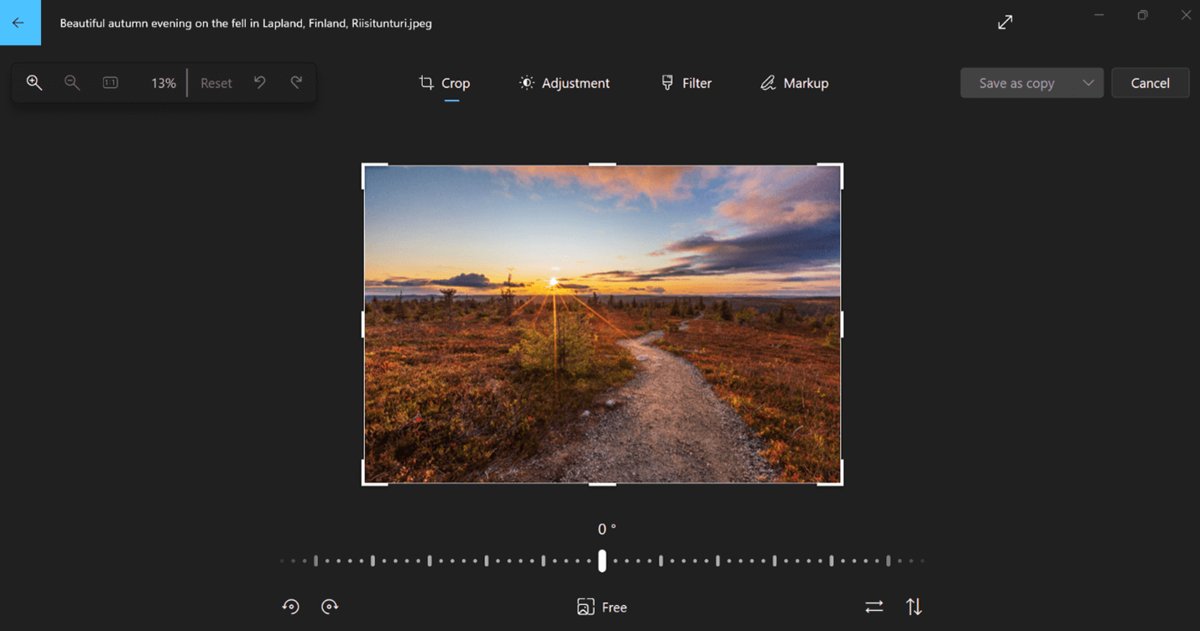
- Open any page that came out sideways in Photos, select Edit image (Ctrl + E), rotate it, and save it.
Create one PDF with Microsoft Print to PDF
This answers the question of how to put together multiple scanned pages into a PDF: place every page image in one Word document, then print that document to the built-in PDF printer.
- Open a blank document in Microsoft Word.
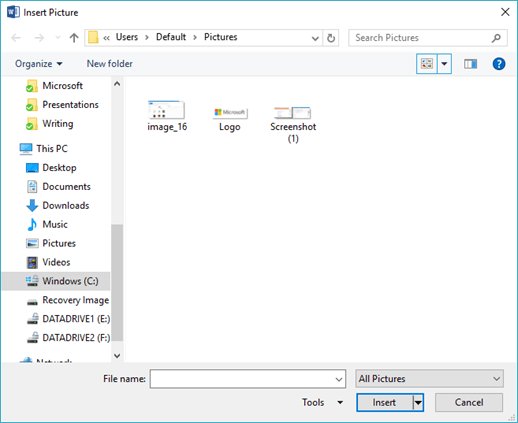
- Select Insert > Pictures > This device.
- Select the scanned page images in the folder and select Insert.
- Check that each image sits on its own page in the right order, and move any that are out of place.
- Select File > Print or press Ctrl + P.
- Choose Microsoft Print to PDF as the printer and select Print.
- Type a file name, pick a folder, and save the PDF.
To skip the printer, select File > Save a Copy, select Browse, choose PDF in the drop-down list and select Save. If Microsoft Print to PDF is not in the printer list, add the Microsoft Print to PDF printer first.
Verify that the PDF was created correctly
- Open the folder where you saved the PDF in File Explorer.
- Check that the file has a .pdf extension and a size above 0 KB.
- Double-click the PDF to open it in your PDF reader.
- Confirm the page count matches the number of pages you scanned.
- Scroll through every page and check the order, rotation and legibility of small text.
If one page is unreadable, rescan only that page, replace its image, and print the document to PDF again.
Alternate method: use the scanner manufacturer's app for direct PDF output
Microsoft's own help for Word suggests scanning to PDF with the scanner's software when you need a PDF in one step. Scanner makers' apps usually save multi-page and searchable PDFs directly, which the Scan app cannot.
| Your situation | Use this | Why |
|---|---|---|
| One or two pages, no extra software wanted | Windows Scan, then Microsoft Print to PDF | Everything is built into Windows or free from Microsoft |
| A long stack of pages in a feeder | The scanner maker's app with PDF output | One scan job produces one multi-page PDF |
| You need text you can search or copy | The maker's app with a searchable PDF option, at 200 to 300 dpi | Epson's guidance puts searchable PDFs at 200 to 300 dpi |
| An Epson scanner or all-in-one | Epson ScanSmart or Epson Scan 2 from Epson's support page | Epson's own scanning apps for its devices |
Epson owners can download Epson Scan 2 or Epson ScanSmart from Epson's support pages. On an HP all-in-one, you can scan straight from the HP printer with HP's own software instead. Keep resolution as low as gives readable text, because Epson notes a letter-size page at 300 dpi can reach 24 MB.
Windows Scan to PDF troubleshooting
Windows Scan does not list the scanner
Windows has not installed the scanner, or the scanner is on a different network or cable.
- Check the USB cable at both ends and try another USB port, or put the PC and scanner on the same Wi-Fi network.
- Open Printers & scanners and select Add device next to Add printer or scanner.
- If the scanner is part of a printer, open the printer's page and look for Scanner settings.
- Run the automated Printer troubleshooter in the Get Help app.
- Remove the device in Printers & scanners, add it again, and reopen the Scan app.
The Scan button is unavailable, or the scanner reports no paper
The Source setting does not match where the paper is, or no scanner is selected.
- Pick the scanner again in the Scanner list.
- Set Source to Feeder if the pages are in the feeder, or Flatbed if the page is on the glass.
- Reload the pages square against the feeder guides, or place the page face down on the glass and close the cover.
- Try Auto-configured if the explicit source still fails.
The scan is cropped, sideways, faint, or too large
Page placement, rotation, dirty glass or a high resolution in the scanner's own software.
- Line the page up with the corner mark on the glass and rescan to fix cropping.
- Open a sideways page in Photos, select Edit image, rotate it and save it.
- Clean the scanner glass with a soft, lint-free cloth and a little glass cleaner to fix faint or spotted scans.
- Choose JPEG instead of TIFF or Bitmap to cut the file size.
- In the maker's app, lower the resolution to 200 to 300 dpi for documents.
Microsoft Print to PDF is missing from the printer list
The Windows feature that provides the PDF printer is turned off or the printer was removed.
- Open Control Panel > Programs > Programs and Features > Turn Windows features on or off.
- Select the Microsoft Print to PDF check box and select OK.
- Restart the PC if Windows asks.
- Reopen Word and check the printer list again, or use File > Save a Copy with PDF instead.
The PDF contains only one page or the pages are in the wrong order
The Scan app saves one image per page, and only one image was inserted or they were inserted out of order.
- Open the Word document and count the inserted images against the scans in your folder.
- Insert any missing page with Insert > Pictures > This device.
- Rename the scans with numbers in reading order and insert them again if the order is mixed up.
- Print to Microsoft Print to PDF again and save over the old PDF.
Windows Scan to PDF FAQ
Can the Windows Scan app save directly as a PDF?
Microsoft lists JPEG, PNG, TIFF and Bitmap as the Scan app's file types, so plan on saving images. Turn them into a PDF with Microsoft Print to PDF or Word's Save a Copy as PDF, or use the scanner maker's app for direct PDF output.
How can I put together multiple scanned pages into a PDF?
Insert all the scanned page images into one Word document in reading order, then print it to Microsoft Print to PDF or save a copy as PDF. The result is one PDF with one page per scan.
Where does the Windows Scan app save scanned documents?
By default the Scan app saves to the Scans folder inside Pictures in your user folder. Select Show more and the link under Save file to before scanning to pick a different folder.
Is the Windows Scan app free?
Yes. Windows Scan is a free Microsoft app. If searching for Windows Scan from the Start menu shows nothing, install it from the Microsoft Store and it appears as Scan in your apps.
Does the Scan app work in Windows 10?
Yes. The Scan app runs on Windows 10 and Windows 11, and the scanning steps are the same. On Windows 10 the scanner is added from Settings > Devices > Printers & scanners instead of Bluetooth & devices.
Why does my all-in-one printer not show up in the Scan app?
Windows sometimes installs an all-in-one as a printer only. Open its page in Printers & scanners and look for Scanner settings; if it is missing, remove the device and add it again, or install the full driver from the maker.
Can I make a searchable PDF from Windows Scan?
Not from the Scan app alone, because it saves images. Use the scanner maker's software with a searchable PDF option at 200 to 300 dpi, or open the PDF in Word, which converts mostly-text pages into editable text.
What file type should I scan to before making a PDF?
Choose JPEG for small files and photos, or PNG for crisp text. TIFF and Bitmap produce much larger files and make the finished PDF bigger without making printed text easier to read.