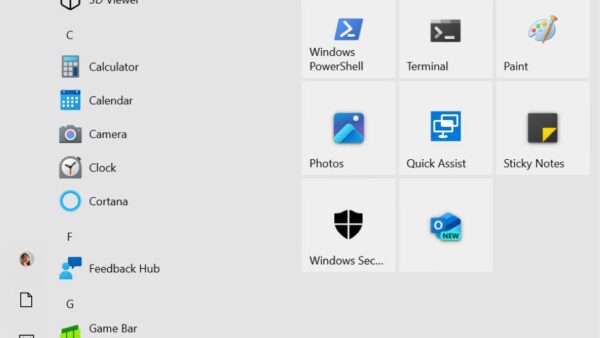
Microsoft Access is a database management system for Windows PCs that stores data in related tables and lets you build forms, queries and reports on top of it without being a developer.
This guide explains how Access works, what it is used for, how to get it, its real limits, how to create a first database and which Microsoft tools replace it when you outgrow it.
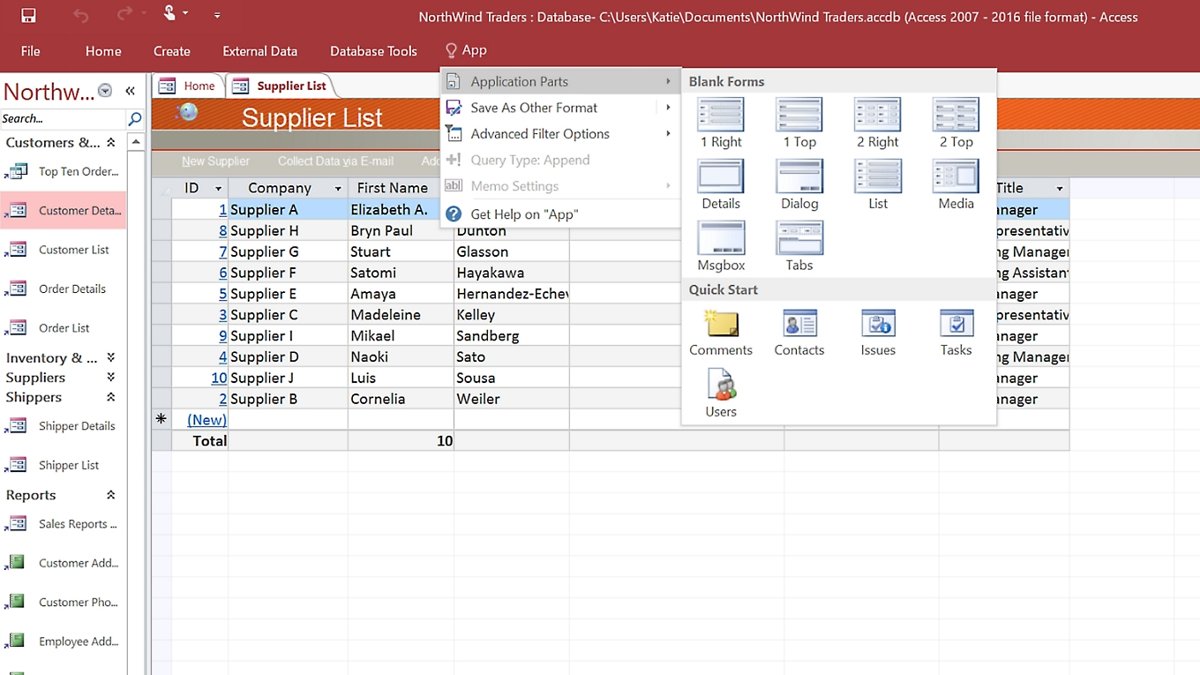
What is Microsoft Access?
Access is part of Microsoft 365 alongside Word and Excel, but it runs only on Windows PCs. A database you build in it is a single file with the extension .accdb; files from Access 2003 and earlier use .mdb.
Use Access when a spreadsheet list has grown into repeated, inconsistent data that several people need to enter, search and report on. Access keeps each fact in one table, links tables together, and gives you forms for data entry and reports for printing, which a single Excel sheet cannot enforce.
How Microsoft Access works
An Access database is a container of objects. Unless it is designed to link to outside data, it keeps all of them in one file.
| Object | What it does | Example |
|---|---|---|
| Table | Stores data in rows (records) and columns (fields), each field with a data type | An Employees table with first name, last name and address |
| Query | Retrieves and filters data from one or more tables; action queries add, update or delete data | All orders from one customer this year |
| Form | A data-entry screen with buttons and controls that limits what users can change | A Customer form with a button that opens a new order |
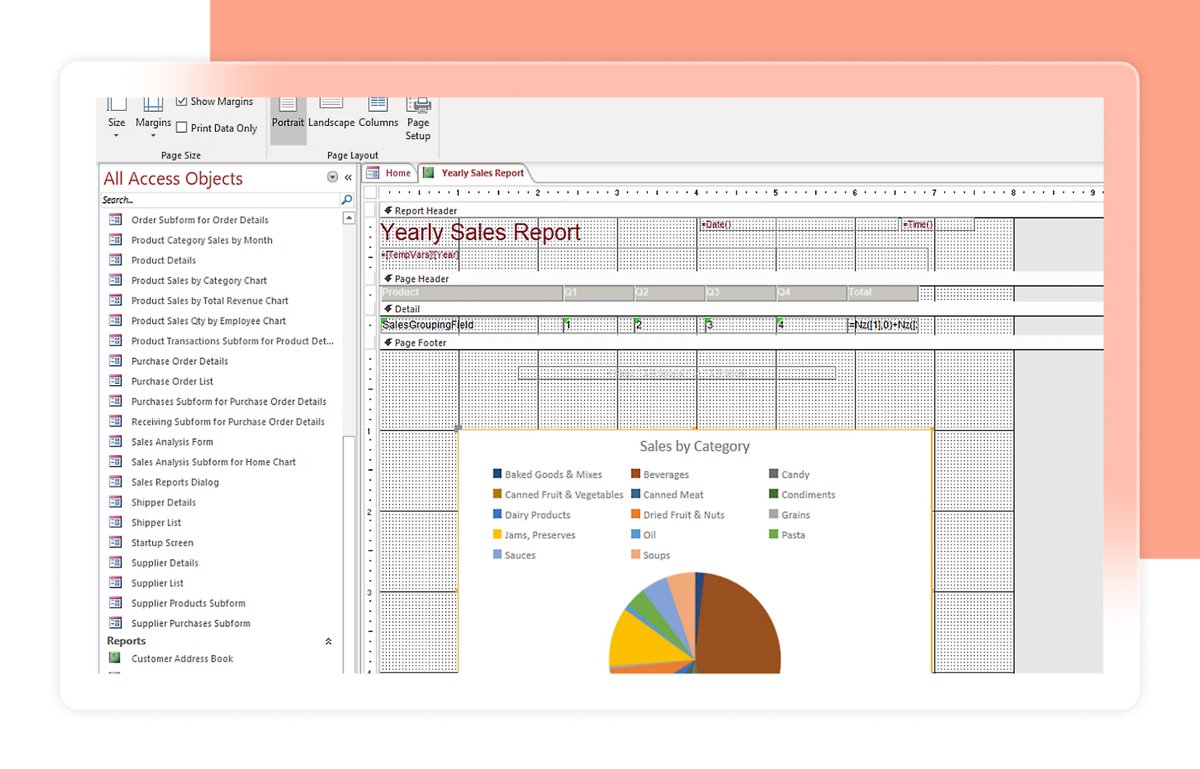
| Report | Formats and summarizes current data for screen, print, export or email | Revenue per customer this year |
| Macro | A list of actions that automates tasks without code | Open a report when a button is clicked |
| Module | VBA code for logic a macro cannot handle | A procedure that validates an order total |
Splitting data across tables so each record is entered once is called normalization. Queries then pull the related tables back together in one datasheet.
What is Microsoft Access used for?
| Use | What Access adds over a list |
|---|---|
| Inventory tracking | One database with products, locations and stock tables, edited through forms |
| Customer and order records | Each customer stored once and linked to many orders |
| Employee or member directories | Validated fields so dates, numbers and text are entered correctly |
| Small business reporting | Reports that always reflect the current data and can be printed or emailed |
| Front end for larger databases | Linked tables to SQL Server, Dataverse or SharePoint with Access forms and reports on top |
Microsoft describes the same jobs as adding, editing, deleting, organizing and sharing data through reports, email, an intranet or the internet.
Microsoft Access vs Excel: which should you use?
| Your situation | Use this | Why |
|---|---|---|
| One flat list, calculations and charts | Excel | A spreadsheet is faster for analysis of a single table |
| The same customer or product typed again on many rows | Access | Related tables store each item once and avoid inconsistent copies |
| Several people entering data with rules | Access | Forms control which fields can be edited and how |
| Printed summaries that must always be current | Access | Reports rerun against live data every time they open |
| You need to work on a Mac | Excel | Access is PC only |
Excel data imports easily into an Access table because both store rows and columns, so starting in Excel and moving later costs little.
Can I use Microsoft Access for free?
There is no free edition that lets you design databases. The free options either expire or only run databases someone else built.
| Option | Cost | What you can do |
|---|---|---|
| Microsoft 365 Personal free trial | Free for 1 month | Full Access on a Windows PC, then a paid subscription |
| Microsoft 365 Personal, Family or Premium | Paid subscription | Full Access (PC only) |
| Microsoft 365 Basic or free web apps | Free or low cost | No Access |
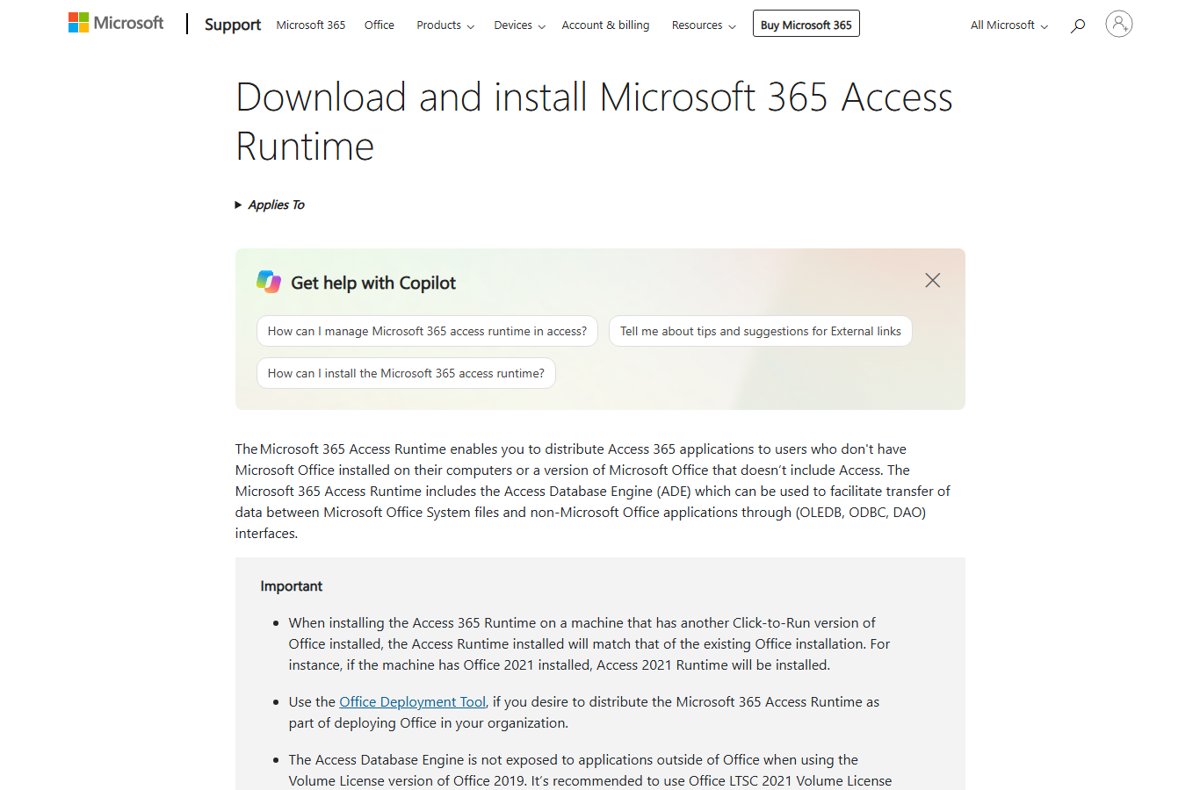
| Microsoft 365 Access Runtime | Free download, 32-bit or 64-bit | Open and use existing Access apps; all design tools are removed or disabled |
The Runtime is meant for distributing finished Access apps to people without Access, so it cannot create tables or forms. To get the full app, open Access in Office 365 if your plan already includes it, or get the Microsoft Access download for Windows.
Key features of Microsoft Access
| Feature | What it gives you |
|---|---|
| Templates | Ready-made databases with forms and reports, built in or from Office.com |
| Design tools | Build business apps from templates or from scratch without writing code |
| Microsoft 365 integration | Import from Excel, export reports, and run alongside Word and Outlook in the same plan |
| Multiple data sources | Link to tables in other Access files, SQL Server, SharePoint lists and Dataverse |
| Access SQL and queries | Select and action queries built in a design grid or written in SQL |
| Macros and VBA | Automation from simple action lists up to full code modules |
| Access Database Engine | ODBC, OLEDB and DAO drivers that let other programs read Access and Excel files |
Benefits of Microsoft Access
| Benefit | Why it matters for a beginner |
|---|---|
| Custom apps without coding | Forms, queries and reports come from wizards and templates |
| Efficient data management | Normalized tables stop duplicate and inconsistent entries |
| Data analysis and reporting | Queries filter across tables; reports summarize and print current data |
| Included in Microsoft 365 | Personal, Family and Premium plans already carry it on Windows |
| Room to grow | Data can move to SQL Server or Dataverse while Access remains the front end |
Drawbacks of Microsoft Access
| Limit | Detail |
|---|---|
| File size | 2 GB per database file, minus space for system objects; linking to other files is the workaround |
| Performance and scalability | 255 concurrent users at most, and every user works against one shared file; larger workloads move their tables to SQL Server |
| Fields per table | 255 |
| Platform | PC only; no Access app for Mac, and no mobile app |
| Web and mobile support | Access web apps and web databases were shut down in Microsoft 365 and SharePoint Online by April 2018 |
| Security | Database passwords are limited to 14 characters; cloud role-based security needs Dataverse |
Microsoft notes that hitting these limits usually points to a design problem, such as importing Excel data without normalizing it.
How to create your first Access database
- Open Access and select File > New.
- Select Blank database, or pick a template to start with ready-made forms.
- Type a name in the File Name box, and use the folder button beside it to change the save location.
- Select Create. Access opens an empty table named Table1 in Datasheet view.
- Type data into the table or paste it from Excel.
- Save the table before closing it, because Access deletes an unsaved Table1 even if it contains data.
If a template adds sample records, select each record selector and choose Delete in the Records group on the Home tab. Use the Navigation Pane to open the template's other forms and reports.
Is Microsoft Access still relevant?
Microsoft shut down Access web apps and web databases in Microsoft 365 and SharePoint Online in 2018, but desktop .accdb databases were not affected. Microsoft says it continues to invest in desktop databases through data connectivity and database management features.
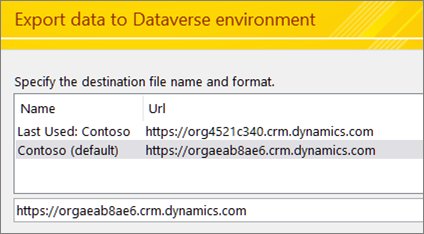
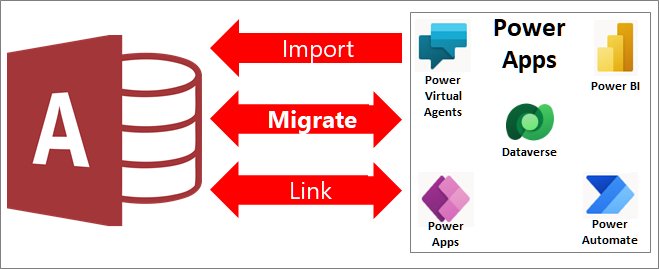
Access is still relevant for Windows-based, single-team databases, and for front ends over SQL Server or Dataverse data. For web, phone or Teams apps, Microsoft points new projects to Power Apps, and Access can share its data with Dataverse so both work on the same tables.
Alternatives to Microsoft Access
| Alternative | Best for | Note |
|---|---|---|
| Excel | Single lists, calculations and charts | Runs on Windows, Mac, web and mobile |
| Power Apps with Dataverse | No-code apps for web, phone, tablet and Teams | Microsoft's recommended replacement for Access web apps; needs a Power Apps plan |
| SharePoint lists | Shared lists inside Microsoft 365 | Access tables can be exported or moved to SharePoint |
| SQL Server | Larger databases and many users | Access can stay as the front end through linked tables |
| Access with linked cloud tables | Keeping existing forms and reports | Migrate data to Dataverse and keep editing it from Access |
Microsoft Access beginner FAQ
Is Microsoft Access free?
No. Access comes with paid Microsoft 365 Personal, Family and Premium plans, and the Personal plan has a one-month Microsoft 365 trial. The free Microsoft 365 Access Runtime only runs existing databases and has its design tools removed.
Is Microsoft Access available on Mac?
No. Microsoft lists Access as PC only in every Microsoft 365 plan. Mac users need a Windows PC or one of the alternatives such as Excel, SharePoint lists or a Power Apps app.
Is Microsoft Access included in Microsoft 365?
Yes, in Microsoft 365 Personal, Family and Premium, where it installs on Windows PCs only. Microsoft 365 Basic and the free web versions of the Office apps do not include Access.
What file type does Microsoft Access use?
Access for Microsoft 365, Access 2024, 2021 and 2019 save databases as .accdb files, the format introduced with Access 2007. Databases created in earlier Access formats use the .mdb extension.
How many users can use an Access database at once?
An Access database supports up to 255 concurrent users. In practice a shared file on a network slows down long before that, which is when moving the tables to SQL Server or Dataverse makes sense.
How big can an Access database get?
A single .accdb or .mdb file can hold 2 GB, minus the space Access needs for system objects. You can go beyond that by linking to tables in other Access files, each of which can be up to 2 GB.
Is Microsoft Access being discontinued?
No. Microsoft retired Access web apps and web databases in 2018 but states it continues to invest in Access desktop databases, and Access for Microsoft 365 still receives new versions.
Do I need to know programming to use Access?
No. Templates, wizards and the query design grid cover most beginner databases. Macros automate common tasks without code, and VBA modules are only needed for custom logic.
Bottom line: should a beginner learn Microsoft Access?
Learn Access if you work on Windows, already pay for Microsoft 365 and need a small multi-table database with forms and reports. It turns a messy spreadsheet into a structured database in an afternoon, and when you outgrow its 2 GB and 255-user limits, the same data moves to SQL Server or Dataverse.