"iPhone is findable" means the iPhone has shut down, usually from a flat battery, but Find My can still locate it, so the fix is to get real power into it: charge it from a wall outlet for an hour, then force restart it.
This guide explains the message, walks through Apple's charging and restart steps, and covers what to do when the phone stays on that screen, shows a liquid alert or won't show up in Find My.
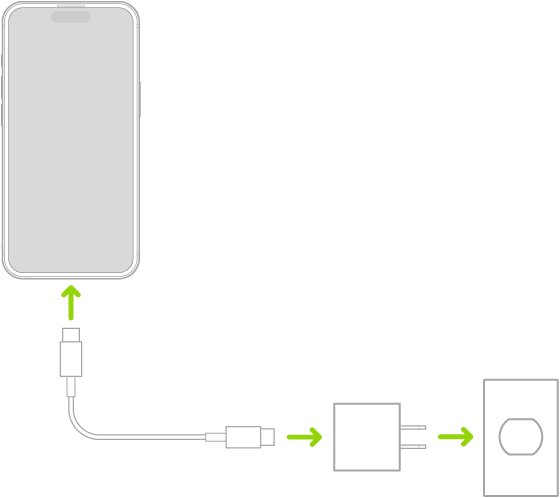
How to fix "iPhone is findable" when it won't charge
Work through these steps in order and give the iPhone time after each one. A deeply drained battery can show nothing for the first couple of minutes.
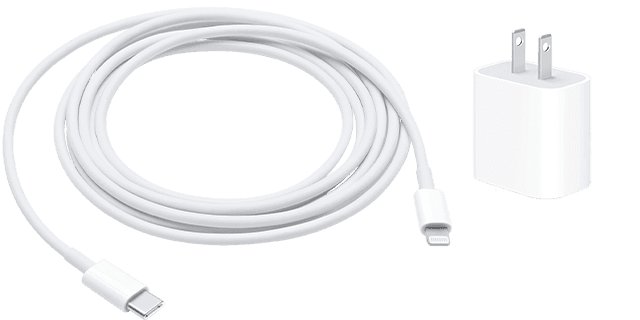
- Plug the iPhone into a wall outlet with a cable and power adapter you know work, not a laptop or a power strip.
- Push the cable firmly into the iPhone and the adapter firmly into the outlet.
- Leave it connected for one hour without pressing any buttons.
- If the screen still shows "iPhone is findable" or a low-battery icon, force restart it: press and quickly release volume up, press and quickly release volume down, then press and hold the side button until the Apple logo appears.
- Keep it on the charger for another 30 minutes, or until it starts.
- If it still won't power on or charge, try a different outlet, cable and adapter, then arrange service.
The Apple logo can take longer than 10 seconds to appear during a force restart, so keep holding the side button.
What does "iPhone is findable" mean?
The message is not an error. It is a reminder that the iPhone is switched off but the Find My network can still report where it is.
| Question | Answer |
|---|---|
| Why the message appears | The iPhone is off, usually because the battery ran out, and Find My network is turned on |
| How long it stays findable after it turns off | Up to 24 hours on a supported iPhone |
| How long it stays findable in power reserve mode | Up to 5 hours |
| What the Find My network is | A crowdsourced network of Apple devices that detect a device over Bluetooth and report its approximate location to the owner, anonymously and encrypted |
| What Send Last Location does | Sends the iPhone's location to Apple automatically when the battery becomes critically low |
| Does it stop the iPhone charging? | No. Find My does not block charging; a phone stuck on this screen has a power, cable, port, temperature or battery problem |
Why does my iPhone say "iPhone is findable" and not charge?
Plug the iPhone in, wait two minutes, then match what the screen shows to a row.
| What you see on the charger | Likely cause | What to do |
|---|---|---|
| Blank screen for the first two minutes | Battery extremely low; normal behaviour | Leave it charging and wait |
| Nearly empty battery image | Needs up to 10 minutes of charge before it can start | Keep charging, then press the side button |
| "iPhone is findable" screen that never changes | No power reaching the phone, or the phone is frozen | Swap the outlet, cable and adapter, then force restart |
| "Charging Not Available" or "Liquid Detected" | Liquid in the Lightning or USB-C connector | Unplug and let the port dry |
| "Charging On Hold" on the Lock Screen | iPhone too hot or too cold | Move it to a room between 32° and 95° F (0° and 35° C) |
| Nothing after cable, adapter and force restart changes | Battery or hardware fault | Arrange service |
1. Charge a completely dead iPhone for an hour
An iPhone that ran flat needs a few minutes of charge before it can even show the battery screen. Pressing buttons too early only makes it look dead.
- Connect the iPhone to a wall outlet with the charging cable and an Apple USB power adapter or another compatible adapter.
- Wait up to 2 minutes; an extremely drained iPhone can keep the display blank that long before the low-battery image appears.
- When the nearly empty battery image appears, leave it for up to 10 minutes more before trying to use it.
- Leave the iPhone charging for a full hour if it still won't turn on.
- Press and hold the side button until the Apple logo appears.
If you charge from a computer, the computer must be on. An iPhone connected to a computer that is turned off can drain instead of charge.
2. Force restart an iPhone stuck on "iPhone is findable"
A force restart clears a frozen screen without erasing anything. Do it while the iPhone stays connected to power.
| iPhone model | Force restart buttons |
|---|---|
| iPhone 8 or later, iPhone SE (2nd generation and later), all Face ID models | Press and quickly release volume up, press and quickly release volume down, then press and hold the side button until the Apple logo appears |
| iPhone 7 and iPhone 7 Plus | Press and hold the side button and volume down together until the Apple logo appears |
| iPhone 6s or earlier, iPhone SE (1st generation) | Press and hold the Home button and the side or top button together until the Apple logo appears |
If a low-battery icon appears instead of the logo, keep the iPhone charging for 30 minutes, or until it starts, and try again.
3. Check the cable, power adapter and charging port
Most phones that never leave the findable screen are getting no power at all. Change one part at a time so you know which one failed.
- Inspect the cable and adapter for breaks or bent prongs, and stop using anything damaged.
- Plug the adapter into a different wall outlet.
- Try a different cable that charges another iPhone.
- Try a different power adapter.
- Remove any debris from the charging port on the bottom of the iPhone without pushing anything sharp or wet into it.
- Reconnect the cable firmly and charge for 30 minutes.
If the port looks clean and other accessories still fail, the iPhone charging fixes for Accessory Not Supported alerts and 80% charge stops apply once the phone is back on.
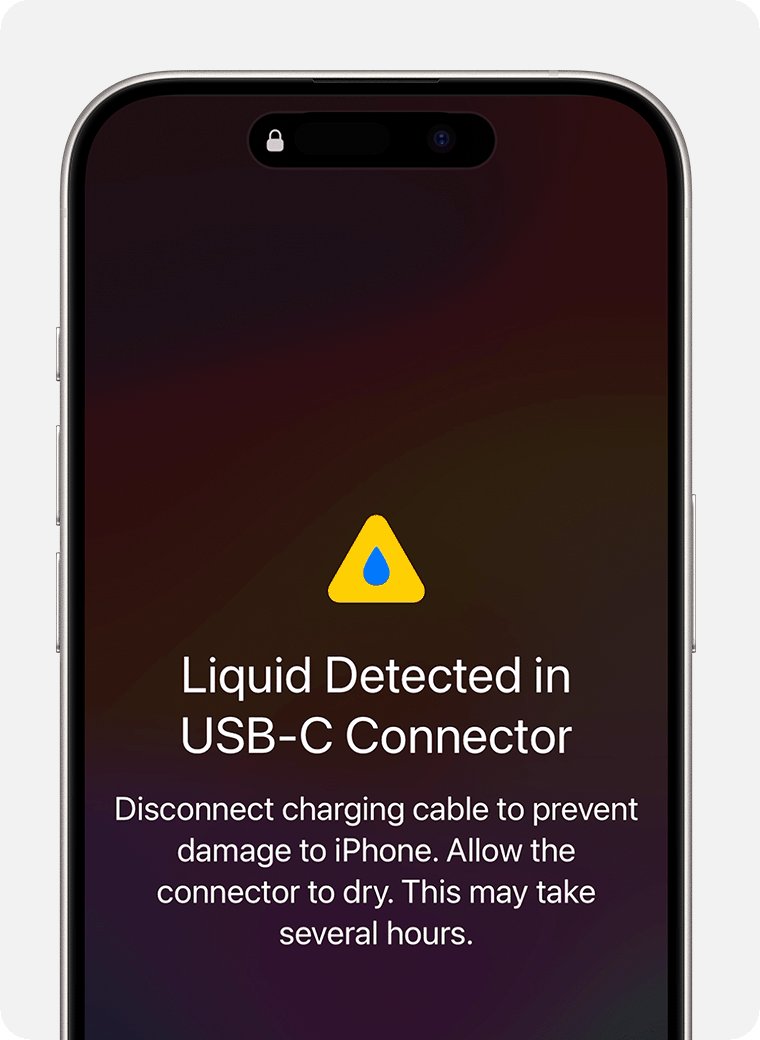
4. Dry the charging port after a liquid-detection alert
On iPhone XS, XS Max, XR and later, the phone blocks wired charging when it detects liquid in the Lightning or USB-C connector. That can leave a dead phone stuck on the findable screen.
- Unplug the cable from the iPhone and from the power adapter.
- Tap the iPhone gently against your hand with the connector facing down to remove excess liquid.
- Leave it in a dry area with some airflow for at least 30 minutes, then try the cable again.
- If the alert returns, leave it to dry for up to 24 hours, trying again during that time.
- Use a Qi-certified wireless charger in the meantime if you have one, with the back of the iPhone dry.
Do not dry the iPhone with a heat source or compressed air, do not push a cotton swab or paper towel into the port, and do not put it in rice.
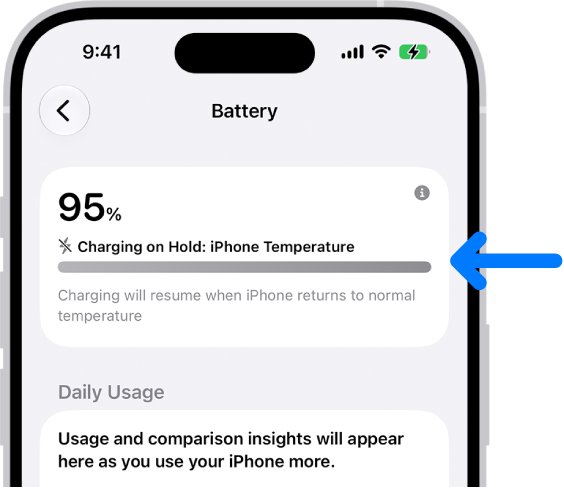
5. Charge the iPhone at a normal temperature
iPhone slows or stops charging when it is too warm, and charging can be slower or disabled in the cold. A phone that died outdoors may simply be waiting to warm up.
- Bring the iPhone indoors to a room between 32° and 95° F (0° and 35° C).
- Let a cold iPhone warm up gradually before plugging it in.
- Keep it out of direct sunlight and out of a hot car.
- Remove the case if the iPhone heats up while charging.
- Plug it back in; charging resumes automatically once the battery is back in its safe range.
How to check your iPhone is charging again
- Look for the charging bolt on the battery icon while the iPhone is connected.
- Wait for the Apple logo, then unlock the iPhone with your passcode.
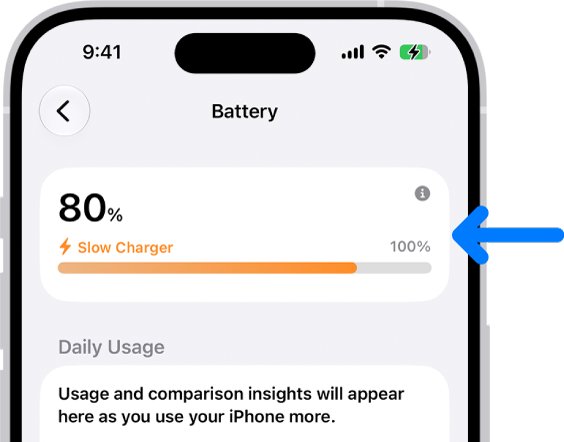
- Open Settings and tap Battery to see the current level and any Slow Charger message.
- Leave it connected for another 30 minutes and confirm the percentage has risen.
A Slow Charger message means the iPhone supports fast charging but the connected charger can't supply full power. A wired charger of 7.5 watts or less charges noticeably slower.
How to make your iPhone findable when off
These settings control whether the findable message appears and whether Find My can locate a powered-off iPhone.
- Open Settings and tap your name.
- Tap Find My, then tap Find My iPhone.
- Turn on Find My iPhone.
- Turn on Find My network so the iPhone can be located when it's offline or turned off.
- Turn on Send Last Location so the iPhone sends its location to Apple when the battery is critically low.
To stop the iPhone being findable, turn off Find My iPhone on the same screen, enter your Apple Account password and tap Turn Off. Leaving it on is safer: it also keeps Activation Lock protecting a lost phone.
iPhone is findable and won't turn on: fixes by symptom
iPhone says "iPhone is findable" but won't turn on
The battery is too low to boot, or the phone is frozen on the off screen.
- Charge from a wall outlet for one hour.
- Force restart using the buttons for your model.
- Charge for another 30 minutes, then press and hold the side button.
Phone plugged in still says "iPhone is findable"
No power is reaching the iPhone through the outlet, adapter, cable or port.
- Plug the adapter into a different wall outlet.
- Swap the cable, then the adapter, one at a time.
- Clear any debris from the charging port and reconnect firmly.
- Try a Qi-certified wireless charger to rule out the port.
iPhone died and won't charge after getting wet
Liquid detection has disabled wired charging until the connector dries.
- Unplug the cable at both ends.
- Leave the iPhone in a dry place with airflow for at least 30 minutes.
- Try again, and allow up to 24 hours if the alert keeps returning.
Can't find iPhone on Find My while it's dead
Find My shows the last known location only for a limited time.
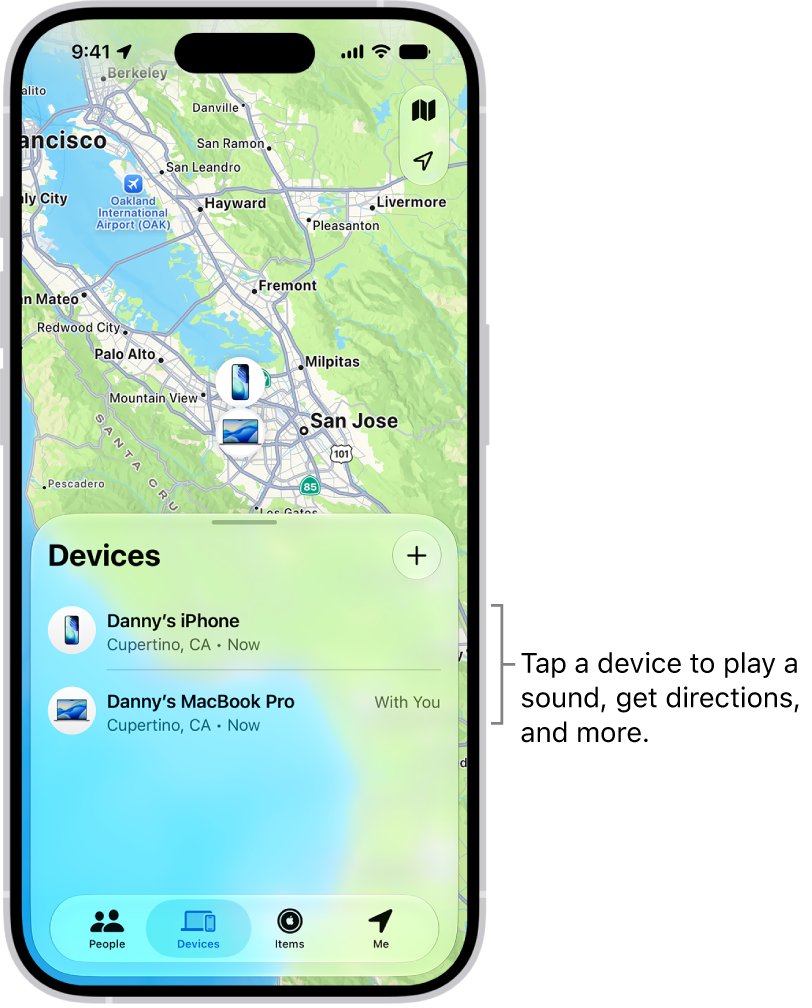
- Open Find My on another Apple device, or sign in to icloud.com/find.
- Tap Devices and select the iPhone to see its last known location.
- If it shows No location found, turn on Notify When Found under Notifications.
- Mark it as lost with Lost Mode while you search.
Find My iPhone location not available
More than seven days have passed since the iPhone last sent its location, or the iPhone is online but not sharing it.
- Check whether Find My shows No location found or Not sharing location • Online.
- For the online case, check that Location Services is on once you have the phone back.
- Update the iPhone to the latest iOS when it's working again.
"iPhone is findable" FAQ
Why does it say "iPhone is findable"?
It appears because the iPhone has turned off, usually from a flat battery, while Find My network is on. A supported iPhone can still be located for up to 24 hours after it turns off, or up to 5 hours in power reserve mode.
How do I fix "iPhone is findable"?
Charge the iPhone from a wall outlet for one hour, then force restart it. On Face ID models, press volume up, press volume down, then hold the side button until the Apple logo appears. Charge another 30 minutes if a low-battery icon shows.
Why won't my iPhone charge when it says "iPhone is findable"?
Find My does not stop charging. The usual causes are a dead outlet, a damaged cable or adapter, debris in the port, liquid in the connector or a phone that is too hot or cold. Swap one part at a time and charge for 30 minutes.
How long does it take a dead iPhone to start charging?
An extremely drained iPhone can show a blank screen for up to 2 minutes, then a low-battery image that needs up to 10 minutes of charge. Apple suggests charging for an hour before trying again if it won't turn on.
How do I make my iPhone findable when it's off?
Go to Settings, tap your name, then Find My and Find My iPhone. Turn on Find My iPhone and Find My network. Turning on Send Last Location also sends the iPhone's location to Apple when the battery becomes critically low.
Can I turn off the "iPhone is findable" message?
Yes, by turning off Find My iPhone in Settings, then entering your Apple Account password. That also stops you locating the phone if it is lost or stolen, so leaving it on is the safer choice.
Why can't I find my iPhone in Find My?
Find My shows a dead iPhone's last known location for up to seven days. After that it shows No location found. An iPhone that is online but has a Location Services problem shows Not sharing location instead.
Does "iPhone is findable" mean the battery is broken?
Not by itself. It only means the phone is off with Find My network on. If the iPhone still won't charge after an hour on a known-good charger and a force restart, the battery or charging hardware may need service.
Bottom line: what to do when an iPhone is findable but won't charge
Treat "iPhone is findable" as a dead-battery screen: charge from a wall outlet for an hour, force restart, then swap the cable, adapter and outlet before anything else. The message only confirms Find My can locate the switched-off phone. If the iPhone still won't power on or charge after those steps and a dry, room-temperature retry, Apple says it may need service, so book a repair rather than repeating the same charger.