To make Windows sign in automatically without asking for a password, set the AutoAdminLogon, DefaultUserName and DefaultPassword values in the registry, or enter your account once in Microsoft's free Sysinternals Autologon tool.
This guide covers both methods on Windows 11 and Windows 10, how to skip the password after sleep, how to check and undo auto login, and the cases where it silently stops working.
Enable Windows auto login via the registry
This is Microsoft's documented method, and it works on supported versions of Windows 11, Windows 10 and Windows Server. You need an administrator account and the password of the account that should sign in; if you no longer know it, reset the Windows password first.
Back up the registry first, because a wrong edit under the Winlogon key can stop sign-in from working.
- Press Windows key + R, type
regeditand press Enter, then select Yes at the User Account Control prompt. - Go to
HKEY_LOCAL_MACHINE\SOFTWARE\Microsoft\Windows NT\CurrentVersion\Winlogon. - Select Edit > New > String Value, name it
AutoAdminLogonand press Enter. - Double-click AutoAdminLogon, type
1in the Edit String box and select OK. - Double-click DefaultUserName, type the account's user name and select OK.
- Double-click DefaultPassword, type the account's password and select OK; if it is missing, create it as a new String Value first.
- On a domain-joined PC, add a DefaultDomainName string value set to the domain's fully qualified name, such as
contoso.com. - Close Registry Editor and restart the PC; Windows now signs in to that account on its own.
Leave DefaultPassword in place. If Windows finds no DefaultPassword value, it changes AutoAdminLogon from 1 back to 0 and auto login stops.
How to disable login password on Windows
Windows has no switch that simply deletes the sign-in step for an account that has a password. You either store the password so Windows types it for you, or replace it with a faster sign-in method.
| Your goal | Use this | What happens |
|---|---|---|
| Boot straight to the desktop with no prompt | Registry AutoAdminLogon method | Password is stored in the registry in plain text |
| Boot straight to the desktop, password not in plain text | Sysinternals Autologon tool | Password is stored as an encrypted LSA secret |
| No prompt after waking from sleep | Sign-in options away setting or the wake-password policy | Startup sign-in is unchanged; only resume skips the prompt |
| Stop typing a long password but keep a lock | Windows Hello PIN, face or fingerprint | You still sign in, but with a PIN or biometric |
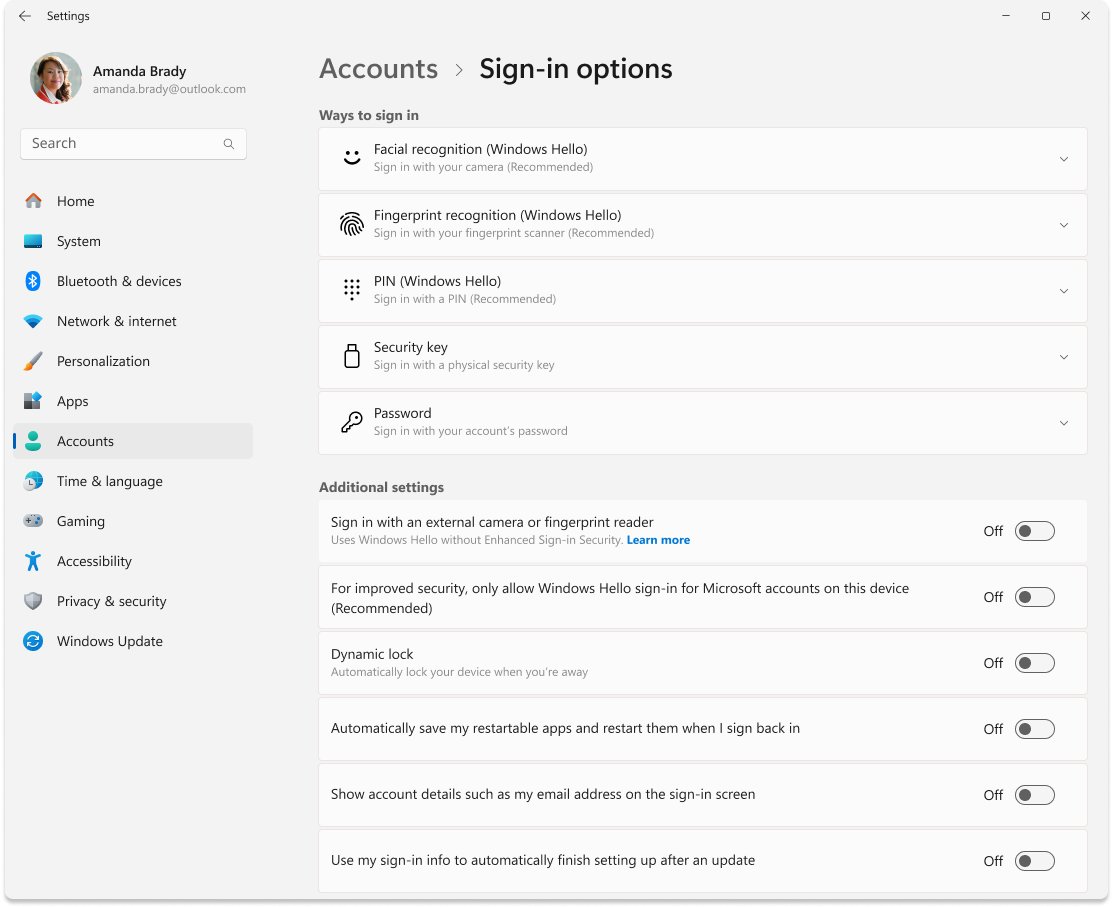
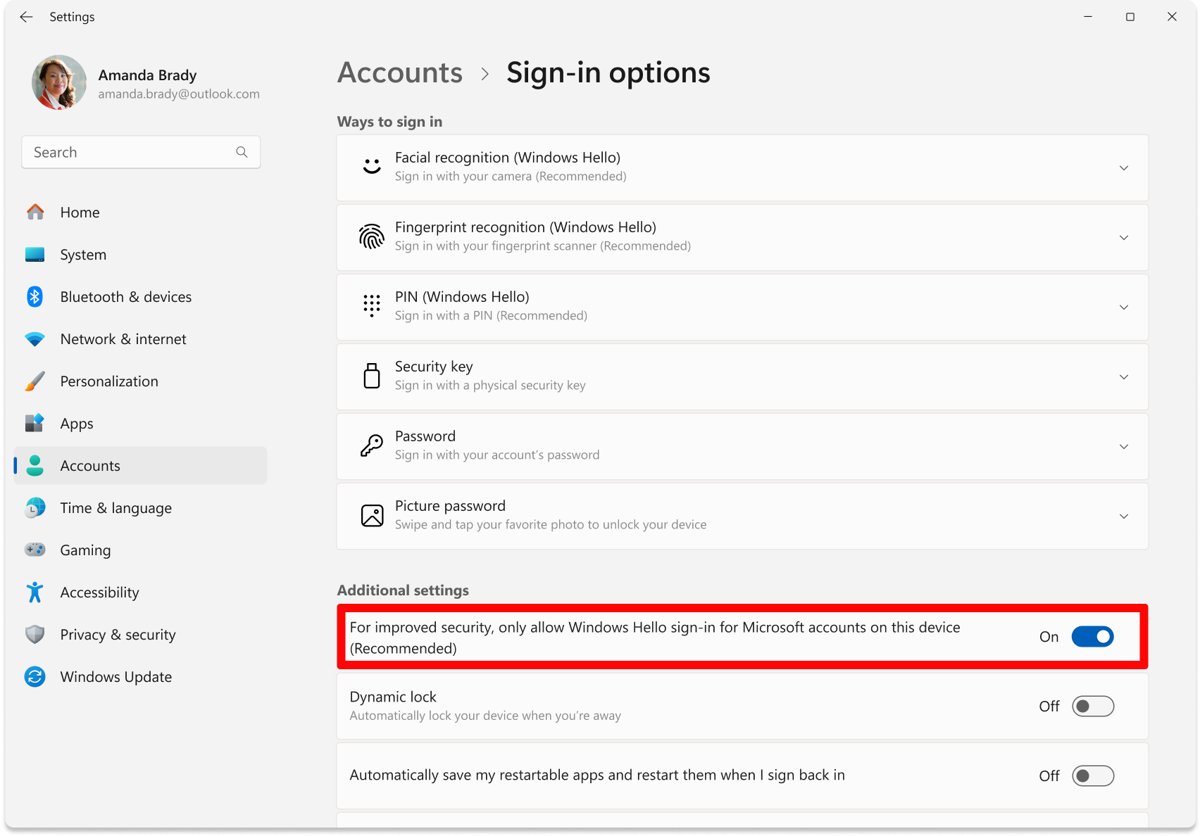
| Remove the password option from a Microsoft account | Only allow Windows Hello sign-in for Microsoft accounts on this device | Sign-in uses Windows Hello only; this is the opposite of auto login |
If a PIN is the real goal, you can change your Windows 11 PIN to something shorter and easier to type.
Windows auto login requirements and limits
| Requirement | Detail |
|---|---|
| Administrator rights | Needed to edit the Winlogon key or run Autologon |
| Account password | Windows stores it and replays it at startup; Autologon does not check it is correct |
| Domain-joined PC | Add DefaultDomainName with the domain's fully qualified name |
| Microsoft Entra joined only PC | Windows cannot delay auto login until the network is up, so the sign-in attempt fails |
| Logon banner policy | A legal notice set by local policy or Group Policy blocks auto login |
| Exchange ActiveSync password rules | Active EAS password restrictions block auto login on Windows 8.1 and later |
Enable auto sign-in to Windows with the Autologon tool
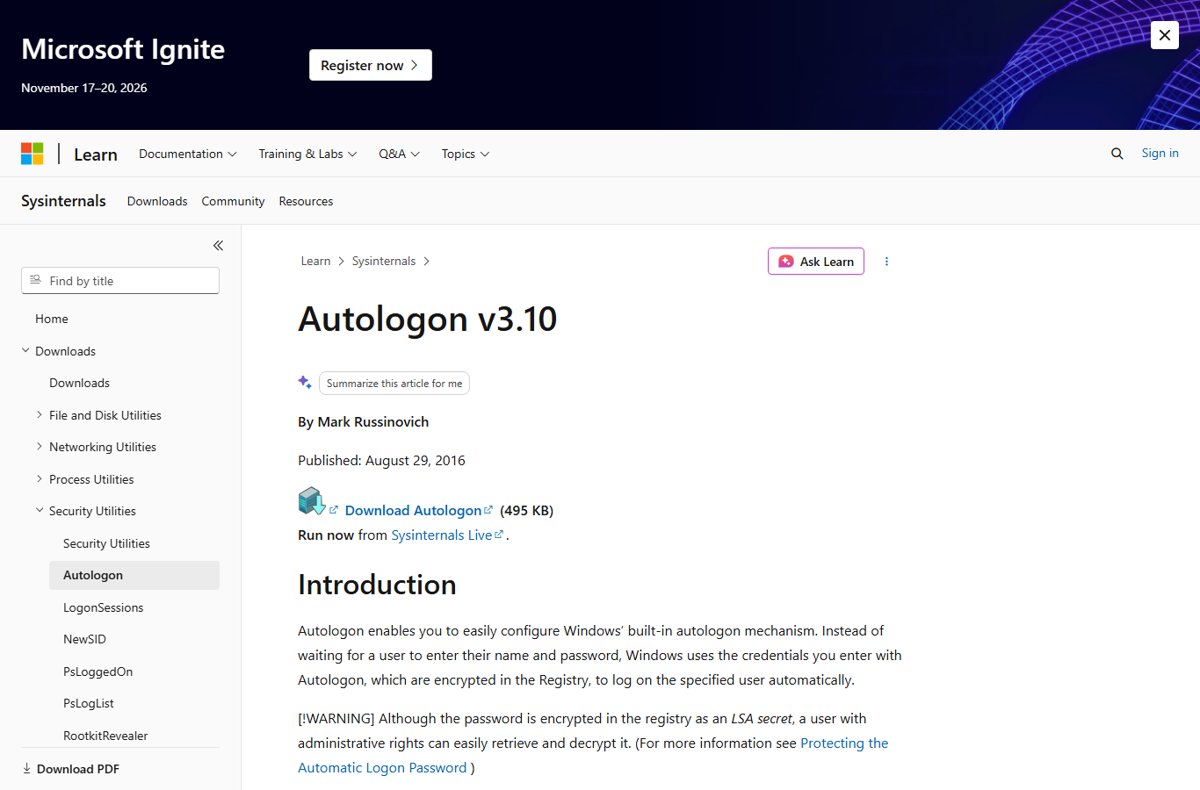
Autologon is a free Sysinternals utility from Microsoft that configures the same built-in auto login feature. It saves the password as an encrypted LSA secret instead of plain text in the Winlogon key.
- Open the Autologon page on Microsoft Learn (learn.microsoft.com/sysinternals/downloads/autologon) and get the tool from there.
- Run autologon.exe as an administrator.
- In the dialog, check the user name and domain of the account that should sign in.
- Type that account's password in the dialog.
- Select Enable.
- Restart the PC to confirm that Windows signs in to that account on its own.
For scripts, Autologon also accepts the details on the command line in the form autologon user domain password.
Administrators on the PC can still retrieve and decrypt the LSA secret, so treat this as better than plain text, not as secure storage.
Disable password after resuming from sleep/hibernation on Windows
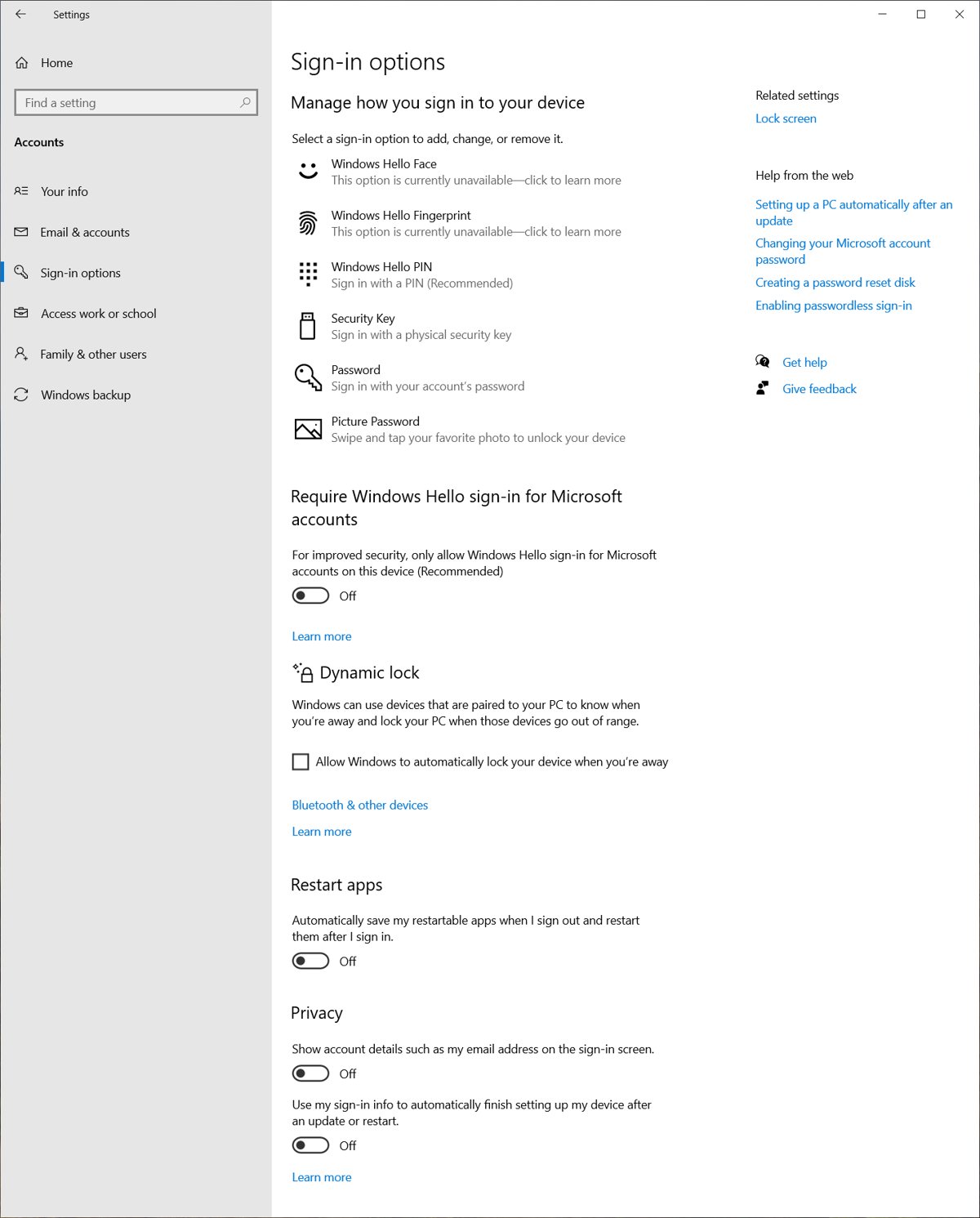
Auto login only covers startup and restart. Waking from sleep has its own sign-in setting in Settings.
- Press Windows key + I to open Settings.
- Select Accounts > Sign-in options.
- On Windows 11, go to Additional settings and find If you've been away, when should Windows require you to sign in again?
- On Windows 10, find Require sign-in on the same page.
- Open the list and pick the option that stops Windows asking for sign-in when the PC wakes.
- Put the PC to sleep and wake it to confirm the prompt is gone.
The option list is unavailable on some PCs managed by work or school policy, and on PCs that only allow Windows Hello sign-in.
Turn off the wake password with Group Policy
On Windows Pro, Enterprise and Education, two policies control the prompt on resume: one for battery and one for mains power. You can open Group Policy Editor from the Run box.
- Press Windows key + R, type
gpedit.mscand press Enter. - Go to Computer Configuration > Administrative Templates > System > Power Management > Sleep Settings.
- Double-click Require a password when a computer wakes (plugged in), select Disabled and select OK.
- Double-click Require a password when a computer wakes (on battery), select Disabled and select OK.
- Restart the PC so the policy applies.
Instead of restarting, you can also force a Group Policy update so the change applies right away.
Windows Home does not include the editor by default; you can enable gpedit.msc on Windows 11 Home or use the Settings route instead.
Check that Windows auto login works after a restart
- Save your work and select Start > Power > Restart.
- Leave the keyboard alone while Windows starts.
- Confirm the desktop of the chosen account loads without a password box.
- If the sign-in screen appears instead, open Registry Editor and check that AutoAdminLogon is still
1under the Winlogon key. - Check that DefaultUserName still holds the account you set, not another user.

Where Windows stores the auto login password
| Method | Where the password lives | Who can read it |
|---|---|---|
| Registry edit | DefaultPassword value under the Winlogon key, plain text | Anyone who can read the key; Microsoft notes the Authenticated Users group can read it remotely |
| Sysinternals Autologon | Encrypted LSA secret | Any administrator on the PC can retrieve and decrypt it |
| Windows Hello PIN | Not a stored password; the PIN is tied to the device | Not applicable to auto login |
Because of this, use auto login only on a PC that is physically secure and that untrusted users cannot reach over the network.
Turn off Windows auto login
- If you used the Autologon tool, run autologon.exe again and select Disable.
- If you used the registry, press Windows key + R, type
regeditand press Enter. - Go to
HKEY_LOCAL_MACHINE\SOFTWARE\Microsoft\Windows NT\CurrentVersion\Winlogon. - Double-click AutoAdminLogon, change the value to
0and select OK. - Right-click DefaultPassword, select Delete and confirm, so the plain-text password no longer sits in the registry.
- Restart the PC; the sign-in screen asks for a password again.
To skip auto login just once, hold Shift after signing out or while Windows restarts, then sign in as any user.
Windows auto login not working: fixes
AutoAdminLogon changes back to 0 after a restart
Windows found no DefaultPassword value and turned the feature off.
- Open the Winlogon key in Registry Editor.
- Create DefaultPassword as a String Value if it is missing and enter the password.
- Set AutoAdminLogon to
1again and restart.
Windows signs in to the wrong account or shows the sign-in screen
Another user signed in at the console, which rewrote DefaultUserName.
- Open the Winlogon key and set DefaultUserName back to the auto login account.
- Check DefaultPassword matches that account.
- On shared servers, set the correct user name from a shutdown script so it is restored each time.
Auto login is ignored when a legal notice appears at startup
A logon banner set by local policy or Group Policy overrides auto login.
- Ask the policy owner whether the logon message can be removed for this PC.
- Once the policy no longer applies, restart and test again.
Auto login fails on a work PC with mail policies
Exchange ActiveSync password restrictions block auto login by design on Windows 8.1 and later.
- Remove the EAS policies in Control Panel, if your organization allows it.
- Restart and check that the desktop loads without a prompt.
Auto login fails on a domain or Entra joined PC
Windows tries to sign in before the network connection to the sign-in servers is ready.
- On a domain PC, enable the Always wait for the network at computer startup and logon Group Policy.
- Confirm DefaultDomainName holds the full domain name.
- On a PC joined only to Microsoft Entra ID, expect the attempt to fail; Windows has no setting to delay it.
Is Windows auto login safe?
Use Windows auto login only on a PC that stays in a locked room or serves a single fixed purpose, such as a kiosk or media PC, and prefer the Autologon tool over the plain-text registry value. Anyone who can switch the PC on gets your account, your files and any network it reaches, and the stored password can be read back by other users or administrators.
On a laptop that leaves the house, a Windows Hello PIN or fingerprint saves almost as much time while keeping the device locked.
Windows auto login FAQ
Can I disable the login password on Windows completely?
Not with a single switch for an account that has a password. Windows can store the password and enter it for you through AutoAdminLogon or the Sysinternals Autologon tool, which gives the same result: the PC boots straight to the desktop.
Does Windows auto login work on Windows 11?
Yes. Microsoft documents the AutoAdminLogon registry method for supported versions of Windows client and Windows Server, which includes Windows 11 and Windows 10. The Sysinternals Autologon tool configures the same feature.
Is the auto login password stored in plain text?
With the registry method, yes. The DefaultPassword value under the Winlogon key is plain text, and Microsoft notes it can be read remotely by authenticated users. Autologon stores it as an encrypted LSA secret, though administrators can still decrypt it.
How do I sign in as a different user when auto login is on?
Hold the Shift key after you sign out or while Windows restarts. Windows skips the automatic sign-in for that one start, so you can choose another account on the sign-in screen.
Why does auto login stop working after I set it up?
The most common cause is a missing DefaultPassword value, which makes Windows reset AutoAdminLogon to 0. A logon banner policy, Exchange ActiveSync password rules or another user signing in at the console can also break it.
Does auto login also skip the password after sleep?
No. Auto login runs at startup and restart only. Waking from sleep uses the sign-in setting under Settings > Accounts > Sign-in options, or the Require a password when a computer wakes policies.
Does the Autologon tool check my password?
No. Autologon saves whatever you type without verifying the credentials or checking that the account may sign in to the PC. A typo shows up only at the next restart, when the sign-in screen appears instead of the desktop.
Can I use auto login on a domain-joined PC?
Yes. Add a DefaultDomainName string value set to the domain's fully qualified name. Enable the Always wait for the network at computer startup and logon policy so Windows reaches a domain controller before it tries to sign in.