To force quit on Windows, press Ctrl + Shift + Esc to open Task Manager, select the frozen app and select End task.
This guide covers that route on Windows 11 and Windows 10, plus Alt + F4, Ctrl + Alt + Delete, the taskbar End task option, the taskkill command and what to do when an app still will not close.
How to force quit on Windows
Task Manager ends a program even when its own window has stopped responding to clicks. It works the same way on Windows 11 and Windows 10.
- Press Ctrl + Shift + Esc to open Task Manager.
- Select Processes if Task Manager opens on another page.
- Under Apps, select the program that is frozen or marked Not responding.
- Select End task, or right-click the program and select End task.
- Check that the program's window has closed, then close Task Manager.
If the keyboard shortcut does nothing, open Task Manager another way, such as right-clicking Start and selecting Task Manager. Reopen the program normally once it has closed.
Which force quit method should you use on Windows?
| Your situation | Use this | Why |
|---|---|---|
| One app has frozen but Windows still responds | Ctrl + Shift + Esc > End task | Ends the app even when its window ignores clicks |
| The app's window is active and the app still responds | Alt + F4 | Closes the active window in one keystroke |
| The whole screen seems frozen | Ctrl + Alt + Delete > Task Manager | The security screen opens above the frozen app |
| Windows 11 and you use the mouse | Right-click the taskbar icon > End task | No Task Manager needed once the setting is on |
| Task Manager will not end it, or you want a shortcut | taskkill /im <name> /f |
Ends the process by name from Command Prompt |
| Nothing responds at all, including the keyboard | Force restart the PC | A last resort when no method reaches Windows |
Use Alt + F4 to close the active window
Alt + F4 closes the active window. If no windows are open, the same shortcut opens the shutdown prompt instead, so make sure the frozen app is the one in front.
- Click the frozen app's window, or press Alt + Tab until it is selected.
- Press Alt + F4.
- If the app asks whether to save your work, choose Save or Don't save.
- Wait a few seconds. If the window stays open, use Task Manager's End task instead.
Alt + F4 asks the app to close, which a hung app may ignore. Task Manager forces the close.
Try Ctrl + Alt + Delete when your screen is frozen
Ctrl + Alt + Delete switches to the Windows security screen, where you can lock the PC, switch user, sign out, change a password or open Task Manager. It often responds when a full-screen app or game has taken over the display.
- Press Ctrl + Alt + Delete.
- Select Task Manager.
- Select Processes, then select the frozen app under Apps.
- Select End task.
- If the screen stays black after the app closes, press Windows + Ctrl + Shift + B to wake the display.
Turn on End task in the Windows 11 taskbar
Windows 11 can add an End task option to the menu you get when you right-click an app on the taskbar. Microsoft added it in the October 31, 2023 preview update for Windows 11 version 22H2 and 23H2, and it is off until you switch it on.
- Open Start > Settings > System > For developers.
- Turn on End task.
- Right-click the frozen app's icon on the taskbar.
- Select End task.
Since the July 2024 preview update, End task no longer shows a not-responding dialog before it stops the app.
Force quit using Command Prompt with taskkill
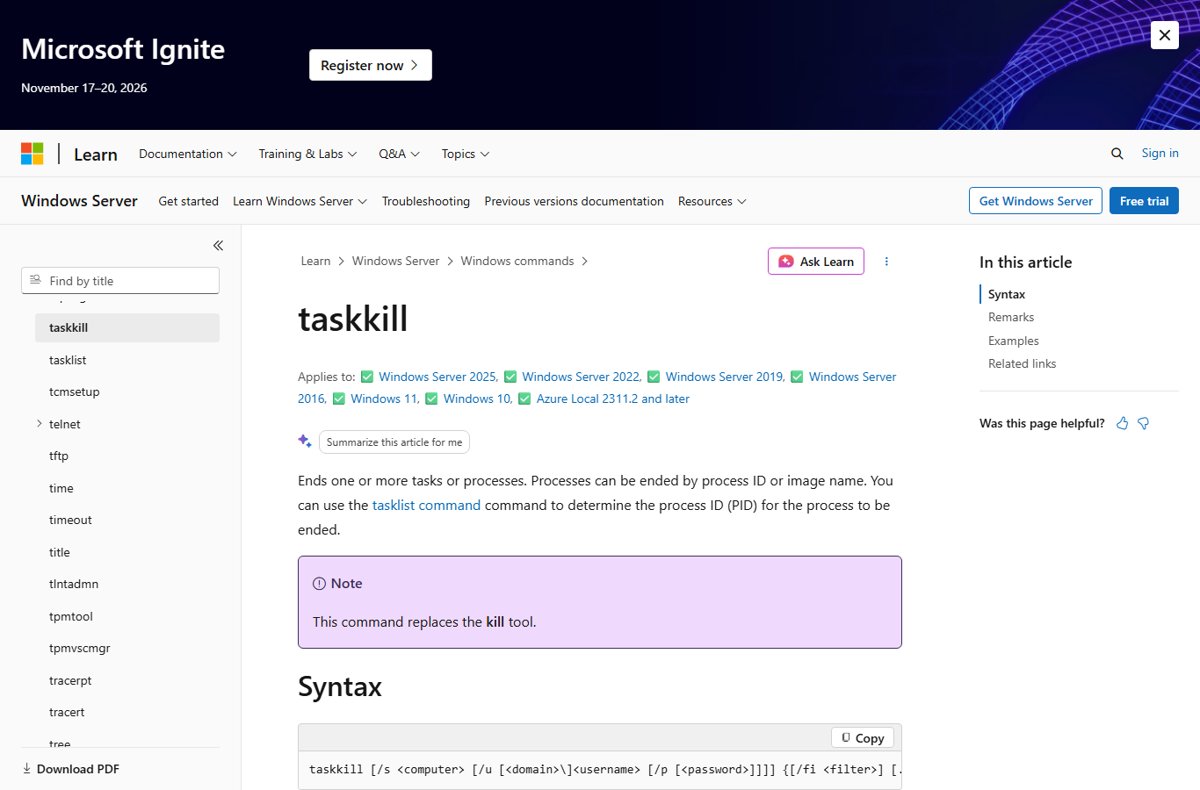
taskkill ends a process by its image name or process ID. The /f switch ends it forcefully, and /t also ends any child processes it started. Run tasklist first if you do not know the program's image name, since this Windows task management tool lists every running process.
taskkill /im notepad.exe /fOpen Command Prompt from Start, replace notepad.exe with the frozen program's file name and press Enter. /im names the program and /f forces it to end. Use /pid with the number from tasklist instead of /im to end one specific process.
You should see: Command Prompt reports that the process has been terminated, and the program's window disappears.
To end every program Windows marks as not responding in one go, run taskkill /f /fi "STATUS eq NOT RESPONDING" /im *. Save that line in a shortcut to reuse it.
Why do programs freeze on Windows?
A program shows Not responding when it stops handling input. Microsoft's own troubleshooting for Office apps names the usual causes.
| Cause | What happens | What to do |
|---|---|---|
| Add-ins and plug-ins | Add-ons conflict with the program that loads them | Start the program without add-ins, then re-enable them one at a time |
| Out-of-date files | Old program or Windows files misbehave | Install the latest app and Windows updates |
| Another task still running | The program waits on a long operation or another process | Give it a minute before you force quit |
| Conflicting background software | A service or startup program clashes with the app | Use a clean boot to find the conflict |
| Low memory or heavy work | Large files or many open programs exhaust resources | Close other programs and save files locally |
| Driver problems | Printer or video driver faults stall the app | Update the driver in Device Manager |
Is force quitting safe for your computer?
Force quitting is safe for Windows itself, but any unsaved work in that program is lost, so wait briefly and save first if the app still responds at all. End task and taskkill close the program without giving it the chance to save open documents.
Alternative solutions when an app keeps freezing
If the same app freezes again and again, repair or reset it. Repair keeps the app's data; Reset clears it.
- Open Start > Settings > Apps > Installed apps on Windows 11, or Apps > Apps & features on Windows 10.
- Select More next to the app on Windows 11, or select the app on Windows 10.
- Select Advanced options. Some apps do not have this option.
- Select Repair. If it is not available or does not help, select Reset.
- For a desktop program, open Control Panel, select Programs > Programs and Features, right-click the program and select Repair or Change.
Tips to prevent programs from freezing
- Install pending updates from Settings > Windows Update > Check for updates.
- Update the app itself, since updates replace out-of-date files.
- Turn off add-ins in the app that freezes, then re-enable them one at a time.
- Update printer and graphics drivers in Device Manager.
- Close programs you are not using so the busy app has memory to work with.
Feature and security fixes arrive through Windows Update, so it helps to force a Windows 11 update when one is waiting.
Force quit still not working on Windows?
Alt + F4 does not close the app on Windows 11
The app is hung and ignores the request to close.
- Press Ctrl + Shift + Esc.
- Select the app under Apps and select End task.
- If End task fails, run
taskkill /im <name> /fin Command Prompt.
Task Manager will not open
The shortcut is blocked by a full-screen app, or the keyboard is not reaching Windows.
- Press Ctrl + Alt + Delete and select Task Manager.
- Or right-click Start and select Task Manager.
- Press Windows + D to show the desktop if the frozen app covers the screen.
The whole computer is frozen and nothing responds
Windows itself has stopped responding, not just one app.
- Wait a minute in case Windows is finishing a heavy task.
- Press Windows + Ctrl + Shift + B if the screen is black.
- If nothing responds, force restart the PC. Unsaved work in every open app is lost.
Force quit on Windows FAQ
What is the keyboard shortcut to force quit on Windows?
Press Ctrl + Shift + Esc to open Task Manager, select the frozen app and select End task. Alt + F4 closes the active window, but a hung app can ignore it, so Task Manager is the reliable force quit.
How do you force quit on Windows 11?
Press Ctrl + Shift + Esc, select Processes, select the app under Apps and select End task. Windows 11 can also add End task to the taskbar right-click menu once you turn it on in Settings > System > For developers.
How do you force quit on Windows 10?
Press Ctrl + Shift + Esc or Ctrl + Alt + Delete and open Task Manager. Select the frozen program on the Processes tab and select End task. The taskbar End task option is a Windows 11 setting.
How do you force quit on Windows 11 using Alt + F4?
Click the frozen app's window so it is active, then press Alt + F4. If no window is active, Alt + F4 opens the shutdown prompt instead. When the app ignores it, use End task in Task Manager.
How do I force quit on Windows when the screen is frozen?
Press Ctrl + Alt + Delete, select Task Manager and end the frozen app. If the screen is black, press Windows + Ctrl + Shift + B. If nothing responds at all, force restart the PC as a last resort.
Will force quitting a program lose my unsaved work?
Yes. End task and taskkill close the program without saving, so changes since your last save are lost. Save often in any app that has frozen before.
How do I force quit a program using Command Prompt?
Open Command Prompt and run taskkill /im followed by the program's file name and /f, for example taskkill /im notepad.exe /f. Run tasklist first to find the exact file name or process ID.
Can I create a shortcut to force quit all frozen programs?
Yes. Create a desktop shortcut that runs taskkill /f /fi "STATUS eq NOT RESPONDING" /im *. The filter limits it to programs Windows marks as not responding, and /f ends them forcefully.
Can I force quit an app on a Windows computer without a keyboard?
Yes. Right-click Start and select Task Manager, then select the app and End task. On Windows 11, you can also right-click the app's taskbar icon and select End task after turning the option on.
Is force quitting safe for my computer?
Yes, ending a frozen app does not harm Windows. The only cost is unsaved work in that app. End only the app you meant to close, since ending the wrong program loses its unsaved work too.
Quick summary: how to force quit on Windows
Press Ctrl + Shift + Esc and use End task first; switch to Ctrl + Alt + Delete when the screen is frozen and to taskkill when Task Manager cannot end the app. Task Manager forces the close where Alt + F4 only asks, and it works the same on Windows 11 and Windows 10.