To create bootable Windows 10 USB install media, run Microsoft's Media Creation Tool, choose Create installation media (USB flash drive, DVD, or ISO file) for another PC, and pick a blank USB drive of at least 8 GB.
This guide also covers Rufus, Ventoy, a manual copy from the ISO, a Windows recovery drive, and what to do when the USB will not boot.
Create bootable USB drive of Windows 10 from Media Creation Tool
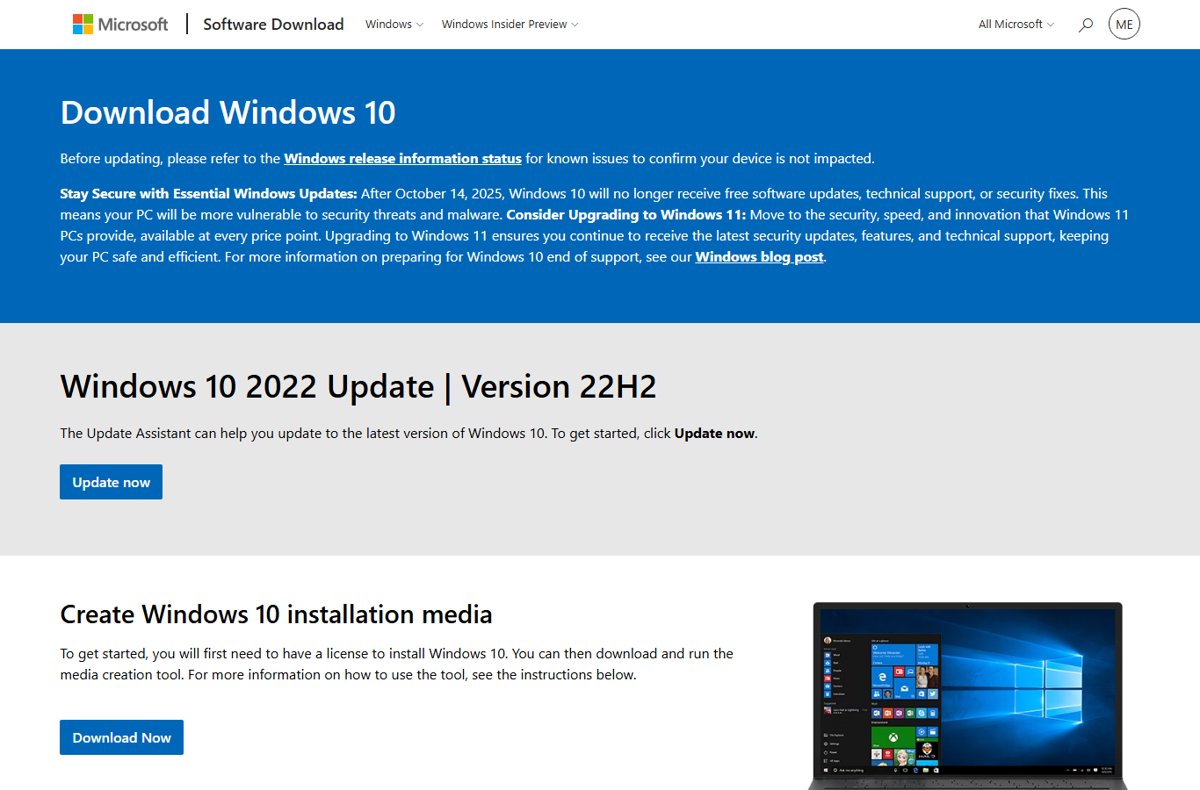
The Media Creation Tool is Microsoft's own route and downloads Windows 10 version 22H2 while it writes the drive. You need a Windows PC with an internet connection and a blank USB flash drive of at least 8 GB, because everything on it is deleted.
- Open
https://www.microsoft.com/en-us/software-download/windows10on a Windows PC. - Under Create Windows 10 installation media, select Download Now to get the Media Creation Tool.
- Plug in the USB drive, then run the tool as an administrator.
- Accept the license terms.
- On What do you want to do?, select Create installation media (USB flash drive, DVD, or ISO file) for another PC and select Next.
- Choose the language, edition and architecture (64-bit or 32-bit) that match the PC you will install on.
- Select USB flash drive, choose your drive from the list, and select Next.
- Wait until the tool reports that the USB flash drive is ready.
Windows 10 stopped receiving free security updates on October 14, 2025. The media still installs and activates Windows 10 with a valid license, but plan the move to Windows 11 if the PC qualifies.
How to create a bootable USB: which tool to use
| Your situation | Use this | Why |
|---|---|---|
| You want the simplest Microsoft-supported route | Media Creation Tool | Downloads Windows 10 and writes the USB in one tool |
| You already have a Windows 10 ISO file | Rufus | Writes an existing ISO to USB and runs without installation |
| You want several ISOs on one stick | Ventoy | Boots ISO files copied onto the drive |
| You do not want any extra software | Copy the ISO files manually | Disk Management, File Explorer, robocopy and Dism are built into Windows |
| You want to repair or reset this same PC later | Recovery Drive | Backs up the system files this PC needs, including maker customisations |
| You only need an ISO for a virtual machine or DVD | Media Creation Tool, ISO file option | No USB drive required |
What you need to make Windows 10 install media
| You need | Detail |
|---|---|
| A Windows PC with internet access | Download time depends on your connection |
| USB flash drive | At least 8 GB and blank; the drive is wiped |
| Windows 10 license | A 25-character product key, or a digital license that needs no key |
| Edition and language | Match the edition and language of the Windows the PC already has |
| Processor type | Check System type to choose 64-bit or 32-bit media |
| A backup of the target PC | A clean install removes the files and apps on the drive you install to |
Create bootable USB drive of Windows 10 from ISO
An official Windows 10 ISO file is useful when you want to write the USB later, keep a copy, or use Rufus, Ventoy or the manual method. The Media Creation Tool saves it for you.
- Run the Media Creation Tool, accept the terms and select Create installation media (USB flash drive, DVD, or ISO file) for another PC.
- Choose the language, edition and architecture, then select Next.
- When asked which media to use, select ISO file and select Next.
- Pick a folder on a drive with enough free space and save the file.
- Write the ISO to your USB drive with Rufus, Ventoy or the manual copy method below.
If you only want to upgrade the PC you are on, double-click the ISO to mount it and run setup.exe. No USB drive is needed for that.
Create bootable USB drive of Windows 10 from Rufus
Rufus is a free, open-source tool that formats a USB drive and writes a bootable ISO to it. It runs on Windows 8 or later without installation, and the official copy is digitally signed by Akeo Consulting.
- Save the Windows 10 ISO first with the Media Creation Tool's ISO file option.
- Open
https://rufus.ie/en/and download the build for your PC, usually the Windows x64 standard or portable version. - Plug in a USB drive of at least 8 GB that you can erase.
- Run Rufus and select the USB drive in its device list. Check the size so you do not pick an external hard drive.
- Select the Windows 10 ISO as the boot image.
- Keep the partition scheme that matches the target PC's firmware, UEFI or legacy BIOS.
- Start the write, accept the warning that the drive will be erased, and wait until Rufus reports it is ready.
The same tool can also create a Windows 11 26H2 USB if you move the PC to Windows 11 later.
Create bootable USB drive of Windows 10 from Ventoy
Ventoy is a free third-party tool that prepares a USB drive once, then boots any ISO file you copy onto it. It suits technicians who carry Windows 10, Windows 11 and Linux installers on one stick. Microsoft does not document it, so use the developer's own instructions for the current version.
- Save the Windows 10 ISO with the Media Creation Tool's ISO file option.
- Download Ventoy from its developer's official site and run its Windows installer.
- Select your USB drive in Ventoy and install Ventoy to it. This erases the drive.
- Copy the Windows 10 ISO file onto the Ventoy drive in File Explorer, like any other file.
- Boot the target PC from the USB drive and select the Windows 10 ISO in Ventoy's menu.
- Follow Windows Setup as you would from any other installer.
Create bootable USB drive of Windows 10 copying files to USB
This is Microsoft's manual method and uses only tools built into Windows. FAT32 lets the drive boot on both BIOS and UEFI PCs, but it cannot hold a file larger than 4 GB, so the large install.wim file is split.
- Connect the USB drive, right-click Start and select Disk Management.
- Right-click the USB drive's partition, select Format and choose the FAT32 file system.
- Right-click the partition again and select Mark Partition as Active. If that option is unavailable, mark it active with diskpart instead.
- Double-click the Windows 10 ISO in File Explorer so it mounts with a drive letter.
- If
sources\install.wimis 4 GB or smaller, copy the entire contents of the mounted ISO to the USB drive and stop here. - Otherwise, open Command Prompt and copy everything except the large file:
robocopy D: E: /s /max:3800000000, where D: is the mounted ISO and E: is the USB drive. - Split the image onto the drive with the Dism command in the next section.
Split install.wim for a FAT32 Windows 10 USB
Dism /Split-Image /ImageFile:D:\sources\install.wim /SWMFile:E:\sources\install.swm /FileSize:3800Run it in Command Prompt after the robocopy step. It splits the Windows image from the mounted ISO (D:) into 3,800 MB pieces in the USB drive's sources folder (E:).
You should see: The USB drive's sources folder contains the split .swm files. Windows Setup installs from these files automatically as long as the first one is named install.swm.
How to create a recovery drive for Windows 10
A USB recovery drive is different from install media. It backs up this PC's system files, installed updates and maker customisations, so it can restore that PC even after a drive replacement, but it does not include your personal files.
- Plug in an empty USB drive, because the process erases it.
- Search for Recovery Drive from Start and open it, or run
recoverydrive.exe. - Make sure Back up system files to the recovery drive is selected, then select Next.
- Select the USB drive and select Next.
- Select Create and wait; many files are copied, so this takes a while.
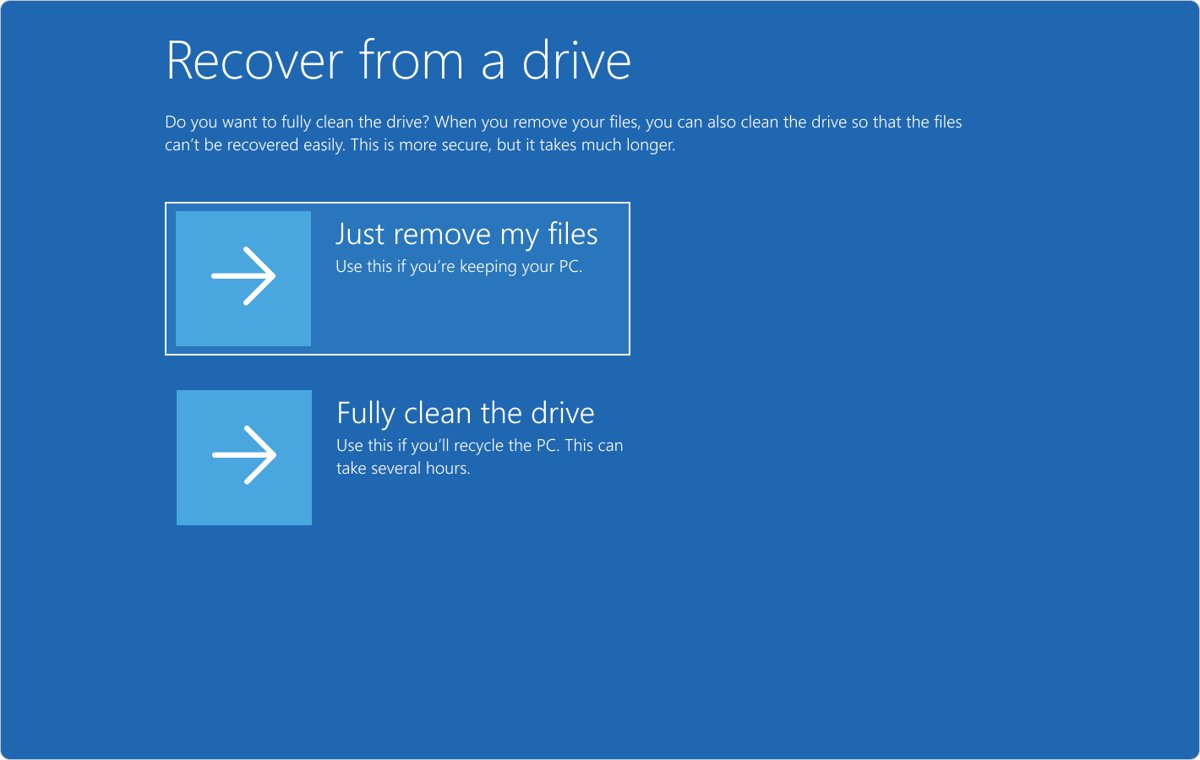
To use it, boot from the recovery drive, select Recover from a drive, choose Just remove my files or Fully clean the drive, and select Recover. Microsoft recommends recreating the drive once a year.
How to check the Windows 10 USB is bootable
- Open the USB drive in File Explorer and confirm it holds setup.exe and a sources folder.
- Plug the drive into the target PC and turn it on.
- Press the boot-menu key as the PC starts. It is often Esc, F10 or F12, depending on the maker.
- Select the USB drive from the list.
- Confirm Windows Setup opens and asks for language, time and keyboard settings. Close it if you are only testing.
Windows 10 bootable USB not working: fixes
The PC starts Windows instead of the USB
The PC is not set to boot from USB first.
- Shut the PC down fully, then turn it on and press the boot-menu key straight away.
- Select the USB drive in the boot menu.
- If the drive is not listed, check the PC maker's instructions for changing the boot order in BIOS or UEFI.
File too large for the destination file system when copying
FAT32 cannot store install.wim when it is larger than 4 GB.
- Copy everything except the image with
robocopy D: E: /s /max:3800000000. - Split the image with the
Dism /Split-Imagecommand above. - Check the first split file in the USB drive's sources folder is named install.swm.
The USB does not show up in a UEFI PC's boot menu
The drive was written with a partition scheme the firmware does not boot.
- Rewrite the drive in Rufus with the partition scheme for the target firmware, UEFI or legacy BIOS.
- Or recreate the drive with the Media Creation Tool, which handles the layout for you.
Setup asks for a product key
No matching key is stored in the PC's firmware.
- Enter your 25-character product key if you have one.
- If the PC had Windows 10 activated before, skip the key and choose the same edition; a digital license activates after setup.
- Make sure the edition you install matches the license, such as Home for a Home license.
Windows 10 bootable USB FAQ
How big does a USB drive need to be for Windows 10?
Use a blank USB flash drive with at least 8 GB of space. Microsoft sets 8 GB as the minimum for Windows 10 installation media, and the Media Creation Tool deletes everything on the drive when it writes the files.
Can I create a bootable Windows 10 USB from an ISO file?
Yes. Save the ISO with the Media Creation Tool's ISO file option, then write it with Rufus or Ventoy, or copy its contents to a FAT32 USB drive with Disk Management, robocopy and Dism.
Should a Windows 10 bootable USB be FAT32 or NTFS?
Microsoft's manual method uses FAT32, because FAT32 boots on both BIOS and UEFI PCs. FAT32 has a 4 GB file limit, so a larger install.wim is split into install.swm files with Dism.
Do I need a product key to create Windows 10 install media?
No key is needed to create the media. You need a license to install and activate Windows 10: a 25-character product key, a key embedded in the PC's firmware, or a digital license linked to the PC.
Is a recovery drive the same as Windows 10 installation media?
No. A recovery drive backs up one PC's system files, updates and maker customisations to restore that PC. Installation media holds a clean copy of Windows 10 that you can install on any compatible PC.
Can I still download Windows 10 after end of support?
Yes. Microsoft's Download Windows 10 page still offers version 22H2 and the Media Creation Tool. Windows 10 stopped receiving free security updates and technical support after October 14, 2025.
Does Rufus work on Windows 10?
Yes. Rufus runs on Windows 8 or later, including Windows 10 and Windows 11, and needs no installation. Download it only from rufus.ie and check that the file is signed by Akeo Consulting.
Bottom line: the best way to make Windows 10 USB install media
Use the Media Creation Tool unless you already have an ISO or need several installers on one drive; then use Rufus or Ventoy. The Media Creation Tool downloads the right Windows 10 files and builds a drive that boots on both BIOS and UEFI PCs. The manual copy method is the fallback when you cannot run extra software, and a recovery drive is for restoring this specific PC.