No. A Wi-Fi only iPad has no cellular radio and no SIM or eSIM support, so no carrier can add a data plan to it after you buy it.
This guide shows how to confirm which iPad you own, the ways to get a Wi-Fi only iPad online away from home, and how to switch to a Wi-Fi + Cellular model if you need built-in data.
Can a Wi-Fi only iPad get a data plan?
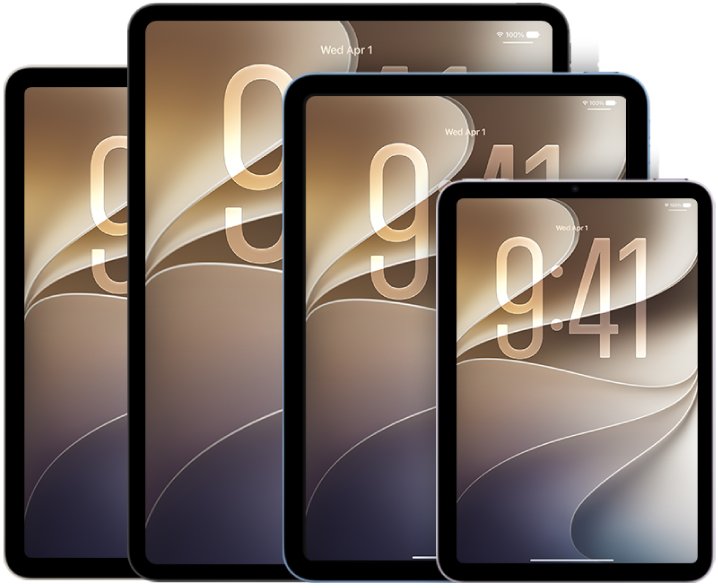
Apple sells every current iPad in two hardware versions: Wi-Fi and Wi-Fi + Cellular. Only the Wi-Fi + Cellular version contains the 5G or LTE modem and the eSIM or nano-SIM support a carrier plan needs.
Apple's own setup article for cellular service is titled for Wi-Fi + Cellular models, and it states that the cellular connection requires a SIM and a wireless data plan from a carrier. A software update, a carrier store or a SIM card cannot add the missing hardware.
You cannot add a data plan to a non-cellular iPad, now or later. Share a phone's connection with Personal Hotspot instead, or trade the iPad in for a Wi-Fi + Cellular model. Cellular data needs a modem, a SIM or eSIM, and GPS/GNSS hardware that Apple builds only into Wi-Fi + Cellular models.
Ways to get internet on a Wi-Fi only iPad away from Wi-Fi
| Your situation | Use this | Why |
|---|---|---|
| You carry an iPhone with a data plan | Personal Hotspot or Instant Hotspot from the iPhone | No new hardware; the iPad joins the phone like any Wi-Fi network |
| Your iPhone is signed in to the same Apple Account | Instant Hotspot with Auto-Join Hotspot | The iPad joins without a password and can connect automatically |
| A family member has the cellular plan | Family Sharing access to their Personal Hotspot | They allow your device once and you skip the password |
| You need data on the iPad itself every day | Trade in for an iPad Wi-Fi + Cellular model | Only that model accepts a carrier plan or an eSIM |
| You only travel with the iPad occasionally | Hotspot from a phone or a carrier mobile hotspot device | Cheaper than replacing a working iPad |
How to tell if your iPad is cellular or non-cellular
Before you look for a plan, confirm the model. Apple's model list pairs every model number with Wi-Fi or Wi-Fi + Cellular.
- Open the Settings app and tap General.
- Tap About.
- Find Model Number. The value shown first is the part number.
- Tap the part number once to show the model number, which starts with A (for example A3357).
- Look up that number on Apple's Identify your iPad model page. Each entry is labelled Wi-Fi or Wi-Fi + Cellular.
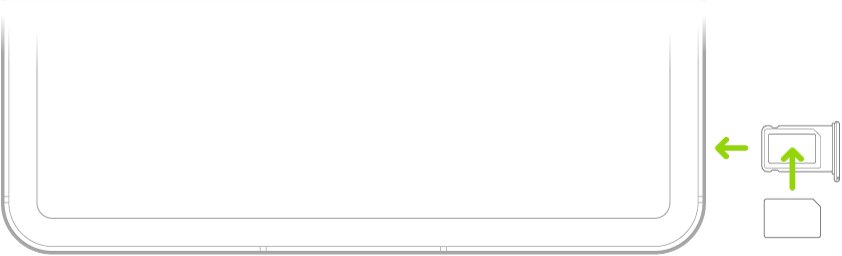
- On older models, also check the right edge of the iPad. Apple notes that Wi-Fi + Cellular iPad Pro models from before the M4 generation have a nano-SIM tray on the right side.
Recent iPad Pro models (M4 and M5) have no nano-SIM tray at all and use eSIM only, so a missing tray proves nothing on those. The model number is the reliable test.
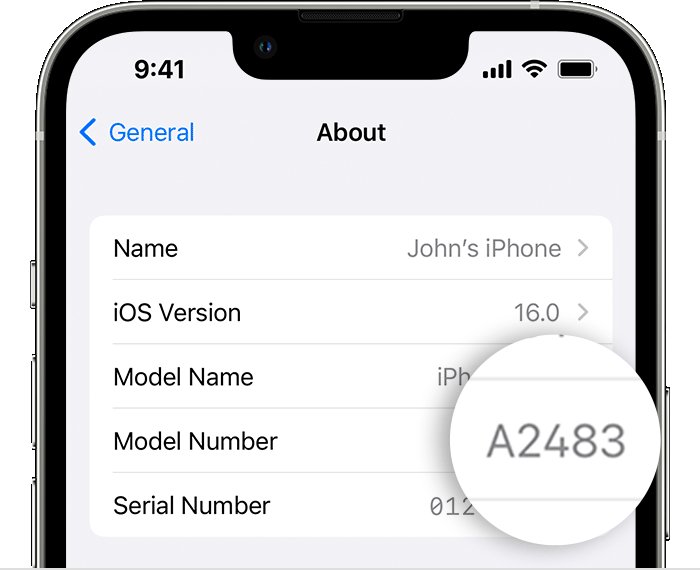
Difference between cellular and non-cellular iPad models
The two versions share the same chip, display and cameras. The differences are all in connectivity, and none can be added later.
| Feature | iPad Wi-Fi (non-cellular) | iPad Wi-Fi + Cellular |
|---|---|---|
| Wi-Fi and Bluetooth | Yes | Yes |
| 5G and LTE modem | No | Yes |
| eSIM or nano-SIM support | No | Yes (current models are eSIM only) |
| Carrier data plan | Not possible | Add to a phone plan, buy a short-term plan or pay as you go |
| GPS/GNSS | No | Yes |
| Cellular Data entry in Settings | Not applicable | Settings > Cellular Data to add or switch plans |
| Can share its own Personal Hotspot | No | Yes, with a carrier plan that includes hotspot |
| Can join another device's hotspot | Yes | Yes |
Apple's specifications for the iPad (A16) model list a weight difference of 4 grams between the two versions, because the cellular model carries the extra radio hardware.
Use iPhone Personal Hotspot on a Wi-Fi only iPad
Personal Hotspot turns an iPhone or Wi-Fi + Cellular iPad into a portable Wi-Fi network. Your carrier plan must include hotspot, and additional fees may apply.
- On the iPhone, open Settings and tap Personal Hotspot (or tap Cellular, then Personal Hotspot).
- Turn on Allow Others to Join.
- Note the Wi-Fi Password shown on that screen, and stay on the screen until the iPad connects.
- On the iPad, open Settings and tap Wi-Fi.
- Tap the name of the iPhone in the network list.
- Enter the hotspot password when prompted.
When you finish, turn off Allow Others to Join on the iPhone to avoid using data you did not intend to.
Connect a Wi-Fi iPad to iPhone automatically with Instant Hotspot
Instant Hotspot skips the password when both devices use the same Apple Account or belong to the same Family Sharing group. Allow Others to Join does not need to be on.
- Keep the iPhone and iPad near each other with Wi-Fi and Bluetooth turned on.
- Sign in to the same Apple Account on both devices.
- On the iPad, open Settings, tap Wi-Fi, then tap the iPhone's name to join it manually.
- To join automatically in future, tap Auto-Join Hotspot in the iPad's Wi-Fi settings.
- Choose Automatic to connect whenever no Wi-Fi is available, or Ask to Join to get a prompt first.
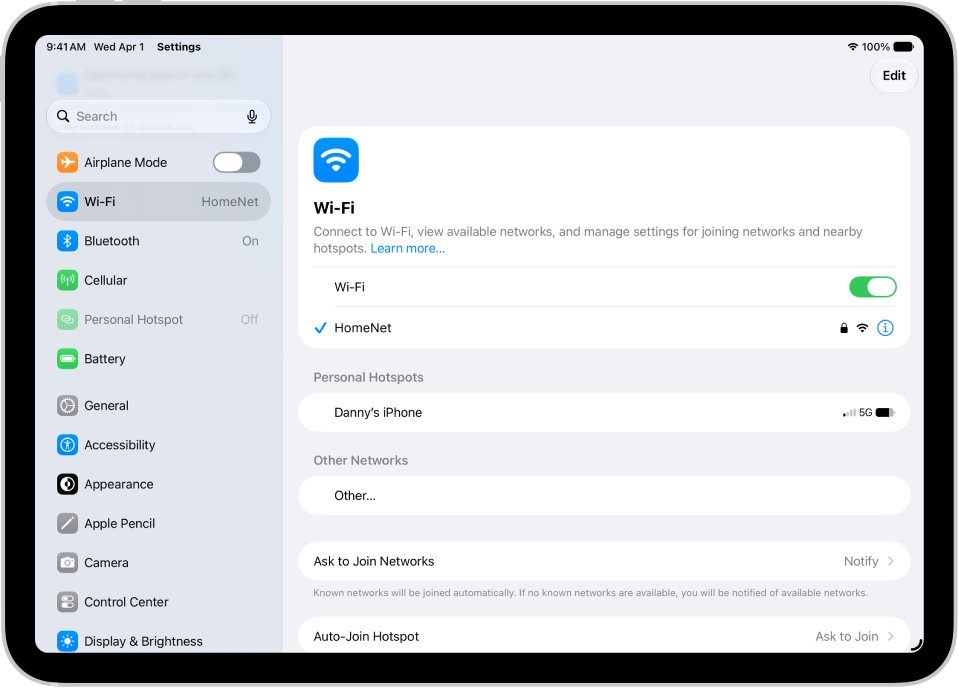
Let a family member's Wi-Fi iPad use your hotspot
If a child or partner has the Wi-Fi only iPad, Family Sharing lets it join your hotspot without the password.
- On the iPhone providing the hotspot, open Settings and tap Personal Hotspot.
- Tap Family Sharing and turn it on. If you do not see the option, set up Family Sharing first.
- Tap the family member's name.
- Choose Automatic to let their iPad join when needed, or Ask for Approval to approve each connection.
Trade in a Wi-Fi iPad for a cellular iPad model
If you need data on the iPad itself, the route is a different iPad. Apple Trade In gives credit toward a new device online or in an Apple Store, and recycles ineligible devices for free.
- Go to Apple's Trade In page and select iPad to get an estimate for your current model.
- Choose a new iPad and select the Wi-Fi + Cellular option before you add it to your bag.
- Add your trade-in device and check out.
- Back up the old iPad and follow the preparation steps in the trade-in confirmation email, which include a full factory reset of the iPad.
- Mail the old iPad in or drop it off at an Apple Store, as the email describes.
- On the new iPad, open Settings, tap Cellular Data, select a carrier and follow the onscreen steps to activate an eSIM plan.
Apple notes you can add an iPad Wi-Fi + Cellular model to an existing phone plan, pick a plan for a day, week or month, or pay as you go. Check pricing and compatibility with your carrier.
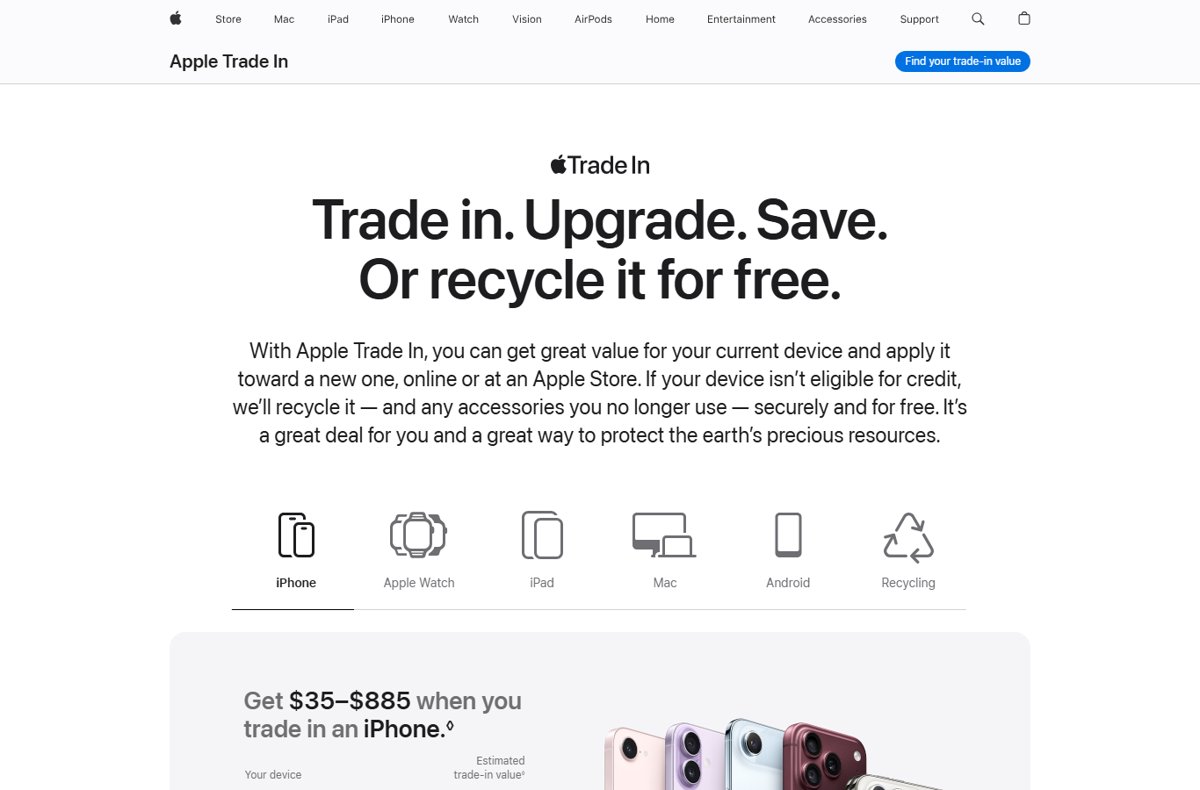
Check that your iPad is online through a hotspot
- Look at the iPad's status bar. When it is connected to a Personal Hotspot, the Wi-Fi icon changes to the Personal Hotspot icon.
- Open Settings > Wi-Fi and confirm a check mark sits next to the iPhone's name.
- Open Safari and load any web page to confirm data flows.
- On a Wi-Fi + Cellular iPad, open Settings > Cellular Data instead and confirm your plan shows under SIMs.
Fix iPad hotspot connection problems
Personal Hotspot is dimmed or missing on the iPhone
Cellular data is off, or the carrier plan does not include hotspot.
- On the iPhone, open Settings and tap Cellular.
- Turn on Cellular Data.
- If Personal Hotspot still does not appear, contact your carrier to confirm your plan supports it.
The iPad cannot see or join the iPhone's hotspot
The hotspot screen closed, Wi-Fi needs a restart, or the network needs a compatibility mode.
- On the iPhone, open Settings > Personal Hotspot and stay on that screen.
- On the iPad, turn Wi-Fi off and back on.
- On an iPhone 12 or later, turn on Maximize Compatibility in Personal Hotspot settings and try again.
- Restart both devices and install the latest iOS or iPadOS update.
The iPad shows a password error on the hotspot
The password typed does not match the one on the iPhone.
- On the iPhone, open Settings > Personal Hotspot.
- Read the Wi-Fi Password shown there.
- On the iPad, tap the network again and enter that password exactly.
iCloud backup or photo upload does not run on the hotspot
Apple notes that some features that require Wi-Fi might not work over a Personal Hotspot.
- Wait until the iPad is on a regular Wi-Fi network.
- Leave the iPad charging on that Wi-Fi network so the backup or photo upload can finish.
Non-cellular iPad data plan FAQ
What does non-cellular mean on an iPad?
Non-cellular means the iPad is the Wi-Fi model. It connects to the internet only through Wi-Fi, a hotspot or a wired adapter, because it has no cellular modem, no SIM or eSIM support and no GPS/GNSS hardware.
What is the difference between a cellular and non-cellular iPad?
A cellular iPad has a 5G or LTE modem and eSIM support, so it can take a carrier data plan and has GPS. A non-cellular iPad has only Wi-Fi and Bluetooth. Both can join an iPhone's Personal Hotspot.
Can I put a SIM card in a Wi-Fi only iPad?
No. Wi-Fi only iPads have no SIM tray and no eSIM, so there is nowhere to put a SIM and nothing to activate. Current Wi-Fi + Cellular models are also eSIM only, with no physical SIM tray.
How do I get cellular data on a Wi-Fi iPad?
Share the data from a phone instead. Turn on Personal Hotspot on an iPhone with a plan that includes hotspot, then join that network from the iPad's Wi-Fi settings. Instant Hotspot does it without a password on the same Apple Account.
Can you buy a cellular iPad without a plan?
Yes. Apple sells Wi-Fi + Cellular iPads with the data plan sold separately. You can use the iPad on Wi-Fi only and add a carrier plan later from Settings > Cellular Data whenever you need one.
Can you buy a cellular iPad without service and use it on Wi-Fi?
Yes. A Wi-Fi + Cellular iPad works on Wi-Fi like any other iPad. Without an active plan it simply has no mobile data, and you can activate an eSIM plan later on the device or through a carrier app.
Does a Wi-Fi only iPad have GPS?
No. Apple lists GPS/GNSS only under Wi-Fi + Cellular models. A Wi-Fi iPad estimates location using Wi-Fi networks and a digital compass, which is less precise away from known networks.
Can Apple upgrade my Wi-Fi iPad to a cellular model?
Apple does not offer any way to add cellular hardware to an existing iPad. The practical route is Apple Trade In: get credit for the Wi-Fi iPad and put it toward a Wi-Fi + Cellular model.
Bottom line: is a non-cellular iPad enough?
Keep the Wi-Fi iPad if you carry an iPhone with a hotspot-capable plan; trade it in for a Wi-Fi + Cellular model only if you need data, GPS or Find My precision on the iPad itself. A data plan cannot be added to a non-cellular iPad, but Personal Hotspot and Instant Hotspot give it internet anywhere your phone has signal at no hardware cost.