Open Settings > Windows Update > Advanced options > Optional updates, select the printer driver and select Download and install.
This guide covers that route, the manufacturer, Device Manager, Add Printer Driver Wizard and PnPUtil alternatives, and fixes when no driver shows up. Once a driver is in, your next stop for paper, quality and default options is printer options in Windows 11.
Step-by-step guide to installing optional printer drivers in Windows 11
Windows Update installs recommended drivers on its own, but optional drivers wait until you choose them. Connect and turn on the printer first so Windows can match a driver to it. A wireless model may need you to find the printer on your network before it shows up.
- Select Start > Settings > Windows Update > Advanced options.
- Turn on Receive updates for other Microsoft products if it is off.
- Under Additional options, select Optional updates.
- If driver updates are listed, tick the printer driver you want.
- Select Download and install and wait for the status to finish.
- Right-click Start, select Shut down or sign out > Restart, even if no restart is requested.
If the list is empty, Windows Update has no optional driver for your printer. Use one of the manual methods below.
Which way to install a printer driver in Windows 11
| Your situation | Use this method | Why |
|---|---|---|
| Windows Update lists a printer driver under Optional updates | Optional updates | Microsoft-signed driver matched to your hardware |
| Nothing under Optional updates, or you need scan and utility software | Manufacturer's website | Full software package for your exact model and Windows version |
| You already have extracted driver files | Device Manager > Browse my computer for drivers | Points Windows at a folder you choose |
| Older printer, other methods failed | Add Printer Driver Wizard | Pulls the latest driver list from Windows Update by manufacturer and model |
| Several PCs, or you prefer a command line | PnPUtil | Adds and installs an INF package in one command |
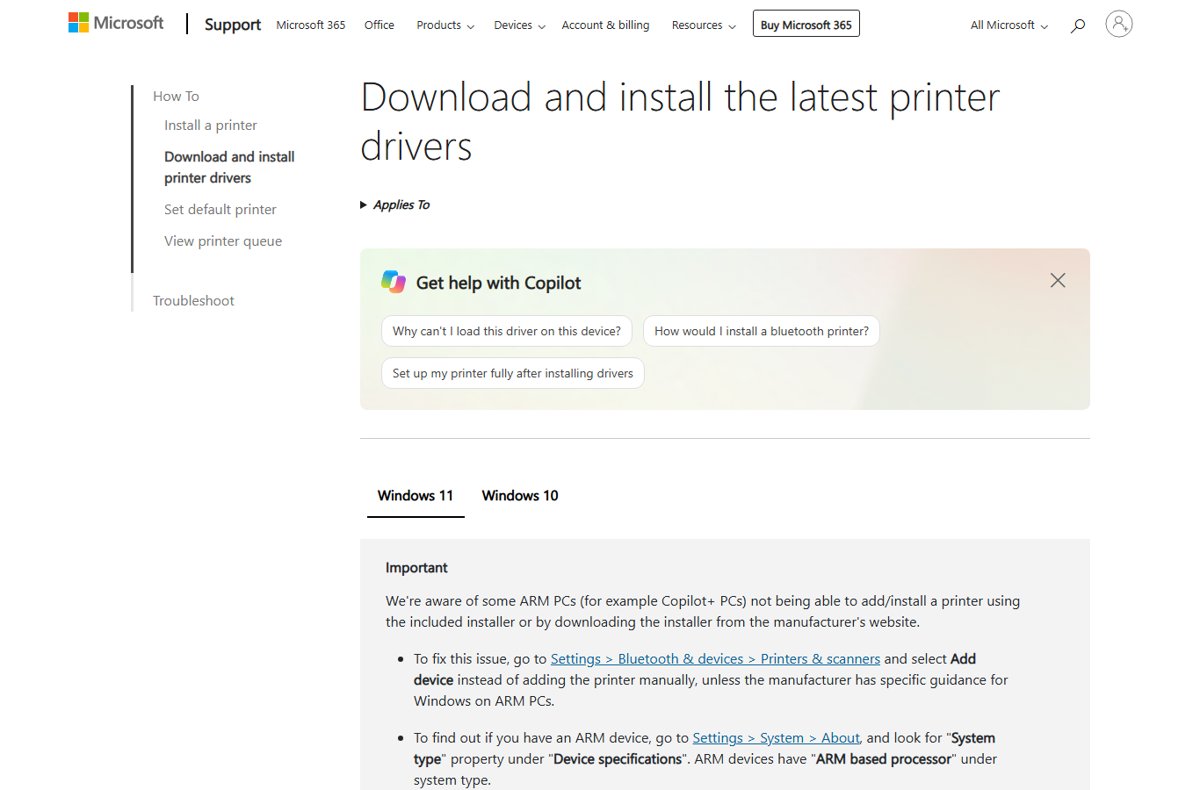
| Copilot+ or other ARM PC | Settings > Printers & scanners > Add device | Manufacturer installers can fail on ARM PCs |
Install a printer driver from the manufacturer's website
- Find the printer model number on the printer itself or in its purchase details.
- Open the manufacturer's official website and go to its Support or Drivers section.
- Search for your exact model and open its page.
- Select Windows 11 and your system type if asked. Check it under Settings > System > About.
- Download the latest software and driver package to your Downloads folder.
- Right-click the downloaded file, select Open and follow the setup prompts.
- Restart the PC if the installer asks you to.
Brand-specific packages, such as Brother printer drivers or KYOCERA printer drivers, follow this same pattern. Drivers on a disc that came with the printer are often outdated, so prefer the website version.
Update a printer driver manually in Device Manager
Use this when you have already downloaded and extracted the driver files from the manufacturer. Device Manager is also where you update drivers for other hardware in Windows 11.
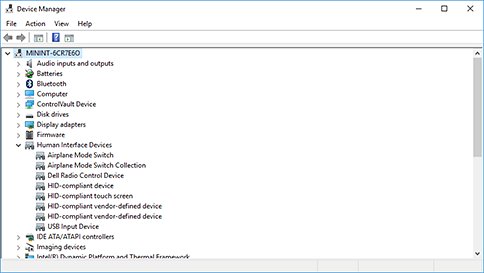
- Right-click Start and select Device Manager.
- Expand Printers or Print queues.
- Right-click your printer and select Update driver.
- Select Browse my computer for drivers.
- Select Browse, choose the folder that holds the extracted driver files and select OK.
- Select Next and let Windows install the driver, then select Close.
Choose Search automatically for updated driver software at step 4 instead if you have no files. Windows reports when the best driver is already installed.
Add a printer driver with the Add Printer Driver Wizard
Microsoft treats this legacy wizard as a last resort, but it can work better for older printers. It adds the driver only, so the printer must already be installed.
- Select Start > Settings > Bluetooth & devices > Printers & scanners.
- Under Related settings, select Printer server properties.
- Open the Drivers tab and select Add….
- Select Next, then choose your PC's processor architecture on the Processor Selection page.
- On Printer Driver Selection, select Windows Update and wait for the list to refresh.
- Select the manufacturer under Manufacturer and the model under Printers, then select Next.
- Select Finish on the last page.
Install a printer driver INF file with PnPUtil
PnPUtil is built into Windows and adds driver packages from an elevated Command Prompt. Extract the manufacturer's package first so the .inf file is on disk.
pnputil /add-driver C:\Drivers\Printer\*.inf /subdirs /installRun it in Command Prompt opened with Run as administrator. /add-driver adds every INF package in the folder to the driver store, /subdirs also searches subfolders, and /install installs or updates the driver on any matching device. Replace C:\Drivers\Printer with the folder you extracted.
You should see: PnPUtil lists each INF it processed and reports the driver package as added; a connected matching printer picks up the driver.
Check that the printer driver installed in Windows 11
- Open Settings > Bluetooth & devices > Printers & scanners and confirm the printer is listed.
- Check that no Find drivers button sits next to it. That button means only a reduced driver set is installed.
- Select Printer server properties > Drivers and look for the driver under Installed printer drivers.
- In Device Manager, right-click the printer, select Properties and read the version on the Driver tab.
- Print a document to confirm the driver works.
To audit every printer and driver at once, you can list all installed printers.
The need for optional printer drivers in Windows 11
Windows supports most printers out of the box, so many print without a vendor driver. Optional drivers add what the basic driver may lack.
| Driver type | How Windows gets it | What you get |
|---|---|---|
| Inbox Microsoft IPP Class Driver | Built into Windows since Windows 10 21H2 for Mopria-compliant printers | Printing over network and USB with no vendor installer |
| Recommended driver | Installed automatically by Windows Update | Basic driver Windows matched to the device |
| Optional driver | Listed under Optional updates; never installed automatically | Manufacturer driver you choose to add |
| Manufacturer package | Downloaded from the vendor's site | Driver plus utilities, scan software and settings |
| Print Support App | Installed automatically from the Microsoft Store | Vendor customisation on top of the class driver |
What's behind the scenes: Microsoft's printer driver timeline for Windows 11
Microsoft is ending servicing of legacy third-party v3 and v4 printer drivers on Windows 11 and Windows Server 2025, which changes what Windows Update offers.
| Date | Change |
|---|---|
| September 2023 | End of servicing plan for legacy third-party printer drivers announced |
| January 15, 2026 | No new printer drivers published to Windows Update for Windows 11 and later; existing ones updated case by case |
| July 1, 2026 | Driver ranking changed to always prefer the Windows IPP inbox class driver |
| July 1, 2027 | Third-party printer driver updates stop, except security fixes |
Existing drivers can still be installed from Windows Update, and Windows keeps allowing vendor installation packages. Driver dates can look old because the provider sets them; Windows Update picks drivers by targeting data inside the files.
Why does manual installation of printer drivers matter?
Install the optional or manufacturer driver when the printer works but features such as duplex, trays, scanning or fax are missing. Optional drivers are never installed automatically, and since January 2026 Windows Update favours the inbox class driver, so a full vendor driver often arrives only when you add it yourself.
Roll back a printer driver in Windows 11
- Select Start, type Device Manager and open it.
- Expand Printers or Print queues.
- Right-click the printer and select Properties.
- On the Driver tab, select Roll Back Driver if it is available.
- Restart the PC.
Fix optional printer drivers not installing in Windows 11
No printer driver under Optional updates
Windows Update has no optional driver for this model, which is more common since January 2026.
- Confirm Receive updates for other Microsoft products is on under Advanced options.
- Select Check for updates on the Windows Update page, then reopen Optional updates.
- If nothing appears, download the driver from the manufacturer's website instead.
A Find drivers button appears next to the printer
The printer installed with a reduced set of drivers.
- Open Optional updates and install any printer driver listed.
- If none is listed, run the manufacturer's installer or the Add Printer Driver Wizard.
Manufacturer installer fails on a Copilot+ or other ARM PC
Some ARM PCs cannot add printers through the bundled or downloaded installer.
- Check Settings > System > About for ARM based processor under System type.
- Open Bluetooth & devices > Printers & scanners and select Add device.
- Follow the manufacturer's own ARM guidance if it has any.
Printer stopped working after a driver update
The new driver does not suit your printer or Windows version.
- Roll the driver back from the Driver tab in Device Manager.
- Or select the printer in Printers & scanners, select Remove, restart, then select Add device to reinstall it.
Printer removed and cannot be reinstalled with Windows protected print mode on
Protected print mode uninstalls printers that rely on third-party drivers.
- Check whether the printer is Mopria certified; compatible printers can be reinstalled.
- Reinstall it from Printers & scanners > Add device.
- If it is not compatible, turn off protected print mode and reinstall the printer manually.
Optional printer drivers in Windows 11 FAQ
Where are optional driver updates in Windows 11?
Go to Settings > Windows Update > Advanced options and select Optional updates under Additional options. Any printer driver Windows Update offers for your hardware appears there.
Does Windows 11 install optional drivers automatically?
No. Windows Update installs recommended drivers automatically, but optional drivers stay listed until you select them and choose Download and install.
Why is there no printer driver in Optional updates?
Windows Update has no optional driver for that model. Since January 15, 2026, no new printer drivers are published to Windows Update for Windows 11, so download the driver from the printer manufacturer instead.
Should I install optional printer driver updates?
Install one when the printer is missing features or printing fails. If the printer already works fully with the driver Windows chose, an optional driver is not required.
Can I still install third-party printer drivers on Windows 11?
Yes. Microsoft states that Windows continues to allow vendor-supplied printer drivers through separate installation packages, and existing drivers can still be installed after the end of servicing.
How do I install a printer driver from an INF file?
Use Device Manager > Update driver > Browse my computer for drivers and point it at the folder, or run pnputil /add-driver <file>.inf /install in an elevated Command Prompt.
Do I need to restart after installing a printer driver?
Microsoft advises restarting after optional updates finish, even when none of them asks for it. Manufacturer installers may also prompt for a restart to finish setup.
What is the Microsoft IPP Class Driver?
It is the inbox Windows driver for Mopria-compliant printers over network and USB, available since Windows 10 21H2. It removes the need for a vendor installer for basic printing.
Bottom line: optional printer driver or the manufacturer's package?
Check Optional updates first, and go to the manufacturer's website when nothing is listed or you need scanning and utility software. The optional update is Microsoft-signed and matched to your device, while the vendor package is the only complete option for models Windows Update no longer covers.