To change the max email size in Office 365, open the Exchange admin center, select a mailbox under Recipients > Mailboxes, and edit its message size restrictions, or run Set-Mailbox -MaxSendSize in Exchange Online PowerShell.
This guide covers the default 35 MB send and 36 MB receive limits, raising them up to 150 MB for one mailbox or every mailbox, setting the default for new mailboxes, and the errors users see when a message is too large.
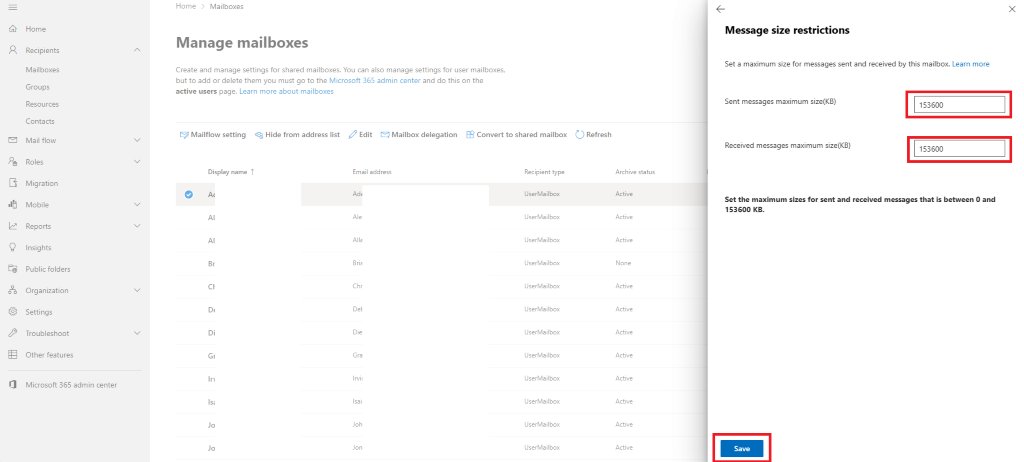
Configure sent and received emails max size limit using Exchange admin center
The Exchange admin center (EAC), which you can also reach from the Microsoft 365 admin center, is the quickest route when only one or two mailboxes need a different limit. You need an admin role that can manage recipients.
- Sign in to the Exchange admin center at
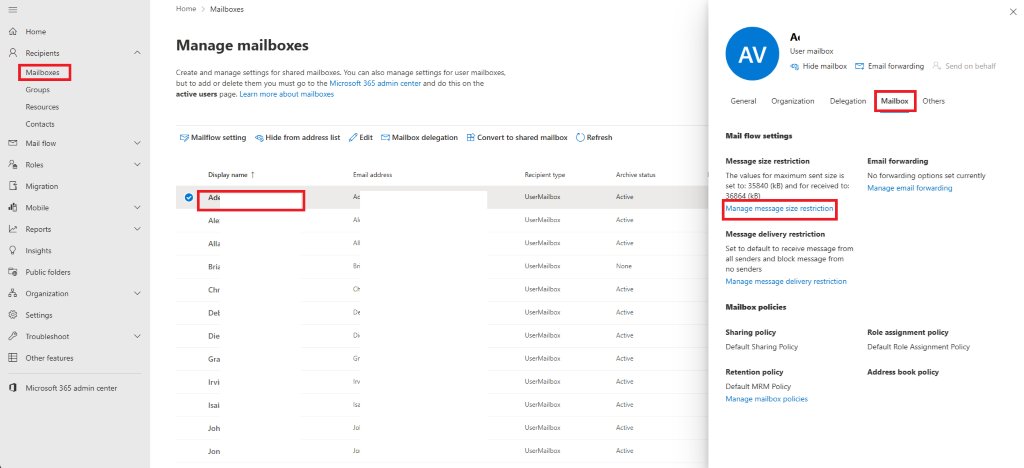
admin.exchange.microsoft.comwith an admin account. - Go to Recipients > Mailboxes.
- Click the mailbox you want to change. A details pane opens for that user.
- Open the Mailbox tab in the details pane.
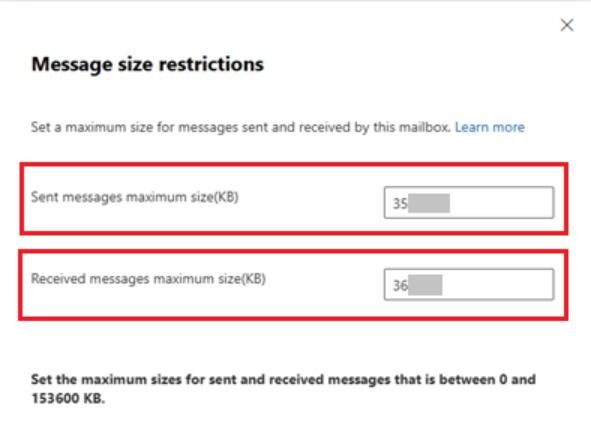
- Under Message Size Restrictions, select Manage message size restriction.
- Enter the new maximum size for sent messages and for received messages. Any value from 1 MB to 150 MB is allowed.
- Select Save and close the pane.
To change several mailboxes at once, select two or more mailboxes in the Mailboxes list. The toolbar then shows bulk actions, and each one opens a pane where you make the change and select Save.
Exchange Online default message size limit and maximum values
Every Microsoft 365 mailbox starts with the same message size limits, whatever the plan. The limits include attachments and apply to inbound, outbound and internal mail.
| Limit | Value | What it means |
|---|---|---|
| Default max send size | 35 MB | Largest message a mailbox can send until an admin changes it |
| Default max receive size | 36 MB | Largest message a mailbox accepts until an admin changes it |
| Custom range | 1 MB to 150 MB | What an admin can set per mailbox or per mailbox plan |
| Messages that leave Microsoft datacenters | About 112 MB | External mail picks up roughly 33% encoding overhead, so 150 MB becomes about 112 MB of real content |
| Message header size | 256 KB total, 32 KB per header | Exceeding it returns 552 5.3.4 Header size exceeds fixed maximum size |
| Attachments per message | 250 | Applies even when the total size is under the limit |
| Distribution groups with 5,000 to 99,999 members | 25 MB | Larger messages to these groups are not delivered |
| Distribution groups with 100,000 members | 5 MB | Hard cap for very large groups |
Base64 encoding adds about 33% to a message in transit. Microsoft advises setting a value about 33% larger than the real size you want to allow, so 64 MB permits a message of roughly 48 MB.
Exchange Online plans: message size limit and mailbox features compared
The message size ceiling does not separate the Exchange Online plans. Exchange Online Plan 1, Plan 2 and the Microsoft 365 business plans all allow the same 1 MB to 150 MB message size range. The features that differ are mailbox storage and archiving.
| Plan or mailbox type | Max message size | Mailbox storage | What to know |
|---|---|---|---|
| Exchange Online (Plan 1) | 35 MB send / 36 MB receive by default, up to 150 MB | 50 GB | Standalone Exchange Online email plan |
| Exchange Online (Plan 2) | 35 MB send / 36 MB receive by default, up to 150 MB | 100 GB | Adds up to 1.5 TB of archive storage |
| Exchange Online Kiosk | Up to 150 MB | 2 GB | No archive mailbox unless Exchange Online Archiving is added |
| Microsoft 365 Business Basic, Standard and Premium | 35 MB send / 36 MB receive by default, up to 150 MB | 100 GB | Includes Exchange Online plus the Microsoft 365 apps of each plan |
| Shared mailboxes and room or equipment resources without a license | ExchangeOnline mailbox plan defaults; change them with Set-Mailbox | 50 GB | Assign an Exchange Online Plan 2 license to raise storage to 100 GB |
Sending limits other than size are also identical across plans: each mailbox can send to 10,000 recipients per day, and the message rate limit is 30 messages per minute.
Exchange Online change message size limit: which method fits
| Your situation | Use this | Why |
|---|---|---|
| One or two mailboxes need a bigger limit | Exchange admin center, per mailbox | No PowerShell needed; done in under a minute |
| A department or filtered group of users | Get-Mailbox -Filter piped to Set-Mailbox |
Targets users by attribute in one command |
| Every existing mailbox in the tenant | Get-Mailbox -ResultSize unlimited piped to Set-Mailbox |
Changes all current mailboxes at once |
| Mailboxes you create in the future | Set-MailboxPlan |
Mailbox plans are the template for new mailboxes; Set-Mailbox does not touch them |
| You want to block large single attachments, not whole messages | A mail flow (transport) rule | Microsoft supports rules that cap individual attachment size separately from the message limit |
Configure sent and received emails max size limit using PowerShell
Exchange Online PowerShell changes the limit for one mailbox, a filtered group, or every mailbox. The module runs in Windows PowerShell 5.1 or PowerShell 7 for Windows. Values take a unit: B, KB, MB or GB.
- Open PowerShell and run
Import-Module ExchangeOnlineManagementto load the Exchange Online PowerShell module. - Connect with
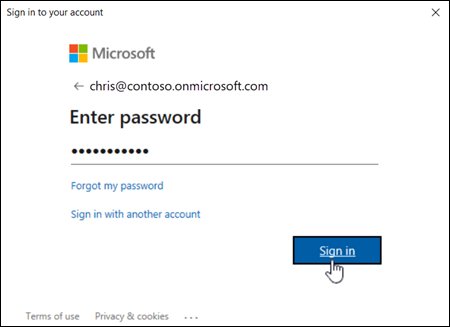
Connect-ExchangeOnline -UserPrincipalName [email protected], replacing the address with your admin account, and complete the sign-in prompt. - To update one mailbox, run
Set-Mailbox -Identity [email protected] -MaxSendSize 150MB -MaxReceiveSize 150MB. - To update a group of users, filter first, for example
Get-Mailbox -Filter "Department -eq 'Customer Service'" | Set-Mailbox -MaxSendSize 50MB -MaxReceiveSize 50MB. - To update all user mailboxes, run
Get-Mailbox -ResultSize unlimited -Filter "RecipientTypeDetails -eq 'UserMailbox'" | Set-Mailbox -MaxSendSize 150MB -MaxReceiveSize 150MB. - Run
Disconnect-ExchangeOnlinewhen you finish so the session does not count against your session limit.
Drop the -Filter clause in the all-mailboxes command to include shared mailboxes and resource mailboxes as well. Set-Mailbox only changes mailboxes that already exist.
Configure default max sent and receive email size limit using PowerShell
A mailbox plan is the template Exchange Online applies when a license creates a new mailbox. Change the plan and every future mailbox gets your limit; existing mailboxes keep their current values.
- Connect to Exchange Online PowerShell with
Connect-ExchangeOnline. - List the plans and their current limits with
Get-MailboxPlan | Format-List DisplayName,IsDefault,Max*Size. - Change one plan, for example
Set-MailboxPlan -Identity ExchangeOnlineEnterprise -MaxSendSize 150MB -MaxReceiveSize 150MB. - To change every plan in the tenant, run
Get-MailboxPlan | Set-MailboxPlan -MaxSendSize 150MB -MaxReceiveSize 150MB. - Run the Set-Mailbox command from the previous section as well, so mailboxes that already exist match the new default.
Plan names map to licenses: ExchangeOnlineDeskless for F3 and Kiosk, ExchangeOnline for Business Basic, E1 and Exchange Online Plan 1, and ExchangeOnlineEnterprise for E3, E5 and Exchange Online Plan 2. Unlicensed shared and resource mailboxes always receive the ExchangeOnline plan.
Exchange Online check message size limit for a mailbox
Both the admin center and PowerShell show the limit currently applied to a mailbox. Check it after a change, and before you tell a user to resend a large file.
Get-Mailbox -Identity [email protected] | Format-List MaxSendSize,MaxReceiveSizeReads the send and receive limits stored on one mailbox. Swap the identity for -ResultSize unlimited and add Name to the property list to audit every mailbox.
You should see: The output lists MaxSendSize and MaxReceiveSize with the values you set, for example 150 MB, alongside the byte count.
In the admin center, open Recipients > Mailboxes, select the user, open the Mailbox tab, and select Manage message size restriction to see the same values.
Exchange Online maximum message size by email client
The mailbox limit is a ceiling, not a guarantee. Each Outlook client applies its own cap, so the smallest limit in the path wins.
| Client | Message size limit | Single attachment limit |
|---|---|---|
| Outlook for Windows | 150 MB | 150 MB |
| Outlook for Mac | 150 MB | 150 MB |
| Outlook on the web | 112 MB | 112 MB for classic attachments; OneDrive attachments up to 2 GB |
| Outlook for iOS and Android | 33 MB | 150 MB, limited by the mobile device mailbox policy |
Outlook on the web reserves room for encoding and lets users send only 75% of the configured limit. A mailbox set to 100 MB can send messages up to 75 MB from the browser.
Error when exceeding message size limit restrictions
The sender gets a non-delivery report after sending a large message
The message, including attachments and encoding overhead, is larger than the sender's MaxSendSize or the recipient's MaxReceiveSize.
- Check the sender's limit with
Get-Mailbox -Identity [email protected] | Format-List MaxSendSize. - For internal mail, check the recipient's MaxReceiveSize the same way.
- Raise the lower of the two values, allowing about 33% for encoding.
- If the recipient is external, remember their mail server enforces its own limit, which you cannot change.
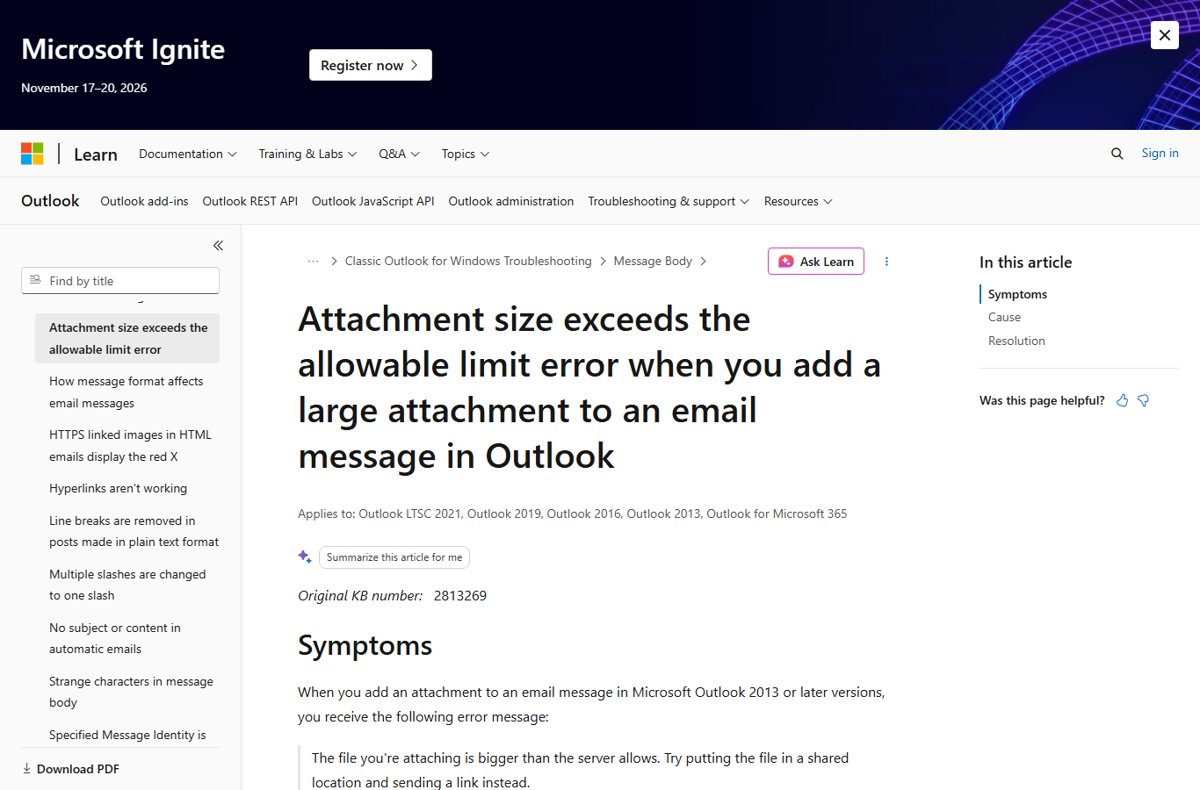
Outlook says "The file you're attaching is bigger than the server allows"
Outlook for Microsoft 365 reads the mailbox's maximum send size from the server and blocks attachments above it before sending.
- Raise MaxSendSize for the mailbox in the admin center or with Set-Mailbox.
- Restart Outlook after the change is saved.
- If the error persists, wait and try again later, because Exchange caches settings and Outlook can take several hours to pick up a new limit.
- For files larger than 150 MB, share a OneDrive link instead of attaching the file.
Outlook on the web rejects a message that is under the configured limit
Outlook on the web allows only 75% of the configured maximum to leave room for encoding.
- Divide the configured limit by four and multiply by three to find the real browser limit.
- Raise MaxSendSize if users need to send larger messages from the browser.
- Send the message from Outlook for Windows or Mac, which allow up to 150 MB.
New mailboxes still have the old 35 MB limit
Set-Mailbox changes existing mailboxes only; new mailboxes take their limits from the mailbox plan.
- Run
Get-MailboxPlan | Format-List DisplayName,Max*Sizeto confirm the plan values. - Update the plans with
Set-MailboxPlan -MaxSendSizeand-MaxReceiveSize. - Run Set-Mailbox on any mailbox created before the plan change.
552 5.3.4 Header size exceeds fixed maximum size
The combined message headers are larger than 256 KB, usually from a very long recipient list or added headers. Body and attachment size play no part.
- Split the recipient list into smaller batches, or send to a distribution group instead of individual addresses.
- Remove custom headers added by the sending application.
- Resend the message.
Exchange Online message size limit FAQ
Where do I find the Exchange message size limit?
Open the Exchange admin center, go to Recipients > Mailboxes, select the user, open the Mailbox tab and select Manage message size restriction. In PowerShell, run Get-Mailbox with Format-List MaxSendSize,MaxReceiveSize to read the same values.
What is the default message size limit in Exchange Online?
The default Exchange Online limit is 35 MB for sending and 36 MB for receiving. It applies to every Microsoft 365 mailbox until an admin changes it, and it includes attachments and encoding overhead.
What is the maximum message size in Exchange Online?
Admins can raise the limit to 150 MB per mailbox. Messages that stay inside Microsoft datacenters can reach 150 MB, while messages routed to external servers are effectively capped at about 112 MB because of encoding overhead.
Can I set one message size limit for the whole organization?
Yes. Pipe Get-Mailbox -ResultSize unlimited into Set-Mailbox with the new MaxSendSize and MaxReceiveSize values, then run Set-MailboxPlan with the same values so new mailboxes get the limit too.
Does the message size limit include attachments?
Yes. The limit covers the whole message, including the body, headers and every attachment. Base64 encoding adds about 33% in transit, so set a value roughly a third larger than the real file size you want to allow.
How long does a message size limit change take to work?
The setting saves immediately, but Exchange caches configuration and Outlook can take several hours to recognize the new limit. Restart Outlook and test again later if the old limit still applies.
Is there a sending limit besides message size in Exchange Online?
Yes. Each mailbox can send to 10,000 recipients per day, and a single message can address up to 1,000 recipients when customized, with 500 as the default. Exceeding the daily limit returns error 5.1.90 or 5.2.2.
Why can mobile users not send large emails?
Outlook for iOS and Android caps messages at 33 MB, below the 150 MB Exchange Online maximum. They also follow the attachment limit in the mobile device mailbox policy, so the smallest of those values applies.
Bottom line: what Exchange Online message size limit to set
Set MaxSendSize and MaxReceiveSize together, on existing mailboxes with Set-Mailbox and on mailbox plans with Set-MailboxPlan, and size the value about a third above the largest file users actually send. Changing only one side or only existing mailboxes leaves new users and inbound mail on the 35 MB and 36 MB defaults, and encoding overhead means the configured number is never the real file size.