To enable EPM in Intune, license Endpoint Privilege Management, then create a Windows elevation settings policy under Endpoint security > Endpoint Privilege Management with Endpoint Privilege Management set to Enabled and assign it to your devices or users.
This guide covers licensing, both EPM policy types, file hashes and certificates for rules, the end user experience, support approvals, reporting and fixes for common EPM failures.
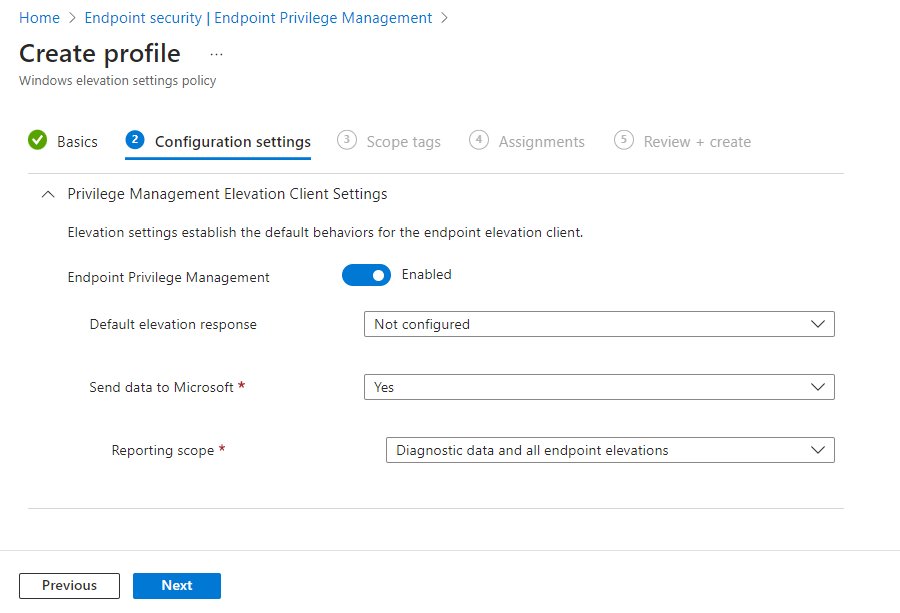
Steps to enable Endpoint Privilege Management (EPM)
EPM lets standard users run approved files as administrator without joining the local Administrators group. The client installs itself once a device receives an elevation settings policy that enables EPM.
- License EPM in your tenant, through a trial or a plan that includes it, and assign the license to the users who need it.
- In the Microsoft Intune admin center, go to Endpoint security > Endpoint Privilege Management > Policies > Create Policy.
- Set Platform to Windows and Profile to Windows elevation settings policy, then select Create.
- Set Endpoint Privilege Management to Enabled and choose a Default elevation response.
- Assign the policy to a pilot group and select Create.
- Create a Windows elevation rules policy for the files users need to elevate, and assign it.
- Sync the devices and confirm Run with elevated access appears when a user right-clicks an .exe file.
What is Endpoint Privilege Management in Intune?
Endpoint Privilege Management (EPM) lets users run as standard users, without administrator rights, and still complete tasks that need elevation, such as installing apps or updating device drivers. Intune elevates only the files your rules allow.
| EPM part | What it does |
|---|---|
| Elevation settings policy | Turns EPM on for a device, installs the EPM client and sets the default elevation response |
| Elevation rules policy | Names the .exe, .msi or .ps1 files that may run elevated, matched by file hash or certificate |
| Run with elevated access | The right-click option users pick on a file to request elevation |
| Support approval | Lets an admin approve a request; the user can then run that file elevated on that device for 24 hours |
| Virtual account | Runs elevated files in an isolated account, so the user is never added to the local Administrators group |
| Reports | Show elevations and file hashes under Endpoint security > Endpoint Privilege Management |
EPM elevation types: which one to use
Every elevation rule has an elevation type, and the default response in the settings policy uses a subset of them. Choose per file, not per user.
| Situation | Elevation type | What the user sees |
|---|---|---|
| Trusted, business-critical file that must always run elevated | Automatic | Nothing; the file elevates silently at every launch. A file hash is required |
| Known file users run occasionally | User confirmed | A confirmation prompt, optionally with business justification, Windows authentication or both |
| App fails under the isolated virtual account because it needs the user profile | Elevate as current user | A Windows authentication prompt; the process runs under their own account |
| File with no rule yet, or one that needs a person to judge | Support approved | A request prompt with a business justification box |
| File that must never run elevated | Deny | A message that the app can't be run as administrator |
Except for Elevate as current user, EPM elevates through a virtual account that is isolated from the user's profile. Neither account is added to the local Administrators group.
Endpoint Privilege Management prerequisites
| Requirement | Detail |
|---|---|
| License | An EPM subscription in addition to Microsoft Intune Plan 1 or Plan 2, available through the Microsoft Intune Suite or as an add-on |
| Windows 11 | 24H2; 23H2 build 22631.2506 or later; 22H2 build 22621.2215 or later; 21H2 build 22000.2713 or later |
| Windows 10 | 22H2 build 19045.3393 or later, or 21H2 build 19044.3393 or later (Windows 10 is out of support, so results are not guaranteed) |
| Architecture | 64-bit Windows only, including Arm64 |
| Virtual platforms | Windows 365 and Azure Virtual Desktop single-session VMs |
| Device join | Microsoft Entra joined or Microsoft Entra hybrid joined; workplace-joined devices are not supported |
| Management | Enrolled in Intune, or co-managed with Configuration Manager (no workload requirement) |
| Network | Line of sight to the Intune EPM endpoints with no SSL inspection |
| Admin role | Endpoint Privilege Manager (full rights) or Endpoint Security Manager; Endpoint Privilege Reader for read-only access |
| Platform | Windows only; EPM does not manage macOS, even where Intune manages Apple devices for other policies |
Devices on an unsupported Windows version report the elevation settings policy as Not applicable.
1. Assign Microsoft Intune EPM license to users
Intune requires a license for any user who benefits from the service. If you do not own EPM yet, Microsoft offers a 90-day trial for up to 250 users, one per capability per tenant.
- To start a trial, sign in to the Intune admin center as a Global or Billing administrator and go to Tenant administration > Intune add-ons.
- Select All add-ons, find Endpoint Privilege Management, select View details in the Try or Buy column, then Go to Microsoft 365 admin center and complete Start free trial.
- In the Microsoft 365 admin center, go to Billing > Licenses and select the EPM or Intune Suite product.
- Select Assign licenses, type the users or groups to license, and select Assign.
- For one user instead, go to Users > Active users, select the user, open Licenses and apps, tick the license and select Save changes.
- Back in Intune, confirm the capability shows as Active under Tenant administration > Intune add-ons.
2. Create an elevation settings policy
This policy turns EPM on, sets what happens to files without a rule, and controls reporting. Its settings are device-scoped even when you assign it to a user group.
- Go to Endpoint security > Endpoint Privilege Management > Policies > Create Policy.
- Set Platform to Windows, Profile to Windows elevation settings policy, and select Create.
- On Basics, enter a Name and Description.
- On Configuration settings, leave Endpoint Privilege Management at Enabled.
- Set Default elevation response to Deny all requests or Require support approval, which Microsoft recommends over Require user confirmation.
- Leave Send elevation data for reporting at Yes and Reporting scope at Diagnostic data and all endpoint elevations so reports show unmanaged elevations too.
- Select scope tags, assign the policy to your groups on Assignments, then select Create on Review + create.
Not Configured behaves like Deny all requests. Require user confirmation lets users elevate any file without a rule, so pair it with business justification or Windows authentication if you use it.
Before configuring elevation rules policy: get the file hash and certificate
File hash rules are the strongest EPM rules. Certificate rules are next, but pair them with product name or internal name, because a certificate alone trusts every file the vendor signs.
- On a device that already has EPM, open Windows PowerShell as an administrator.
- Import the module with
Import-Module 'C:\Program Files\Microsoft EPM Agent\EpmTools\EpmCmdlets.dll'. - Run
Get-FileAttributes -FilePath C:\Path\app.exe -CertOutputPath C:\Certs\to read the hash, product name, internal name, version and company name. - Find the publisher and CA certificates saved to the folder you named in
-CertOutputPath. - On a device without EPM, run
Get-FileHash C:\Path\app.exeto get the SHA256 hash instead. - To reuse a certificate across rules, go to Endpoint Privilege Management > Reusable settings (preview) > Add, browse to the .cer file under Certificate file, and select Add.
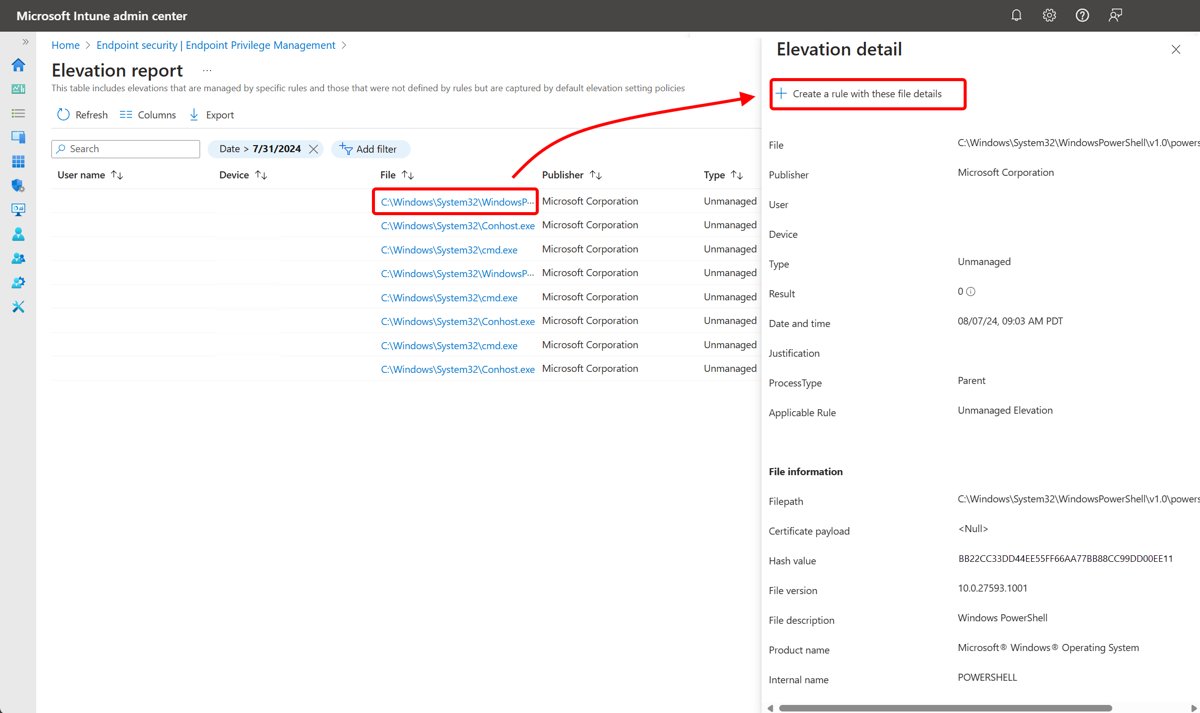
Elevation reports also show the hash of any file users tried to elevate, so you can build rules from real requests. On Arm64 devices, run the EpmTools module in Windows PowerShell x64.
3. Create an elevation rules policy
Each elevation rules policy holds up to 100 rules. Devices only act on rules if they also have an elevation settings policy that enables EPM.
- Go to Endpoint Privilege Management > Policies > Create Policy, set Platform to Windows and Profile to Windows elevation rules policy, then select Create.
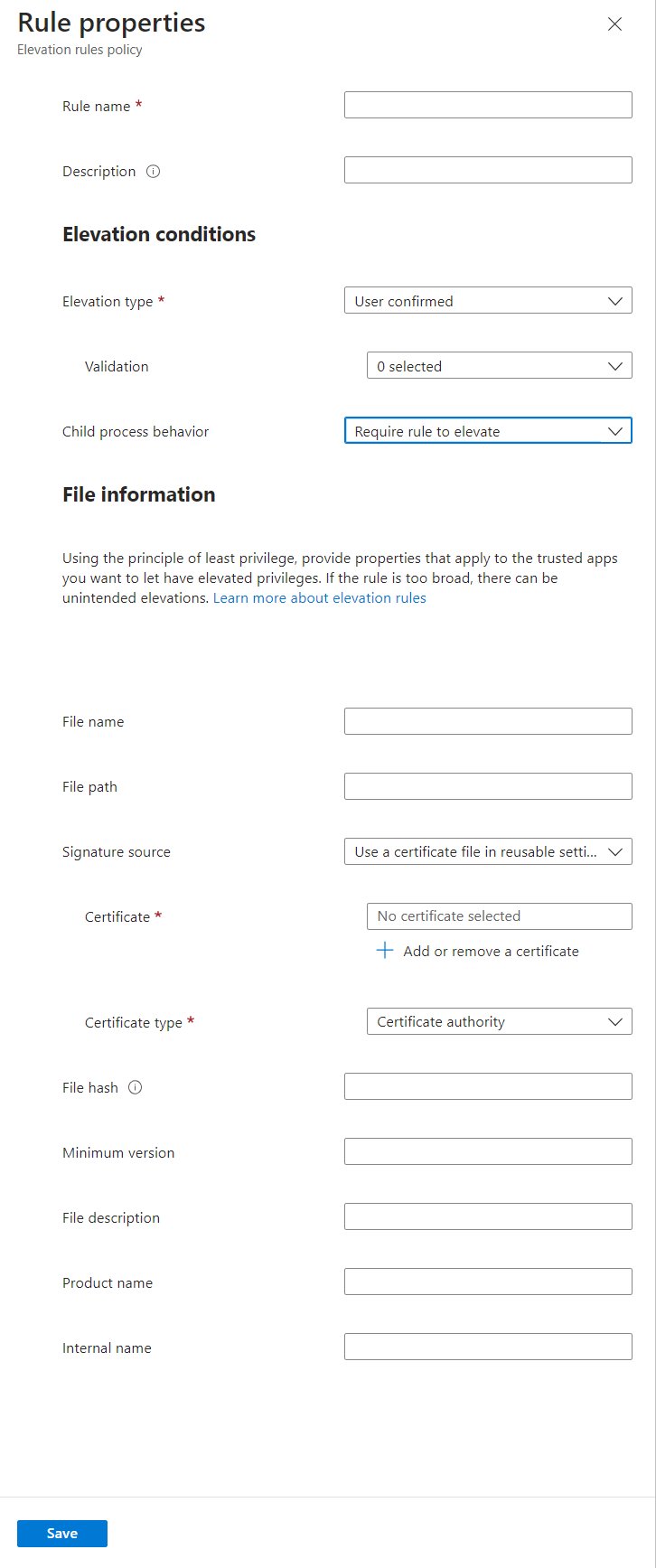
- Enter a Name on Basics, then on Configuration settings select Edit instance on the blank rule.
- Enter a Rule name, then pick the Elevation type and, for User confirmed, any Validation options.
- Leave Child process behavior at Require rule to elevate unless the app needs its child processes elevated.
- Enter the File name with its extension, and a File path in a folder standard users can't modify.
- Set Signature source to a reusable certificate, an uploaded .cer file, or Not configured with a File hash.
- Optionally add Minimum version, Product name and Internal name, or set Restrict arguments to Allow list, then select Save.
- Select Add for more rules, then Next, assign the policy to groups and select Create.
To save typing, open the Reports tab > Elevation report, select a file, and choose Create a rule with these file details. Wildcards (? and *) work in file names and paths but not in automatic rules.
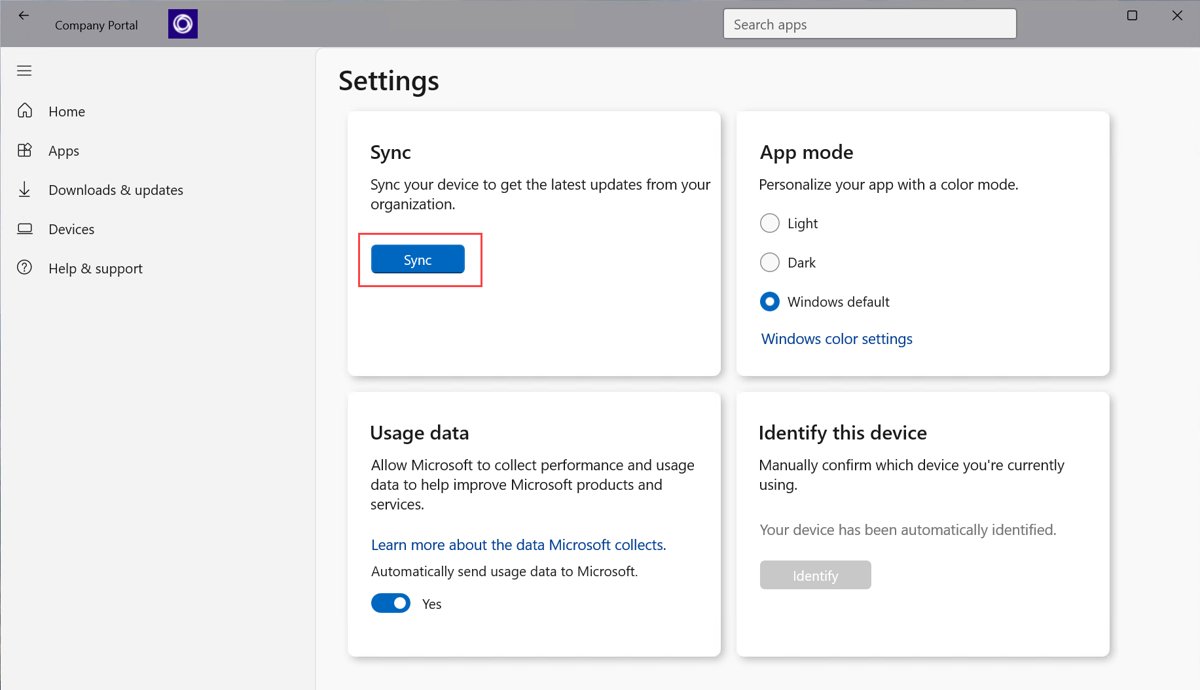
Sync Intune policies to the device
- On the Windows device, select Start > Settings > Accounts.
- Select Access work or school.
- Select the work account marked with a briefcase or Microsoft logo, then select Info.
- Select Sync and wait for it to finish.
- Alternatively, open the Company Portal app, go to Settings and select Sync.
After a sync, the C:\Program Files\Microsoft EPM Agent folder and the Microsoft EPM Agent Service appear on the device.
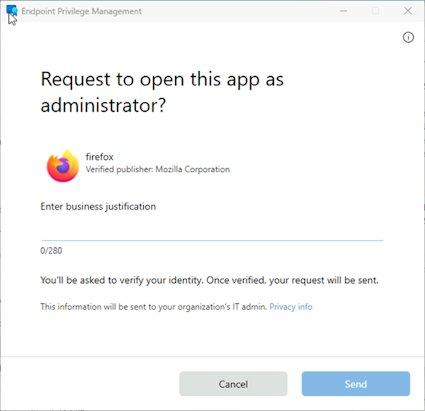
EPM end user experience: Run with elevated access
Users keep their standard account. EPM adds a right-click command that checks the file against your rules before elevating it.
- The user right-clicks the .exe, .msi or .ps1 file and selects Run with elevated access.
- For a User confirmed rule, the user confirms the prompt and enters a business justification or signs in if the rule asks.
- For a Support approved rule or default, the user types a business reason and submits an elevation request.
- For an Automatic rule, the file elevates without any prompt.
- For a Deny rule, or a file with no rule under a deny default, the user sees a message that the app can't be run as administrator.
EPM elevation requests approval in Intune
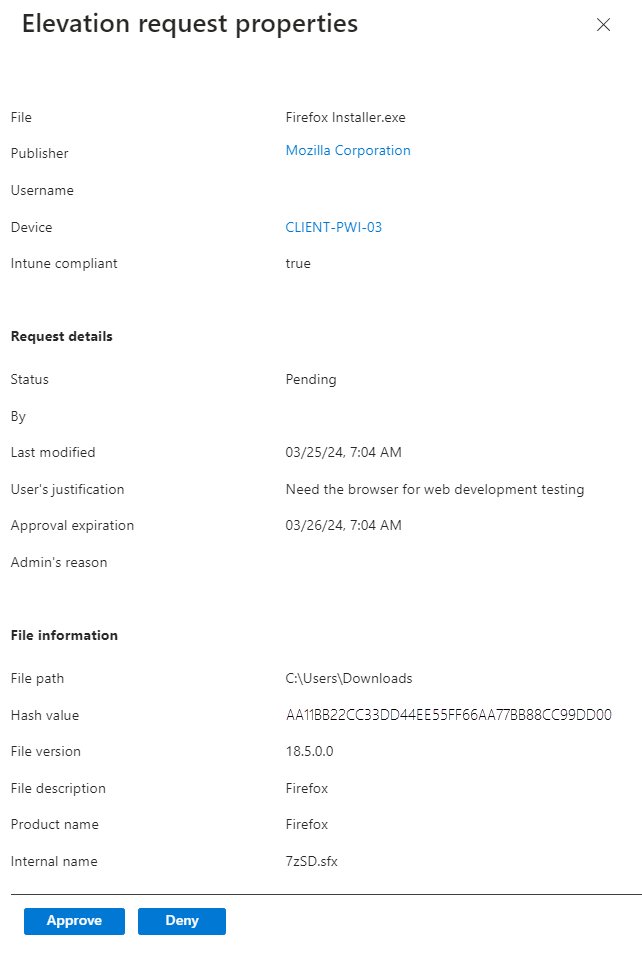
Intune does not alert admins about new requests, so check the tab on a schedule. Approving needs the Endpoint Privilege Management Elevation Requests permission.
- Go to Endpoint security > Endpoint Privilege Management > Elevation requests.
- Select a pending request to open its properties.
- Review the File, Publisher, Device, Intune compliant state and User's justification.
- Select Analyze with Copilot if your tenant is licensed for Security Copilot.
- Select Approve or Deny, enter an optional Reason, and select Yes.
Denied users get no notification, so tell them yourself. The tab shows pending requests and requests from the last 30 days.
Back to the client device: run the approved file
- Wait for the toast notification on the device saying the file can now be elevated; the sync can take some time.
- Right-click the same file and select Run with elevated access again.
- Confirm the app opens with administrator rights, for example by completing the install that needed them.
- Repeat within 24 hours of approval; after that, the approval expires and the user must request again.
- In the admin center, open the request and check Status shows approved and Approval expiration shows the end time.
There is no way to set a custom approval period or cancel an approval before the 24 hours end. Windows 10 devices may not receive the approval notice right away.
What happens on a client device after elevation settings policy is applied
| Change on the device | Detail |
|---|---|
| Agent installed | The Microsoft EPM Agent Service is created and binaries go to C:\Program Files\Microsoft EPM Agent |
| Context menu | Run with elevated access is added to the right-click menu for supported files |
| Diagnostics module | The EpmTools PowerShell module is installed in the agent's EpmTools folder |
| Default response | Files without a rule follow the policy's default response, device-wide for every user |
| Reporting | Elevation data is sent to Intune according to the reporting scope |
| Conflicting settings policies | The client reverts to default behavior until the conflict is resolved; an enable/disable conflict leaves EPM enabled |
Endpoint Privilege Management reporting
Reports are under Endpoint security > Endpoint Privilege Management on the Overview and Reports tabs. Data is processed every 24 hours and kept for 30 days.
| Report | What it shows |
|---|---|
| Overview dashboard | Last 48 hours: users with only unmanaged, mixed or only managed elevations, plus frequently unmanaged, approved and denied files |
| Elevation report | Every reported elevation with file name, user, device, result and time |
| Managed elevations report | Only elevations handled by an elevation rules policy |
| Elevation report by applications | Managed and unmanaged elevations grouped by app, with version, publisher, type and count |
| Elevation report by publisher | Elevations grouped by the publisher that signed the app |
| Elevation report by user | Elevations grouped by user, useful for persona-based rules |
Viewing reports needs the View Reports right under Endpoint Privilege Management Policy Authoring; older Device configurations read access no longer works.
How to disable EPM in Intune
- Open your Windows elevation settings policy under Endpoint Privilege Management > Policies.
- Edit Configuration settings and set Endpoint Privilege Management to Disabled.
- Save the policy and let devices sync.
- Expect the EPM client to deactivate on the next sync and its components to be removed after seven days.
The seven-day delay lets you re-enable EPM quickly if a device was disabled or unassigned by mistake.
Endpoint Privilege Management troubleshooting
Run with elevated access is missing from the right-click menu
On Windows versions earlier than 24H2 with the April 2025 update, the shell extension does not always register.
- Update the device to Windows 11 24H2 with the April 2025 update or later.
- If it can't update, run
EpmShellExtension.msixfromC:\Program Files\Microsoft EPM Agent\EPMShellExtension. - Right-click a file again to check for the option.
Elevation settings policy shows Not applicable or never applies
The device runs an unsupported Windows build, is workplace joined, or its traffic passes through SSL inspection.
- Check the Windows build against the prerequisites table.
- Confirm the device is Microsoft Entra joined or hybrid joined, not workplace joined.
- Exempt the Intune EPM endpoints from SSL inspection.
- Sync the device and recheck the policy status.
A file matching a rule fails to elevate
The file came from the internet and is blocked, sits on a network share, or its signing certificate has expired.
- If you trust the file, open its Properties and unblock it.
- Copy the file to a local folder; EPM does not elevate files on network shares or mapped drives.
- Check the certificate expiry; rules based on expired certificates fail.
- Run
Get-ElevationRulesandGet-ClientSettingsfrom EpmTools to see which rules and settings the device holds.
Elevations fail on devices with Administrator protection or disabled UAC
Administrator protection does not support EPM elevations, and EPM does not support UAC disabled outside policy controls.
- Leave Administrator protection off on devices that rely on EPM.
- Restore UAC services and manage prompts through the UAC policy settings instead.
- Add rules for the EPM components if Application Control for Business is enforced.
Devices report a conflict right after you edit the settings policy
Several quick changes to the elevation settings profile cause a transient conflict.
- Stop editing the policy.
- Wait up to 60 minutes for the conflict to clear.
- Sync a device and confirm the status shows success.
An elevated app can't reach OneDrive, SharePoint or network shares
Apps elevated through the virtual account run in an isolated context without the user's credentials.
- Check whether the app needs elevation at runtime or only to install.
- If it needs the user profile, switch its rule to Elevate as current user and scope it tightly.
EPM security recommendations before rollout
| Recommendation | Why |
|---|---|
| Start with an audit-only settings policy and build rules from reports | Shows what users actually elevate before you remove admin rights |
| Use Deny all requests or Require support approval as the default | Stops users elevating arbitrary files that have no rule |
| Set a File path in every rule, in a folder standard users can't write to | Prevents a tampered or swapped file from being elevated |
| Prefer file hash rules; never rely on certificate plus file name alone | File names are easy to change and are not signed |
| Use automatic elevation sparingly | Those files elevate silently at every launch |
| Keep Allow all child processes to run elevated for rare cases | Child processes skip rule checks, including deny rules |
| Apply stricter rules to browsers and PowerShell | Apps that run scripts or launch other processes widen the attack surface |
Intune EPM FAQ
What is Endpoint Privilege Management in Intune?
Endpoint Privilege Management (EPM) is an Intune capability that lets standard users run approved .exe, .msi and .ps1 files with administrator rights. Admins control elevation with settings and rules policies, and every elevation is logged for reporting.
What license does Intune Endpoint Privilege Management need?
EPM needs a subscription on top of Microsoft Intune Plan 1 or Plan 2. It is included in the Microsoft Intune Suite and certain Microsoft 365 bundles, and a 90-day trial for up to 250 users is available from Tenant administration > Intune add-ons.
How much does Intune Endpoint Privilege Management cost?
Microsoft publishes current EPM and Intune Suite pricing on its Microsoft Intune plans and pricing page. Check there or with your licensing partner, because what you pay depends on the bundles you already own.
Does Intune Endpoint Privilege Management work on Mac?
No. Microsoft documents EPM as a Windows-only feature for 64-bit Windows 11 and supported Windows 10 builds, including Arm64, Windows 365 and Azure Virtual Desktop single-session VMs.
Is EPM the same as Privileged Identity Management?
No. Intune EPM controls which files a standard user can run as administrator on a Windows device. Microsoft Entra Privileged Identity Management controls time-limited access to directory and cloud admin roles.
How long does EPM setup take to reach a device?
The client installs when the device receives an enabling elevation settings policy, usually at its next Intune sync. Trigger a sync from Settings > Accounts > Access work or school > Info > Sync to speed it up.
Does EPM add users to the local Administrators group?
No. EPM elevates through an isolated virtual account, or the user's own account for Elevate as current user, and neither is added to the local Administrators group.
How long does a support approval last?
An approved elevation request lets that user run the file elevated on that device for 24 hours from approval. The period can't be customized or cancelled early.