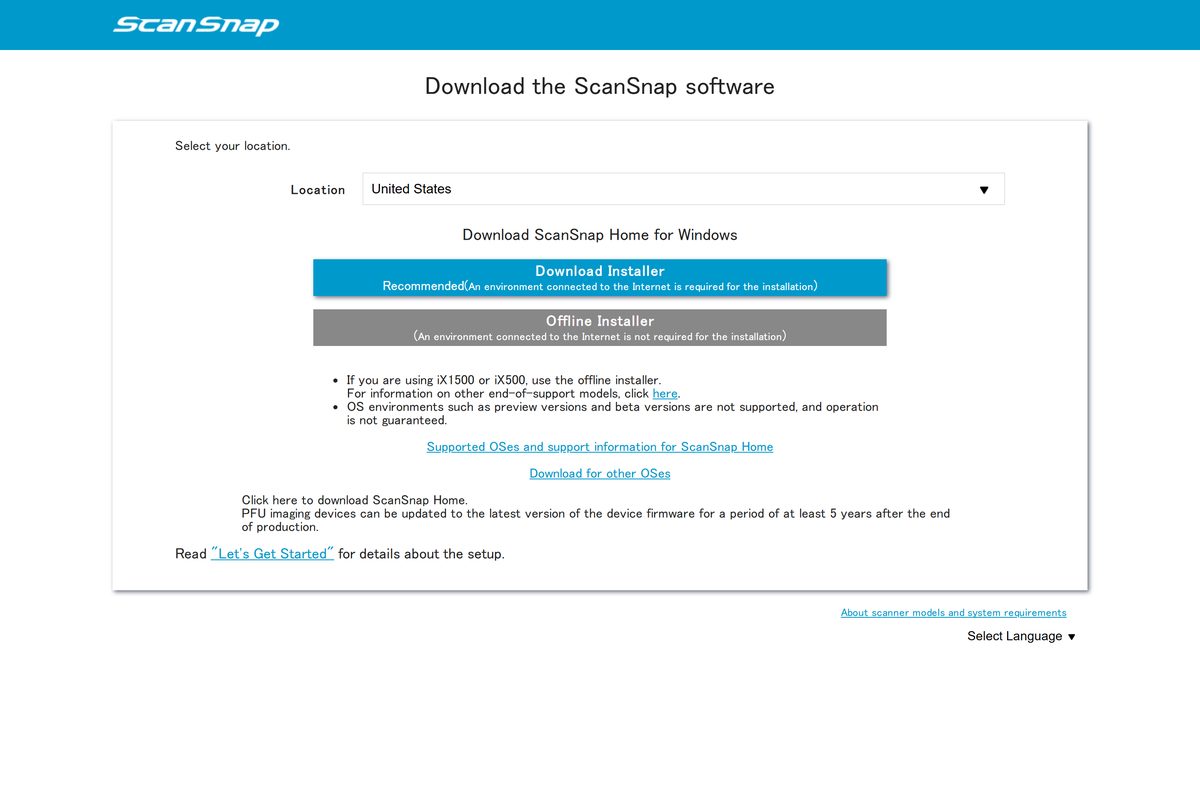
ScanSnap Home is a free download for Windows 11, Windows 10 and Mac, and it is the software that runs every current ScanSnap scanner. Get it from the official ScanSnap download page, pick your location, and choose Download Installer or Offline Installer.
This guide covers which installer to take, how to set it up on Windows and macOS, the supported scanners, how to update it, fixes for failed installs and how to remove it cleanly.
Which ScanSnap Home download do you need?
PFU offers two desktop installers and two mobile apps. Match your situation to a row, then open the link in that row.
| Your situation | Take this | Note |
|---|---|---|
| Windows 11 or 10 PC with an internet connection | Download Installer (Windows) | Recommended; fetches the components during setup |
| PC with no internet connection | Offline Installer | Download on another computer, then copy it across |
| You own an iX1500 or iX500 | Offline Installer | PFU names these two models for the offline route |
| Mac on macOS 12 or later | Download for other OSes | One build for Intel and Apple silicon |
| iPhone or iPad | ScanSnap Home on the App Store | Needs iOS 18 or iPadOS 18 |
| Android phone or tablet | ScanSnap Home on Google Play | Needs Android 12 or later |
The page shows the Windows buttons first when you open it on a PC. Select Download for other OSes to reach the Mac installer.
Check the ScanSnap Home system requirements
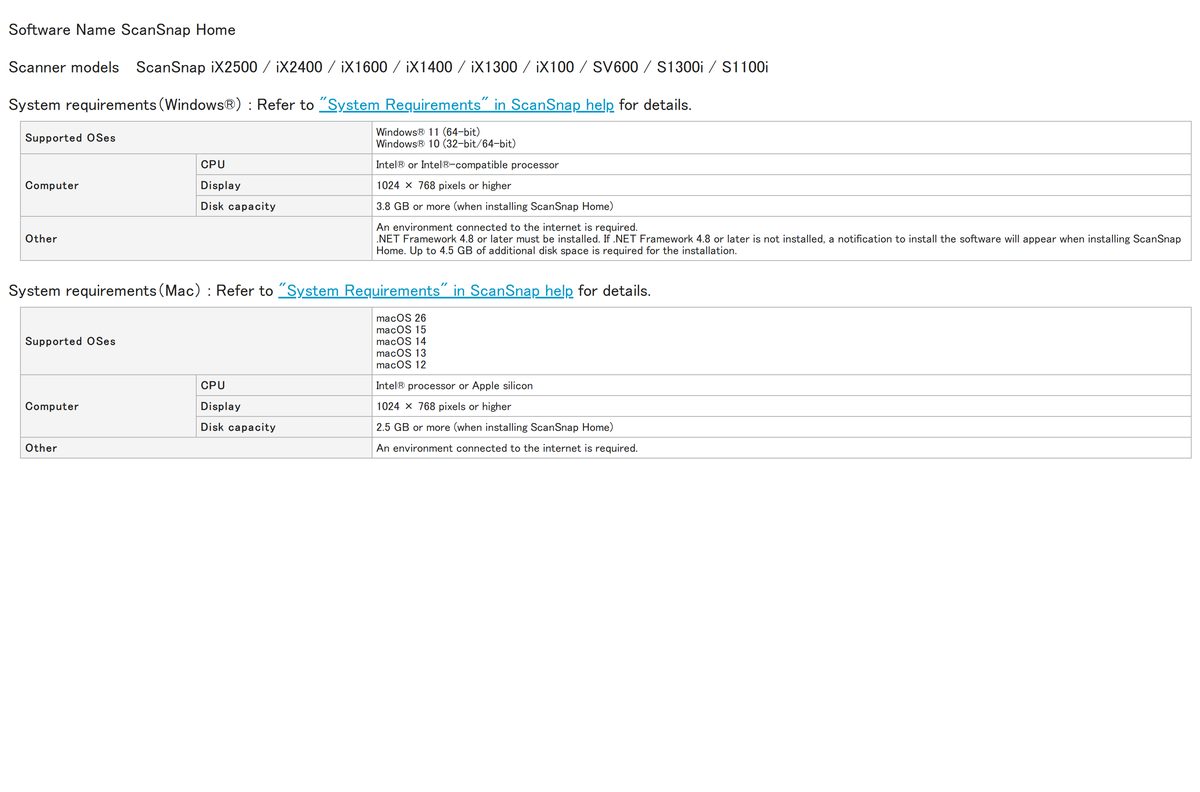
A supported ScanSnap scanner is the real requirement. The computer side is modest, but setup needs an internet connection and several gigabytes of free space.
| Specification | Detail |
|---|---|
| Software | ScanSnap Home |
| Developer | PFU Limited, a Ricoh company |
| Latest version | 4.0 (Download Installer 4.0.0) |
| Licence / price | Free for owners of a supported ScanSnap scanner |
| Windows | Windows 11 (64-bit), Windows 10 (32-bit and 64-bit) |
| macOS | macOS 26, 15, 14, 13 and 12 |
| Processor | Intel or Intel-compatible on Windows; Intel or Apple silicon on Mac |
| Display | 1024 × 768 pixels or higher |
| Disk space, Windows | 3.8 GB or more, plus up to 4.5 GB during installation |
| Disk space, Mac | 2.5 GB or more |
| Other | .NET Framework 4.8 or later on Windows; internet connection required |
| Offline installer | Yes |
| Official download source | scansnap.com |
| Last verified | 2026-09-25 |
Windows 8.1, Windows 7 and macOS Big Sur 11 or earlier are no longer supported. Preview and beta builds of Windows or macOS are not supported either.
Download ScanSnap Home from the official ScanSnap site
PFU publishes one download page for every region. Select your location in the Location list first, because the buttons stay inactive until you do.
You accept the PFU end user licence agreement in a pop-up before the file starts.
- Download the ScanSnap software (scansnap.com) — Download Installer, Offline Installer and the Mac build
- ScanSnap Home system requirements — Supported scanners, operating systems and disk space
- Supported operating systems list — Which Windows and macOS releases are still supported
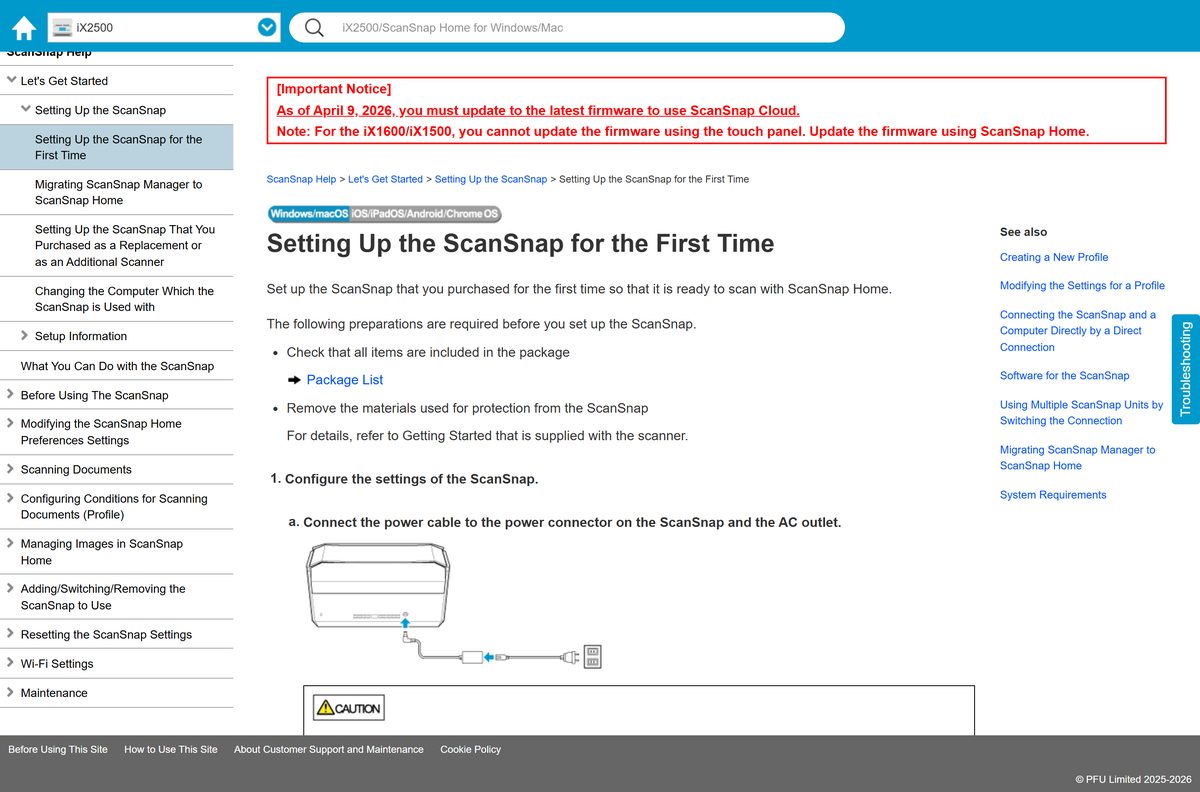
- Setting Up the ScanSnap for the First Time — PFU’s own setup guide, per scanner model
The Windows file is named WinSSHDownloadInstaller_4_0_0.exe and the Mac file MacSSHDownloadInstaller_4_0_0.dmg. Any other file name offered as ScanSnap Home did not come from PFU.
How to install ScanSnap Home on Windows 11 and 10
Keep the scanner unplugged from the PC until setup asks for it. Set up the scanner itself first by following its touch panel or Getting Started sheet.
- Connect the scanner’s power cable and open the ADF paper chute to switch it on.
- Open the ScanSnap download page and pick your country in Location.
- Click Download Installer and accept the licence agreement.
- Run the saved installer and approve the User Account Control prompt.
- Click Next in the ScanSnap Home Setup window when Welcome to ScanSnap Home Setup appears.
- Follow the on-screen instructions to finish installing the software.
- Connect the scanner when the connection setup starts, using only the supplied cable.
- Click Close in the ScanSnap Home – Connecting ScanSnap window when Let’s use it! appears.
- Load a document and run a test scan.
If .NET Framework 4.8 or later is missing, setup offers to install it first. Accept, because ScanSnap Home does not run without it.
Which ScanSnap Home download do you need for your Mac?
PFU ships a single Mac installer for both chip types. Your macOS version is what decides whether it runs.
| Your Mac | Download | Note |
|---|---|---|
| Apple silicon (M1 or later), macOS 12 to 26 | MacSSHDownloadInstaller_4_0_0.dmg | Select Download for other OSes |
| Intel Mac, macOS 12 to 26 | MacSSHDownloadInstaller_4_0_0.dmg | Same file as Apple silicon |
| macOS Tahoe 26.7 with image-processing freezes | PFU notice on the 4.0.1 beta | 4.1.0 fixes it and is due at the end of September 2026 |
| macOS Big Sur 11 or older | Supported operating systems list | No longer supported; update macOS first |
Open the downloaded .dmg, run the installer inside it and approve the file access prompts that macOS shows the first time ScanSnap Home starts.
Is ScanSnap Home free?
ScanSnap Home costs nothing for anyone who owns a supported ScanSnap scanner. PFU gives the Windows and Mac installers away on its own download page, and there is no licence key or trial timer on current versions. The software only does useful work with a ScanSnap attached, so the scanner is what you pay for. The mobile app is free with optional in-app purchases. Sites that charge for a ScanSnap Home download are reselling a free file.
Should you install ScanSnap Home or keep ScanSnap Manager?
Setup offers to remove ScanSnap Manager when it finds the older software on the PC.
Install ScanSnap Home unless your scanner is a legacy model such as the S1500 or S1300. ScanSnap Home does not support those older scanners, and PFU no longer offers the ScanSnap Manager installer, so removing it cannot be undone. ScanSnap Home 3.0 and later cannot run alongside ScanSnap Manager. Check your model against the supported list before you let setup remove the old software.
How to check your ScanSnap Home version and update it
ScanSnap Home updates itself through a separate tool called ScanSnap Online Update, installed alongside it.
- Start ScanSnap Home.
- On Windows, click Help > About; on a Mac, click ScanSnap Home > About ScanSnap Home.
- Note the version shown, then close every ScanSnap Home window.
- On Windows, click Start > All > ScanSnap Online Update > Online Update.
- Follow the on-screen instructions to install the update.
- Start ScanSnap Home again and confirm the new version under About.
Firmware updates for the scanner need ScanSnap Home 3.5.0 or later, so update the software before you update the scanner.
Check whether your ScanSnap scanner works with ScanSnap Home
Find your model in the left column before you download anything.
| Scanner model | ScanSnap Home on PC | Installer to use |
|---|---|---|
| iX2500, iX2400 | Supported | Download Installer |
| iX1600, iX1400, iX1300, iX100 | Supported | Download Installer |
| SV600, S1300i, S1100i | Supported | Download Installer |
| iX1500, iX500 | Supported through the offline route | Offline Installer |
| S1500, S1300 and other legacy models | Not supported | Keep ScanSnap Manager |
The mobile app covers fewer scanners: the iX2500, iX1300 and iX100 among current models.
Fix ScanSnap Home not installing on Windows 11 or 10
.NET Framework 4.7 install is blocked with a Blocking Issues message
Windows is missing updates that the .NET installer depends on.
- Open Settings > Windows Update and install every available update.
- Restart the PC, then run the ScanSnap Home installer again.
- If the message returns, click blocked Microsoft .NET Framework 4.7 installations in it and reinstall .NET.
Failed to install ScanSnap Online Update
The Online Update component did not install with ScanSnap Home.
- Uninstall ScanSnap Home from Settings > Apps.
- Download the latest installer from the official ScanSnap page.
- Install ScanSnap Home again.
The PC has no internet connection
The Download Installer fetches its components during setup.
- On a connected computer, open the ScanSnap download page and pick your location.
- Click Offline Installer and save the file.
- Copy the file to a USB stick and run it on the offline PC.
Setup asks to remove ScanSnap Manager
ScanSnap Home 3.0 and later cannot run beside ScanSnap Manager.
- Check your scanner model against the supported list.
- Cancel setup if the model is a legacy one such as the S1500.
- Accept the removal only when your scanner is listed as supported.
How to uninstall ScanSnap Home
Remove the registered scanner and sign out first, so the licence and account are released cleanly.
- Start ScanSnap Home and click Settings > Preferences.
- Select the Scanner tab, pick your model and click Remove.
- Sign out of your ScanSnap account on the Account tab.
- On Windows, right-click Start, select Apps and Features, pick ScanSnap Home and click Uninstall.
- Select Yes, I want to restart my computer now. and click Finish.
- On a Mac, drag ScanSnap Home from Applications to the Trash.
- Open Applications > ScanSnap Online Update > Sub and run AOUUninstaller, entering your password.
- Restart the computer.
Back up your ScanSnap Home content records and profiles before you remove the software if you plan to move to a new computer.
Choose between ScanSnap Home on PC, Mac and mobile
The desktop and mobile versions share a name but not every feature.
| Version | Runs on | Best for | Get it |
|---|---|---|---|
| ScanSnap Home for PC | Windows 11 and 10 | Full profiles, Office conversion, firmware updates | scansnap.com |
| ScanSnap Home for Mac | macOS 12 to 26 | The same desktop features on a Mac | scansnap.com |
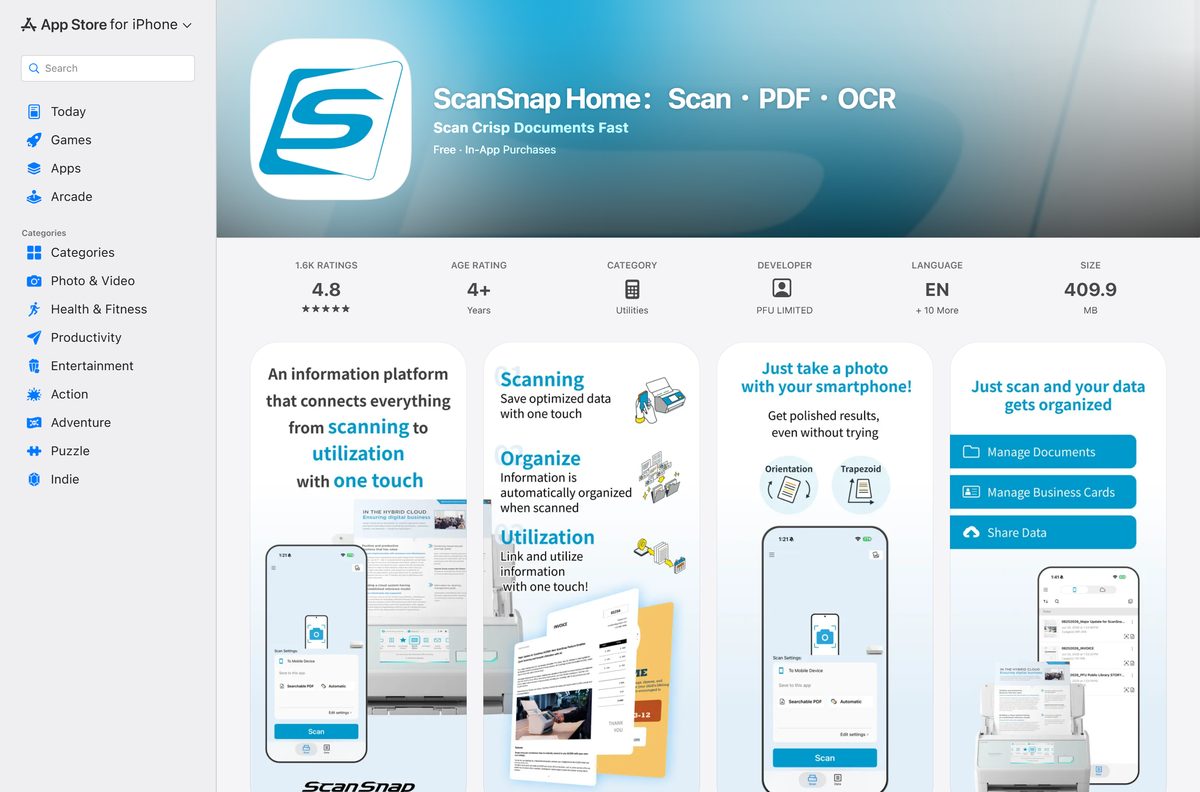
| ScanSnap Home mobile | iOS 18, iPadOS 18 | Scanning to a phone and camera capture | App Store |
| ScanSnap Home mobile | Android 12 or later | Scanning to a phone and camera capture | Google Play |
Install the desktop version first. It is the one that registers the scanner, updates its firmware and converts scans to Word, Excel and PowerPoint.
Frequently asked questions
Is ScanSnap Home free?
Yes. ScanSnap Home is free for anyone who owns a supported ScanSnap scanner. PFU offers the Windows and Mac installers on its own download page with no licence key or trial period. The mobile app is also free, with optional in-app purchases.
Where is the official ScanSnap Home download page?
The official page is scansnap.com/d, which opens PFU’s Download the ScanSnap software page. Select your location, then choose Download Installer, Offline Installer or Download for other OSes to get the Mac build.
Does ScanSnap Home work on Windows 11?
Yes. ScanSnap Home supports Windows 11 in its 64-bit form, plus Windows 10 in 32-bit and 64-bit form. It needs .NET Framework 4.8 or later, and setup offers to install it when it is missing.
How big is the ScanSnap Home download?
PFU does not publish a file size for the installers. Plan for the installed footprint instead: 3.8 GB or more on Windows with up to 4.5 GB extra during setup, and 2.5 GB or more on a Mac.
Is there a ScanSnap Home offline installer?
Yes. The download page offers an Offline Installer next to the recommended Download Installer. Use it on a PC with no internet connection, and use it for the iX1500 and iX500, which PFU names for the offline route.
Is ScanSnap Home available for Mac?
Yes. ScanSnap Home runs on macOS 26, 15, 14, 13 and 12. Open the official download page, select Download for other OSes, and take the Mac installer. One build covers Intel and Apple silicon Macs.
Does ScanSnap Home run on Apple silicon or ARM?
On a Mac, yes: PFU lists Intel processors and Apple silicon as supported. On Windows, PFU lists Intel or Intel-compatible processors only, so Windows on ARM laptops are not on the supported list.
Is ScanSnap Home safe to download?
It is safe when it comes from scansnap.com or pfu.ricoh.com, which serve PFU’s own files. The Windows installer is named WinSSHDownloadInstaller_4_0_0.exe. Skip download portals that repackage the installer or charge for it.
What is the latest version of ScanSnap Home?
The current installers are ScanSnap Home 4.0, with a 4.0.1 beta for macOS Tahoe 26.7 users. PFU has scheduled ScanSnap Home 4.1.0 for the end of September 2026. Installed copies update through ScanSnap Online Update.
Why won’t ScanSnap Home install?
The usual causes are a blocked .NET Framework install, a failed ScanSnap Online Update component or no internet connection. Run Windows Update, reinstall with a fresh installer, or switch to the Offline Installer on a PC without a connection.
Which scanners work with ScanSnap Home?
The iX2500, iX2400, iX1600, iX1400, iX1300, iX100, SV600, S1300i and S1100i work with the standard installer. The iX1500 and iX500 use the offline installer. Legacy models such as the S1500 and S1300 are not supported.
Can ScanSnap Home and ScanSnap Manager run on the same PC?
No. ScanSnap Home 3.0 and later cannot run alongside ScanSnap Manager, and setup offers to remove the older software. Keep ScanSnap Manager if your scanner is a legacy model, because PFU no longer offers its installer.