The Webroot SecureAnywhere download installs Webroot’s antivirus on Windows 11, Windows 10, Windows 8.1 and macOS 14 or later. Existing customers get the installer from their Webroot account, and new users can start a 14-day free trial with no credit card.
Every copy activates with a 20-character keycode. The Windows app also adds Web Threat Shield to Chrome and Firefox.
This guide covers where to get the installer, installing on Windows and Mac, what the plans cost, fixes for keycode and Full Disk Access problems, and a clean uninstall.
Which Webroot SecureAnywhere download do you need?
Webroot serves one installer per platform from your account, so the choice comes down to your situation rather than a file name. Match your case below.
| Your situation | Where to get it | Note |
|---|---|---|
| You bought Webroot and have a keycode | Webroot account sign-in | Open the Downloads tab and choose Windows or Mac |
| You want to try it before you pay | Webroot 14-day free trial | No credit card; download instructions arrive by email |
| Windows 11 on an ARM laptop | Webroot account sign-in | Supported, except Webroot Total Protection |
| Mac on macOS 14, 15 or 26 | Webroot account sign-in | Downloads a WSAMAC.pkg installer |
| iPhone, iPad or Android phone | Webroot mobile apps | iOS 15 or Android 11 and later |
Webroot now sells its home protection as Essentials, Premium and Total Protection. Existing SecureAnywhere keycodes still install from the account under Webroot SecureAnywhere Protection.
Download Webroot SecureAnywhere from the official Webroot site
The installer sits behind your Webroot account sign-in, so there is no public direct link. Start from one of these official pages.
- Webroot account (Downloads tab) — for customers with a keycode, Windows and Mac
- Webroot Essentials 14-day free trial — no credit card required
- Installing Webroot SecureAnywhere on Windows — Webroot’s own Windows install article
- Install Webroot on Mac — Webroot’s own Mac install article
- Webroot system requirements — Windows, Mac and mobile
The account download always delivers the current build. Webroot does not publish a version number or file size for the home installer.
How to install Webroot SecureAnywhere on Windows 11 and 10
Close your other programs first. Have your keycode ready, or copy it from the account during step 4.
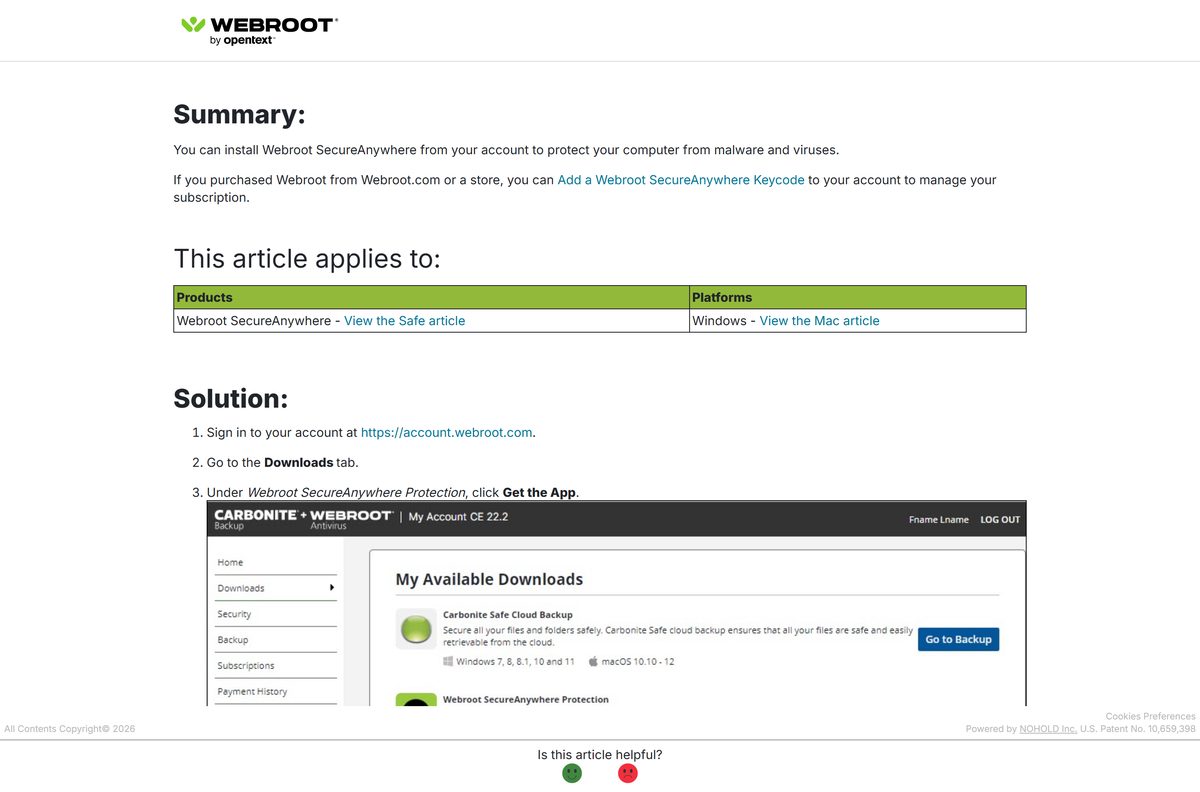
- Sign in to your account at account.webroot.com.
- Open the Downloads tab.
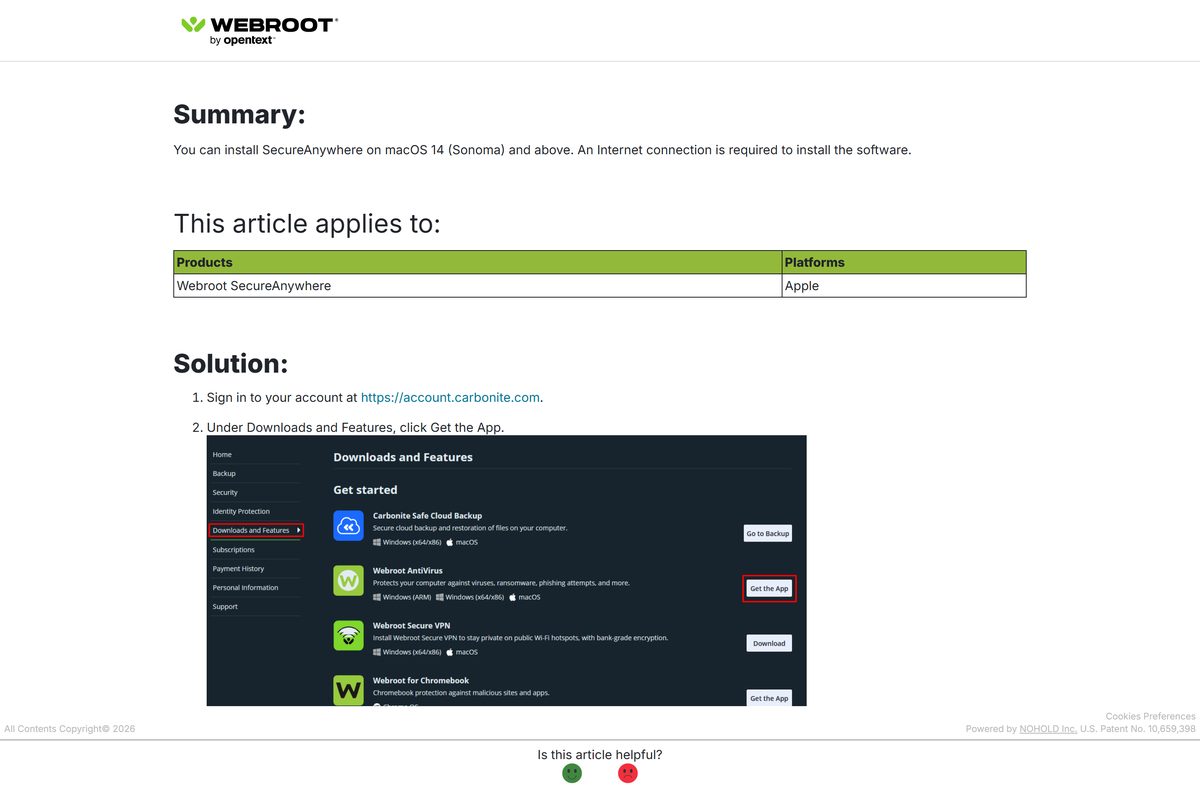
- Under Webroot SecureAnywhere Protection, select Get the App.
- Select Copy next to your keycode.
- Choose Windows from the dropdown menu and select Download.
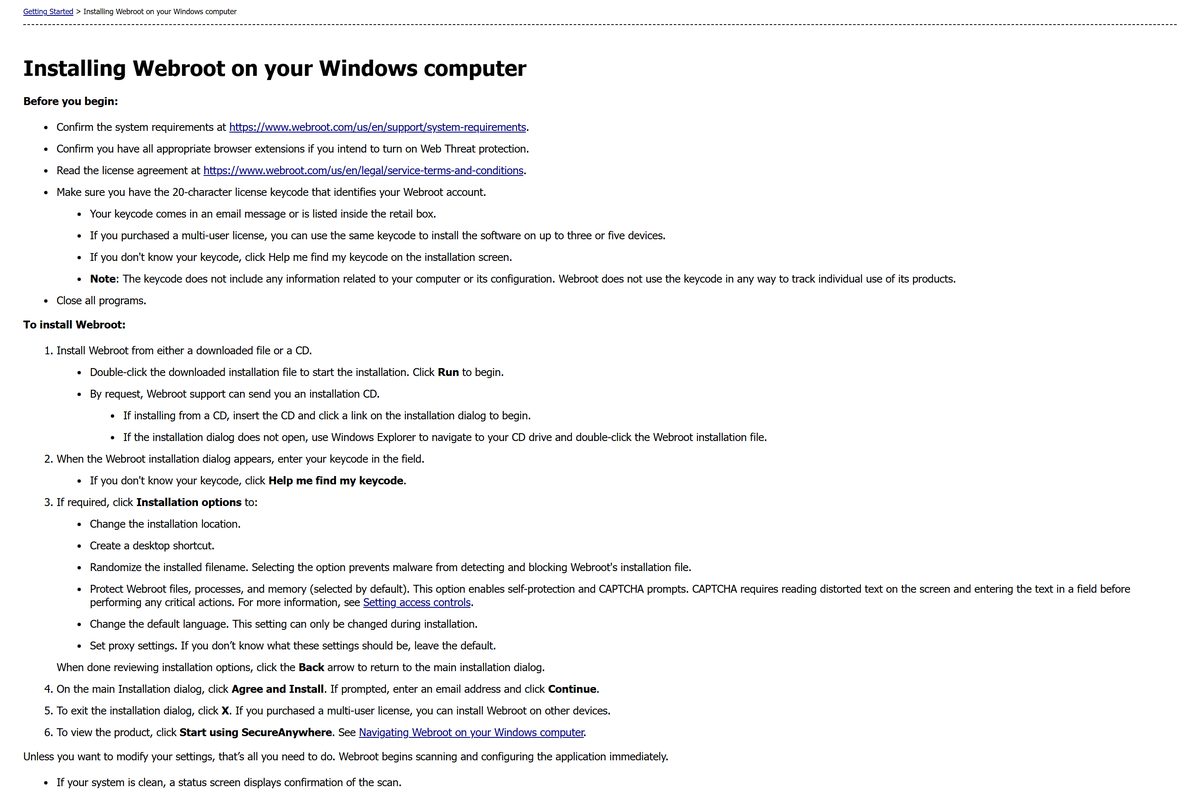
- Open the downloaded Webroot file from your browser’s downloads list. In Edge, select Run if asked.
- Paste the keycode into the field and select Agree and Install.
- Select Yes in the User Account Control window.
- Enter an email address if you want threat news, then select Continue.
- Select Start using SecureAnywhere and let the first scan finish.
Select Installation options before step 7 to change the install folder, add a desktop shortcut, randomize the installed filename or set a proxy. The language can only be chosen at this point.
After the first scan, Webroot scans the PC daily on its own. Look for the Webroot W icon in the system tray to confirm it is running.
Which Webroot SecureAnywhere download do you need for your Mac?
Open the Apple menu and select About This Mac to read your macOS version. One WSAMAC.pkg installer covers both Apple silicon and Intel Macs.
| Your Mac says | Install | Supported |
|---|---|---|
| macOS 14 Sonoma, Apple M-series or Intel | WSAMAC.pkg from your Webroot account | Yes |
| macOS 15 Sequoia, Apple M-series or Intel | WSAMAC.pkg from your Webroot account | Yes |
| macOS 26 Tahoe, Apple M-series or Intel | WSAMAC.pkg from your Webroot account | Yes |
| macOS 13 Ventura or older | Webroot system requirements | Not listed |
Sign in, select Get the App under Downloads and Features, then select Download and copy your subscription key. Open WSAMAC.pkg and select Continue, Agree and Install.
Enter your Mac user name and password, select Install Software, then Close. When the activation window opens, enter the keycode and select Activate Software.
Grant Full Disk Access when asked, then select Done. The window turns blue while it scans and green when the Mac is clean. The installer needs an internet connection.
Is Webroot SecureAnywhere free?
No. Webroot is paid software with a 14-day free trial of Webroot Essentials, and the trial needs no credit card.
First-year prices: Essentials for 1 device costs $37.49 (regular $49.99), and Essentials for 3 devices costs $52.49 (regular $69.99). Premium for 5 devices costs $90.99 (regular $129.99), and Total Protection for 5 devices costs $107.99 (regular $179.99).
Every plan covers PCs, Macs, smartphones, tablets and Chromebooks. Treat any “free Webroot keycode” or cracked installer as malware, because a real keycode only comes from Webroot or a retail box.
Start the 14-day Essentials trial, then buy Essentials if one to three devices need protection. Essentials is the cheapest plan and runs on both Windows and Mac. Premium and Total Protection add identity protection and cover five devices. For free protection, Windows 11 and 10 already include Microsoft Defender.
Check the Webroot SecureAnywhere system requirements
Open Settings > System > About on Windows and read System type to confirm whether your PC is 32-bit, 64-bit or ARM.
| Specification | Detail |
|---|---|
| Software | Webroot SecureAnywhere |
| Developer | Webroot, an OpenText company |
| Latest version | Not published; the account download installs the current build |
| Licence / price | Paid subscription, 14-day free trial |
| Windows | Windows 8.1 and 10 (32- and 64-bit), Windows 11 (64-bit) |
| Windows on ARM | Windows 11 64-bit ARM, except Webroot Total Protection |
| macOS | macOS 14 Sonoma, 15 Sequoia and 26 Tahoe |
| Mac processors | Apple M-series and Intel |
| Browsers | Chrome 11+, Firefox 3.6+, Opera 11+, Internet Explorer 11+, partial Edge support |
| Activation | 20-character keycode |
| Offline installer | No; install from the signed-in account download |
| Official download source | account.webroot.com |
| Last verified | 2026-09-25 |
Fix Webroot SecureAnywhere not installing on Windows 11 or 10
You do not know your keycode
The installer will not continue without the 20-character keycode.
- Search your email for the Webroot purchase message, or check inside the retail box.
- Sign in to account.webroot.com and open the Downloads tab.
- Select Copy next to the keycode shown there.
- On the installer screen, select Help me find my keycode if you still cannot find it.
A previous install is broken or will not open
A damaged install has to be removed before a clean reinstall.
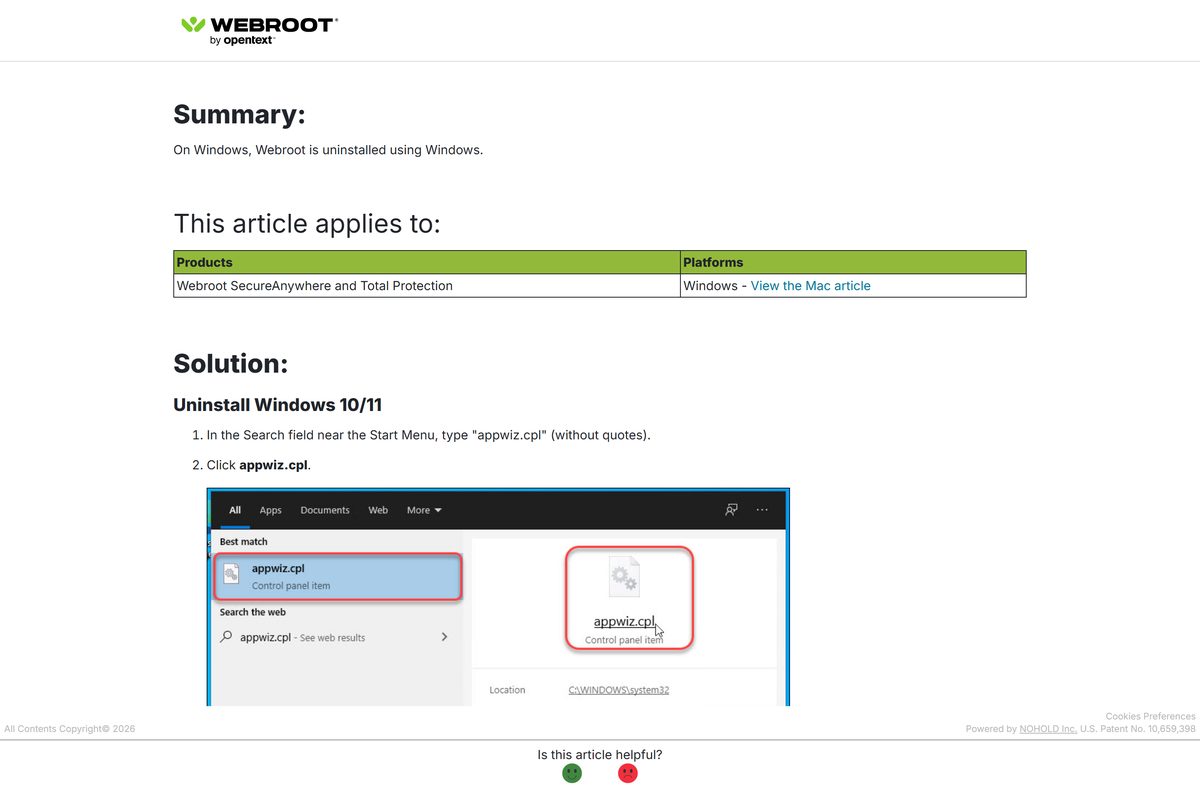
- Type appwiz.cpl in the Start menu search and open it.
- Select Webroot SecureAnywhere, then Uninstall, and confirm the prompts.
- Restart the PC.
- Download a fresh copy from your account and install it again with the same keycode.
Total Protection will not install on a Windows 11 ARM laptop
Webroot supports Windows 11 64-bit ARM for every home plan except Total Protection.
- Open Settings > System > About and check whether System type says ARM.
- Install Total Protection on an x64 PC instead, or ask Webroot support about switching plans.
Webroot on a Mac stays incomplete or cannot scan everything
macOS blocks the scanner until it has Full Disk Access.
- Open System Settings, then Privacy & Security, then Full Disk Access.
- Unlock the pane with your Mac user name and password if it is locked.
- Select +, choose Webroot SecureAnywhere from Applications and select Open.
- Select Quit & Reopen, then return to Webroot and select Done.
How to uninstall Webroot SecureAnywhere from Windows and Mac
Removing the app does not cancel your subscription. The keycode stays valid, so you can reinstall on the same or another device.
- On Windows, type appwiz.cpl in the search field next to Start and open it.
- Select Webroot SecureAnywhere and select Uninstall. Select refresh if it is not listed yet.
- Select Yes at both confirmation prompts.
- Type the characters shown on screen and select Continue.
- Restart the PC, especially if you plan to reinstall.
- On a Mac, open Webroot SecureAnywhere and select Webroot SecureAnywhere in the top-left menu.
- Select About SecureAnywhere, then Uninstall Webroot SecureAnywhere, then Yes.
- Drag the Webroot icon out of the Dock to the Trash if it is still there.
An error that mentions Web Console management means a business account manages the install, and Webroot’s business uninstall steps apply instead.
Which Webroot SecureAnywhere alternative should you choose?
| Alternative | Price model | Guide |
|---|---|---|
| Microsoft Defender | Built into Windows 11 and 10 | Windows Security overview |
| Avast Free Antivirus | Free | Download Avast Free Antivirus |
| Bitdefender Antivirus | Free for Windows; Mac is paid with a trial | Download Bitdefender Antivirus |
| Norton 360 | Paid, 7-day trial | Download Norton 360 |
| ESET NOD32 Antivirus | Paid, 30-day trial | Download ESET NOD32 Antivirus |
Run one real-time antivirus at a time. Uninstall Webroot before you install any of these, or the two scanners can conflict.
Frequently asked questions
Is Webroot SecureAnywhere free?
No. Webroot is paid antivirus with a 14-day free trial that needs no credit card. Essentials for one device costs $37.49 for the first year, and the regular price is $49.99.
Where is the official Webroot SecureAnywhere download?
Sign in at account.webroot.com and open the Downloads tab. Under Webroot SecureAnywhere Protection, select Get the App, choose Windows or Mac and select Download. New users start from the trial page on webroot.com.
Does Webroot SecureAnywhere work on Windows 11?
Yes. Webroot supports Windows 11 64-bit and Windows 11 on ARM, except Total Protection on ARM. It also runs on Windows 10 and Windows 8.1 in both 32-bit and 64-bit editions.
How big is the Webroot SecureAnywhere download?
Webroot does not publish a size for the home installer, and the file is only served after you sign in to your account. The mobile apps need at least 60 MB of free storage.
Is there a Webroot SecureAnywhere offline installer?
No public offline package exists. The Windows installer comes from your signed-in Webroot account, and the Mac installer needs an internet connection during installation.
Can you install Webroot SecureAnywhere on a Mac?
Yes. Webroot supports macOS 14 Sonoma, macOS 15 Sequoia and macOS 26 Tahoe on Apple M-series and Intel Macs. The account delivers a WSAMAC.pkg installer, and the app needs Full Disk Access.
Does Webroot SecureAnywhere support ARM64?
Yes, on Windows 11 64-bit ARM for every home plan except Webroot Total Protection. On Mac, it runs natively on both Apple M-series and Intel processors.
Is Webroot SecureAnywhere safe to download?
Yes, when it comes from account.webroot.com or the trial page on webroot.com. Avoid download portals, free keycode offers and cracked installers, which are common malware carriers.
What is the latest version of Webroot SecureAnywhere?
Webroot does not publish a version number for the home installer. The download from your Webroot account always installs the current build, so reinstalling from there never gives you an outdated copy.
Why will Webroot SecureAnywhere not install?
The usual causes are a missing keycode, a damaged earlier install, or Total Protection on a Windows 11 ARM laptop. Uninstall the old copy with appwiz.cpl, restart, and reinstall with your 20-character keycode.
Where do you find your Webroot keycode?
The 20-character keycode comes in your purchase email or inside the retail box. You can also copy it from the Downloads tab of your Webroot account, or select Help me find my keycode in the installer.
How do you uninstall Webroot SecureAnywhere?
On Windows, open appwiz.cpl, select Webroot SecureAnywhere and select Uninstall. On a Mac, open the app, select About SecureAnywhere from the Webroot SecureAnywhere menu, then Uninstall Webroot SecureAnywhere.