Xerox printer drivers are free downloads from Xerox support, and there is one driver set per printer model rather than a single file for the whole brand. You pick your product, pick your operating system, and Xerox lists the packages built for that combination.
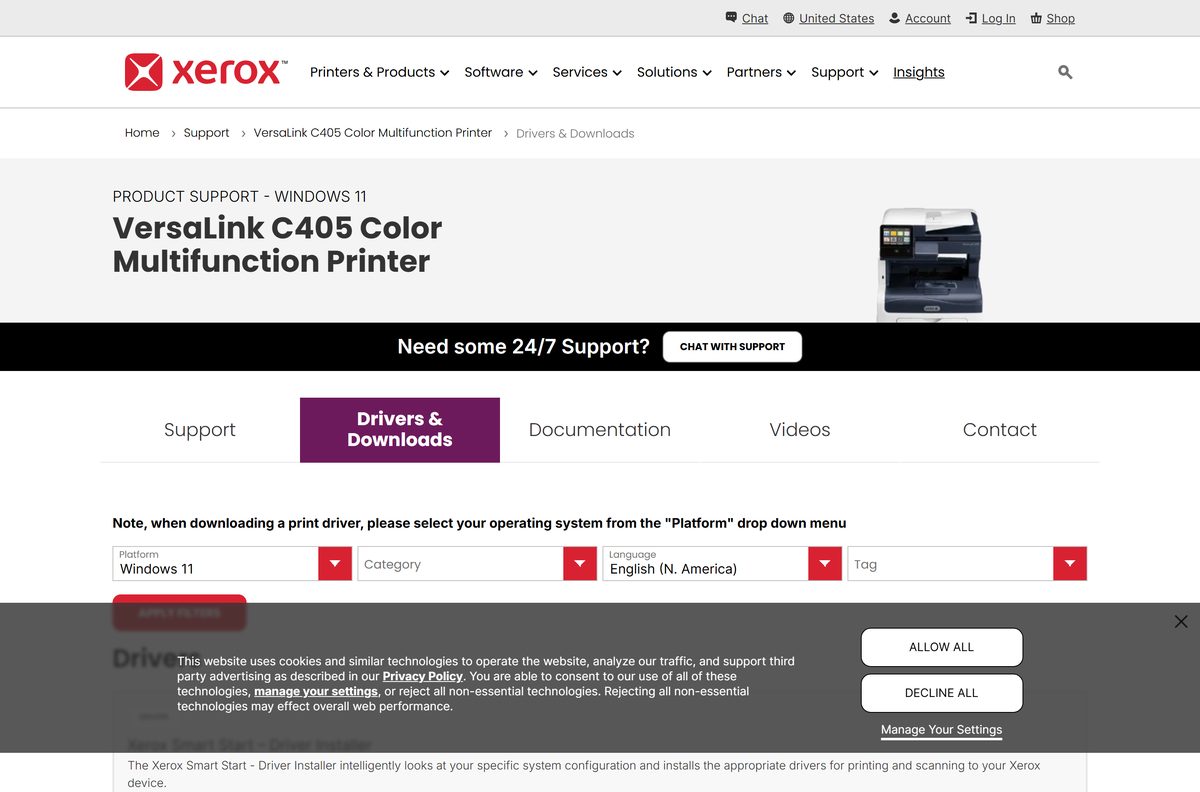
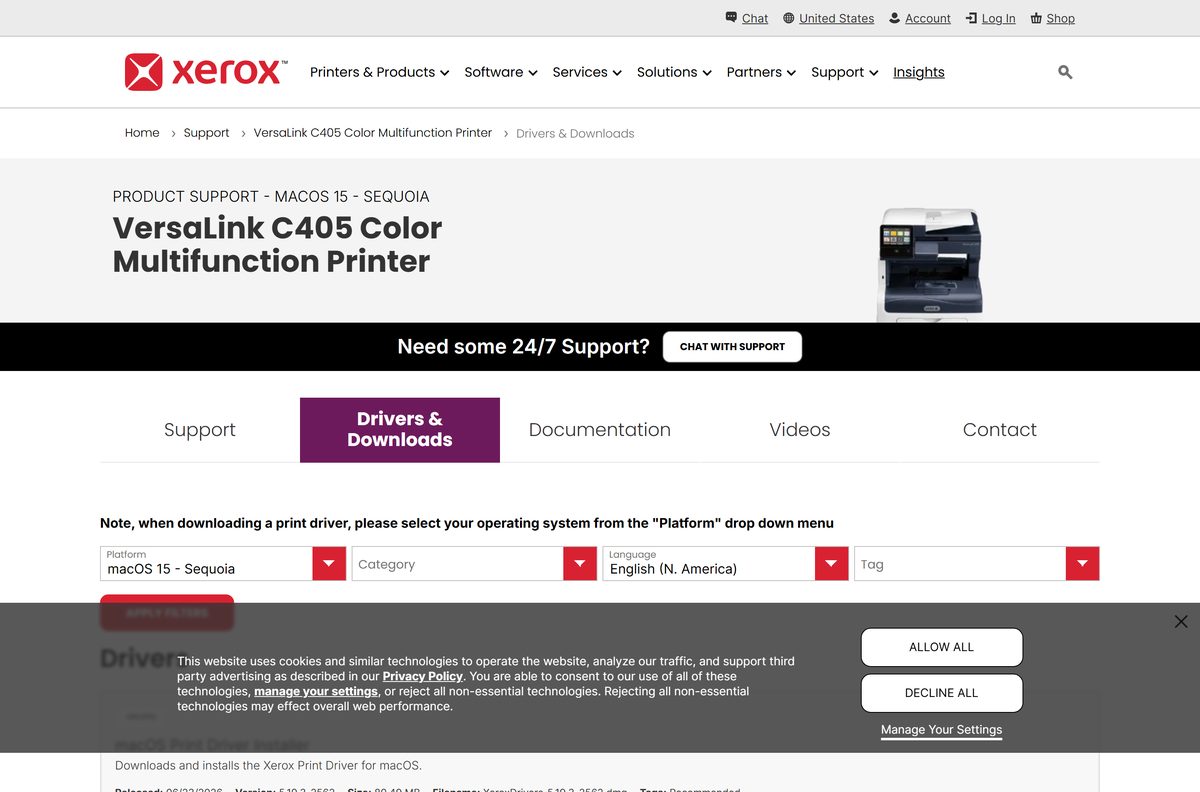
This page uses the VersaLink C405 as the worked example. Its Windows list is led by Xerox Smart Start 2.5.10.0, and its Mac list by the macOS Print Driver Installer 5.19.3_2562. Swap in your own model and every step below is identical.
You also get the Global Print Driver route for mixed printer fleets, the admin packages for deployment, fixes for drivers that refuse to install, and clean removal.
Which Xerox printer driver download do you need?
Open the Drivers & Downloads tab for your printer and set Platform to your operating system. That one menu decides the whole list.
| Your setup | Download this | File name |
|---|---|---|
| Windows 11 or Windows 10, one Xerox printer | Xerox Smart Start | XeroxSmartStart_2.5.10.0.exe |
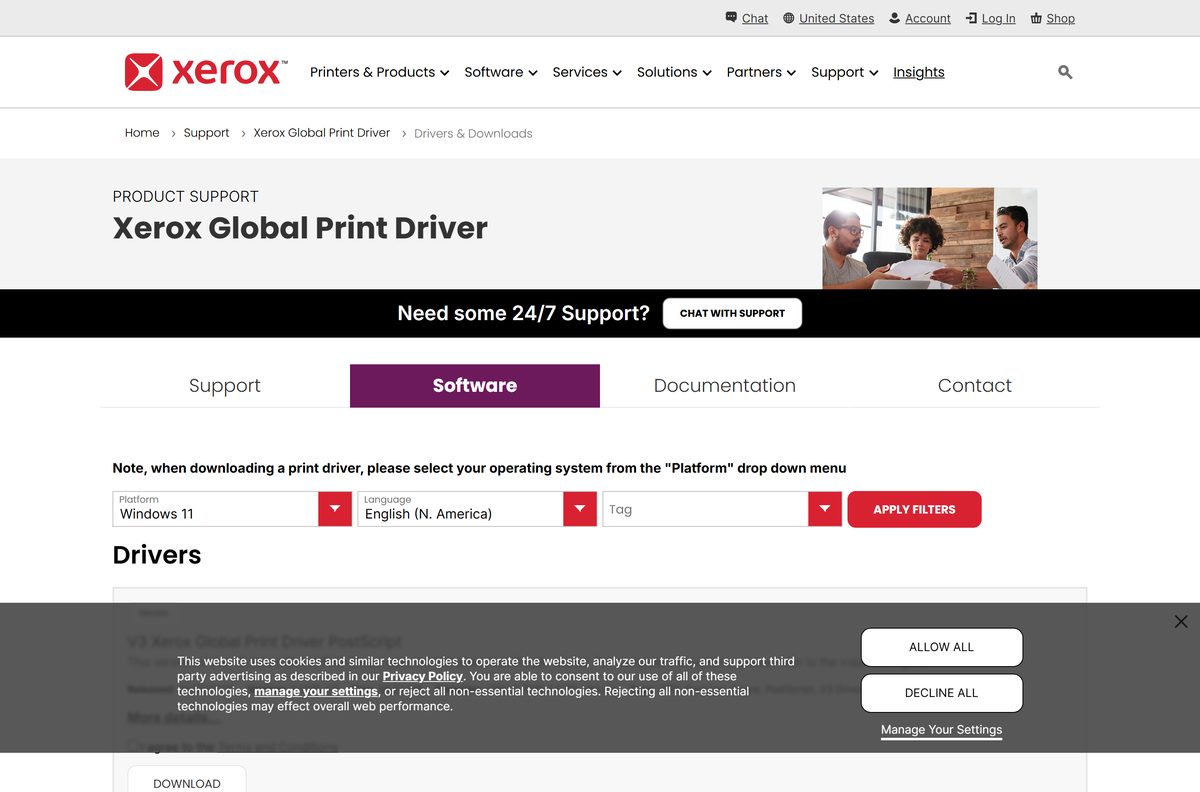
| Windows, several printer models on one network | Xerox Global Print Driver | UNIV_5.1076.4.0_PCL6_x64.zip |
| macOS 14, macOS 15 or macOS 26 | macOS Print Driver Installer | XeroxDrivers_5.19.3_2562.dmg |
| Scanning to the PC over USB or the network | TWAIN/WIA Scan Driver Installer | XeroxTWAIN_WIA_Scan_7.10.24.0_x64.msi |
| A print queue pushed out from a server | PostScript Print Driver for Administrators | VersaLink_C400_C405_7.95.0.0_PS_x64.zip |
Pick your own model before you click anything. The admin packages carry the model family in the file name, which is why the WorkCentre 6515 list shows Phaser6510_WC6515 files instead of VersaLink ones.
Download Xerox printer drivers for Windows 11 and Windows 10
Every link below lands on Xerox support. Search your model on the support home page, open Drivers & Downloads, then set Platform and Category to narrow the list.
- Xerox Support home — Find your product, then open Drivers & Downloads
- VersaLink C405 Drivers & Downloads (Windows 11) — Smart Start 2.5.10.0, scan driver, PPD and admin packages
- Xerox Global Print Driver Drivers & Downloads — V3 PCL6 and PostScript builds, version 5.1076.4.0, 22 May 2026
- WorkCentre 6515 Drivers & Downloads (Windows 11) — The same file set with Phaser 6510 and WorkCentre 6515 packages
- Global Print Driver documentation — Supported products list, install guide and the Windows on ARM tip
Xerox shows a terms prompt before the file starts, so the address bar never carries a plain installer link. Take the file from the product page rather than from a search result.
How to install Xerox printer drivers on Windows 11 and 10
Smart Start is the shortest route on a single PC. It reads the system configuration and installs the print and scan drivers that match the connected device.
- Open Drivers & Downloads for your printer on Xerox support.
- Set Platform to Windows 11 or Windows 10 x64, and leave Category on Drivers.
- Select Xerox Smart Start – Driver Installer, then select Download.
- Accept the terms and conditions when Xerox asks, and save XeroxSmartStart_2.5.10.0.exe.
- Double-click the file in your Downloads folder and select Yes at the User Account Control prompt.
- Let the tool scan the network, or attach the USB cable when it asks for one.
- Select your printer in the results list and select Install.
- Open Settings > Bluetooth & devices > Printers & scanners, select the new queue and print a test page.
Add scanning separately if the device scans. The TWAIN/WIA Scan Driver Installer is a distinct .msi on the same page.
How to download the Xerox driver packages for deployment
Administrators want driver files, not a wizard. The packages below are .zip driver sets and .msi installers you can stage on a print server or push with your own tooling.
| Package | File name | What it is for |
|---|---|---|
| PostScript Print Driver for Administrators | VersaLink_C400_C405_7.95.0.0_PS_x64.zip | A driver-only set for the Add Printer wizard and print servers |
| PCL6 Print Driver for Administrators | VersaLink_C400_C405_7.95.0.0_PCL6_x64.zip | The PCL equivalent for the same models |
| V3 Global Print Driver PCL6 | UNIV_5.1076.4.0_PCL6_x64.zip | One queue that covers Xerox and non-Xerox printers |
| TWAIN/WIA Scan Driver Installer | XeroxTWAIN_WIA_Scan_7.10.24.0_x64.msi | Scanning from desktop applications |
| Desktop Print Experience | XrxSetup_8.158.0.0_x64.msi | The Xerox print interface and its app bundle |
| Font Management Utility | XeroxFontManagementUtility_3.2.34.0_x86.msi | Sends and manages fonts on the device |
Start a silent install with msiexec /i XeroxTWAIN_WIA_Scan_7.10.24.0_x64.msi /qn , and run it on one machine before the fleet. A driver that breaks a print queue breaks it everywhere at once.
Which Xerox printer driver download do you need for your Mac?
Mac gets one file. Set Platform to your macOS release on the product page and the Drivers section returns a single disk image.
| Your Mac runs | Download | File name |
|---|---|---|
| macOS 26 Tahoe | macOS Print Driver Installer 5.19.3_2562 | XeroxDrivers_5.19.3_2562.dmg |
| macOS 15 Sequoia | macOS Print Driver Installer 5.19.3_2562 | XeroxDrivers_5.19.3_2562.dmg |
| macOS 14 Sonoma | macOS Print Driver Installer 5.19.3_2562 | XeroxDrivers_5.19.3_2562.dmg |
| An older macOS release | Set Platform to that version on your model page | The Platform menu lists each macOS release separately |
Open the .dmg, run the installer, then add the printer in System Settings > Printers & Scanners.
The Global Print Driver has no Mac build. Its own Drivers & Downloads page returns no results once you select a macOS platform.
Is the Xerox printer drivers download free?
Every driver Xerox publishes for its printers is a free download. Xerox describes the Global Print Driver as free on its own listing, and nothing on a product’s Drivers & Downloads page asks for a licence key, a subscription or a payment. A sign-in is optional and covers MySupport, not the files. Any site charging for a Xerox driver is not Xerox.
The paid products sit elsewhere in the catalogue: workflow and print management software, not the drivers that make a printer print.
Should you install Smart Start or the Global Print Driver?
Install Smart Start on a single PC, and the Global Print Driver when one queue has to serve several printers. Smart Start looks at the system configuration and installs the drivers that match the device in front of you. The Global Print Driver instead manages Xerox and non-Xerox printers through one interface, which is why its listing runs from Windows 10 to Windows Server 2025 x64 and includes Windows 11 ARM64.
Both appear on the same product page, so the choice costs nothing to change later.
How to check your Xerox driver version and update it
Windows keeps the installed driver version in print server properties, not in the printer’s own settings page.
- Press Windows + I and open Bluetooth & devices > Printers & scanners.
- Scroll to Related settings and select Print server properties.
- Open the Drivers tab and select the Xerox entry in the list.
- Select Properties to read the driver version and the driver files behind it.
- Open Drivers & Downloads for your model and compare that number with the version listed there.
- Download the newer package, run it, and let it rebuild the queue.
- Restart the PC, then print a test page from Printers & scanners.
The dates on the page are the release dates, so a 2019 driver is current when Xerox has shipped nothing newer for that model.
Check the Xerox printer driver system requirements
The Global Print Driver listing carries the widest operating system list, and the Mac installer carries its own.
| Item | Detail |
|---|---|
| Developer | Xerox Corporation |
| Latest version | Xerox Global Print Driver 5.1076.4.0, released 22 May 2026 |
| Windows releases | Windows 11, Windows 11 ARM64, Windows 10 and Windows 10 x64 |
| Windows Server | 2016 x64, 2019 x64, 2022 x64 and 2025 x64 |
| macOS releases | macOS 14 Sonoma, macOS 15 Sequoia and macOS 26 Tahoe |
| Architecture | x64 packages, with ARM64 listed for the Global Print Driver |
| Price | Free |
| Worked example | Xerox VersaLink C405 Color Multifunction Printer |
| Official download page | support.xerox.com |
| Last verified | 22 September 2026 |
What the Xerox driver download puts on your computer
A product page mixes drivers, utilities and firmware tools in one list. This is what each Windows item actually installs.
| Component | File name | What it does |
|---|---|---|
| Smart Start driver installer | XeroxSmartStart_2.5.10.0.exe | Detects the device and installs the matching print and scan drivers |
| V3 Global Print Driver PCL6 | UNIV_5.1076.4.0_PCL6_x64.zip | A PCL6 queue for Xerox and non-Xerox printers |
| V3 Global Print Driver PostScript | UNIV_5.1076.4.0_PS_x64.zip | The PostScript equivalent of the same driver |
| Generic PPD | VersaLink_C400_5.662.0.0_PPD_English.exe | A PostScript description file for generic print paths |
| TWAIN/WIA scan driver | XeroxTWAIN_WIA_Scan_7.10.24.0_x64.msi | Lets desktop applications pull a scan from the device |
| Desktop Print Experience | XrxSetup_8.158.0.0_x64.msi | The Xerox printing interface and its bundled apps |
| Print and Scan Experience app | Version 9.99.18.0, Windows 11 | Extends print and scan features past the driver defaults |
Fix Xerox printer drivers not installing on Windows 11 or 10
The download list is empty for your operating system
The page filters on one platform at a time, and a wrong selection returns no results.
- Set Platform to the exact release you run, such as Windows 11 or Windows 10 x64.
- Set Category to Drivers and clear any Tag filter still applied.
- Set Language to English if the list is still short.
- Try the Global Print Driver page when your model lists no current driver for that release.
The installer will not start
The package needs administrator rights, and a blocked file stays blocked after download.
- Right-click the file and select Run as administrator.
- Right-click the file, select Properties, and select Unblock if the option appears.
- Close any open printer or scanner application before you try again.
- Sign in with an administrator account when the error mentions permissions.
Windows keeps its own driver instead of the Xerox one
An existing queue holds the old driver, so the new package installs beside it.
- Open Settings > Bluetooth & devices > Printers & scanners and remove the existing queue.
- Open Print server properties, select the Drivers tab and remove the stale entry.
- Run the Xerox package again and let it create the queue.
- Print a test page before you restore any custom paper or tray settings.
Smart Start does not find the printer
The tool searches the local network, so an off-subnet or sleeping device stays invisible.
- Print a configuration report at the device and read its IPv4 address.
- Confirm the PC and the printer sit on the same subnet.
- Select the option to add the device by IP address and type that address.
- Attach a USB cable and install over USB when the network route stays blocked.
Printing works but scanning does not
The scan driver is a separate package and does not arrive with the print driver.
- Open Drivers & Downloads for your model and set Platform to your Windows release.
- Download the TWAIN/WIA Scan Driver Installer and run the .msi.
- Restart the PC so the scan source registers with Windows.
- Open your scanning application and select the Xerox device as the source.
How to uninstall Xerox printer drivers
Removing the printer removes the queue and leaves the driver package behind. Take both, in this order.
- Open Settings > Bluetooth & devices > Printers & scanners, select the device and select Remove.
- Return to Printers & scanners and open Print server properties.
- On the Drivers tab, select the Xerox entry and select Remove.
- Choose Remove driver and driver package so the files leave the driver store.
- Open Settings > Apps > Installed apps and remove Smart Start, the scan driver and Desktop Print Experience.
- Restart the PC to release any file the print spooler still held.
- On a Mac, open System Settings > Printers & Scanners, select the device and select Remove Printer.
What to install when no model driver fits your setup
A model list sometimes stops at an older Windows or macOS release. These Xerox packages cover that gap.
| Package | Choose it when | Platform |
|---|---|---|
| Global Print Driver | One queue has to reach several printer models, including non-Xerox devices | Windows 10, 11, 11 ARM64 and Server 2016-2025 |
| Generic PPD | A generic PostScript path is enough and the model driver is missing | Windows |
| Print and Scan Experience app | You want print and scan features past what the driver exposes | Windows 11 |
| Desktop Print Experience | You prefer the Xerox printing interface on an x64 PC | Windows x64 |
Take the Global Print Driver first in a mixed office. It is the only package on this list that Xerox builds for Windows Server and for ARM64.
Frequently asked questions
Where is the official Xerox printer drivers download?
On support.xerox.com. Open the Xerox support home page, find your printer, open the Drivers & Downloads tab and set Platform to your operating system. Xerox then lists the drivers, utilities and firmware tools built for that combination.
Are Xerox printer drivers free?
Yes. Xerox publishes its print and scan drivers as free downloads, and the Global Print Driver listing says so in as many words. No key, subscription or payment is involved, and a sign-in is only for MySupport.
Do Xerox printer drivers work on Windows 11?
Yes. The Global Print Driver 5.1076.4.0 listing covers Windows 11 and Windows 11 ARM64, and Smart Start 2.5.10.0 covers Windows 11 and Windows 10. Both appear on the same Drivers & Downloads page as your model driver.
How big is the Xerox driver download?
It depends on the package and the model. Xerox prints the size beside every file on the Drivers & Downloads list, from a small PPD through to the macOS disk image, so read the figure next to the file you select.
Is there an offline installer for Xerox printer drivers?
Yes. The administrator PostScript and PCL6 packages and the Global Print Driver arrive as .zip driver sets. You extract one and point the Windows Add Printer wizard at it, with no live connection to Xerox needed during setup.
Is there a Xerox printer driver for Mac?
Yes. Set Platform to macOS 14 Sonoma, macOS 15 Sequoia or macOS 26 Tahoe on your model page and Xerox returns the macOS Print Driver Installer, version 5.19.3_2562, as the file XeroxDrivers_5.19.3_2562.dmg.
Do Xerox drivers support 64-bit and ARM64?
Yes. The Windows packages are x64 builds, and the Global Print Driver adds Windows 11 ARM64 and Windows Server 2016 through 2025 x64. Xerox also publishes a customer tip covering printing with Windows on ARM.
Is the Xerox printer drivers download safe?
It is when it comes from support.xerox.com. Each file shows its version, release date and size, and the download starts only after the terms prompt. Driver bundles from download portals carry none of that.
What is the latest Xerox printer driver version?
There is no single version, because Xerox builds a driver set per model. The Global Print Driver is at 5.1076.4.0, dated 22 May 2026, while the VersaLink C405 lists Smart Start 2.5.10.0 and macOS driver 5.19.3_2562.
Why will the Xerox driver not install?
Usually the account lacks rights or an old queue is in the way. Run the file as administrator, remove the existing printer and its driver in print server properties, then run the package again and print a test page.