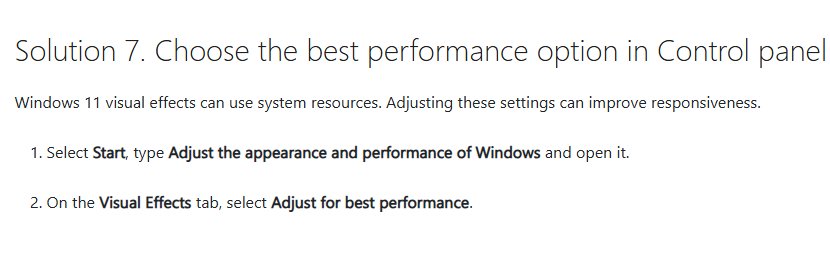
To adjust performance settings in Windows 11 or Windows 10, search Start for Adjust the appearance and performance of Windows, open it, and select Adjust for best performance on the Visual Effects tab.
That one switch turns off the animations and effects that cost the most, and the sections below cover the other settings that change speed: power mode, processor scheduling, virtual memory, startup apps, storage and updates.
1. Adjust visual effects for best performance
The Performance Options dialog is the same on Windows 11 and Windows 10. It controls window animations, shadows and other effects that use the CPU and graphics chip.
- Select Start and type
Adjust the appearance and performance of Windows. - Open the result to launch Performance Options.
- On the Visual Effects tab, select Adjust for best performance.
- Select Apply, then OK.
You can also reach the same dialog by pressing Win + R, typing sysdm.cpl, opening the Advanced tab and selecting Settings under Performance.
2. Choose custom visual effects for better performance and appearance
Adjust for best performance turns off every effect, which some people find too plain. The custom option lets you keep the effects you like and drop the rest.
- Open Performance Options as shown in the first method.
- On the Visual Effects tab, start from Adjust for best performance so every box is cleared.
- Tick only the effects you want back. Windows switches the selection to Custom automatically.
- Select Apply and use the PC for a while to judge the result.
- Select OK when you are happy with the balance.
3. Disable Windows animation effects
Windows 11 has a single toggle for its animations in the Accessibility settings, so you do not have to work through the Performance Options list.
- Select Start > Settings.
- Select Accessibility > Visual effects.
- Turn off Animation effects.
On Windows 10, choosing Adjust for best performance in Performance Options also stops window animations.
4. Turn off transparency effects
Transparency blurs the desktop behind the Start menu, taskbar and some windows. Turning it off makes those surfaces solid and saves a little graphics work, which helps most on older integrated graphics.
- Select Start > Settings.
- Select Accessibility > Visual effects.
- Turn off Transparency effects.
Other display appearance settings such as themes and colors have no measurable effect on speed.
5. Adjust processor scheduling
Processor scheduling decides whether Windows favors the app you are using or services running in the background. Desktop and laptop PCs you use directly should favor programs.
- Press Win + R, type
sysdm.cpland press Enter. - In System Properties, select the Advanced tab, then Settings under Performance.
- In Performance Options, select the Advanced tab.
- Under Processor scheduling, select Programs for a desktop or gaming PC.
- Select OK, then OK again.
Microsoft recommends Background services only for servers that run background workloads, such as BizTalk Server hosts.
6. Check virtual memory settings
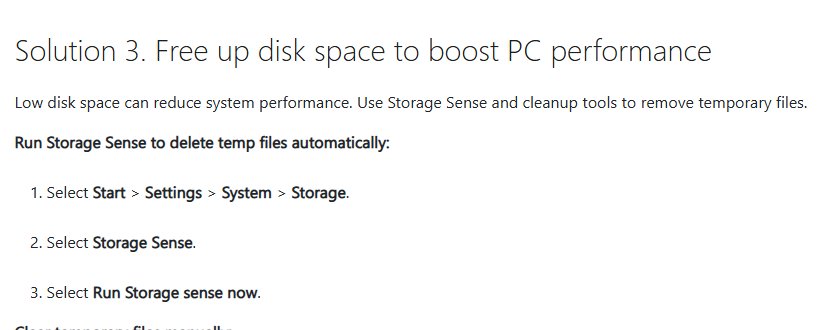
Virtual memory uses a page file on the drive when RAM runs short. Windows manages its size by default, and Microsoft recommends leaving it that way or setting it to 1.5 times your RAM.
- Open Performance Options from System Properties > Advanced > Settings.
- Select the Advanced tab, then Change under Virtual memory.
- Confirm Automatically manage paging file size for all drives is ticked.
- To set a fixed size instead, clear that box, select Custom size and enter an Initial size of 1.5 times your RAM in MB.
- Select OK and restart the PC.
Do not remove the page file. Windows needs it, or a dedicated dump file, to write a crash dump after a Stop error.
7. Change Windows power mode for better performance
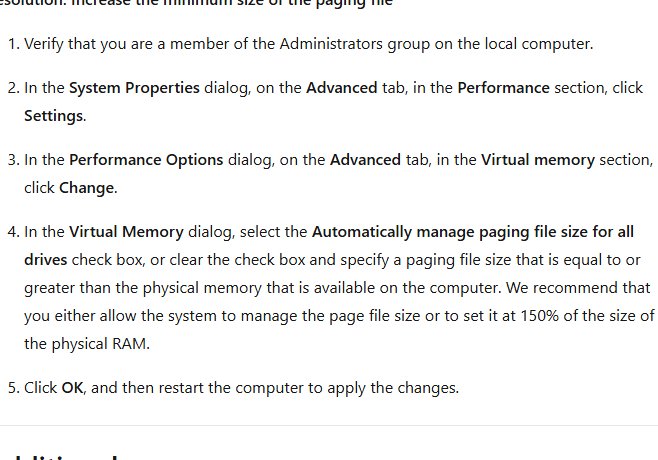
Power mode tells Windows how hard to run the processor. Best performance raises speed at the cost of battery life and heat.
- Select Start > Settings > System > Power & battery.
- Find Power mode.
- Select Best performance for Plugged in, and for On battery if you accept shorter battery life.
- On Windows 10, open Control Panel > System and Security > Power Options to pick a power plan.
If Power mode is missing or greyed out, the troubleshooting section below shows the fix.
8. Disable unnecessary startup apps
Every app that starts with Windows adds to boot time and keeps using memory afterwards. Disabling one does not uninstall it; you can still open it yourself.
- Press Ctrl + Shift + Esc to open Task Manager.
- Select Startup apps in the left menu. On Windows 10, select the Startup tab.
- Right-click an app you do not need at sign-in and select Disable.
- Restart the PC to feel the difference.
9. Reduce unnecessary background apps
Some apps keep running in the background to fetch data or show notifications. Windows 11 lets you stop that per app.
- Select Start > Settings > Apps > Installed apps.
- Find the app, select More options (…) and then Advanced options.
- Under Background app permissions, set Let this app run in the background to Never.
- Repeat for other apps you do not need running all the time.
Turning off notifications for apps you do not need under Settings > System > Notifications adds a small further gain.
10. Enable Storage Sense
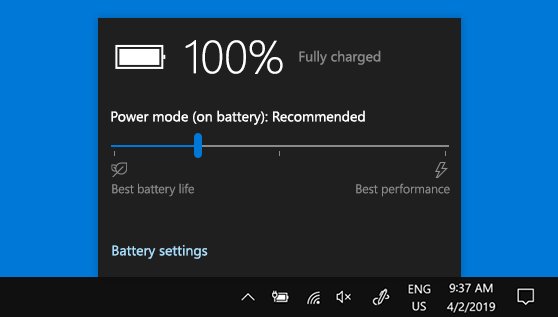
Low free disk space slows Windows down. Storage Sense deletes temporary files and old Recycle Bin content for you.
- Select Start > Settings > System > Storage.
- Select Storage Sense and turn it on.
- Select Run Storage Sense now to clean up straight away.
- Go back to Storage, select Temporary files, tick what you want to delete and select Remove files.
For a one-off deeper clean, search Start for Disk Cleanup, open it and select the drive.
11. Optimize your drives
Windows defragments hard drives and sends TRIM to SSDs on a schedule. Running it by hand helps after a large clean-up or install.
- Select Start and type
Defragment and Optimize Drives. - Open the result.
- Select the drive you want to optimize.
- Select Optimize and wait for the status to finish.
12. Uninstall apps you no longer use
Unused apps take disk space and often run updaters or background services.
- Select Start > Settings > Apps > Installed apps.
- Sort or search the list to find apps you no longer use.
- Select More options (…) next to the app, then Uninstall.
- Confirm with Uninstall and follow any prompts from the app's own uninstaller.
13. Restart your PC regularly
A restart clears memory held by apps and finishes pending updates. Many open apps and browser tabs slow a PC that has run for days.
- Save your work and close apps and browser tabs you do not need.
- Select Start > Power > Restart.
- After the restart, open only the apps you need and close them when you finish.
14. Keep Windows and device drivers updated
Windows updates and optional driver updates often include performance fixes. Check both, because driver updates sit in a separate list.
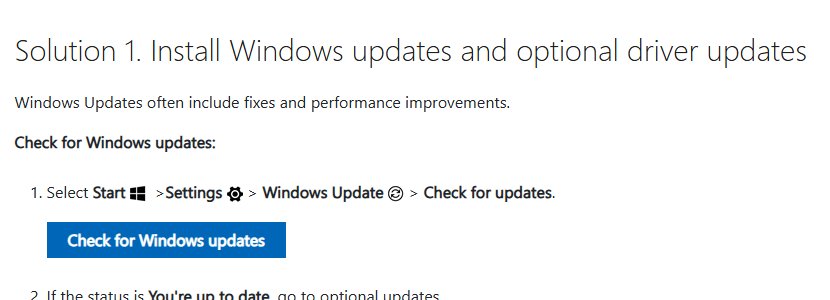
- Select Start > Settings > Windows Update > Check for updates.
- If updates appear, select Download & install.
- Go to Windows Update > Advanced options > Optional updates.
- Select any driver updates listed and choose Download & install.
- Restart when Windows asks.
Your Windows Update settings control when those restarts happen, so set active hours to avoid interruptions.
Best Windows settings for maximum performance
Not every setting suits every PC. Match your machine to a row and apply the settings in that row first.
| Your PC | Settings to change first | Why |
|---|---|---|
| Older laptop with little RAM | Adjust for best performance, disable startup apps, background apps to Never | Cuts the effects and processes that compete for scarce memory |
| Gaming desktop | Power mode Best performance, processor scheduling Programs, drivers updated | Keeps the CPU at full speed and favors the game |
| Laptop on battery | Keep Balanced power mode, turn off animation and transparency effects | Saves graphics work without draining the battery faster |
| Drive almost full | Storage Sense on, uninstall unused apps, optimize drives | Free space is needed for updates, the page file and temp files |
| Slow after weeks of uptime | Restart, then check startup apps | Releases memory held by long-running apps |
| Out-of-memory errors | Virtual memory system managed or 1.5 times RAM | Microsoft's recommended page file size |
Does adjusting performance settings make Windows faster?
It does on PCs held back by effects, startup load or a full drive. It does little on old hardware that is simply too slow for current apps, and Microsoft says upgrading the device may be the best long-term fix there.
| Setting | Where you notice it | Cost |
|---|---|---|
| Adjust for best performance | Snappier window opening and menus on weak graphics | Plainer look, no animations or shadows |
| Best performance power mode | Heavy apps and games | Shorter battery life and more heat |
| Disabling startup apps | Faster sign-in and more free RAM | Those apps no longer open automatically |
| Background apps set to Never | Lower background CPU and memory use | Delayed notifications from those apps |
| Storage Sense and uninstalls | Updates and installs complete faster | Deleted temp files and Recycle Bin content |
| Processor scheduling | Matters mainly when a PC was set to Background services | None |
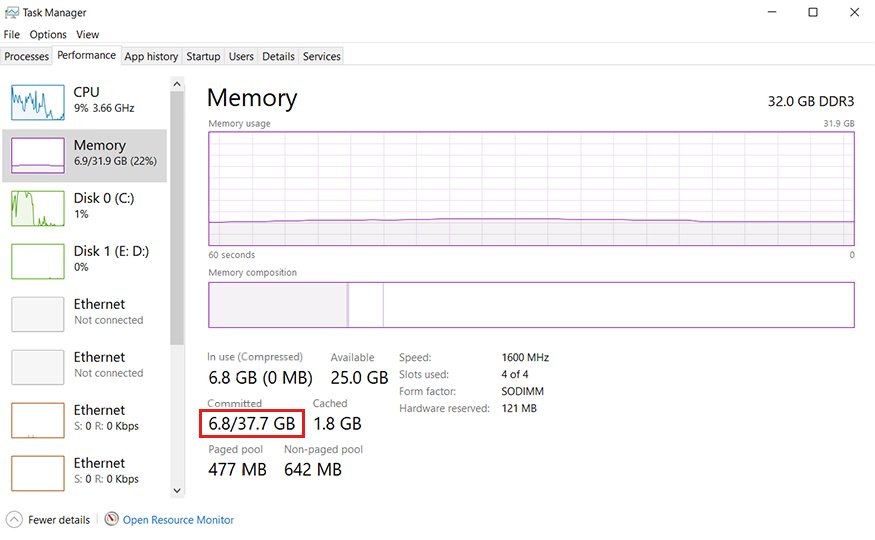
Check Windows performance in Task Manager after the changes
- Press Ctrl + Shift + Esc to open Task Manager.
- Select Performance and note CPU, memory and disk use at idle.
- Select Processes and sort by CPU or Memory to see what still uses the most.
- Right-click any app you are not using and close it.
- Compare the idle figures with what you saw before the changes.
Windows 11 still slow after performance settings
Power mode cannot be changed
A custom power plan is selected, so the power mode list is unavailable.
- Open Control Panel > System and Security > Power Options.
- Select the Balanced plan.
- Go back to Settings > System > Power & battery and choose the power mode.
PC still slow with high CPU or disk use
Malware or a heavy process is using resources.
- Select Start > Settings > Privacy & security > Windows Security > Virus & threat protection.
- Select Quick scan and remove anything it finds.
- Open Task Manager and close the processes using the most CPU or disk.
Out-of-memory errors after changing virtual memory
The page file is too small or grows too slowly.
- Open Virtual memory from Performance Options > Advanced > Change.
- Tick Automatically manage paging file size for all drives, or raise the Initial size.
- Select OK and restart the PC.
Windows performance settings FAQ
How do I set Windows 11 for the best performance?
Search Start for Adjust the appearance and performance of Windows and select Adjust for best performance. Then set Power mode to Best performance in Settings, System, Power & battery, and disable startup apps you do not need in Task Manager.
Is Adjust for best performance safe?
Yes. It only turns off visual effects such as animations, shadows and smooth transitions. It does not touch drivers, files or security settings, and you can switch any effect back on from the same Visual Effects tab.
Should I disable virtual memory to improve performance?
No. Windows needs a page file to extend memory and to write crash dumps after a Stop error. Microsoft recommends letting Windows manage the size or setting it to 1.5 times your installed RAM.
Does Best performance mode damage a laptop?
No. Best performance only lets the processor run faster when needed. Microsoft notes it drains the battery faster and can make the laptop run warmer, so use it plugged in when you need maximum speed.
Where is Performance Options in Windows 10?
Press Win + R, type sysdm.cpl and press Enter. Select the Advanced tab, then Settings under Performance. You can also search Start for Adjust the appearance and performance of Windows, which opens the same dialog.
Should processor scheduling be set to Programs or Background services?
Choose Programs on a desktop or laptop you use directly. Microsoft recommends Background services only for servers whose main work runs as services, such as BizTalk Server hosts.
Does turning off transparency improve performance?
It saves a little graphics work, which can help on older integrated graphics. Turn it off in Settings, Accessibility, Visual effects, Transparency effects. On modern hardware the difference is small.