To find downloads on iPhone, open the Files app, tap Browse and open the Downloads folder; if it is not on the Browse screen, tap iCloud Drive first and open Downloads there.
This guide covers the Files app route, the Safari downloads list, Mail attachments, searching by file name and what to do when a download seems to be missing.
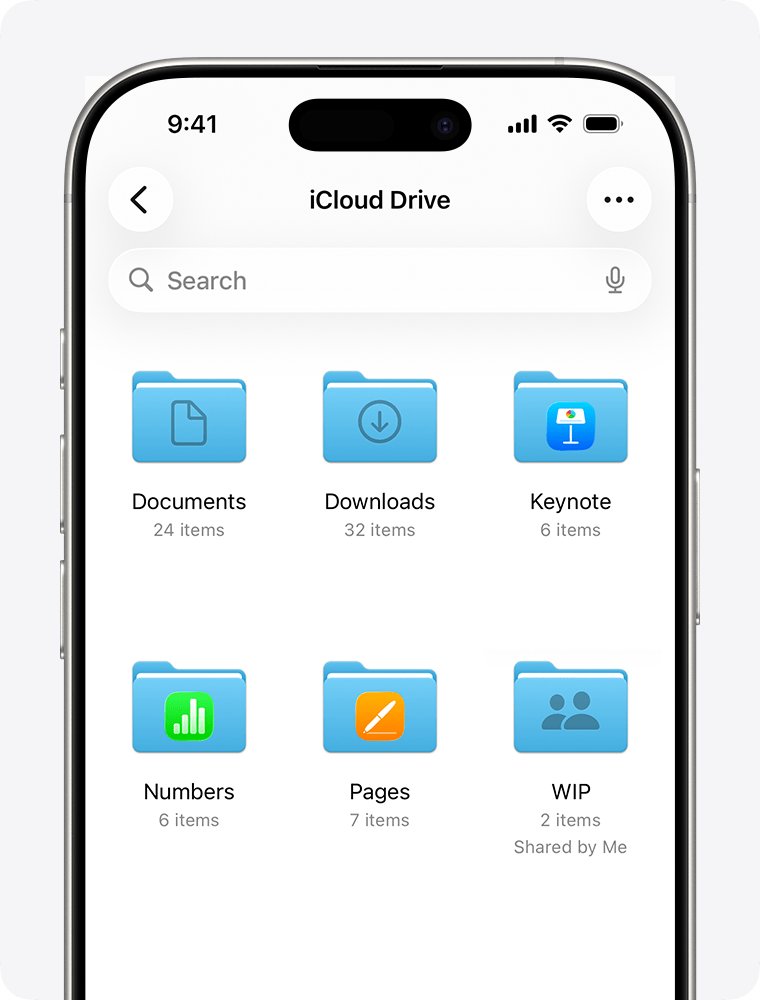
How to find downloads on iPhone using the Files app
Files you download from the internet or from Mail land in the Files app. The steps are the same on every iPhone model, from the iPhone SE and iPhone 11 to the iPhone 16 and iPhone 17.
- Open the Files app on your iPhone.
- Tap Browse at the bottom of the screen. If you already see a folder, tap Browse again to get back to the Browse screen.
- Tap the Downloads folder.
- If Downloads is not listed, tap iCloud Drive, then tap Downloads.
- Check On My iPhone too if a download was saved to the iPhone instead of iCloud Drive.
- Tap a file to open it. Images and PDFs open in Quick Look if no other app handles them.
To see the newest file first, tap the view options button in the folder and choose Date. The same menu also sorts by Name, Kind, Size or Tags.
Quick summary
| What you downloaded | Where to look | Why |
|---|---|---|
| A file from a website in Safari | Files > Browse > Downloads, or the Safari downloads list | Safari saves to the Downloads folder in Files and lists recent downloads |
| An email attachment saved with Save to Files | Files, in the folder you picked when saving | Mail asks for a location each time |
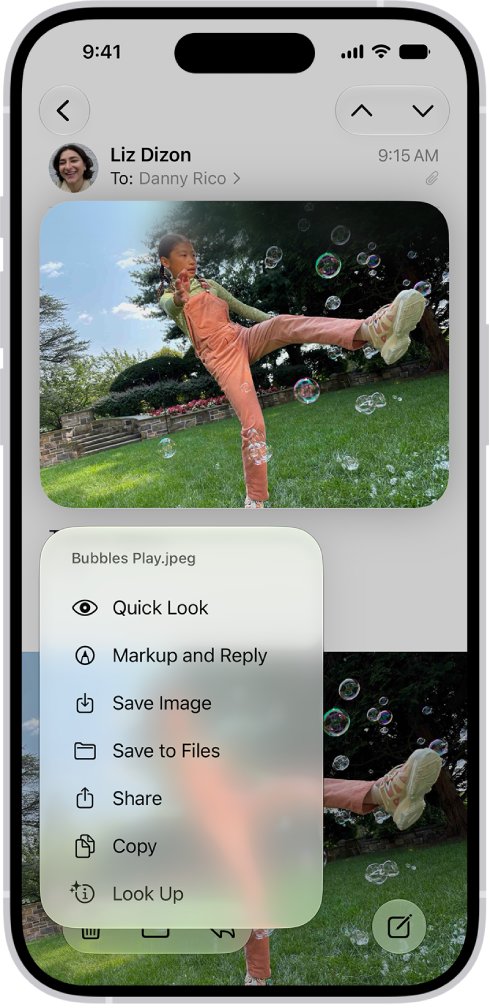
| An image from Mail saved with Save Image | The Photos app | Save Image sends the picture to Photos, not Files |
| A file you opened recently but cannot place | Files > Recents | Recents lists files you opened, wherever they are stored |
| You only remember part of the name | The search field at the top of Files | Search covers file names, folder names and document types |
How to find downloads on iPhone in Safari
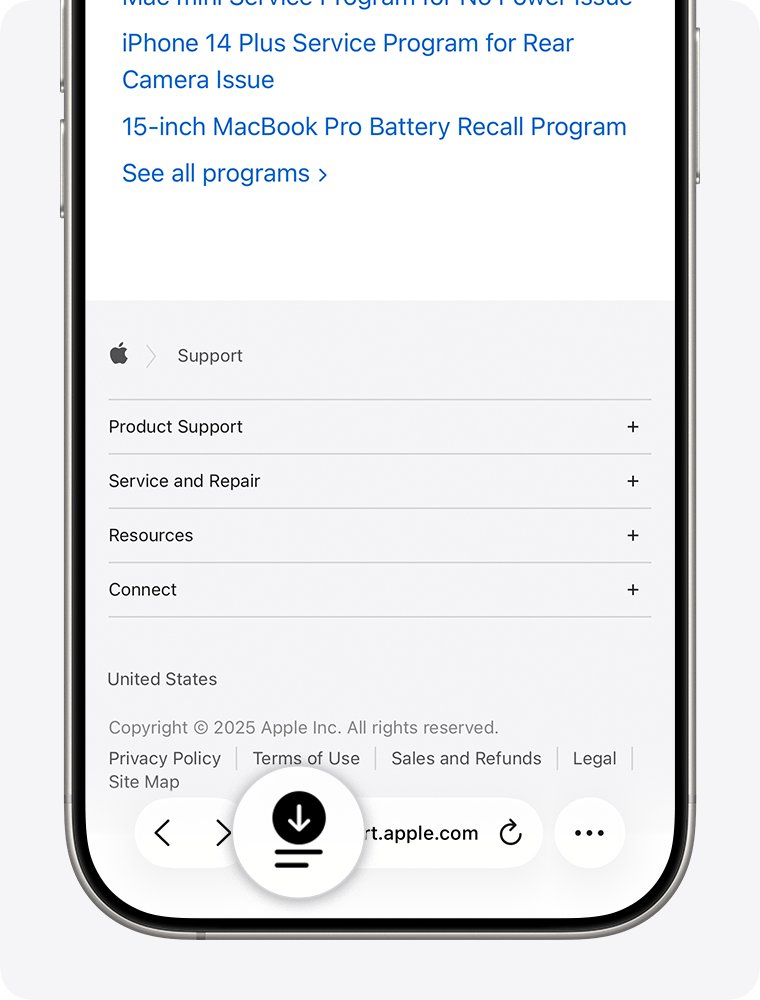
Safari keeps a list of the files it downloaded. Use it to check whether a download finished, or to open a recent file without going into Files.
- Open the Safari app on your iPhone.
- Tap the downloads button that Safari shows after you start a download.
- Check the status of a file that is still downloading.
- Tap a finished file in the list to open it.
Safari saves to the location chosen in its Downloads setting, which is the Downloads folder in iCloud Drive unless you changed it.
Search for a downloaded file on iPhone
Search is the fastest route when you know part of the file name or the type of document.
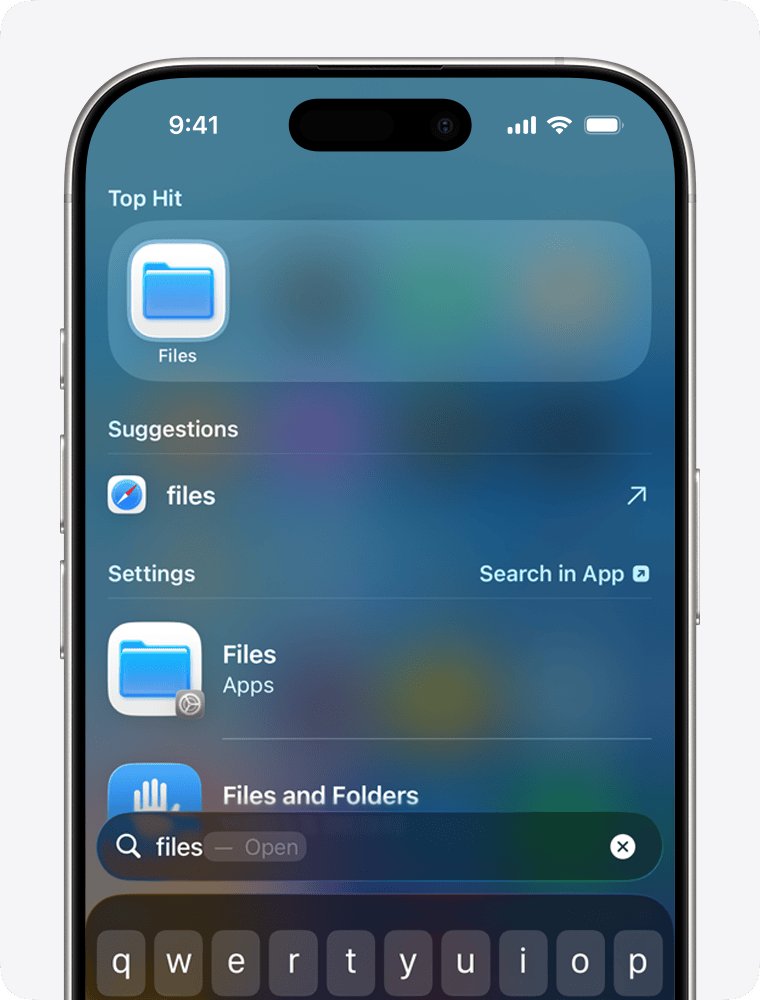
- Open the Files app.
- Type a file name, folder name or document type such as PDF in the search field.
- Tap Recents or a location such as iCloud Drive below the search field to narrow the results.
- Tap Search on the keyboard to hide it and see more results.
- Tap a result to open it.
Alternative methods and edge cases
Not every download goes to the Downloads folder. Mail attachments, images and files from other apps follow their own rules.
- For an email attachment, open the Mail app, touch and hold the attachment and choose Save to Files to pick a folder, or Save Image to send a picture to Photos.
- To find a message that carries the attachment, tap the filter button in a mailbox, tap Filtered by and turn on Only Mail with Attachments.
- For files you opened in another app, open Files and tap Recents.
- For shared files, open Files and tap Shared.
- To open a downloaded file in a different app, touch and hold it in Files, choose Open With, then pick the app.
Files saved outside Downloads still show up when you browse the Files app by location, such as iCloud Drive or On My iPhone.
Tips for finding downloads on iPhone
| Tip | What it does |
|---|---|
| Sort the Downloads folder by Date | Puts the newest download at the top |
| Add Downloads to Favorites | Keeps the folder one tap away on the Browse screen |
| Use Recents | Shows files you opened lately, wherever they were saved |
| Set a default app with Always Open With | Touch and hold a file, tap Get Info, and choose the app that should always open that file type |
| Move files out of Downloads | Touch and hold a file and tap Move to keep Downloads short |
| Delete files you no longer need | Touch and hold and tap Delete to free iCloud Drive or iPhone storage |
Troubleshooting: can't find downloads on iPhone
No Downloads folder on the Browse screen
The folder sits inside iCloud Drive rather than at the top level.
- Open Files and tap Browse.
- Tap iCloud Drive.
- Tap Downloads.
Can't find downloads on iPhone after a Safari download
The download did not finish, or Safari saved it to another location.
- Open Safari and tap the downloads button to check the file's status.
- Restart the download if it failed.
- Open Files > Browse > Downloads to look for the finished file.
An email attachment is not in Downloads
Mail saves attachments to the folder you choose, or to Photos for images.
- Search for the file name in Files.
- Check the Photos app if you used Save Image.
- Open the email again, touch and hold the attachment and choose Save to Files to save a fresh copy.
The file name is unknown
Downloads often keep the website's file name, which is hard to guess.
- Open the Downloads folder and sort by Date.
- Search Files for the document type, for example PDF.
- Tap Recents to check files opened lately.
How to find downloads on iPhone: frequently asked questions
Where do downloads go on iPhone?
Downloads from Safari and other web sources go to the Downloads folder in the Files app, usually inside iCloud Drive. Mail attachments go wherever you choose with Save to Files, and images saved with Save Image go to Photos.
How do I find a downloaded file on my iPhone?
Open the Files app, tap Browse and tap Downloads. If the folder is not on the Browse screen, tap iCloud Drive, then Downloads. You can also type part of the file name into the search field at the top of Files.
How do I find downloads on iPhone 16 or iPhone 17?
The steps are the same as on any iPhone: open Files, tap Browse, then open Downloads. The model does not change where downloads are saved; the Files app and Safari handle downloads the same way on the iPhone 16 and iPhone 17.
How do I find downloads on iPhone 11, iPhone 13 or iPhone SE?
Open the Files app, tap Browse and open the Downloads folder, checking inside iCloud Drive if it is not listed. Older models running a recent iOS version use exactly the same Files app layout.
How do I find downloads in iPhone Safari?
Open Safari and tap the downloads button to see the list of recent downloads and their status. Tap a finished file in the list to open it.
Why can't I find my download on iPhone?
The file may still be downloading, it may sit in the Downloads folder inside iCloud Drive, or it may have gone to a folder you chose in Mail. Check the Safari downloads list, then search for the name in Files.
Do all apps save downloads in the same place?
No. Safari uses the Downloads folder in Files, Mail asks where to save each attachment, and saved images go to Photos. Other apps can keep files inside their own storage, which appears under On My iPhone in Files when the app shares it.
How do I change where Safari downloads go?
Safari has a Downloads setting that chooses the save location, such as iCloud Drive or On My iPhone. Change it in Safari's settings in the Settings app, then new downloads go to the folder you picked.
Can I search for downloaded files on my iPhone?
Yes. Open the Files app and type a file name, folder name or document type into the search field. Tap Recents or a location below the field to narrow the results.