Cookies on Windows 10 are stored by each browser, so you remove them from the browser's own settings: in Microsoft Edge, go to Settings > Privacy, search, and services > Clear browsing data and clear Cookies and other site data.
This guide covers Edge and Chrome, deleting one site's cookies, blocking tracking cookies, and clearing cookies automatically when the browser closes.
How to remove cookies from Windows 10
Microsoft Edge is the default browser on Windows 10, so start there. The same steps work in Edge on Windows 11.
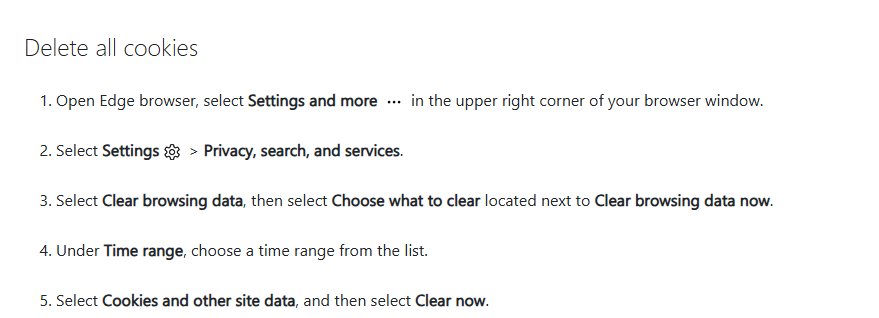
- Open Microsoft Edge and select Settings and more (the three dots) in the upper-right corner.
- Select Settings > Privacy, search, and services.
- Select Clear browsing data, then select Choose what to clear next to Clear browsing data now.
- Under Time range, choose All time to remove every cookie, or a shorter range.
- Select Cookies and other site data, and clear the other boxes if you want to keep your history and cache.
- Select Clear now.
If you are signed in to Edge with sync turned on, Microsoft says synced items are cleared on all your synced devices, not only this PC.
Remove cookies from Google Chrome on Windows 10
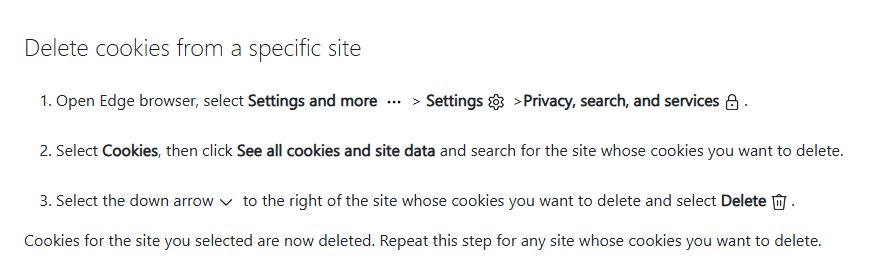
- Open Chrome.
- At the top right, select More (the three dots) > Delete browsing data.
- Choose a time range, such as Last hour or All time.
- Select Cookies and other site data.
- Check any other items you want to delete, such as cached images and files.
- Select Delete data to confirm.
Google notes that deleting cookies may sign you out of sites and remove saved site preferences. To sign out of your Google Account on all websites, sign out of Chrome.
Delete cookies for one website in Microsoft Edge
Use this when one site misbehaves and you want to stay signed in everywhere else.
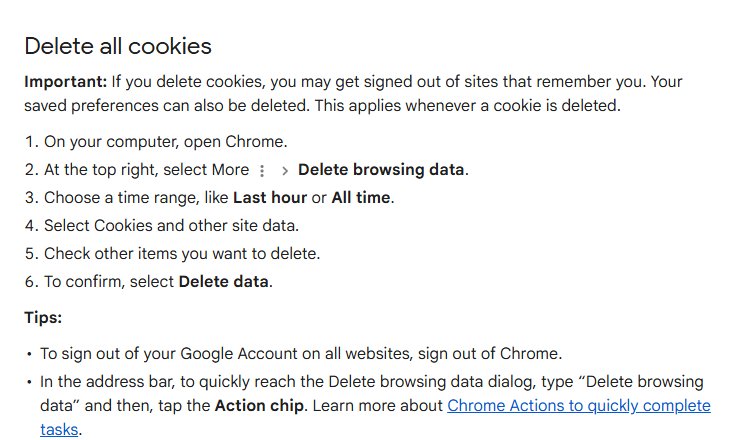
- In Edge, select Settings and more > Settings > Privacy, search, and services.
- Select Cookies.
- Select See all cookies and site data.
- Search for the site whose cookies you want to delete.
- Select the down arrow to the right of the site, then select Delete.
Delete specific cookies in Chrome on Windows 10
- In Chrome, select More > Settings.
- Select Privacy and security > Third-party cookies.
- Select See all site data and permissions.
- At the top right, search for the website's name.
- To the right of the site, select Delete, then select Delete again to confirm.

Remove tracking cookies on Windows 10
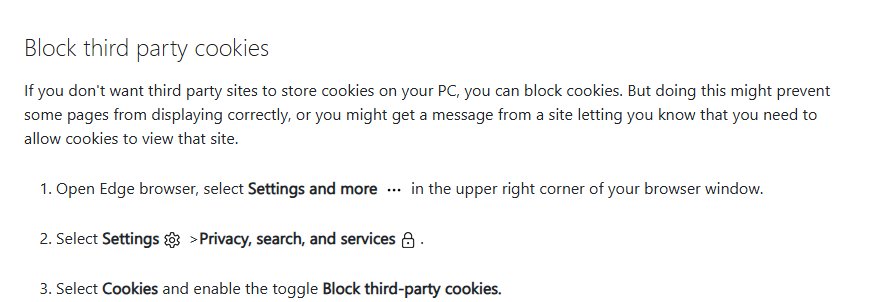
Tracking cookies are usually third-party cookies: files set by ad and analytics services embedded in the page you visit, not by the site in the address bar. Clear them with the steps above, then block third-party cookies so they do not return.
| Browser | Where to block third-party cookies | What changes |
|---|---|---|
| Microsoft Edge | Settings and more > Settings > Privacy, search, and services > Cookies, then turn on Block third-party cookies | Embedded services can no longer set cookies while you browse |
| Google Chrome | More > Settings > Privacy and security > Third-party cookies | Lets you allow or block third-party cookies, with per-site exceptions |
Blocking third-party cookies can break embedded sign-in boxes or comment widgets on some sites. Chrome lets you allow cookies for a specific site when that happens.
Clear cookies automatically when you close Microsoft Edge
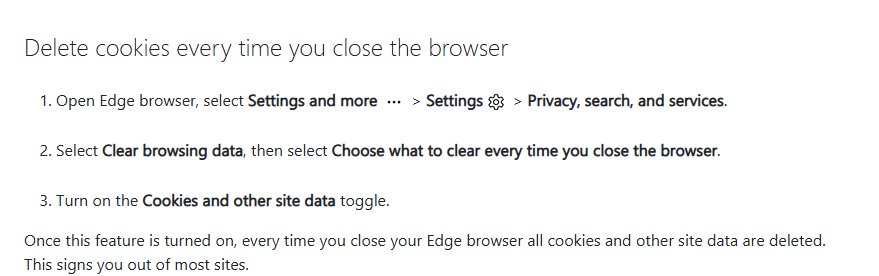
- In Edge, select Settings and more > Settings > Privacy, search, and services.
- Select Clear browsing data.
- Select Choose what to clear every time you close the browser.
- Turn on the Cookies and other site data toggle.
- Close and reopen Edge. You are signed out of sites each time the browser closes.
Check that cookies were removed in Edge or Chrome
- In Edge, go to Settings > Privacy, search, and services > Cookies > See all cookies and site data.
- Confirm the list is empty or no longer shows the site you deleted. Sites you open after clearing add new cookies straight away.
- In Chrome, go to Settings > Privacy and security > Third-party cookies > See all site data and permissions and search for the site.
- Open a site you were signed in to. A sign-in prompt confirms its cookies are gone.
What cookies are and what removing them changes
Cookies are small files that websites create to save information about your visit, such as keeping you signed in, remembering preferences and showing locally relevant content.
| Cookie type | Who creates it | What happens when you remove it |
|---|---|---|
| First-party cookie | The site shown in the address bar | You are signed out of that site and its saved preferences reset |
| Third-party cookie | Another site whose ads, images or text are embedded in the page | Ad and tracking services lose the record of your activity across sites |
| Other site data | Sites that store data in the browser alongside cookies | Cleared together with cookies when you select Cookies and other site data |
Tips for removing cookies from Windows 10
| Tip | Why it helps |
|---|---|
| Clear cookies in every browser you use | Edge, Chrome and other browsers keep separate cookie stores, so clearing one leaves the others untouched |
| Delete one site's cookies before clearing everything | Fixes a single misbehaving site without signing you out of all the others |
| Keep your passwords saved before clearing | Cookies are what keep you signed in, so you need each site's password afterwards |
| Choose All time for a full clean-up | A shorter time range leaves older cookies in place |
| Remember that sync spreads the change | With Edge sync on, cleared items are removed on all synced devices |
| Block third-party cookies after clearing | Stops tracking cookies from building up again |
| Use clear-on-close on shared PCs | Nobody inherits your signed-in sessions after you close Edge |
Unwanted pop-ups or a changed search engine come from extensions or settings, not cookies. In that case, remove the browser hijacker as well as clearing cookies.
Cookies are browser data only, so to free space used by Windows itself, delete temporary files in Windows 10 separately.
Frequently asked questions about removing cookies from Windows 10
How do I remove cookies from Windows 11 in Edge?
Use the same steps as Windows 10. In Edge, select Settings and more > Settings > Privacy, search, and services > Clear browsing data > Choose what to clear, select Cookies and other site data, then select Clear now.
How do I remove cookies from my PC on Windows 10?
Clear them in each browser you use. Windows 10 does not keep one shared cookie store, so clearing cookies in Edge does not touch Chrome. Open each browser's privacy settings and delete Cookies and other site data.
Will removing cookies log me out of websites?
Yes. Cookies are what keep you signed in, so clearing them signs you out of sites that remember you. Google also notes that saved site preferences can be deleted. Saved passwords are kept unless you select them too.
Why should I remove cookies?
Removing cookies signs you out of sites on a shared PC, clears tracking cookies set by ad services, and fixes sites that load wrongly because of stored data. Deleting one site's cookies is often enough to fix that site.
How often should I clear cookies?
There is no required schedule. Clear one site's cookies when that site misbehaves, and clear all cookies when you hand over or share a PC. To clear them every session, turn on the clear-on-close option for cookies in Edge.
Do all browsers handle cookies the same way?
All major browsers store first-party and third-party cookies, but each keeps its own store and its own settings. Edge and Chrome both clear cookies under Cookies and other site data, with the option in different menus.
How do I remove tracking cookies on Windows 10?
Clear all cookies, then block third-party cookies. In Edge, go to Settings > Privacy, search, and services > Cookies and turn on Block third-party cookies. In Chrome, go to Settings > Privacy and security > Third-party cookies.
Does clearing cookies in Edge clear them on my other devices?
Yes, if you are signed in to Edge with sync turned on. Microsoft says synced items are cleared across all synced devices. With sync off, clearing affects only the current device.