To use the Microsoft Wireless Display Adapter, plug its HDMI end into your TV, its USB end into a USB charging port, switch the TV to that HDMI input, then press Win + K on your PC and select the adapter.
This guide covers setup, the companion app, firmware updates, a connection PIN, display modes, how it differs from Chromecast, and fixes for common problems.
Connect Windows 11 or 10 to the Microsoft Wireless Display Adapter
The adapter is a Miracast receiver, so Windows connects to it with the built-in Cast panel and no extra software.
- Turn on the TV and set its input to the HDMI port the adapter is plugged into.
- Wait until the adapter's name appears on the TV screen.
- On your PC, press Win + K to open the Cast panel.
- Select the adapter's name from the list of available displays.
- Enter the PIN shown on the TV if you turned on the PIN requirement.
You can also search for Cast in Windows Search and select Connect to a wireless display.
What is the Microsoft wireless display adapter?
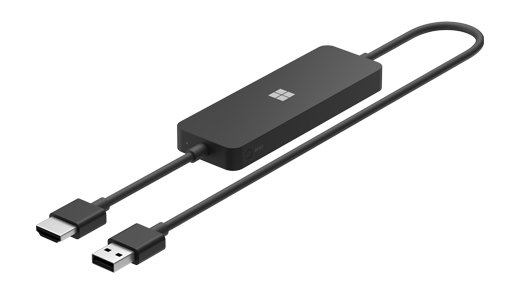
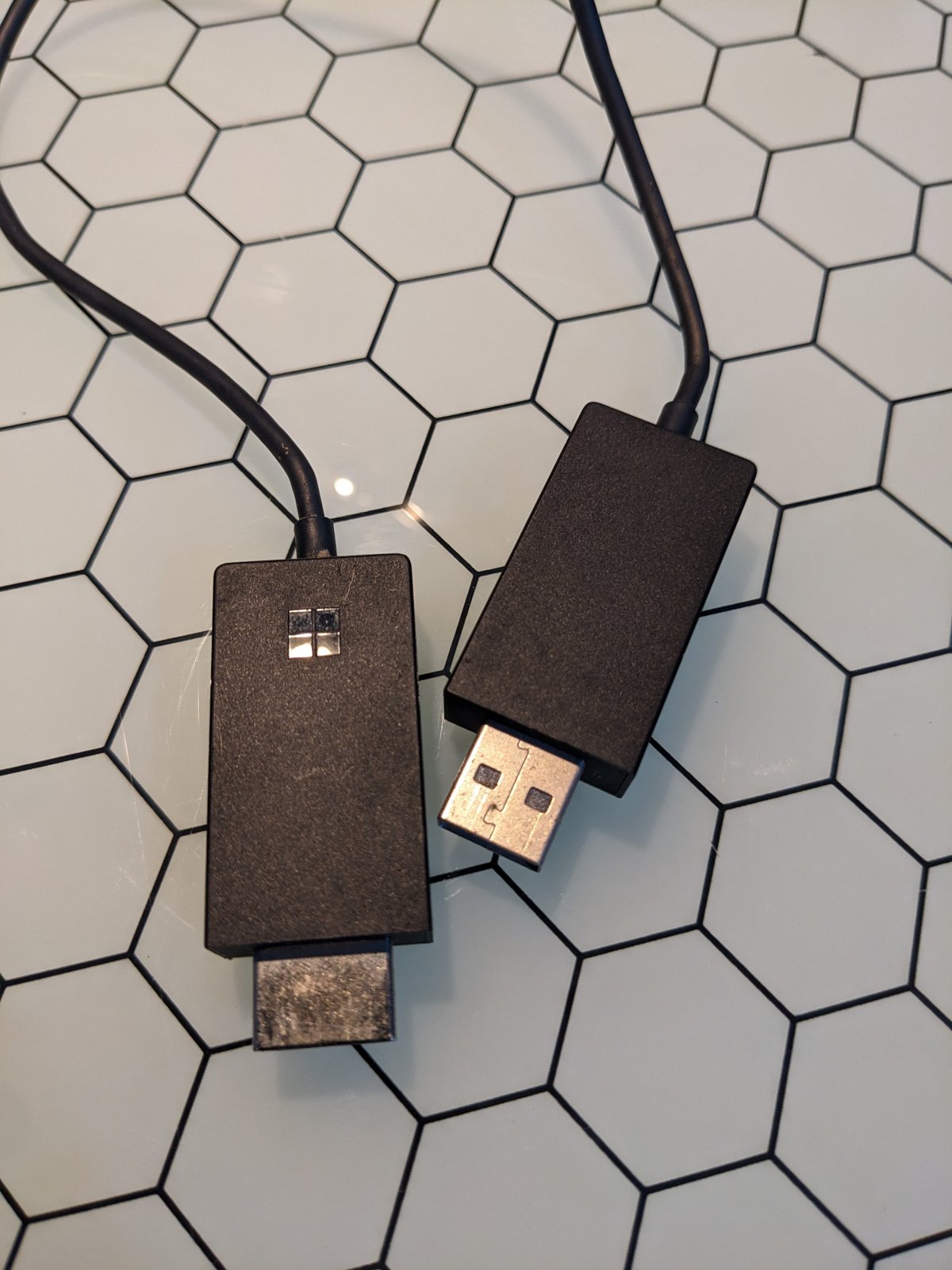
The Microsoft Wireless Display Adapter mirrors or extends a Windows or Android screen to any display with an HDMI port, using Miracast over Wi-Fi. It draws its power from the display's USB port.
| Model | Works with |
|---|---|
| Microsoft 4K Wireless Display Adapter | Surface devices and other Miracast-enabled Windows 11, Windows 10 and Android devices |
| Original and Four Square logo versions | Surface devices and Miracast-enabled Windows 10 and Windows 8.1 devices |
Devices without HDCP support do not get full functionality with any model, so protected video may not play.
Connect adapter to a TV
- Plug the adapter's HDMI end into an HDMI port on the TV, monitor or projector.
- Plug the USB end into a USB charging port on the display, or into a USB charger rated 5V/1A.
- Switch the display's input to that HDMI port.
- Keep Windows updated on the PC you plan to connect from.
Download and install Microsoft Wireless Display Adapter app
The app is optional for casting but required for settings and firmware updates. It comes from the Microsoft Store app.
- Open the Microsoft Store app and sign in with your Microsoft account.
- Search for Microsoft Wireless Display Adapter.
- Select Get or Install.
- Connect the PC to the adapter with Win + K, then open the app.
Update firmware and change Microsoft Wireless Display Adapter settings
Connect to the adapter first; the app only reads and changes the adapter you are connected to.
| Task | Where in the app | Notes |
|---|---|---|
| Update firmware | Update & security | Install the update and keep the app open until it finishes; automatic updates can be turned on here |
| Require a PIN | Update & security | Turn on Enter a PIN when connecting a new device |
| Rename the adapter | Personalization | Reconnect to see the new name |
| Change Wi-Fi network (4K model only) | Network | Choose a network and select Connect |
What can you do with Microsoft Wireless Display Adapter?
Once connected, press Win + P to choose how Windows uses the TV.
| If you want to | Choose |
|---|---|
| See things on the PC only | PC screen only |
| Show the same thing on the PC and the TV | Duplicate |
| Spread the desktop across both screens | Extend |
| Show everything on the TV only | Second screen only |
Duplicate suits presentations and photos; Extend lets you keep notes on the laptop while the TV shows slides or video.
Difference between Microsoft Wireless Display Adapter and Chromecast
| Question | Microsoft Wireless Display Adapter | Chromecast |
|---|---|---|
| Protocol | Miracast | Google Cast |
| What it shows | Your whole Windows or Android screen | A tab, video or app stream sent from Cast-enabled apps and browsers |
| How you start it on Windows | Win + K | Cast option in Microsoft Edge or another Cast-enabled app |
| Best for | Presentations, desktop apps, extending the desktop | Streaming video to a TV |
How to use laptop as wireless display
Windows can also act as the receiver, much like the adapter does. Set up wireless display on Windows 11 on the PC that will show the picture.
- On the receiving PC, select Start > Settings > System > Projecting to this PC.
- Select Optional features, then next to Add an optional feature select View features.
- Search for wireless display, tick Wireless Display, select Next, then Install.
- Open the Wireless Display app from the taskbar search box.
- On the sending PC, press Win + K and select the receiving PC.
The Wireless Display app needs Windows 11, version 22H2 or later; earlier versions use the Connect app.
Check the Microsoft Wireless Display Adapter is connected
- Look at the TV: your desktop replaces the adapter's ready screen.
- Press Win + K on the PC; the adapter shows as connected in the Cast panel.
- Open Settings > Bluetooth & devices > Devices and find the adapter under Wireless displays & docks.
Microsoft Wireless Display Adapter not working
The adapter does not appear after pressing Win + K
Wi-Fi is off, the PC lacks Miracast, or the adapter has no power.
- Turn on Wi-Fi from the network icon on the taskbar.
- Press Win + K; a message asking for a cable means the PC does not support Miracast.
- Move the USB plug to a charging port or a 5V/1A charger.
- Restart the PC and unplug the adapter for a few seconds.
It connected before but now fails
A stale pairing or outdated firmware or drivers.
- Open Settings > Bluetooth & devices > Devices, select the adapter under Wireless displays & docks, then Remove device.
- Press Win + K and connect again.
- Update the adapter's firmware in the app and your PC's display and Wi-Fi adapter drivers from the PC maker.
On Windows 10 PCs, the same checks apply when you fix wireless display issues there.
One monitor looks brighter than the other in Windows 11
A TV on the adapter and the laptop screen have separate brightness controls, so they rarely match out of the box.
The TV or second monitor is brighter or darker than the laptop screen
The Windows Brightness slider only controls the built-in display.
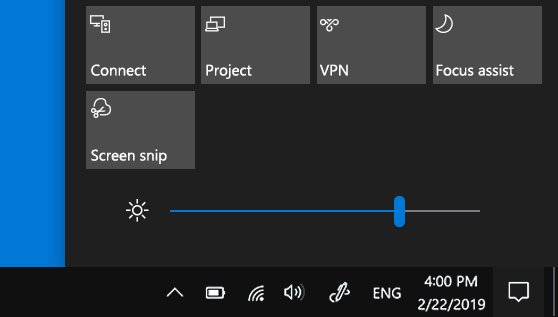
- Adjust the laptop with the Brightness slider in quick settings on the taskbar.
- Change the TV or monitor brightness with its own buttons or picture menu.
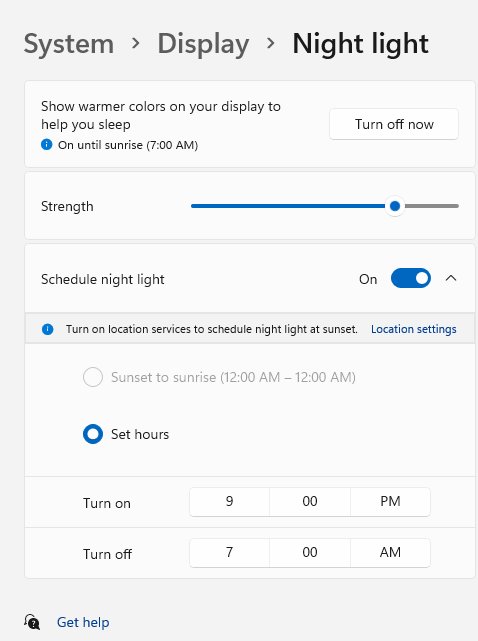
- If Night light is on, remember it warms colours on every display; turn it off from quick settings to compare.
Microsoft wireless display adapter FAQ
How do I use the Microsoft Wireless Display Adapter?
Plug it into the TV's HDMI port and a USB charging port, switch the TV to that input, then press Win + K on your PC and select the adapter's name. Your screen appears on the TV within a few seconds.
How do I connect using wireless display?
Press Win + K to open the Cast panel and select the display or adapter. You can also search for Cast in Windows and choose Connect to a wireless display from Display settings.
How do I enable wireless display in Windows?
Casting to a display needs nothing enabled; press Win + K. To let a PC receive a picture, install the Wireless Display optional feature from Settings > System > Projecting to this PC.
How do I use my laptop as a wireless display?
Install the Wireless Display optional feature on the laptop, open the Wireless Display app, then press Win + K on the other PC and select the laptop. The app needs Windows 11, version 22H2 or later.
How does wireless display work?
Windows sends the screen over Wi-Fi with the Miracast standard to a receiver such as the Microsoft Wireless Display Adapter, which outputs it through HDMI. Both ends must support Miracast.
Do I need the Microsoft Wireless Display Adapter app?
No for basic casting, which uses Win + K. Yes for firmware updates, renaming the adapter, setting a connection PIN and, on the 4K model, changing its Wi-Fi network.
Does the Microsoft Wireless Display Adapter work with Android?
Yes for the 4K model, which supports Miracast-enabled Android devices. The original and Four Square logo versions list Surface and Miracast-enabled Windows devices only.
Where do I get the Microsoft Wireless Display app?
Get the Microsoft Wireless Display Adapter app from the Microsoft Store while signed in with your Microsoft account. The separate Wireless Display app for receiving a picture is a Windows optional feature, not a Store download.