To enable or disable AutoPlay in Windows 11, open Settings > Bluetooth & devices > AutoPlay and AutoPlay switch on or off.
This guide covers the Settings toggle, per-device defaults, the Group Policy setting for all users, the difference from AutoRun, and fixes when AutoPlay does not appear.
How to disable AutoPlay in Windows 11/10
The AutoPlay switch lives in the Settings app on both Windows 11 and Windows 10, so one change covers every drive, phone and camera you connect.
- Select Start and open Settings.
- Select Bluetooth & devices in the left pane.
- Select AutoPlay.
- Turn the AutoPlay switch Off to disable AutoPlay.
- Turn the same switch On when you want AutoPlay back.
The change applies at once. You do not need to restart the PC.
How to enable AutoPlay in Windows 11 and choose defaults
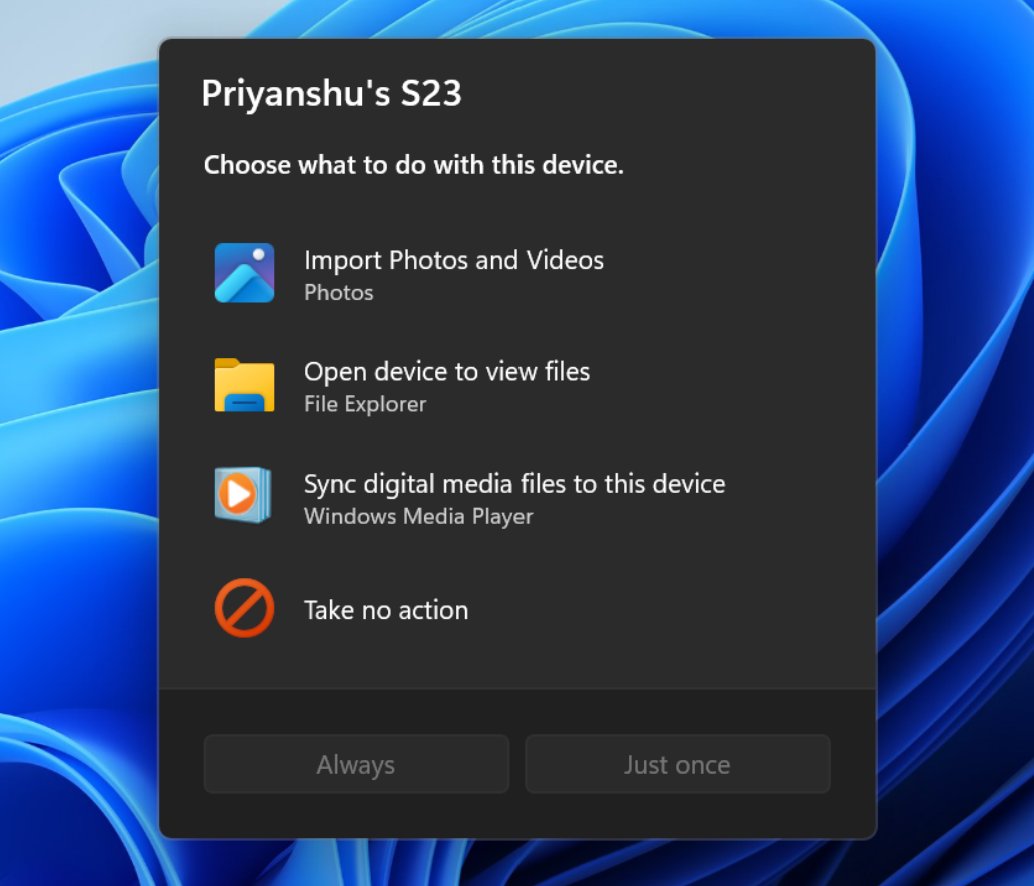
With AutoPlay on, you can pick what Windows does for each kind of media instead of seeing a prompt every time.
- Open Settings > Bluetooth & devices > AutoPlay.
- Turn the AutoPlay switch On.
- Open the Removable drive default menu and pick the action you want, or the option that asks you every time.
- Open the memory card menu and pick the action you want for SD cards.
- Pick an action for any phone or camera listed on the same page.
- Close Settings. The next device you connect uses the default you set.
Choose the option that takes no action for one device type if you want AutoPlay on for everything else.
How to permanently turn off AutoPlay with Group Policy
Group Policy turns AutoPlay off for every account on the PC, and users cannot switch it back on in Settings. The Local Group Policy Editor ships with Windows 11 Pro, Enterprise and Education.
- Press Win + R, type
gpedit.mscand press Enter. - Go to Computer Configuration > Administrative Templates > Windows Components > AutoPlay Policies.
- Double-click Turn off Autoplay.
- Select Enabled.
- In the options box, choose all drives or CD-ROM and removable media drives.
- Select OK.
- To block AutoPlay for phones and cameras too, double-click Disallow Autoplay for non-volume devices, select Enabled and select OK.
The same policies exist under User Configuration. If the two conflict, the Computer Configuration setting wins.
To undo it, set each policy back to Not Configured, then force a Group Policy update or sign out and back in.
Difference between AutoPlay and AutoRun
AutoPlay and AutoRun are often mixed up, but they control different things.
| AutoPlay | AutoRun | |
|---|---|---|
| What it does | Shows a choice of actions, or runs your saved default, when media or a device connects | Runs commands stored in an autorun.inf file on the media |
| Typical result | Open the folder, import photos, play media | Launch a setup program from a disc |
| Default since Windows Vista | On, with a prompt or your chosen default | Never runs silently; the command appears as a choice in the AutoPlay dialog |
| Group Policy setting | Turn off Autoplay | Set the default behavior for AutoRun |
| Policy location | Windows Components > AutoPlay Policies | Windows Components > AutoPlay Policies |
Set the default behavior for AutoRun can disable autorun commands completely. Turning off AutoPlay also stops the dialog that would offer them.
Settings vs Group Policy for AutoPlay in Windows 11
| Your situation | Use this | Why |
|---|---|---|
| You want AutoPlay off for your own account | Settings toggle | Two clicks and easy to reverse |
| You want prompts for some devices only | Settings defaults per device | Set no action where you do not want it |
| Several people use the PC | Group Policy: Turn off Autoplay | Applies to every account and cannot be changed in Settings |
| Phones and cameras keep popping up | Group Policy: Disallow Autoplay for non-volume devices | Targets MTP devices only |
| You want to block autorun.inf programs | Group Policy: Set the default behavior for AutoRun | Stops autorun commands outright |
Is AutoPlay turned off? Confirm the change
- Open Settings > Bluetooth & devices > AutoPlay and confirm the switch shows the state you set.
- Connect a USB flash drive or memory card.
- If AutoPlay is off, no AutoPlay dialog or notification appears and the drive only shows in File Explorer.
- If AutoPlay is on, the AutoPlay prompt appears or your chosen default runs.
AutoPlay not working in Windows 11 fixes
The AutoPlay switch is greyed out or keeps turning off
A Group Policy setting overrides the Settings toggle.
- Press Win + R, type
gpedit.mscand press Enter. - Open Windows Components > AutoPlay Policies under both Computer Configuration and User Configuration.
- Set Turn off Autoplay to Not Configured and select OK.
- On a work or school PC, ask your IT admin, because the policy may come from your organisation.
AutoPlay is on but nothing happens when you insert a disc or drive
The default for that device type is set to take no action.
- Open Settings > Bluetooth & devices > AutoPlay.
- Change the Removable drive default menu, or the memory card menu, to the option that asks every time.
- Remove the media and connect it again.
- For a disc install, open the disc in File Explorer and run the setup program, usually Setup.exe or Install.exe.
AutoPlay still pops up for a phone or camera
Phones and cameras are non-volume (MTP) devices with their own default.
- Open Settings > Bluetooth & devices > AutoPlay.
- Set the phone or camera menu to the option that takes no action.
- To block it for all users, enable Disallow Autoplay for non-volume devices in Group Policy.
Windows 11 AutoPlay FAQ
How do I disable AutoPlay in Windows 11?
Open Settings, select Bluetooth & devices, then AutoPlay, and turn off the AutoPlay switch. The change takes effect immediately for your account, and Windows stops showing prompts when you connect drives, memory cards, phones or cameras.
How do I enable AutoPlay in Windows 11?
Go to Settings > Bluetooth & devices > AutoPlay and turn the switch on. Then use the default menus on the same page to set what happens for removable drives, memory cards and other devices.
How do I permanently turn off AutoPlay?
Use Group Policy. Open gpedit.msc, go to Computer Configuration > Administrative Templates > Windows Components > AutoPlay Policies, enable Turn off Autoplay and choose all drives. It applies to every account and cannot be switched back on from Settings.
How do I turn off AutoPlay on a PC running Windows 10?
Use Group Policy. The Turn off Autoplay policy under Windows Components > AutoPlay Policies applies to Windows 10 version 1703 and later as well as Windows 11, on Pro, Enterprise and Education editions.
How do I stop AutoPlay for USB drives only?
Keep AutoPlay on, then set the Removable drive default menu in AutoPlay settings to take no action. Other devices, such as memory cards or phones, keep their own default actions.
Does turning off AutoPlay stop YouTube videos from autoplaying?
No. Windows AutoPlay only controls what happens when you connect media or devices. Video autoplay on YouTube and other websites is controlled in the site or your browser settings, not in Windows.
How do I enable autoplay in a browser?
Browser media autoplay is a separate browser setting. Each browser keeps it in its own site or media settings, such as the Chrome autoplay policy. The Windows AutoPlay switch has no effect on it.
Is it safe to turn off AutoPlay?
Yes. Turning it off only means Windows waits for you to open new media yourself in File Explorer. Many admins disable it for security, since it prevents programs on unknown media from being offered automatically.