Copilot usually fails in Teams because the account has no Microsoft Copilot license, the meeting organizer set Copilot to Off, or transcription is not running for a meeting that requires a saved transcript.
This guide covers each of those causes, the admin policies behind them, network blocks, how to turn Copilot off in a meeting, and the Copilot sidebar in Microsoft Edge.
![Copilot not working in Teams [Fix]](https://techdows.com/wp-content/uploads/2026/10/Copilot-not-working-in-Teams-Fix.jpg)
Fix Copilot not working in Teams
Work through these checks in order. Most people stop at the first or second step.
- Confirm you sign in to Teams with a work or school account that has a Microsoft Copilot add-on license plus an eligible Microsoft 365 base license.
- In a meeting, select Copilot and, if it asks, start transcription so Copilot can work during and after the meeting.
- Ask the organizer to open the meeting options and check that Copilot is not set to Off.
- Quit and reopen Teams, and install any pending Teams updates.
- Try Teams on the web in a supported browser such as Microsoft Edge or Google Chrome to rule out the desktop client.
- If Copilot is still missing, ask your Microsoft 365 admin to run the Copilot License Details diagnostic on your account.
Why don't I see Copilot in Teams?
| Cause | What you see | Who can fix it |
|---|---|---|
| No Microsoft Copilot license | No Copilot button in meetings and chats | Your Microsoft 365 admin |
| Organizer set Copilot to Off | Copilot greyed out, and recording and transcription also unavailable | The meeting organizer |
| Transcript required but not started | Copilot asks for transcription before it will answer | Anyone allowed to transcribe |
| End-to-end encrypted meeting | No Copilot in that meeting | The organizer, by not using end-to-end encryption |
| GCC High tenant | Copilot in Teams not offered | Not available in that cloud |
| Large event with an audience | Attendees cannot use Copilot; only organizers, co-organizers and presenters can | Not changeable |
| Network blocks *.cloud.microsoft or WebSockets | Copilot fails to load or stops responding | Your network or security team |
Copilot in Teams runs on supported Windows, Mac, web, Android and iOS clients, so switching device rarely fixes a license or policy problem.
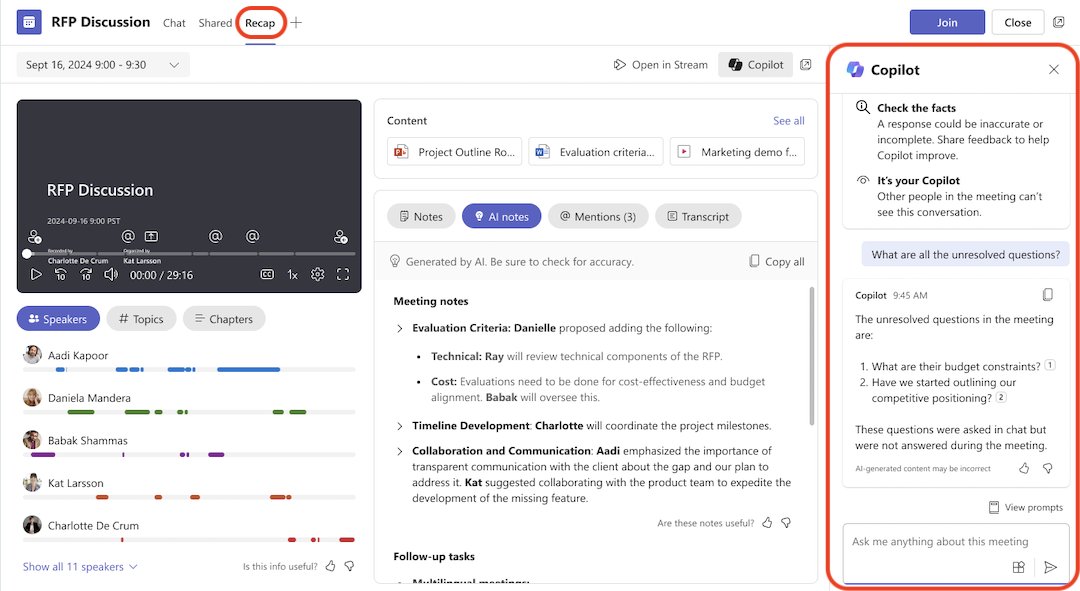
Turn on transcription so Copilot works in Teams meetings
The default Teams policy is On with saved transcript required. Under it, Copilot only starts after someone turns on transcription.
- Join the meeting and select Copilot in the meeting toolbar.
- Select the prompt to start transcription, or start transcription from the meeting's recording options.
- Wait for the transcription notice to appear for all participants.
- Select Copilot again and type your question.
If your account is not allowed to transcribe, another participant with permission has to start it. When the organizer chose Only during the meeting, Copilot works without a transcript and its speech-to-text data is not kept after the meeting.
Copilot policy settings in the Teams admin center
Admins control the Copilot meeting default with the -Copilot parameter or the matching Teams admin center value, and transcription with -AllowTranscription in CsTeamsMeetingPolicy.
| Teams admin center value | PowerShell value | Effect on organizers |
|---|---|---|
| On | Enabled | Default is Only during the meeting; organizers can change it |
| On with saved transcript required | EnabledWithTranscript | Default and enforced: During and after the meeting |
| On with transcript saved by default | EnabledWithTranscriptDefaultOn | Default During and after the meeting; organizers can change it |
| Off | Disabled | Copilot default is Off for new meetings |
When the transcription policy is Off and the meeting option is During and after the meeting, licensed users cannot use Copilot unless another participant who can transcribe turns transcription on.
Copilot not responding or not loading in Teams
Copilot pane opens but never answers
A firewall, proxy or TLS inspection is blocking WebSocket traffic to Microsoft 365.
- Ask your network team to allow
*.office.com,*.cloud.microsoftandcopilot.cloud.microsoft, including WebSocket Secure (WSS) traffic. - Ask them to exclude those domains from TLS inspection and aggressive proxy timeouts.
- Run Microsoft's connectivity test for the Copilot app to confirm access.
Copilot is not available in Teams after a meeting
The meeting ran without a transcript, or with Copilot set to Only during the meeting.
- Ask the organizer to set Copilot to During and after the meeting in the meeting options for next time.
- Start transcription early in the meeting.
- Open the meeting recap after it ends and select Copilot.
Copilot agent not working in Teams
Agents follow your organization's store settings for Teams and Microsoft 365 apps.
- Check with your admin that the agent is allowed in your organization's app settings.
- Remove and re-add the agent, then reopen Teams.
How to stop Copilot in Teams meetings
- Open the meeting in your Teams calendar as the organizer.
- Open Meeting options.
- Set Copilot to Off and save.
- Admins can make Off the default for new meetings by setting the Copilot policy to Off (
Disabled).
Turning Copilot off also turns off recording and transcription for that meeting.
Copilot sidebar in Edge not working [Fix]
In Microsoft Edge, Copilot sits in the toolbar and the sidebar, and both can be hidden by policy on work PCs.
- Type
edge://policyin the Edge address bar and press Enter. - Look for HubsSidebarEnabled set to false, which hides the sidebar completely.
- Look for Microsoft365CopilotChatIconEnabled, which controls the Copilot icon in the toolbar from Edge 141 onward.
- If either policy is set by your organization, ask your admin to change it.
- If no policy is set, update Edge, sign in with your work account and restart the browser.
Copilot in Teams FAQ
Why does my Teams not have Copilot?
Your account most likely has no Microsoft Copilot add-on license. Copilot in Teams needs that license plus an eligible Microsoft 365 base plan, and only your admin can assign it in the Microsoft 365 admin center.
Why isn't Copilot showing on my Teams in a meeting?
The organizer may have set Copilot to Off, the meeting may use end-to-end encryption, or you may be an attendee in a large event, where only organizers, co-organizers and presenters can use Copilot.
Why is Copilot not showing in Teams for a GCC High account?
Copilot in Teams is not currently available in the GCC High cloud, so the button does not appear for those accounts whatever license is assigned.
Does Copilot work in Teams?
Yes. Licensed users can use Copilot in Teams meetings, events with up to 1,000 attendees, chats and calls on Windows, Mac, web, Android and iOS. Copilot Chat is also pinned in Teams for most eligible users.
How to stop Copilot in Teams?
As the meeting organizer, open Meeting options and set Copilot to Off. That also disables recording and transcription. Admins can make Off the default with the Teams Copilot meeting policy.
Does Copilot in Teams need a transcript?
Under the default policy it does: Copilot starts once someone turns on transcription. If the organizer picks Only during the meeting, Copilot works without one but cannot answer after the meeting.