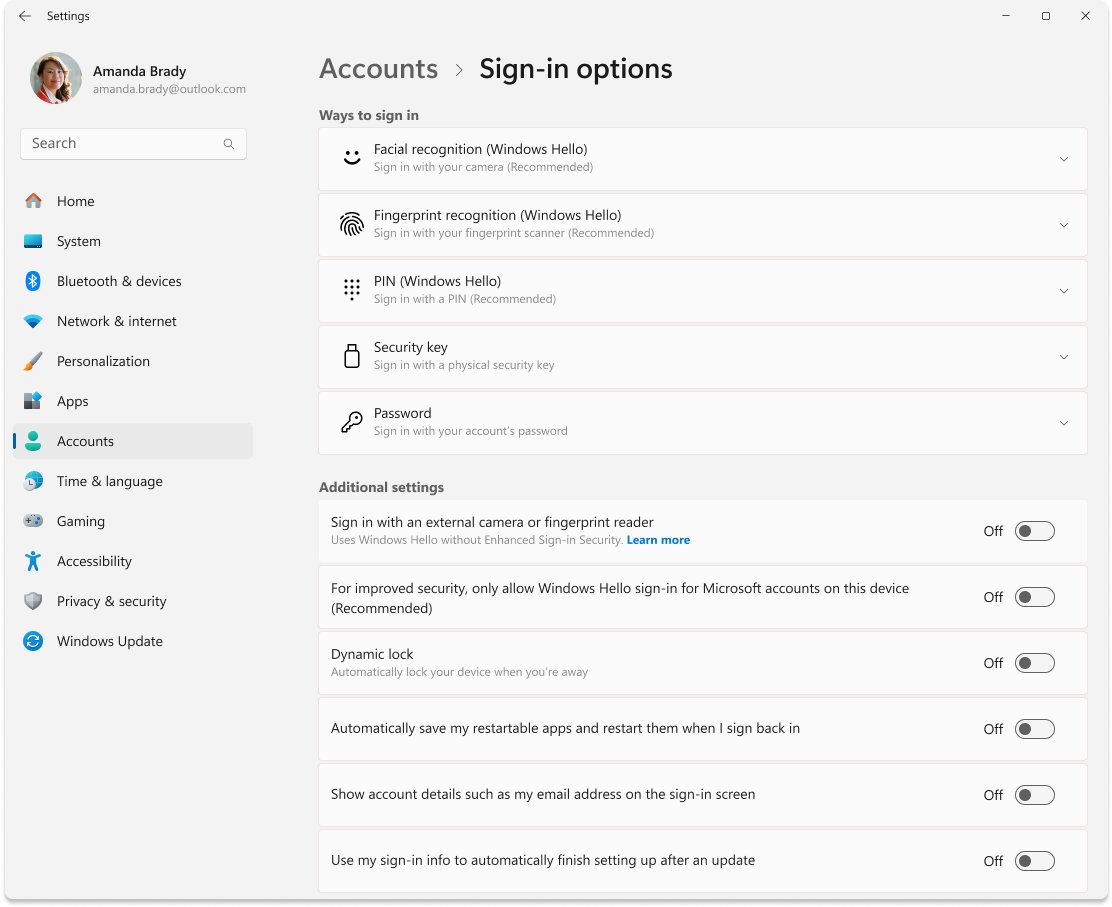
To fix most Windows 10 and Windows 11 sign-in issues, sign in with your account password, then select I forgot my PIN in Settings > Accounts > Sign-in options to reset the PIN and re-enroll Windows Hello.
This guide covers PIN reset from Settings and the lock screen, Windows Hello face and fingerprint repair, the PIN isn't available error, system file repair and recovery from WinRE.
Step-by-step: Fix PIN and Windows Hello sign-in problems
A PIN reset needs your Windows account password, because Windows checks the password before it lets you create a new PIN.
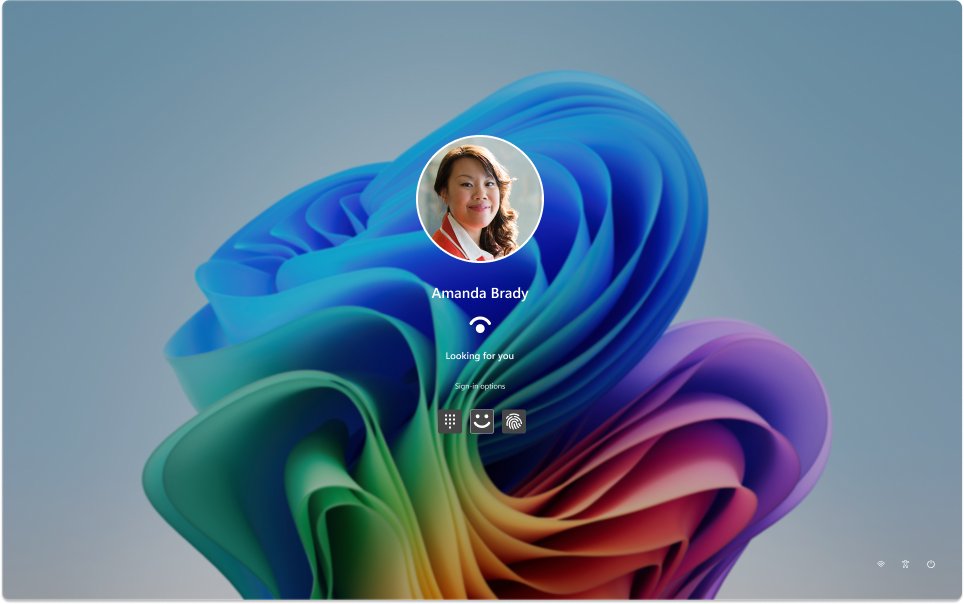
- On the sign-in screen, select Sign-in options and choose the password (key) icon.
- Sign in with your Microsoft account, work account or local account password.
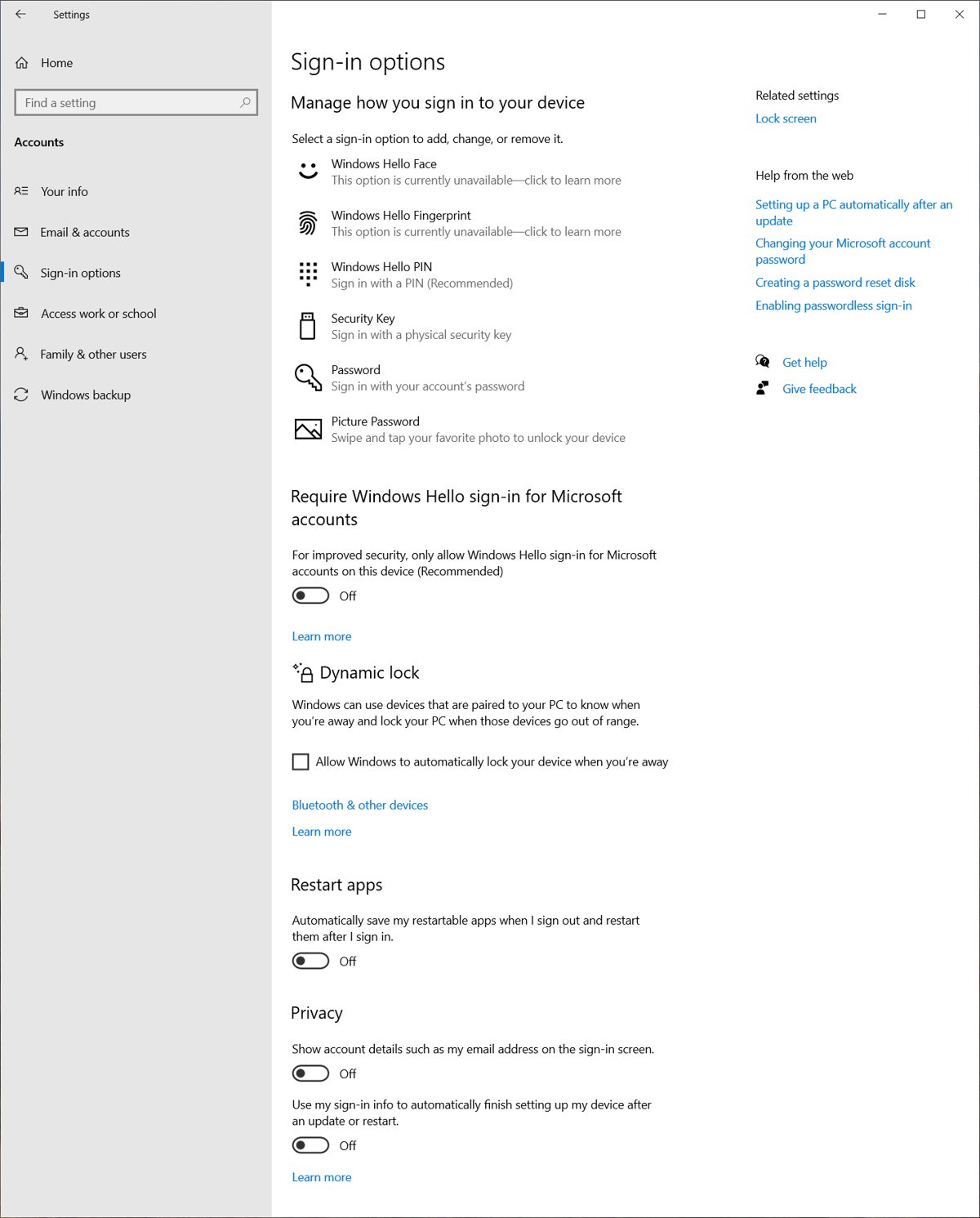
- Open Start > Settings > Accounts > Sign-in options.
- Select PIN (Windows Hello) > I forgot my PIN and follow the instructions.
- Verify your identity when asked, then enter and confirm a new PIN.
- Lock the PC with Windows logo key + L and sign in with the new PIN to confirm it works.
1) Identify what type of sign-in you’re using
The account type decides which reset route works, so check it first under Settings > Accounts > Your info.
| Account type | How it looks | Where to reset a forgotten password or PIN |
|---|---|---|
| Microsoft account | An email address is shown under your name | I forgot my PIN on the lock screen, or the Microsoft account password reset page |
| Work or school account (Microsoft Entra) | An organisation email address | I forgot my PIN, subject to your organisation's policy, or your IT admin |
| Local account | Local Account appears under your name | Only on this PC; the Microsoft account reset page cannot change it |
Prerequisites
| What you need | Why |
|---|---|
| Your account password | A PIN reset requires the password; Hello sign-in cannot replace it |
| An internet connection for Microsoft and work accounts | Identity verification and PIN reset contact Microsoft's servers |
| Access to your recovery email or phone | Microsoft sends a verification code there during a password reset |
| Your BitLocker recovery key, if the drive is encrypted | Encrypted files are not accessible in WinRE without the key |
2) Quick fix: Use password sign-in and re-create the PIN (recommended)
If the PIN is corrupted rather than forgotten, remove it and set it up again. Removing the PIN also removes face and fingerprint sign-in, because the PIN is the fallback that Windows Hello biometrics depend on.
- Sign in with your password from Sign-in options on the lock screen.
- Open Settings > Accounts > Sign-in options.
- Select PIN (Windows Hello) and choose Remove, then confirm with your password.
- Restart the PC.
- Return to Sign-in options, select PIN (Windows Hello) > Set up, and create a new PIN.
3) If “I forgot my PIN” is missing or fails: reset PIN from the lock screen (Microsoft accounts)
When you cannot sign in at all, reset the PIN directly from the lock screen. If that also fails, reset the Microsoft account password first, then try again.
- On the lock screen, select Sign-in options and pick the PIN pad icon if the PIN box is not shown.
- Select I forgot my PIN below the PIN box.
- Enter your Microsoft account password and complete the verification code step.
- Create and confirm the new PIN.
- If the password is also forgotten, select Forgot password? on the Microsoft account sign-in page, or use the Microsoft account password reset page on another device.
- Choose where to receive a code, select Get code, enter it and select Next, then type a new password.
Microsoft notes that lock-screen PIN reset does not work on some managed devices with self-service password reset limits, and that PIN reset from Settings may only work after sign-in.
4) Repair Windows Hello (face/fingerprint) configuration
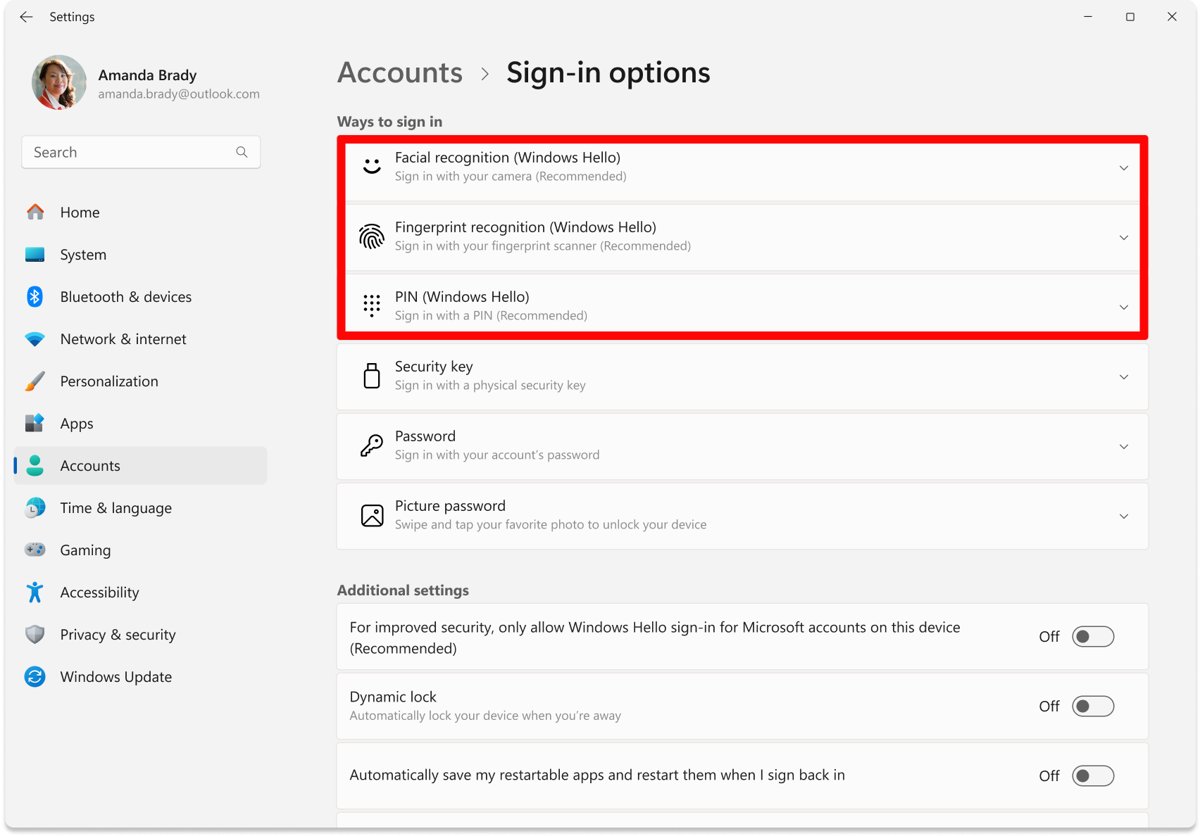
Removing a biometric method deletes its stored template, which clears most face and fingerprint recognition faults; if the reader itself is not detected, reinstall the fingerprint driver for Windows 11.
- Sign in with your PIN or password.
- Open Start > Settings > Accounts > Sign-in options.
- Select Facial recognition (Windows Hello) or Fingerprint recognition (Windows Hello) and choose Remove.
- Restart the PC.
- Return to Sign-in options, select the same method and choose Set up.
- Follow the camera or sensor prompts to enroll again.
5) Fix “Something happened and your PIN isn’t available” by clearing the NGC folder
This message means the stored PIN keys can no longer be used. The NGC folder holds that Windows Hello container, and the supported way to clear it is a destructive PIN reset, which deletes the existing PIN and its keys and provisions new ones.
- On the lock screen, select Sign-in options and sign in with your password.
- Open Settings > Accounts > Sign-in options > PIN (Windows Hello).
- Select I forgot my PIN and confirm that you want to continue.
- Verify your identity and create a new PIN.
- Restart and sign in with the new PIN.
- Set up face or fingerprint again, because the reset removes them.
Manually deleting the folder's contents requires taking ownership of a protected system folder; the I forgot my PIN route reaches the same result without that risk.
6) Repair system files (when sign-in options break after updates)
Run both commands in Terminal (Admin): DISM repairs the component store first, then SFC uses it to replace damaged system files.
DISM /Online /Cleanup-Image /RestoreHealth
sfc /scannow
DISM /RestoreHealth repairs corruption in the Windows component store. sfc /scannow scans all protected system files and repairs files with problems where it can.
You should see: SFC reports that it found no integrity violations or that it repaired the corrupt files. Restart, then set up the PIN again.
7) If you can’t get into Windows at all: use WinRE to regain access
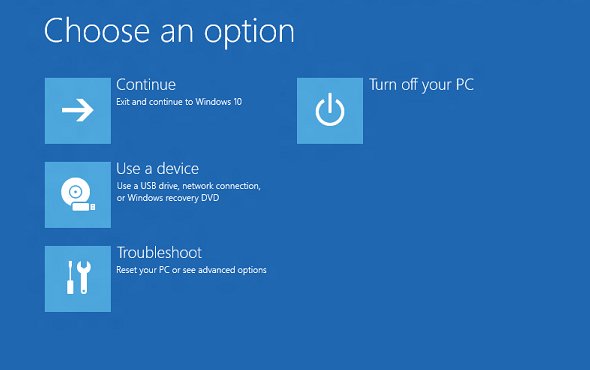
The Windows Recovery Environment (WinRE) runs most tools without an administrator password. Windows also opens it automatically after two consecutive failed attempts to start.
- On the sign-in screen, select the Power icon, hold Shift, and select Restart.
- Select Troubleshoot > Advanced options.
- Choose System Restore to roll back system files and settings to a restore point from before the sign-in problem; personal files are not changed.
- If you can sign in later, use Settings > System > Recovery > Advanced startup > Restart now on Windows 11 to return to WinRE.
- On Windows 10, the same button is under Settings > Update & Security > Recovery.
On a BitLocker-encrypted drive, WinRE asks for the recovery key before tools can read your files.
How to confirm Windows Hello PIN sign-in works again
- Press Windows logo key + L to lock the PC.
- Sign in with the PIN, then lock again and test face or fingerprint.
- Open Settings > Accounts > Sign-in options and check that PIN (Windows Hello) no longer offers to set up a new PIN.
- Restart once and sign in again to confirm the PIN survives a reboot.
Tips and troubleshooting notes
I forgot my PIN asks for a password you do not know
A PIN reset always requires the account password.
- Reset the Microsoft account password on another device through the Microsoft account password reset page.
- Use the new password on the lock screen, then reset the PIN.
Face or fingerprint options are greyed out
Biometrics depend on a working PIN.
- Set up or reset the PIN first under Sign-in options.
- Return to Facial recognition or Fingerprint recognition and select Set up.
PIN reset fails on a work or school PC
Your organisation's policy controls PIN reset and web sign-in.
- Make sure the PC is online, and for hybrid-joined devices connected to the corporate network.
- Contact your IT administrator if the reset page says it cannot open.
Sign-in options vanished after an update
Damaged system files or a faulty update.
- Run
DISM /Online /Cleanup-Image /RestoreHealthandsfc /scannowfrom Terminal (Admin). - If you cannot sign in, use System Restore from WinRE.
Windows Hello PIN sign-in FAQ
How do I reset my Windows 11 PIN if I forgot it?
On the lock screen, select I forgot my PIN under the PIN box, enter your account password, verify your identity and create a new PIN. After sign-in, the same link is in Settings > Accounts > Sign-in options > PIN (Windows Hello).
Can I reset my PIN without a password?
No. Windows requires the account password before it lets you reset a PIN. If you forgot the password too, reset your Microsoft account password first, then reset the PIN.
Why does Windows say my PIN isn't available?
The stored Windows Hello keys for the PIN can no longer be used. Sign in with your password and select I forgot my PIN, which deletes the old PIN and keys and creates new ones.
Why is Windows Hello face recognition not working?
The stored face template may be damaged. Remove Facial recognition in Settings > Accounts > Sign-in options, restart, then set it up again. Biometrics also stop working if the PIN is removed.
Does removing the PIN delete my files?
No. Removing or resetting the PIN only deletes the sign-in credential and Windows Hello keys. Your files, apps and settings stay in place.
How do I get into Windows if no sign-in method works?
Hold Shift and select Restart from the sign-in screen's Power menu to open WinRE. From Troubleshoot > Advanced options, System Restore rolls system files back without touching personal files.
Can I sign in with a password instead of a PIN?
Yes. Select Sign-in options on the lock screen and choose the password icon. On work devices, your organisation's policy decides which sign-in options appear.