When the Apple Devices app crashes during a music sync on Windows 10, update it from the Microsoft Store, repair it in Settings, and sync a smaller selection over a USB cable.
This guide covers the Music sync settings Apple documents, the Apple Mobile Device Service, app repair and reset, Sync Library conflicts, bit rate conversion and how to confirm the songs reached your iPhone.
Fastest fix when Apple Devices crashes during a music sync
Most sync crashes clear once the app is current and the first sync is smaller. Run these steps in order before trying anything else.
- Open the Microsoft Store, select Library, then select Get updates to update Apple Devices and Apple Music.
- Restart the PC.
- Unlock your iPhone and connect it with a USB or USB-C data cable instead of Wi-Fi.
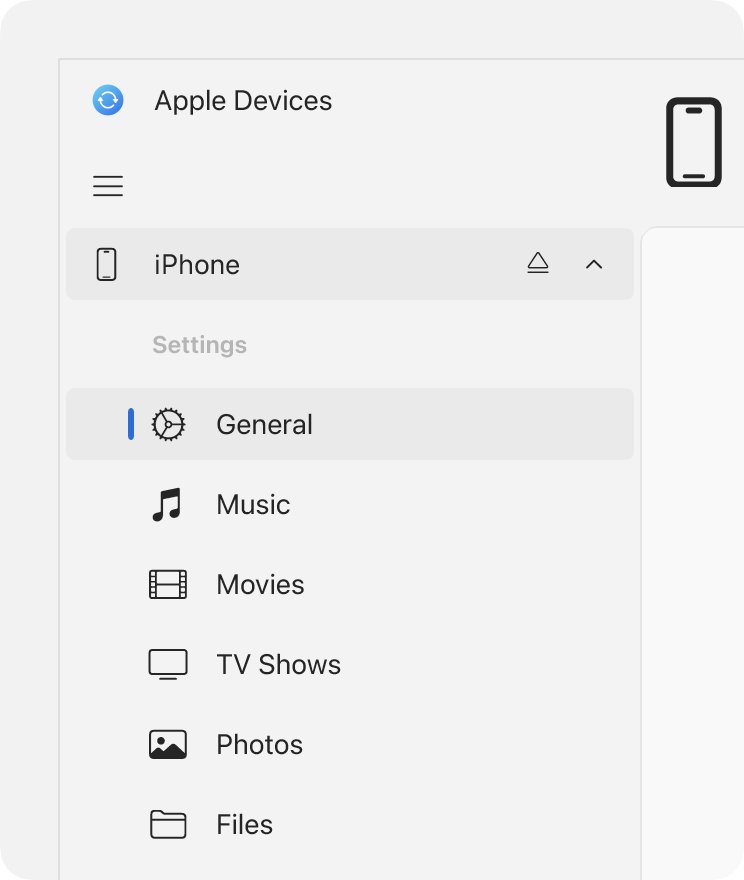
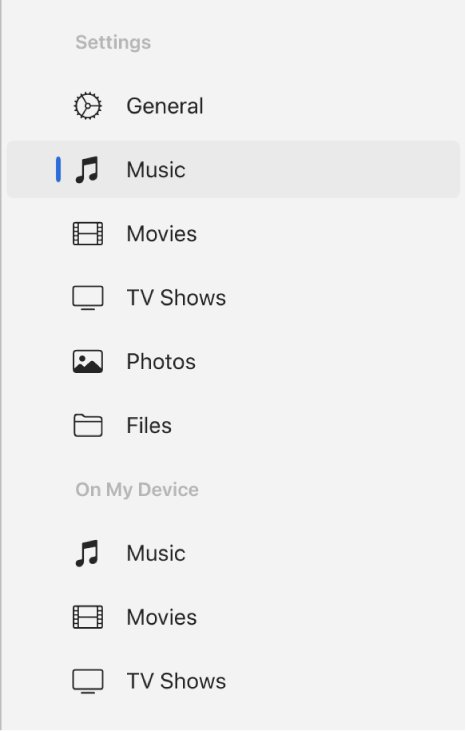
- Open Apple Devices, select your iPhone in the sidebar, then select Music.
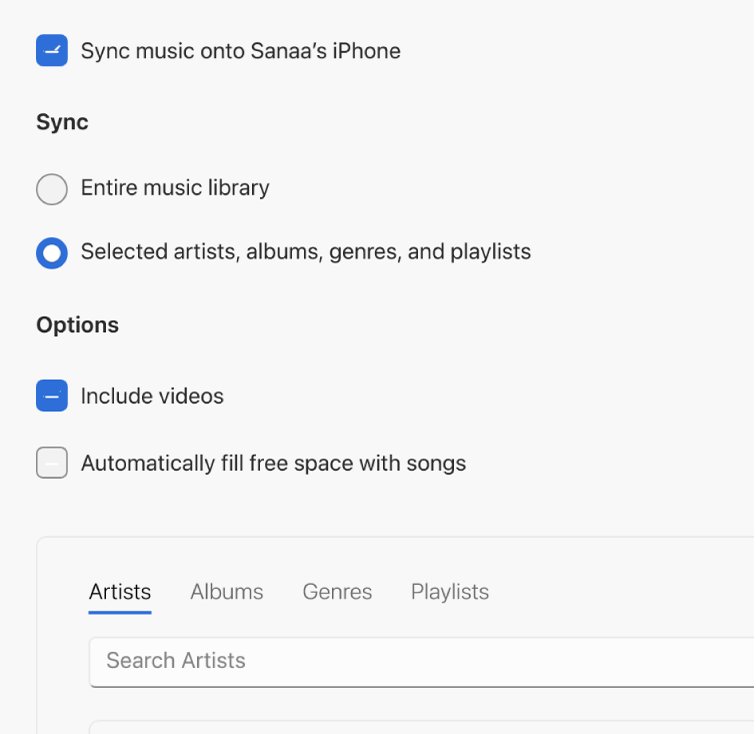
- Select Sync music onto [device name], then choose Selected artists, albums, genres, and playlists.
- Tick one playlist or album only and select Apply.
- When the sync finishes, select the Eject button in the sidebar before you unplug the iPhone.
If that small sync completes, add more albums in batches. If the app still closes, work through the fixes below.
Apple Devices music sync crash: match the symptom to the fix
| What you see | Likely cause | Fix to try |
|---|---|---|
| App closes as soon as the sync starts | Outdated or damaged app files | Update, then repair or reset Apple Devices |
| App closes partway through a large library | One problem file or a very large first sync | Sync selected playlists in batches |
| Sync crashes only over Wi-Fi | Unstable wireless connection | Sync over a USB cable |
| iPhone disappears from the sidebar mid-sync | Apple Mobile Device Service stopped | Restart AMDS |
| Apple Music songs are missing or will not sync | Sync Library is turned on | Turn off Sync Library or use iCloud |
| Message says a song can't be played on the device | Unsupported or high bit rate file | Convert higher bit rate songs |
Apple Devices music sync requirements on Windows 10
| Requirement | Detail |
|---|---|
| Windows version | The latest version of Windows 10 or Windows 11 |
| Apple Devices app | Installed from the Microsoft Store |
| Apple Music app | Must be installed on the PC to sync music |
| Apple Music subscription songs | Sync only after you turn off Sync Library in Apple Music settings |
| Connection | A USB or USB-C data cable, or Wi-Fi sync after a first cable setup |
| iPhone | Unlocked, with the PC trusted |
If the app is not installed yet, get Apple Devices for Windows from the Microsoft Store first.
Update Apple Devices and Apple Music on Windows 10
Apple's Windows apps update only through the Microsoft Store, so reset the Store cache if updates stall. An old build of Apple Devices paired with a newer Apple Music app is a common source of crashes.
- Open the Microsoft Store app.
- Select Library in the lower-left corner.
- Select Get updates.
- Wait for Apple Devices, Apple Music and Apple TV to finish updating.
- Open Settings > Update & Security > Windows Update and select Check for updates.
- Restart the PC and try the sync again.
Repair or reset the Apple Devices app in Windows 10
Repair keeps the app's data. Reset clears it, so the app forgets its settings and you set up sync options again.
- Close Apple Devices and disconnect the iPhone.
- Open Settings > Apps > Apps & features.
- Select Apple Devices, then select Advanced options.
- Select Repair and wait for the check mark.
- Reconnect the iPhone and run a small sync.
- If the crash returns, go back to Advanced options and select Reset.
On Windows 11 the same options sit under Settings > Apps > Installed apps, behind the More button next to Apple Devices.
Sync selected playlists instead of the entire music library
A full library sync moves every song in one pass. Syncing in batches shows which album or playlist makes the app fail.
- Connect the iPhone and select it in the Apple Devices sidebar.
- Select Music.
- Choose Selected artists, albums, genres, and playlists instead of Entire music library.
- Clear Include videos and Automatically fill free space with songs.
- Tick a few albums or one playlist and select Apply.
- Add the next batch after each sync completes, and note the batch that crashes.
Once you find the batch that fails, play its songs in the Apple Music app on the PC. A track that will not play there is the likely culprit; remove it from the playlist and sync again.
Restart the Apple Mobile Device Service on Windows 10
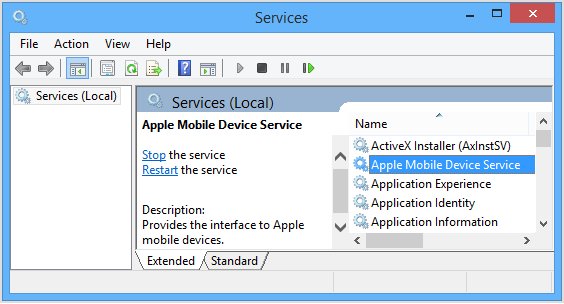
The Apple Mobile Device Service (AMDS) lets Windows talk to the iPhone. If it stops mid-sync, the device drops out of the sidebar and the app can close.
- Close Apple Devices and disconnect the iPhone.
- Press Windows + R, type
services.mscand press Enter. - Right-click Apple Mobile Device Service and select Properties.
- Set Startup type to Automatic.
- Select Stop, then Start, then OK.
- Restart the PC and reconnect the iPhone.
Apple notes that third-party security software can stop this service. Check that software's settings rather than turning protection off.
Turn off Sync Library to sync Apple Music songs to iPhone
Apple Devices cannot sync Apple Music subscription songs while Sync Library is on. With it on, those songs reach the iPhone through iCloud instead.
- Open the Apple Music app on the PC.
- Open the app's settings.
- Turn off Sync Library.
- Open Apple Devices, select your iPhone, then select Music.
- Choose the songs to sync and select Apply.
If you would rather keep Sync Library on, leave the Apple Devices music sync off and let the iPhone download those songs from your Apple Music library.
Convert higher bit rate songs when syncing to iPhone
If the app reports that a song wasn't synced because it can't be played on your device, convert the files during sync. Your originals stay on the PC.
- Connect the iPhone and select it in the Apple Devices sidebar.
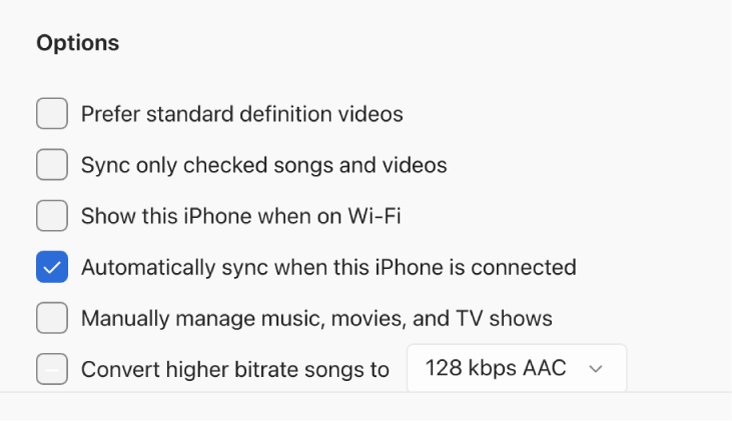
- Select General.
- In Options, select Convert higher bit rate songs to.
- Pick a bit rate from the pop-up menu.
- Select Apply to sync.
How to confirm music synced to iPhone from Apple Devices
- Wait until the sync progress in Apple Devices finishes and the app stays open.
- Select the Eject button next to your iPhone in the sidebar.
- Open the Music app on the iPhone and tap Library.
- Tap Playlists or Albums and check that the batch you chose is listed.
- Play one synced song with Wi-Fi and Cellular Data off to confirm it is stored on the iPhone.
Apple Devices not working on Windows 10 during music sync
iPhone not detected by Apple Devices on Windows
The device is locked, the PC is not trusted, or the cable carries charge only.
- Unlock the iPhone and leave the Home Screen open.
- Reconnect with a different data cable and USB port.
- Tap Trust on the iPhone and enter the passcode.
- Restart the Apple Mobile Device Service if the iPhone charges but does not appear.
Apple Devices app not working after a Windows update
App files no longer match the updated system.
- Update Apple Devices and Apple Music from Microsoft Store > Library > Get updates.
- Select Repair in the app's Advanced options.
- Restart the PC.
Music sync options greyed out in Apple Devices
Apple Music is not installed, or Sync Library is on.
- Install the Apple Music app from the Microsoft Store.
- Turn off Sync Library in Apple Music settings.
- Reopen Apple Devices and select Music again.
Apple Devices music sync on Windows 10 FAQ
Does the Apple Devices app work on Windows 10?
Yes. Apple Devices runs on the latest version of Windows 10 and on Windows 11. Install it from the Microsoft Store, along with Apple Music if you want to sync songs to an iPhone.
Do I need iTunes to sync music with Apple Devices?
No. Apple Devices syncs music using the library in the Apple Music app. Podcasts and audiobooks are the exception, and still need iTunes for Windows.
Where do I download Apple Devices for Windows 10?
Get it from the Microsoft Store. Search for Apple Devices, select Get, and the Store also delivers later updates to the app.
Why does Apple Devices close when I sync my whole music library?
A large first sync or a single problem file can stop it. Switch to Selected artists, albums, genres, and playlists, sync a few albums at a time, and note the batch that fails.
Can I sync music to iPhone over Wi-Fi with Apple Devices?
Yes, after a first cable connection. Turn on Show this iPhone when on Wi-Fi in the General pane and select Apply. Use a cable if wireless syncs keep failing.
Why won't my Apple Music songs sync to my iPhone?
Apple Devices cannot sync Apple Music subscription songs while Sync Library is on. Turn it off in Apple Music settings, or keep it on and let the iPhone get those songs through iCloud.
Does deleting a song on my PC remove it from my iPhone?
Yes, for songs that sync automatically. Apple warns that an item deleted from the Windows library is removed from the iPhone at the next sync.