Fix a CMOS checksum error by entering BIOS setup, loading the default settings, setting the date and time, and saving; if the error returns at every cold start, replace the CMOS battery.
This guide explains what causes the error, how to reset BIOS defaults, how to clear CMOS with a button, jumper pins or battery removal, and what to do when the message keeps coming back.
How to fix CMOS checksum bad error
The message appears before Windows loads, so the fix happens in the BIOS (UEFI) setup screen. Key names vary by maker; the keys below are the ones ASUS motherboards use, and the startup prompt shows the keys for your board.
- Start the PC and wait for the checksum message on screen.
- Press the key the prompt names to enter BIOS setup, such as F1 on ASUS boards.
- Set the correct date and time.
- Press F5 to Load Optimized Defaults, or choose the equivalent load-defaults option on your board.
- Press F10 to save and exit.
- Let the PC restart and boot into Windows.
I
f
t
h
e
P
C
b
o
o
t
s
c
l
e
a
n
l
y
o
n
t
h
e
n
e
x
t
r
e
s
t
a
r
t
a
n
d
a
f
t
e
r
a
f
u
l
l
p
o
w
e
r
–
o
f
f
,
t
h
e
e
r
r
o
r
i
s
f
i
x
e
d
.
What causes CMOS checksum error in Windows?
The error comes from the motherboard firmware, not from Windows. CMOS is a small block of real-time clock (RTC) memory that stores the date, time, BIOS password and BIOS setup settings. At startup the firmware checks that stored data, and it reports a checksum error when the data fails that check.
| Cause | What you notice | Fix |
|---|---|---|
| Weak or dead CMOS battery | Clock resets and the error appears after the PC has been unplugged | Replace the CMOS battery |
| Power lost while settings were stored | Error appears once after an outage or forced shutdown | Load defaults and save |
| Unstable overclock or changed CPU or memory frequency or voltage | Crashes or freezes, then a settings reset prompt | Clear CMOS, then load defaults |
| Corrupted BIOS settings after a hardware change | Error after adding or swapping parts | Clear CMOS, then reconfigure |
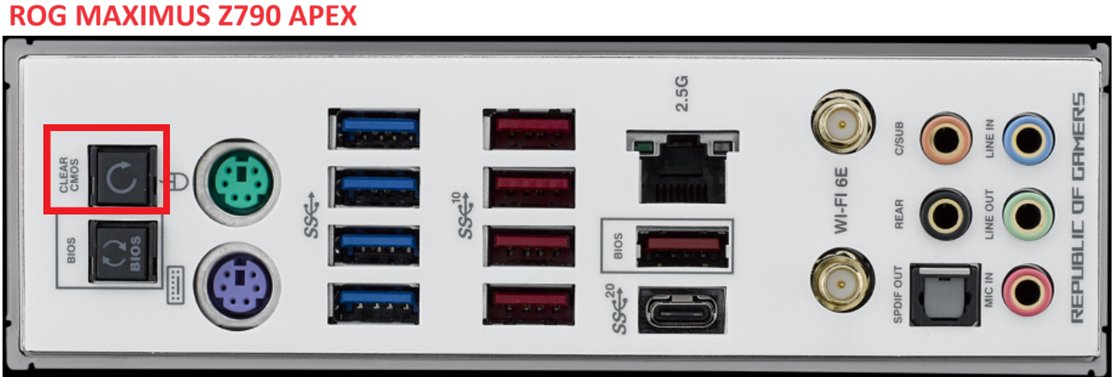
Clear CMOS with the Clear CMOS button
Many current motherboards have a Clear CMOS or CLR_CMOS button on the board or the rear I/O panel. Your motherboard manual shows whether yours has one.
- Shut down the PC and unplug the power cord.
- Press and hold the Clear CMOS (CLR_CMOS) button for about 5 to 10 seconds.
- Plug in the power cord and turn the PC on.
- At the prompt that BIOS settings were reset, enter BIOS setup.
- Set the date and time, load optimized defaults, then save and exit.
Clear CMOS with the CLRTC jumper pins
- Shut down the PC and unplug the power cord.
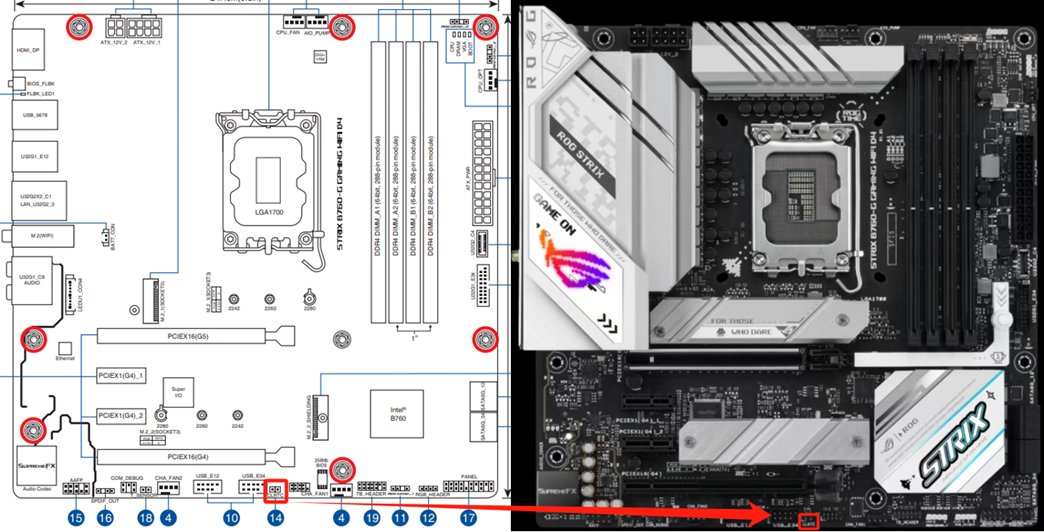
- Open the case and find the two-pin CLRTC header shown in your motherboard manual.
- Short the two pins with a jumper cap or a metal screwdriver tip for about 5 to 10 seconds.
- Remove the jumper or tool, close the case and plug the power cord back in.
- Turn the PC on, enter BIOS setup, load optimized defaults, then save and exit.
Replace the CMOS battery to stop the error coming back
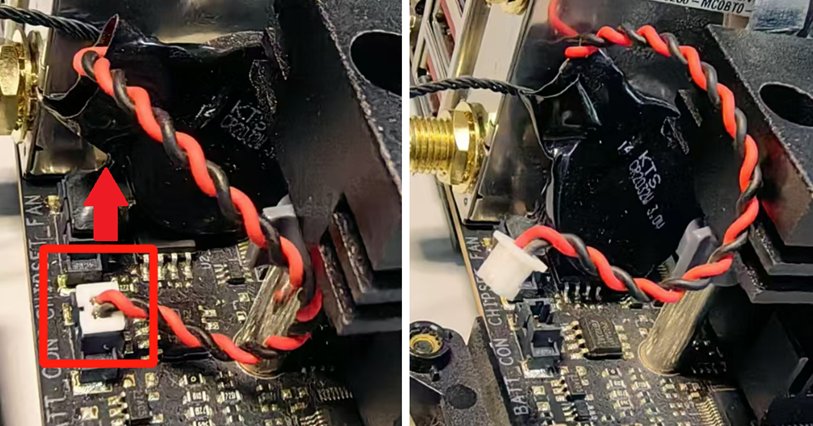
An error that returns after every cold start points to the battery. Most boards hold it in a socket; some small boards use a battery on a two-pin cable.
- Shut down the PC and unplug the power cord.
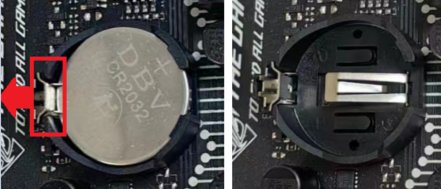
- Open the case and find the CMOS battery holder on the motherboard.
- Release the tab on the side of the holder and lift the battery out, or unplug the two-pin cable of a wired battery.
- Clear CMOS with the button or the CLRTC pins while the battery is out.
- Fit a new battery of the same type printed on the old one, or reconnect the cable.
- Plug in the power cord, turn the PC on, set the date and time, load defaults, then save and exit.
O
n
a
l
a
p
t
o
p
o
r
a
b
r
a
n
d
–
n
a
m
e
d
e
s
k
t
o
p
,
c
h
e
c
k
t
h
e
m
a
k
e
r
'
s
s
e
r
v
i
c
e
m
a
n
u
a
l
f
i
r
s
t
.
S
o
m
e
l
a
p
t
o
p
C
M
O
S
b
a
t
t
e
r
i
e
s
s
i
t
u
n
d
e
r
o
t
h
e
r
p
a
r
t
s
o
r
a
r
e
n
o
t
u
s
e
r
–
r
e
p
l
a
c
e
a
b
l
e
.
Check that the CMOS checksum error is gone
- Restart the PC and confirm it boots to Windows without the checksum message.
- Shut the PC down, unplug it for a few minutes, then plug it in and start it again.
- Open BIOS setup and confirm the date and time are still correct.
- In Windows, check that the clock in the taskbar shows the right time.
I
f
t
h
e
c
l
o
c
k
h
a
s
r
e
s
e
t
a
f
t
e
r
t
h
e
u
n
p
l
u
g
g
e
d
t
e
s
t
,
t
h
e
C
M
O
S
b
a
t
t
e
r
y
i
s
n
o
t
h
o
l
d
i
n
g
t
h
e
s
e
t
t
i
n
g
s
a
n
d
n
e
e
d
s
r
e
p
l
a
c
i
n
g
.
CMOS checksum error keeps coming back
Error returns after every shutdown
The CMOS battery can no longer power the RTC memory while the PC is unplugged.
- Replace the CMOS battery as shown above.
- Load defaults, set the date and time, and save.
- Repeat the unplugged test to confirm the settings now stay.
Error appears after overclocking or changing memory settings
CPU or memory frequency or voltage settings are unstable.
- Clear CMOS with the button or CLRTC pins.
- Load optimized defaults and save.
- Reapply any tuning one change at a time, testing stability after each.
Error persists with a new battery and default settings
The firmware or the motherboard itself may be faulty.
- Check the motherboard or PC maker's support site for a newer BIOS version and its official update steps.
- Keep the PC on stable power during any BIOS update.
- Contact the maker's support if the error continues after the update.
CMOS checksum error FAQ
Common questions about the CMOS checksum message.
What does CMOS checksum error mean?
It means the motherboard firmware found that the settings stored in CMOS memory failed their integrity check at startup. The firmware then uses default settings or asks you to enter BIOS setup to fix them.
Is a CMOS checksum error serious?
Usually not. Loading defaults and saving fixes a one-off error. An error that returns at every cold start usually means a weak CMOS battery, which is a cheap part to replace on most desktops.
Can a dead CMOS battery cause a checksum error?
Yes. The battery keeps the CMOS memory powered while the PC is unplugged. When it weakens, the date, time and BIOS settings are lost, and the firmware reports the checksum error on the next start.
Will clearing CMOS delete my files?
No. Clearing CMOS resets the date, time, BIOS password and BIOS setup settings. Your drives and the files on them are not touched, though custom settings such as boot order need setting again.
Can I fix a CMOS checksum error from Windows?
No. The error is reported by the firmware before Windows loads, so you fix it in BIOS setup or by clearing CMOS on the motherboard. Windows only shows the symptom, such as a wrong clock.
How long should I short the CLRTC pins?
About 5 to 10 seconds with the PC powered off and the power cord removed, according to ASUS. Check your own motherboard manual, because pin location and the recommended method differ between boards.