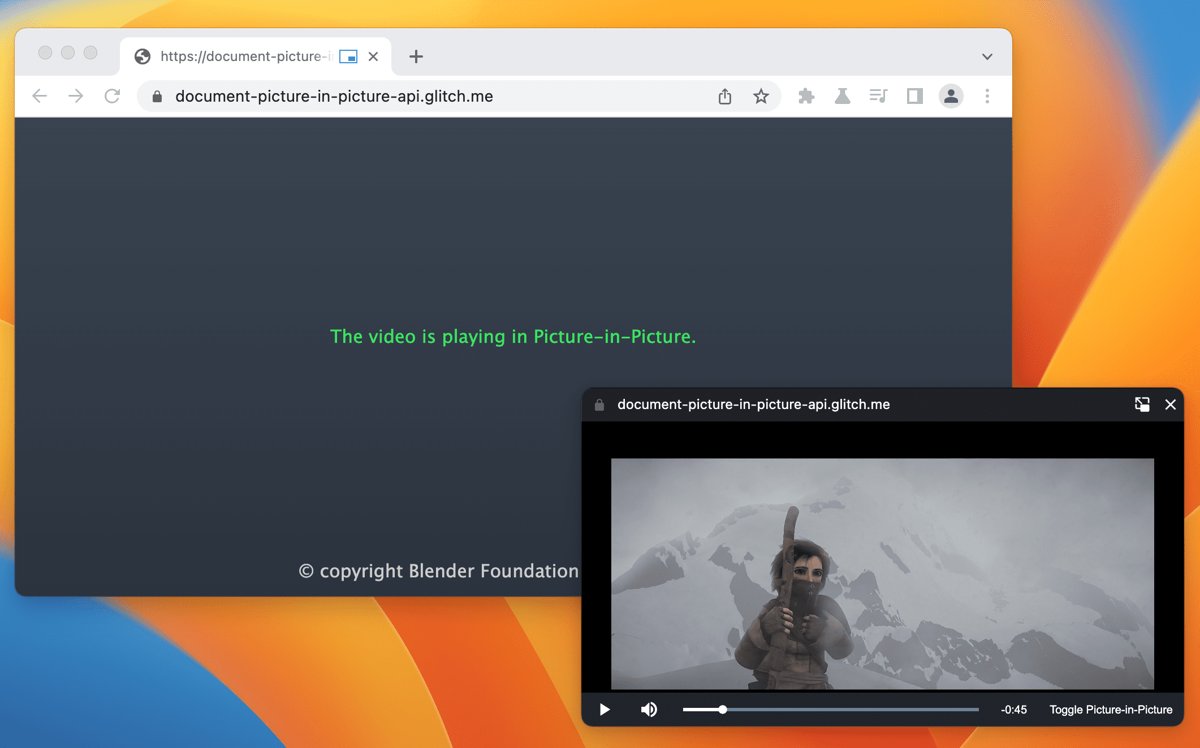
To use Picture in Picture on Windows 11 or Windows 10, play a video in Microsoft Edge, Chrome or Firefox and click the Picture-in-Picture button or menu entry, and the video pops out into a small floating window that stays on top of your other apps.
This guide covers each browser, YouTube on PC, the controls inside the floating window, why the option sometimes goes missing, and how to put one video inside another in Clipchamp.
How to use Picture in Picture on Windows 11/10
Windows itself has no system-wide Picture in Picture switch. The feature lives in your web browser, which turns a playing web video into a floating window.
- Open the page with the video in Microsoft Edge, Google Chrome or Mozilla Firefox.
- Start the video so it is playing.
- Move the mouse over the video and click the Picture-in-Picture button that appears on it.
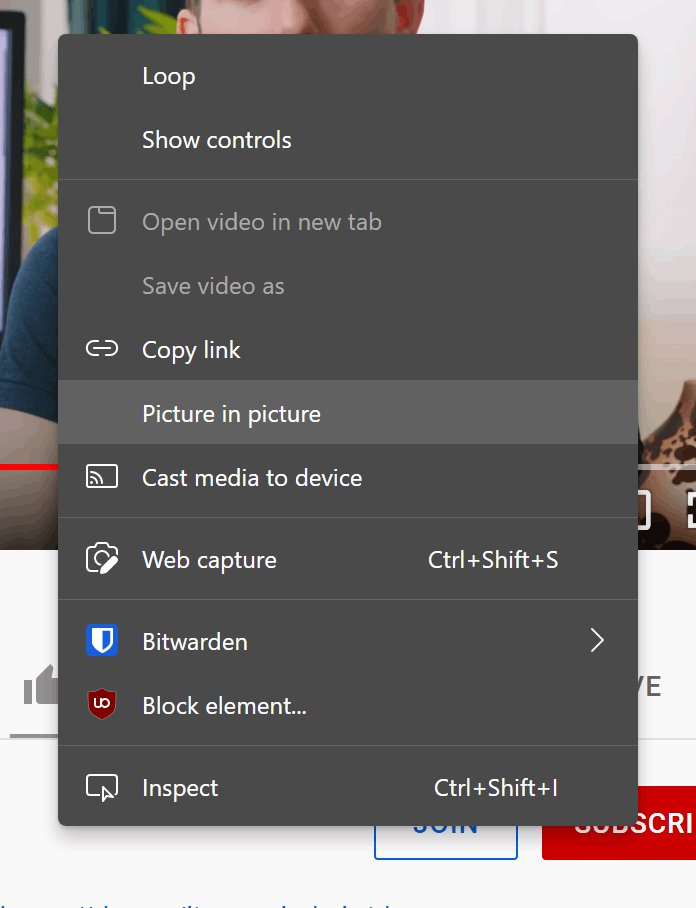
- If no button appears, open the browser's context menu on the video and choose Picture in picture.
- Drag the floating window to any corner of the screen and resize it from its edges.
- Switch to any other tab or app; the video keeps playing on top.
Close the floating window with its X, or use the back-to-tab button to return the video to its page.
Picture in Picture in Edge, Chrome and Firefox compared
| Browser | How you open PiP | Good to know |
|---|---|---|
| Microsoft Edge | Floating Picture in Picture overlay button on supported webpages | Available on Windows from Edge 118; an administrator policy can remove the button |
| Google Chrome | Site's own PiP button or the browser context menu | The window carries play/pause plus previous and next track buttons |
| Mozilla Firefox | Picture-in-Picture button shown over the playing video | You can open as many PiP videos at once as you like |
| Clipchamp (video editor) | Picture-in-picture button in the floating toolbar | Edits one clip on top of another; it does not float a live video |
How to use picture in picture in Edge
Microsoft Edge shows a floating Picture in Picture overlay button on supported webpages, so most videos need just one click.
- Open the video page in Microsoft Edge and press play.
- Hover over the video until the Picture in Picture overlay button appears.
- Click the button to pop the video out.
- Move and resize the floating window wherever it suits you.
- Close the window or return to the tab when you are finished.
How to do picture-in-picture on YouTube on PC?
YouTube's own Picture-in-picture setting in the app is documented for Android and iPhone only. On a Windows PC, the browser provides PiP for YouTube instead.
- Open youtube.com in Edge, Chrome or Firefox and start a video.
- In Edge or Firefox, click the Picture-in-Picture button that appears over the video.
- In Chrome, open the browser's context menu on the video and select Picture in picture.
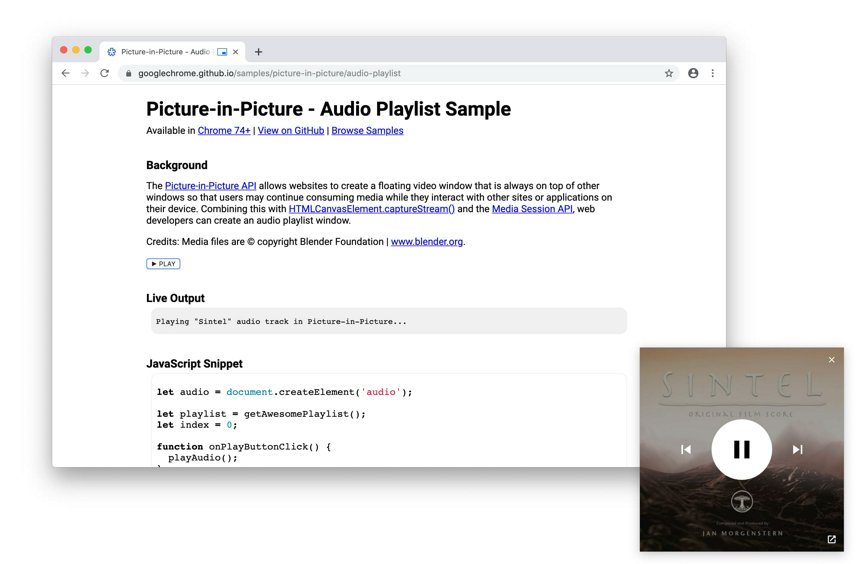
- Use the play/pause, previous and next buttons in the floating window to control playback.
- Click the back-to-tab button to send the video back to YouTube.
Chrome offers four ways to enter Picture in Picture mode, including routes that work when YouTube's own menu gets in the way.
How to use picture in picture in Firefox
Firefox puts a Picture-in-Picture button over a video once it starts playing, and it lets you pop out several videos at the same time.
- Play a video in Firefox.
- Click the Picture-in-Picture button that shows up over the video.
- Switch tabs or apps; the video stays on screen.
- Repeat on another video to open a second floating window.
- Close each floating window with its X when you are done.
Recent Firefox releases give the window full playback controls, and Firefox 84 added multiple Picture-in-Picture windows.

Picture in picture window controls
| Control | What it does |
|---|---|
| Play / pause | Stops or resumes the video without returning to the tab |
| Previous / next track | Skips within a playlist when the site supports it |
| Back to tab | Closes the floating window and returns the video to its page |
| Close (X) | Closes the floating window |
| Window edges | Drag to resize the video |
| Window body | Drag to move it to another part of the screen |
The floating window floats on top of other windows and closes automatically when you close the tab that opened it.
Is there Picture-in-Picture on PC?
Yes. Picture-in-Picture on a Windows PC is a browser feature supported in Chrome, Edge, Opera and Firefox, so it works on both Windows 11 and Windows 10.
| Question | Answer |
|---|---|
| Does Windows have a PiP setting? | No; the floating video window comes from the browser |
| Does it work on Windows 10? | Yes, with a current version of Edge, Chrome or Firefox |
| Does it work on streaming sites? | Only when the site allows its player to enter PiP |
| Can it start without a click? | Sites can request PiP only after a user action such as a click |
How to put picture in picture in a video with Clipchamp
Some people searching for picture in picture want to place one video on top of another. Clipchamp, the video editor included with Windows 11, does this with a preset button.
- Open the media tab and import your background video, then drag it to the timeline.
- Import the overlay video or image and drag it onto the timeline above the background clip.
- Select the top clip and click the three dots in the floating toolbar.
- Click the picture-in-picture button.
- Choose top left, top right, bottom left or bottom right.
- Drag the overlay's corners to resize it.
- To silence the overlay, open the audio tab and drag the volume slider to 0%.
How to tell Picture in Picture is working
- Switch to another app, such as File Explorer; the video should still play in a small window on top.
- Check the original tab; it shows a placeholder where the video was.
- Click play/pause in the floating window and confirm the video responds.
- Click the back-to-tab button and confirm the video returns to its page.
Why can't I use picture in picture?
No Picture in Picture button in Edge
An administrator policy, PictureInPictureOverlayEnabled, can turn the overlay button off on work or school PCs.
- Ask the person who manages a work or school PC whether the Enable Picture in Picture overlay feature on supported webpages in Microsoft Edge policy is disabled.
- On a home PC, open the Registry Editor and check
HKEY_LOCAL_MACHINE\SOFTWARE\Policies\Microsoft\Edgefor the value PictureInPictureOverlayEnabled. - If it is set to 0, delete the value and restart Edge.
- Make sure Edge is version 118 or later.
Picture in picture on Netflix, Disney Plus, Crunchyroll or Twitch does not work
Each site decides whether its player allows PiP, and some block it in the browser.
- Start the video, then try the browser's overlay button or context menu.
- If neither appears, the site is not allowing PiP for that player.
- Use the site's own app instead if it offers a mini player.
The PiP window closes when you change tabs
The floating window cannot outlive the tab that opened it.
- Keep the original tab open; switching away is fine, closing it is not.
- Reopen the video and enter Picture in Picture again.
Picture in picture option is greyed out or missing everywhere
An outdated browser or a video that is not playing yet.
- Press play first; most browsers show the option only for a playing video.
- Update the browser from its About page and restart it.
- Try the same video in a second browser to see whether the site or the browser is the problem.
Picture in Picture on Windows FAQ
How does picture in picture work?
Picture in Picture moves a playing web video into a separate small window that floats above every other window. The video keeps playing while you work in other tabs or apps, and closing the original tab closes the floating window too.
How do I use picture in picture in Edge?
Play the video in Microsoft Edge, hover over it, and click the Picture in Picture overlay button. The video pops out into a floating window you can move and resize. The button is available on supported webpages in Edge 118 and later.
How do I use picture in picture on YouTube on PC?
Play the YouTube video in Edge, Chrome or Firefox and use the browser's Picture-in-Picture button or context menu entry. YouTube's own app setting for picture-in-picture applies to Android and iPhone, not to Windows browsers.
Can you use picture in picture on Netflix?
It depends on whether Netflix's web player allows it in your browser at the time. If no Picture-in-Picture button or menu entry appears on a playing Netflix video, the site is not allowing PiP for that player.
How do I use picture in picture on Twitch?
Play the stream in your browser and use the browser's Picture-in-Picture button or context menu entry on the player. If the option does not appear, Twitch's player is not offering PiP in that browser.
How do I use picture in picture on Disney Plus or Crunchyroll?
Try the browser's Picture-in-Picture button or context menu on a playing video. Streaming sites decide whether their player can enter PiP, so the option may not appear on every service.
Why can't I use picture in picture?
The usual causes are a video that is not playing yet, a site that blocks PiP, an outdated browser, or an Edge policy that turns the overlay button off. Start the video, update the browser, and try another browser to narrow it down.
How do I put a picture in a picture?
To place one video or image on top of another, use Clipchamp. Put the overlay clip on the timeline above the background clip, click the three dots in the floating toolbar, choose picture-in-picture, and pick a corner.
Can I open more than one picture in picture window?
Yes, in Firefox. Firefox lets you pop out as many Picture-in-Picture videos as you like, each in its own floating window.