A WSUS client that stops reporting is usually a client-side problem: a missing Group Policy, a stopped Windows Update or BITS service, a blocked connection to the WSUS port, or a cloned client ID.
This guide works through the client checks first, then the server-side causes in IIS, SUSDB and TLS, and ends with the maintenance that keeps reporting healthy.
Fastest fix for a WSUS client that has not reported status
Run these on the affected client from an elevated Command Prompt. They cover the causes Microsoft lists first for the Computer hasn't reported status message.
- Run
gpupdate /forceso the client picks up the WSUS policy again. - Run
sc query wuauservandsc query bits, and start any service that shows STOPPED withsc start wuauservorsc start bits. - Open
http://<WSUSSERVER>:8530/iuident.cabin a browser on the client and confirm the file request succeeds. - Run
wuauclt /resetauthorization /detectnow. - Run
wuauclt /reportnow. - Refresh the Computers view in the WSUS console and check the Last Status Report column for the client.
Understanding the WSUS reporting pipeline
Reporting is a separate step from scanning. A client can download and install updates and still never send its status back, so each link below can fail on its own.
| Stage | Component | What breaks it |
|---|---|---|
| Policy | Group Policy sets the WSUS server URL under HKEY_LOCAL_MACHINE\SOFTWARE\Policies\Microsoft\Windows\WindowsUpdate | GPO not applied or not targeted to the computer |
| Client agent | Windows Update service (wuauserv) and BITS | Service stopped, disabled or misconfigured |
| Transport | HTTP on port 8530 and HTTPS on port 8531 by default | Name resolution, proxy, firewall or certificate errors |
| Identity | SusClientId in HKEY_LOCAL_MACHINE\Software\Microsoft\Windows\CurrentVersion\WindowsUpdate | Duplicate IDs on cloned images |
| Server web layer | WsusPool application pool in IIS | Pool stopped or recycling under memory pressure (HTTP 503) |
| Database | SUSDB on Windows Internal Database or SQL Server | Fragmented indexes, too many superseded updates, SQL service stopped |
Common warning signs: symptoms of client reporting failure
| What you see | Most likely cause |
|---|---|
| Computer hasn't reported status in the WSUS console | Client offline, turned off, asleep or without network connectivity |
| Only one of a group of imaged PCs appears, and which one changes over time | Duplicate SusClientId from disk cloning |
| Client IP never appears in the IIS logs | Client points at the wrong WSUS server, or the network blocks it |
| HTTP 503 in IIS logs and errors ending in 2EE2 in the client WindowsUpdate.log | WsusPool out of memory or overloaded |
| Console shows Connection Error, Administration site returns HTTP Error 503 | WsusPool application pool stopped |
| Scans time out across many clients | SUSDB needs reindexing and superseded updates need declining |
Step 1: Verifying client connectivity and communication
- Confirm the client resolves the WSUS server name with
nslookup <WSUSSERVER>. - Browse to
http://<WSUSSERVER>:8530/iuident.caband confirm it loads without an error. - Run
netsh winhttp show proxyto see the WinHTTP proxy the Windows Update service uses. - If the proxy is wrong, run
netsh winhttp reset proxyor set the correct one withnetsh winhttp set proxy <server:port>. - Check
C:\inetpub\logs\LogFileson the server for the client's IP address after the next scan. - If the IP never appears, check
C:\Windows\System32\LogFiles\HTTPERRon the server for refused requests.
Microsoft's older guidance used proxycfg, which current Windows versions replace with netsh winhttp.
Step 2: Running a comprehensive troubleshooting script
Run this in an elevated PowerShell window on the client. It collects the facts every later step depends on, and changes nothing.
Get-Service wuauserv, bits | Format-Table Name, Status, StartType; Get-ItemProperty 'HKLM:\SOFTWARE\Policies\Microsoft\Windows\WindowsUpdate' | Select-Object WUServer, WUStatusServer; Get-ItemProperty 'HKLM:\SOFTWARE\Microsoft\Windows\CurrentVersion\WindowsUpdate' | Select-Object SusClientId; gpresult /scope computer /r; Get-WindowsUpdateLogShows the state of the Windows Update and BITS services, the WSUS URLs the policy set, the client ID WSUS knows the PC by, the computer GPOs applied, and writes a readable WindowsUpdate.log to the desktop from the .etl trace files.
You should see: Both services report Running, WUServer and WUStatusServer hold your WSUS FQDN and port, your WSUS GPO is listed under Applied Group Policy Objects, and WindowsUpdate.log shows no proxy or connection errors.
Windows 10, Windows 11 and Windows Server 2016 or later no longer write WindowsUpdate.log directly; Get-WindowsUpdateLog builds it from the trace files.
Step 3: Group Policy enforcement and refresh
- Run
gpresult /v > gpresult.txton the client from an elevated Command Prompt. - Open gpresult.txt in Notepad and find Applied Group Policy Objects under Computer Settings.
- Confirm your WSUS policy name is listed there.
- If it is missing, check that the GPO is linked to the computer's OU and that security filtering includes the computer.
- Run
gpupdate /forceto apply the policy. - Check that WUServer under HKEY_LOCAL_MACHINE\SOFTWARE\Policies\Microsoft\Windows\WindowsUpdate holds the correct WSUS FQDN.
Step 4: Repairing Windows Update components
- Stop the Windows Update service with
sc stop wuauserv. - Rename
C:\Windows\SoftwareDistributiontoSoftwareDistribution.old. - Confirm BITS runs as LocalSystem with
sc config bits obj= LocalSystemand restart it withsc stop bitsthensc start bits. - Start the Windows Update service with
sc start wuauserv. - Run
wuauclt /resetauthorization /detectnow. - Run
wuauclt /reportnowto send status to the server.
Odd case: clients update but fail to report
Imaged computers replace each other in the WSUS console
Cloned systems share one SusClientId, so WSUS sees them as a single computer.
- Run
sc stop wuauserv. - Delete the SusClientId value under HKEY_LOCAL_MACHINE\Software\Microsoft\Windows\CurrentVersion\WindowsUpdate.
- Run
sc start wuauserv. - Run
wuauclt /resetauthorization /detectnow. - Run
wuauclt /reportnow.
Client installs updates but WSUS shows no recent status
The status URL in policy differs from the scan URL, or the reporting request is refused.
- Compare WUServer and WUStatusServer in the policy key; both should name the same server and port.
- Search the IIS log for the client IP and the status code returned.
- Fix a 503 with the WsusPool steps below, or a 403 with the certificate steps below.
BITS fails to start with 0x80070422
The BITS service is disabled.
- Open Services and double-click Background Intelligent Transfer Service.
- Set Startup type to Automatic (Delayed Start).
- Select Start, then OK.
Advanced troubleshooting: debugging WSUS server-side reporting failures
No clients report at all
A WSUS service on the server is stopped.
- Open Services on the WSUS server.
- Confirm WSUS Service, World Wide Web Publishing Service and the database service for SUSDB (Windows Internal Database or your SQL Server instance) are running.
- In IIS Manager confirm the WSUS Administration site is started.
- Run
iisresetif the web services do not respond.
IIS log shows 404 for client requests
A missing virtual directory or broken IIS configuration.
- Open IIS Manager and expand WSUS Administration.
- Confirm the ClientWebService, SimpleAuthWebService and APIRemoting30 virtual directories exist.
- Review the IIS logs in
C:\inetpub\logs\LogFilesfor the failing URL.
IIS resource exhaustion and the reporting web service
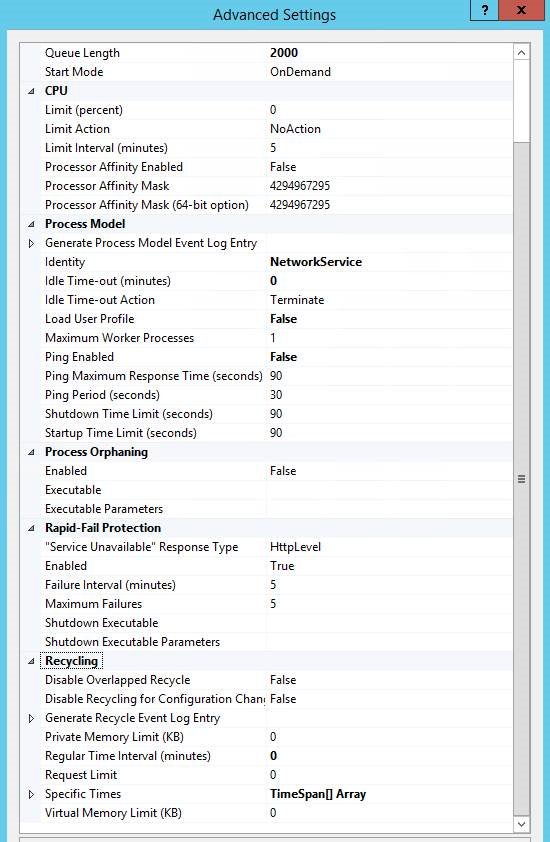
HTTP 503 from WSUS usually means the WsusPool application pool stopped or recycled after hitting its private memory limit. Clients then fail both scans and status reports.
| WsusPool setting | Default | Microsoft recommendation |
|---|---|---|
| Queue Length | 1000 | 2000 |
| Idle Time-out (minutes) | 20 | 0 |
| Ping Enabled | True | False |
| Private Memory Limit (KB) | 1,843,200 | 0 (unlimited), or at least 4,000,000 to 8,000,000 |
| Regular Time Interval (minutes) | 1740 | 0 |
Change these in IIS Manager > Application Pools > WsusPool > Advanced Settings, then restart the pool.
Database health: SUSDB fragmentation and bloat
- Back up SUSDB.
- Check the SQLServerName value under HKEY_LOCAL_MACHINE\Software\Microsoft\Update Services\Server\Setup to see whether SUSDB runs on WID or SQL Server.
- Count superseded updates with
Select COUNT(UpdateID) from vwMinimalUpdate where IsSuperseded=1 and Declined=0; more than 1,500 causes server and client problems. - Decline superseded updates you no longer deploy, from the WSUS console or Microsoft's Decline-SupersededUpdatesWithExclusionPeriod.ps1 script.
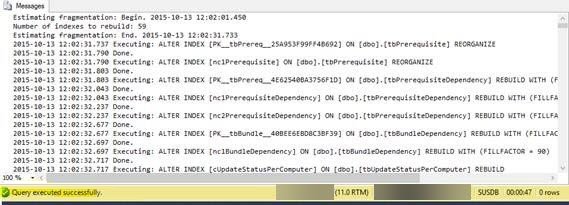
- Run Microsoft's Reindex the WSUS Database T-SQL script, using
\\.\pipe\Microsoft##WID\tsql\queryas the server name for WID. - Run the Server Cleanup Wizard from Options in the WSUS console, one option at a time if it times out.
- Reindex SUSDB again after the cleanup.
SSL certificates and HTTPS configuration
With TLS on, WSUS sends metadata over HTTPS on port 8531 and payloads over HTTP on port 8530. A certificate the client does not trust stops reporting with HTTP 403 errors.
- Bind a certificate whose name matches the server FQDN to the WSUS site in IIS.
- Require SSL only on the APIRemoting30, ClientWebService, DSSAuthWebService, ServerSyncWebService and SimpleAuthWebService virtual directories.
- Open an elevated Command Prompt and go to
C:\Program Files\Update Services\Tools. - Run
wsusutil configuressl <certificate-name>, using the server's DNS name. - Set the client policy URL to
https://<FQDN>:8531; clients must use the FQDN, not a short name. - Confirm clients trust the issuing CA, then run
wuauclt /detectnowon a test client.
If you change the ports, the HTTP port must be exactly one less than the HTTPS port.
Confirm the WSUS client reports status again
- Wait a few minutes after
wuauclt /reportnow. - In the WSUS console, open Computers > All Computers and refresh the view.
- Find the client and confirm its last status report time is now current.
- Search the IIS log for the client IP and confirm requests return 200.
Critical analysis: notable strengths and risks
| Area | Detail |
|---|---|
| Strengths | Every client step uses built-in tools (gpresult, sc, wuauclt, PowerShell), so no extra software is needed and the steps work through remote sessions. |
| Strengths | The pipeline approach separates client causes from server causes, so one bad PC is not mistaken for a server fault. |
| Risks and drawbacks | Deleting SusClientId or renaming SoftwareDistribution clears local update history on that client. |
| Risks and drawbacks | Declining updates and running cleanup on SUSDB is not easily reversed; back up the database first and run it outside sync windows. |
| Risks and drawbacks | Unlimited WsusPool memory can starve other roles on a shared server; give WSUS enough RAM. |
Prevention: best practices for sustainable WSUS operations
Decline superseded updates, run the Server Cleanup Wizard and reindex SUSDB on a monthly schedule, keep WsusPool at Microsoft's recommended settings, and generalize images before cloning so each PC gets its own client ID. Microsoft names superseded updates kept too long as the leading cause of WSUS performance problems, and a slow server is what turns occasional scan errors into fleet-wide reporting gaps.
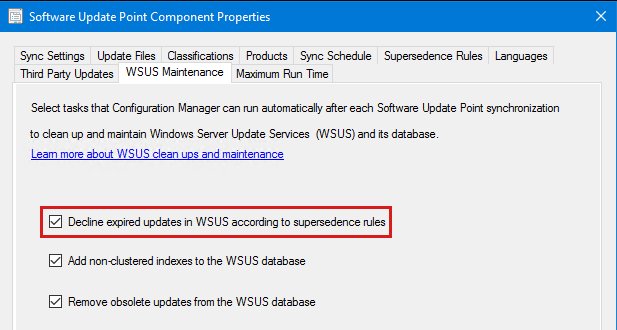
With Configuration Manager 1906 or later, enable the WSUS maintenance options on the top-level software update point instead of scripting cleanup.
WSUS client reporting FAQ
Why does WSUS say a computer hasn't reported status?
The client has not sent its update state to the server. Microsoft says this is usually a client problem: lost network connectivity, a faulty adapter or cable, or the computer being off, asleep or hibernating.
How do I force a WSUS client to report?
Run wuauclt /reportnow from an elevated Command Prompt on the client. Run wuauclt /resetauthorization /detectnow first if the client also needs a fresh scan against the server.
Why do only some cloned PCs show in WSUS?
Cloned PCs share the same SusClientId, so WSUS treats them as one computer. Delete the SusClientId value on each clone with the Windows Update service stopped, then rescan and report.
What ports does a WSUS client use?
Clients need outbound access to the WSUS server on port 8530 for HTTP and 8531 for HTTPS by default. Custom ports must be adjacent, with HTTP one lower than HTTPS.
Where is WindowsUpdate.log on Windows 10 and 11?
Windows 10 and later write .etl trace files instead. Run Get-WindowsUpdateLog in PowerShell to merge them into a readable WindowsUpdate.log, saved to your desktop by default.
What causes HTTP 503 errors on a WSUS server?
Usually the WsusPool application pool has stopped or is recycling after hitting its private memory limit. Raise or remove the limit in IIS Manager and restart the pool.
How often should SUSDB be reindexed?
Microsoft's maintenance guide suggests reindexing as part of regular, typically monthly, maintenance and again after declining superseded updates or running the cleanup wizard.