To boot into Windows Recovery Environment (WinRE), hold Shift while you select Power > Restart, or open Settings > System > Recovery and select Restart now next to Advanced startup.
This guide covers every entry point on Windows 11 and Windows 10, including PCs that will not start, plus checking the WinRE version, fixing ReAgent.xml errors after MBR2GPT and creating a recovery drive.
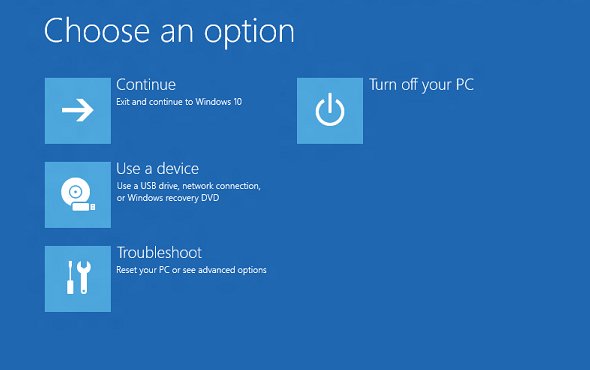
Boot into WinRE with Shift + Restart
This works from the Start menu and from the sign-in screen, so you do not need to be signed in.
- Select Start, or the Power icon on the sign-in screen.
- Press and hold the Shift key.
- Keep holding Shift and select Power > Restart.
- Release Shift when the Choose an option screen appears.
- Select Troubleshoot > Advanced options to reach the recovery tools.
What is Windows RE
Windows Recovery Environment is a built-in recovery system based on Windows PE that repairs common causes of an unbootable PC. Windows 10 and Windows 11 ship with it preloaded, usually on a separate recovery partition so it still works when the Windows partition is damaged or encrypted with BitLocker.
WinRE launches itself in emergency cases: after two failed attempts to start Windows, two unexpected shutdowns or reboots within two minutes of boot completing, or a Secure Boot error.
| What can Windows RE do? | Use it when |
|---|---|
| Startup Repair | Windows will not load and you want an automatic fix |
| System Restore / point-in-time restore | A recent driver, update or app change broke the PC |
| Uninstall Updates | Problems started right after a Windows update |
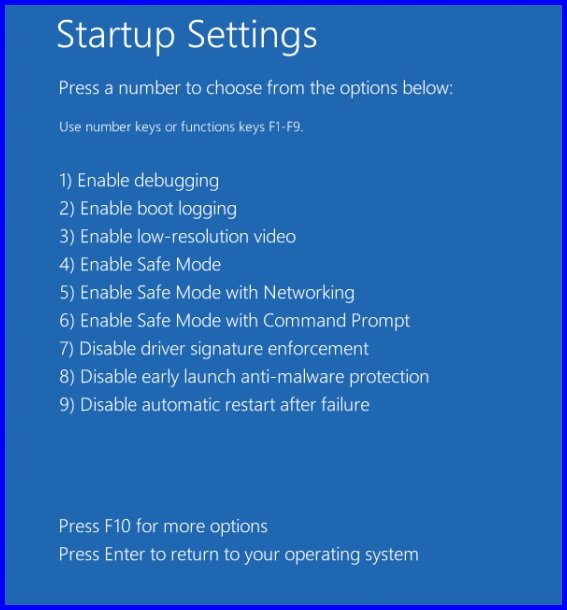
| Startup Settings | You need to boot Windows 11 into Safe Mode or another startup option |
| Command Prompt | You need manual repair commands |
| UEFI Firmware Settings | You need to change boot order or turn on Secure Boot |
| System Image Recovery | You have a full system image backup to restore |
| Reset this PC | Nothing else works and you want to reinstall Windows 11 cleanly, keeping or removing files |
If the drive is encrypted, some tools ask for your BitLocker recovery key.
How to boot into Windows Recovery Environment or Recovery Mode
| Your situation | Use this entry point | Notes |
|---|---|---|
| Windows starts and you are signed in | Settings > System > Recovery > Advanced startup > Restart now | Windows 10: Settings > Update & Security > Recovery |
| You are at the sign-in screen | Hold Shift and select Power > Restart | No password needed |
| You prefer a command | reagentc /boottore, then restart |
Run in an administrator Command Prompt |
| Windows will not start | Interrupt the boot three times to trigger Automatic Repair | Then select Advanced options |
| The recovery partition is missing or broken | Boot from a recovery drive or Windows installation media | Installation media: select Repair my PC |
| Your PC maker added a recovery key or button | Use the manufacturer's hardware recovery button | Check the maker's support site for the key on Dell, Lenovo and other brands |
Open Advanced startup from Windows 11 Settings
- Open Settings with Win + I.
- Select System > Recovery.
- Under Recovery options, find Advanced startup.
- Select Restart now, then confirm Restart now.
- Wait for the blue Choose an option screen.
Boot to WinRE with the reagentc command
Open Command Prompt as administrator first. The command flags WinRE for the next start only.
reagentc /boottoreTells Windows to start Windows RE automatically the next time the PC restarts. Restart the PC after running it.
You should see: The PC restarts straight into the Choose an option screen instead of the desktop.
How to boot into Windows recovery when the PC won't start
Interrupting startup twice forces Automatic Repair, which opens WinRE on the third boot.
- Turn on the PC and wait for the Windows or manufacturer logo.
- As soon as the logo appears, press and hold the power button until the PC shuts down.
- Turn the PC on again and repeat the forced shutdown.
- Turn the PC on a third time and wait for the Automatic Repair screen.
- Select Advanced options to open WinRE.
How to boot into Windows recovery from USB
Use a recovery drive or Windows installation media when the on-disk recovery partition does not load. Installation media can be made on another PC with the Windows 11 Media Creation Tool.
- Plug the recovery drive or installation USB into the PC.
- Start the PC from the USB drive; the boot menu key varies by manufacturer.
- From a recovery drive, WinRE loads directly.
- From installation media, choose your language and select Next.
- Select Repair my PC to open WinRE.
If the setup screen never appears, the PC is not set to boot from USB. Change the boot order in firmware, which you can reach on Dell PCs by entering the Dell BIOS.
How to check WinRE version in Windows 11
Checking the version also confirms WinRE is enabled. Run both commands in an administrator Command Prompt.
- Run
reagentc /infoand confirm Windows RE status reads Enabled. - Copy the Windows RE location path, for example
\\?\GLOBALROOT\device\harddisk0\partition4\Recovery\WindowsRE. - Run
Dism /Get-ImageInfo /ImageFile:<location>\winre.wim /index:1, replacing<location>with that path. - Read the Version and ServicePack Build lines; together they form the WinRE build, such as 10.0.22621 with build 819.
- Compare the ServicePack Build with the update number of your latest cumulative update; a lower number means WinRE is not up to date.
MBR2GPT failed to update ReAgent.xml on Windows computer
MBR2GPT converts the system disk from MBR to GPT and then has to repoint Windows RE. ReAgent.xml, the WinRE configuration file, lives in C:\Windows\System32\Recovery.
MBR2GPT reports it failed to update ReAgent.xml
The disk converted, but the WinRE configuration still points at the old layout.
- Open the MBR2GPT logs
setupact.logandsetuperr.login%windir%to see the exact error. - Run
reagentc /infoand check whether Windows RE status is Disabled. - Run
reagentc /disable, thenreagentc /enableso Windows RE is turned on and configured again. - Run
reagentc /infoagain and confirm Enabled with a valid location. - Switch the firmware to UEFI boot mode, which the converted disk requires.
MBR2GPT validation fails before converting
The disk layout breaks one of the tool's rules, such as more than three primary partitions or an extended partition.
- Run
mbr2gpt /validate /disk:0 /allowFullOSto repeat the checks without changing the disk. - Read
diagerr.xmlandsetuperr.login%windir%for the failed check. - Fix the reported layout issue, then run
mbr2gpt /convert /disk:0 /allowFullOS.
Restart now under Advanced startup does nothing or WinRE will not load
WinRE is disabled or its image is missing.
- Run
reagentc /infoin an administrator Command Prompt. - If the status is Disabled, run
reagentc /enable. - If enabling fails, boot from a recovery drive or installation media instead.
How to create a system recovery drive in Windows 11
A recovery drive boots straight into WinRE and can reinstall Windows. It does not include your personal files, and the process erases the USB drive.
- Connect an empty USB drive.
- Search for Recovery Drive from Start and open it, or run
recoverydrive.exe. - Make sure Back up system files to the recovery drive is selected, then select Next.
- Select the USB drive and select Next.
- Select Create and wait for the files to copy.
- Recreate the drive once a year so it includes recent updates.
Windows Recovery Environment FAQ
How do I boot into Windows recovery mode on Windows 11?
Open Settings, select System > Recovery, and select Restart now next to Advanced startup. You can also hold Shift while selecting Power > Restart from the Start menu or the sign-in screen.
How do I enter Windows recovery from boot?
Turn on the PC and force it off with the power button as soon as the logo appears, twice in a row. On the third start Windows shows Automatic Repair; select Advanced options to open WinRE.
How do I boot into Windows recovery from USB?
Start the PC from a recovery drive or Windows installation media. A recovery drive opens WinRE directly; installation media needs your language choice, then Next and Repair my PC.
How do I boot into Windows recovery on a Dell or Lenovo laptop?
The Shift + Restart, Settings and forced-restart methods work on any Windows PC, including Dell and Lenovo. Many manufacturers also add a hardware recovery key or button; the exact key is listed on the maker's support site.
How do I boot into the Windows recovery partition?
Every normal entry point, such as Advanced startup or Shift + Restart, loads WinRE from the recovery partition. If it fails, run reagentc /info to check that WinRE is enabled and pointing at that partition.
Can I delete the Windows RE tools partition?
Deleting it removes the on-disk recovery tools, so Advanced startup and Automatic Repair stop working until WinRE is restored. Keep it unless you always have a recovery drive ready.
Does WinRE need an administrator password?
On Windows 11 most WinRE tools run without choosing an administrator account. Encrypted files stay unreadable unless you enter the BitLocker recovery key.
Is WinRE updated by Windows Update?
Yes. Some cumulative updates replace the on-disk WinRE image with a newer one. Check the version with reagentc /info and DISM to confirm the update applied.