To update iTunes on a Windows PC, open Microsoft Store, select Library and select Get updates, or choose Help > Check for Updates inside iTunes if you installed it from Apple's website.
This guide covers both versions of iTunes, automatic updates, a clean reinstall, and fixes for updates that will not install.
Update the Microsoft Store version of iTunes
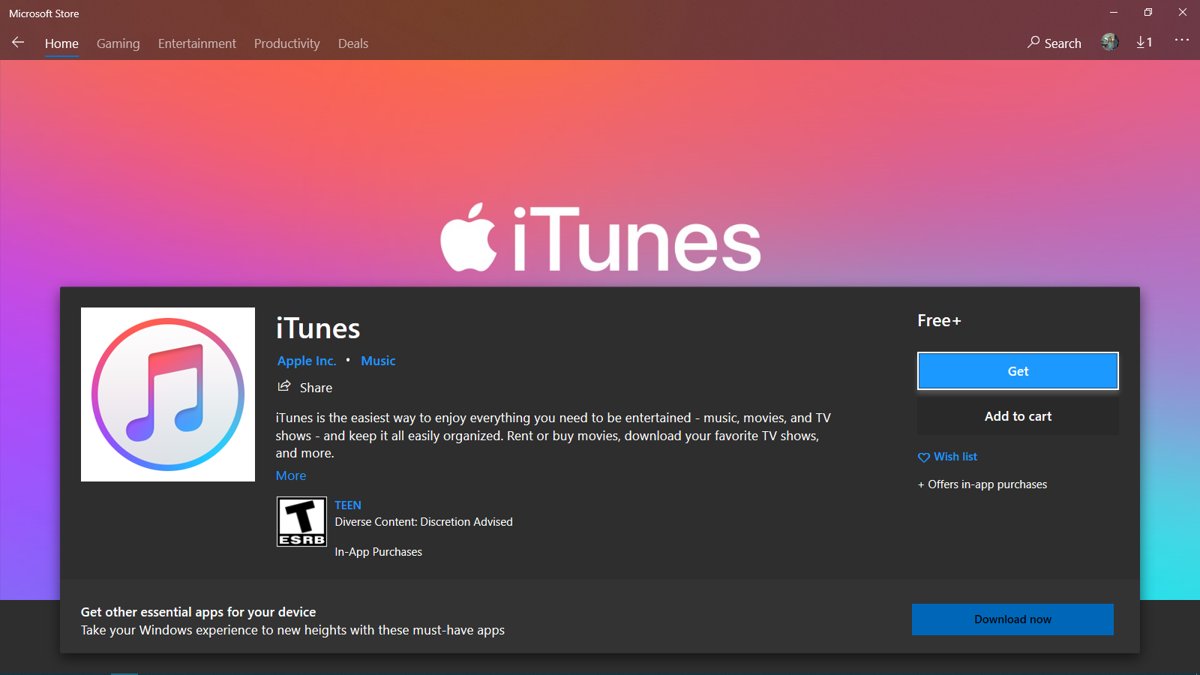
Apple now distributes iTunes for Windows through the Microsoft Store, so most current installs update the same way you update other Microsoft Store apps.
- Select Start, then search for and open Microsoft Store.
- Select Library in the sidebar.
- Select Get updates to check every Store app for new versions.
- Wait for iTunes to download and install if it appears in the updates list.
- Open iTunes again once the update finishes.
Update the standard version of iTunes
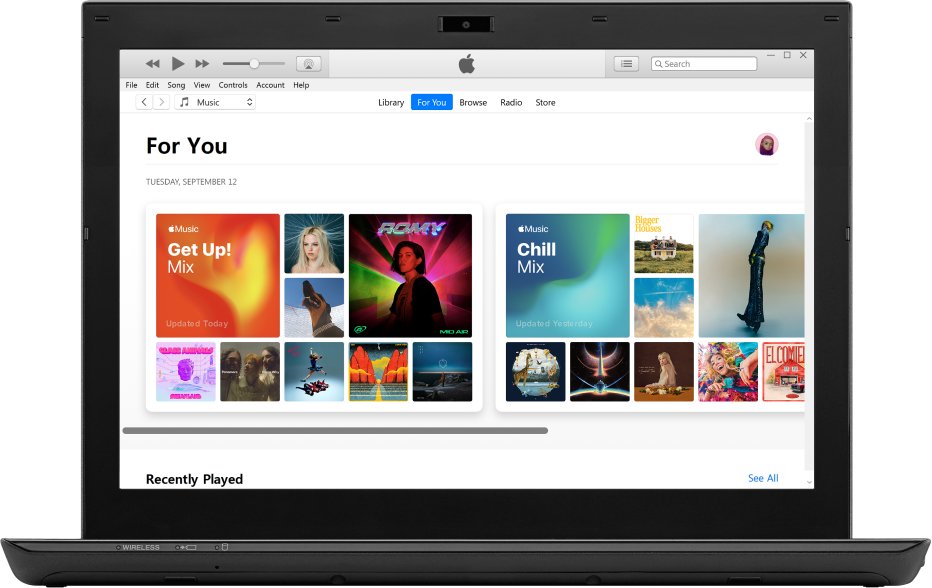
Older installs that came from Apple's download page update from inside iTunes itself, not from the Store.
- Open iTunes.
- Choose Help > Check for Updates from the menu bar.
- Follow the prompts to install the latest version if one is available.
- Restart iTunes when the installer finishes.
You can also make this version check on its own. Choose Edit > Preferences, click Advanced, and select the option to check for new software updates automatically. iTunes then checks weekly, but only if you quit and reopen it at least once in a seven-day period.
Microsoft Store or Apple download: which iTunes do you have?
| What you see | Version | How it updates |
|---|---|---|
| iTunes appears in Microsoft Store Library | Microsoft Store | Automatically, or Library > Get updates |
| The Help menu shows Check for Updates | Standard (Apple download) | Help > Check for Updates, or the weekly check in Edit > Preferences > Advanced |
| You mainly sync an iPhone or iPad | Either | Consider the Apple Devices app from the Microsoft Store |
Turn on automatic updates for iTunes in Microsoft Store
Microsoft Store installs app updates on its own when the setting is on, which keeps the Store version of iTunes current without any clicks.
- Select Start, then search for and select Microsoft Store.
- Select Profile (your account photo), then Store Settings.
- Make sure App updates is turned On.
Uninstall and reinstall iTunes on Windows
A clean reinstall replaces damaged program files when an update keeps failing, and the standalone iTunes installer for Windows is an option if the Store will not cooperate.
- Open Start > Settings > Apps > Installed apps.
- Find iTunes, select the More button (three dots) and choose Uninstall.
- Restart the PC.
- Open Microsoft Store and search for iTunes.
- Select Install (or Get) and wait for the download to finish.
- Open iTunes and sign in with your Apple Account.
If Settings cannot remove it, open Control Panel > Programs > Programs and Features, right-click iTunes and select Uninstall.
Confirm iTunes is up to date
- Open Microsoft Store and select Library.
- Select Get updates and confirm iTunes is not listed as having an update.
- For the standard version, choose Help > Check for Updates in iTunes and confirm no new version is offered.
iTunes update not working on Windows
iTunes never shows up in Get updates
Microsoft Store itself, or Windows, is out of date.
- Select Start > Settings > Windows Update > Check for updates and install anything offered.
- In Microsoft Store, select Library > Get updates to update the Store first.
- Sign in to Microsoft Store with your Microsoft account and check again.
iTunes will not open after an update
The update left the app in a broken state.
- Open Start > Settings > Apps > Installed apps.
- Select More next to iTunes, then Advanced options.
- Select Repair; if that does not help, select Reset.
- Reinstall iTunes from Microsoft Store if it still will not start.
Help > Check for Updates is missing
You have the Microsoft Store version, which has no built-in updater.
- Open Microsoft Store > Library.
- Select Get updates.
If Windows itself is stuck, you can force a Windows 11 update before trying the Store again, and if the Store app misbehaves you can reset the Microsoft Store cache first.
Always use the latest version of iTunes
| Reason | What it means for you |
|---|---|
| Device support | New iPhone and iPad software may need a current iTunes or Apple Devices app to sync and back up |
| Security fixes | Updates patch flaws in the app and its media components |
| Store and library fixes | Bugs in podcasts, audiobooks and purchases get fixed in new releases |
| Dedicated apps | Apple now splits music, video and device tasks into the Apple Music, Apple TV and Apple Devices apps; iTunes on Windows still handles podcasts and audiobooks |
Update iTunes on Windows FAQ
How do I update iTunes from the Microsoft Store?
Open Microsoft Store, select Library in the sidebar, then select Get updates. If an iTunes update is available it downloads and installs automatically, and you can open iTunes again when it finishes.
Where is Check for Updates in iTunes?
Check for Updates sits in the Help menu of the iTunes version downloaded from Apple's website. The Microsoft Store version does not have it, because Microsoft Store handles its updates instead.
Does iTunes update automatically on Windows?
Yes, if it came from Microsoft Store and App updates is on in Store Settings. The Apple download version checks weekly when the automatic option is selected in Edit > Preferences > Advanced.
Should I use the Apple Devices app instead of iTunes?
For syncing, backing up, updating or restoring an iPhone or iPad, Apple offers the Apple Devices app in Microsoft Store. iTunes for Windows is still used for podcasts and audiobooks.
How do I reinstall iTunes on Windows?
Uninstall iTunes from Settings > Apps > Installed apps using the More button, restart the PC, then open Microsoft Store, search for iTunes and select Install. Sign in again with your Apple Account.
Why is iTunes not updating on my PC?
Usually Microsoft Store or Windows is out of date. Run Windows Update, update Microsoft Store from Library > Get updates, sign in with your Microsoft account, then check iTunes again.