Microsoft has marked the missing Copilot button in classic Outlook for Windows as fixed, so most users get it back by updating and restarting Outlook.
This guide covers the symptoms, who was affected, the official workarounds, and the other settings that hide Copilot in classic Outlook.
Copilot button missing in classic Outlook: quick fix
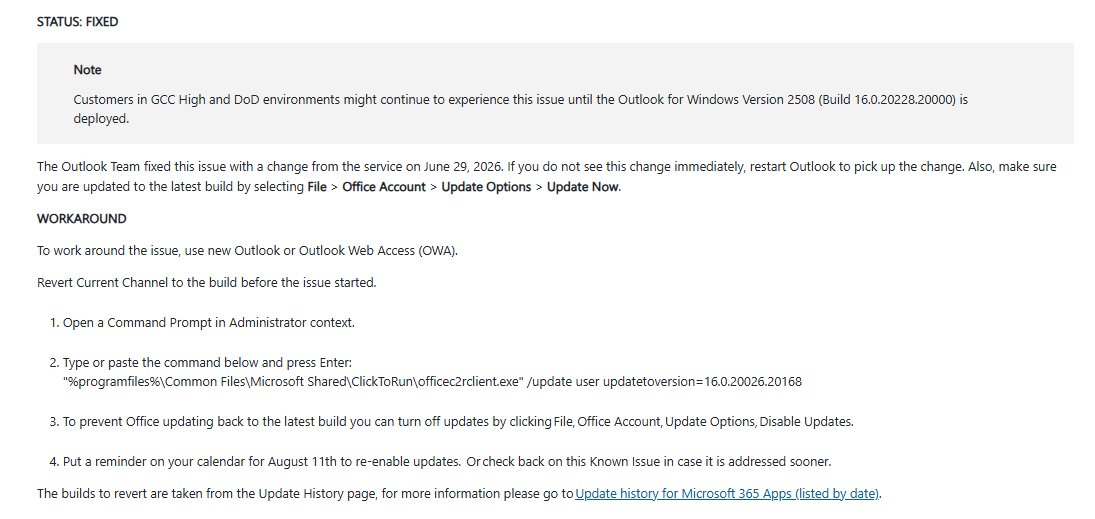
The bug hid Copilot when classic Outlook could not read required account information from your Outlook profile. Microsoft resolved it on the service side.
- Close classic Outlook and any other Microsoft 365 apps.
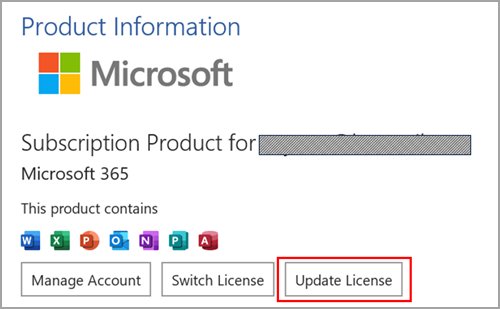
- Open Outlook again and select File > Account.
- Select Update License, then close and restart all Microsoft 365 apps.
- Look for the Copilot button above the ribbon and on the left app bar.
- If it is still missing, create a new Outlook profile as shown below.
Microsoft’s AI shortcut vanished in the app that still matters most
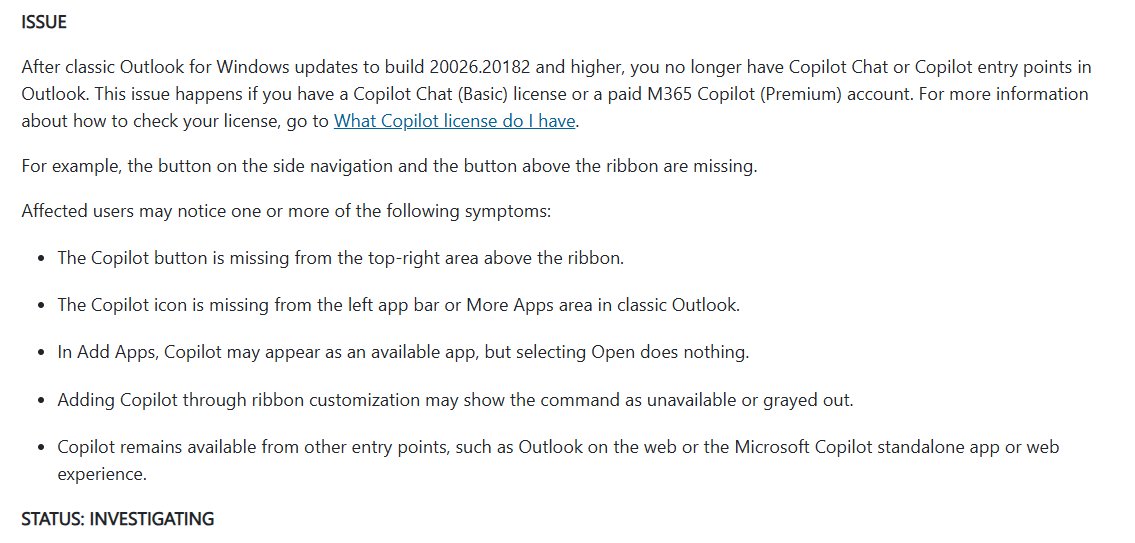
The issue started after classic Outlook for Windows updated to build 20026.20182 or higher. It hit both Copilot Chat (Basic) and paid Microsoft 365 Copilot (Premium) accounts.
| Symptom | Where you see it |
|---|---|
| Copilot button is gone | Top-right area above the ribbon |
| Copilot icon is gone | Left app bar or the More Apps area |
| Copilot shows as available but does nothing | Add Apps, after you select Open |
| Copilot command is unavailable or grayed out | Ribbon customization |
The fix arrived quickly, but the confusion was built in
Microsoft lists the status as Fixed. It also notes that a missing Copilot button is a symptom with several possible causes, so the fix does not restore the button for everyone.
| Possible cause | What to do |
|---|---|
| The profile bug in builds 20026.20182 and later | Update and restart Outlook, or create a new profile |
| No Copilot license on the account | Confirm which Copilot license you have |
| Old build or Semi-Annual Enterprise Channel | Install Office updates or move to Current or Monthly Enterprise Channel |
| Privacy settings turned off | Turn on Experiences that analyze your content and All connected experiences |
| Show Apps in Outlook turned off | Turn it back on in File > Options > Advanced |
Classic Outlook keeps becoming the control group
The missing button is one of several Copilot issues Microsoft has tracked in classic Outlook for Windows this year.
| Known issue | Status | Fix or workaround |
|---|---|---|
| Copilot buttons missing after build 20026.20182 | Fixed | New Outlook, Outlook on the web, or a new profile |
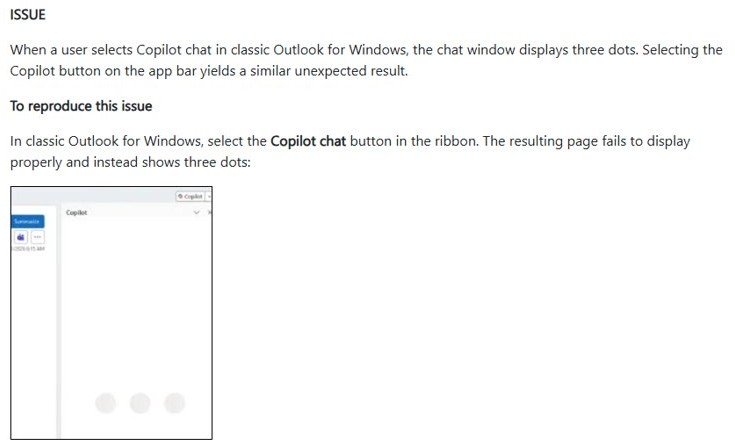
| Copilot Chat shows three dots instead of loading | Fixed in Current Channel 2607 (Build 20228.20190) and Monthly Enterprise Channel 2607 (20228.20188) | Rename the %LOCALAPPDATA%\Microsoft\Office\16.0\Wef folder to wef.old |
Copilot’s real challenge is trust, not placement
During the outage, Copilot itself kept working. Only the entry points inside classic Outlook went missing.
| Where Copilot still worked | How to reach it |
|---|---|
| Outlook on the web | Sign in at outlook.office.com with your work or school account |
| New Outlook for Windows | Switch with the New Outlook toggle |
| Microsoft Copilot app or web experience | Open the standalone Copilot app or site |
The licensing boundary made the bug feel bigger
The bug affected free and paid Copilot users alike, so it was not a license problem. A real license gap looks the same, though, which is why the license check comes first.
| Account type | Affected by this bug? | If the button is still missing |
|---|---|---|
| Copilot Chat (Basic) | Yes | Refresh the license, then create a new profile |
| Microsoft 365 Copilot (Premium) | Yes | Refresh the license, then confirm the channel and privacy settings |
| No Copilot license | No | Copilot is not part of the subscription; ask your admin |
Admins need fewer mysteries, not more buttons
Copilot features are not available on Semi-Annual Enterprise Channel. Business users should confirm the channel before chasing the bug.
- Open Word, Excel, PowerPoint or Outlook.
- Select File > Account.
- Look in the Product Information section for the update channel.
- If it says Semi-Annual Enterprise Channel, ask your IT help desk to move the device to Current Channel or Monthly Enterprise Channel.
- Use the web versions of the Microsoft 365 apps in the meantime.
Microsoft’s service fix shows the strength and weakness of cloud Office
Microsoft fixed the root cause in classic Outlook itself. Users on the fixed code need no registry edit or reinstall, but a damaged profile can still keep the button hidden.
| What changed | What it means for you |
|---|---|
| Outlook no longer drops Copilot when account details are missing from the profile | Update and restart Outlook first |
| The workaround stays published | New Outlook, Outlook on the web and a new profile still help |
| Microsoft points to its Copilot troubleshooters | Work through license, build, channel and privacy checks if the button stays gone |
New Outlook benefits from every classic Outlook stumble, but not enough
Microsoft's first workaround is to use new Outlook or Outlook on the web, where the bug did not apply.
- In classic Outlook, turn on the Try the new Outlook toggle in the top-right corner.
- Let new Outlook open with your account.
- Select Copilot in the new Outlook window.
- To use the browser instead, sign in to Outlook on the web with the same account.
- Turn the toggle off later to return to classic Outlook.
The Copilot era makes small UI failures strategically loud
Copilot has more than one door in classic Outlook, and the bug could close any of them. Knowing each entry point helps you tell this bug from a moved button.
| Copilot entry point | Normal location |
|---|---|
| Copilot button | Above the ribbon, top-right |
| Copilot icon | Left app bar or More Apps |
| Copilot app | Add Apps list |
| Copilot command | Available through ribbon customization |
The ribbon is now a battleground for product strategy
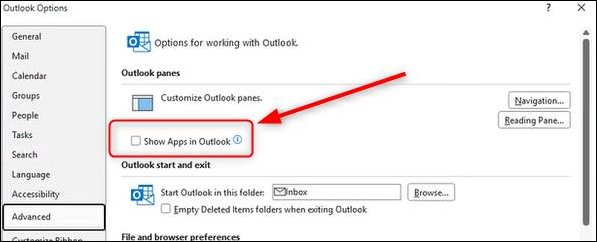
The Show Apps in Outlook setting is separate from the bug, but it also hides Copilot from the app bar when it is off.
- In classic Outlook, select the File tab.
- Select Options.
- Select Advanced.
- Under Outlook panes, check Show Apps in Outlook.
- Select OK and restart Outlook.
The practical fix is simple; the operational lesson is not
A new Outlook profile rebuilds the account information the bug could not read. Your mailbox stays on the server, so nothing is deleted.
- Close Outlook.
- Hold Shift while you start Outlook to open the profile picker.
- Select Options, then check Prompt a profile to be used if you want to switch back later.
- Select New, type a name for the profile and select OK.
- Add your email account in the add account dialog.
- Open Outlook with the new profile and look for the Copilot button.
You can also open the profile picker by typing Outlook.exe /profiles in the Run dialog, or from File > Account Settings > Change Profile.
A missing button leaves a useful paper trail
Your build number tells you whether you were in the affected range and whether you have the later fixes.
- In classic Outlook, select File > Account.
- Read the version and build under Product Information.
- Compare it with build 20026.20182, where the missing-button issue began.
- Confirm the Copilot button is back above the ribbon and on the app bar.
- Select it and check that Copilot Chat loads instead of showing three dots.
Copilot button still missing in classic Outlook
Copilot is missing in every Microsoft 365 app
Privacy settings turn off the services Copilot needs.
- Select File > Account.
- Under Account Privacy, select Manage Settings.
- Turn on Experiences that analyze your content.
- Turn on All connected experiences, then restart the apps.
Copilot Chat opens but shows three dots
Stale web add-in cache in the Wef folder.
- Close classic Outlook and other Office apps.
- Rename
%LOCALAPPDATA%\Microsoft\Office\16.0\Weftowef.old. - Restart classic Outlook so it rebuilds the folder.
Copilot appears in Add Apps but Open does nothing
The profile bug blocks the entry point.
- Create a new Outlook profile with the steps above.
- Use new Outlook or Outlook on the web until the new profile works.
Classic Outlook Copilot button FAQ
Why did the Copilot button disappear in classic Outlook?
After classic Outlook updated to build 20026.20182 or higher, it could hide Copilot when required account information could not be read from the Outlook profile. Microsoft has marked the issue as fixed.
Is the classic Outlook Copilot button issue fixed?
Yes. Microsoft lists the status as Fixed. If the button is still missing, update and restart Outlook, refresh your license, and check the other causes Microsoft lists.
Who was affected by the missing Copilot button?
Users with a Copilot Chat (Basic) license or a paid Microsoft 365 Copilot (Premium) account in classic Outlook for Windows, on build 20026.20182 and higher.
Can I still use Copilot while the button is missing?
Yes. Copilot stays available in new Outlook, Outlook on the web and the standalone Microsoft Copilot app or web experience.
Does creating a new Outlook profile delete my email?
No. A new profile adds your account again and downloads mail from the server. The old profile stays on the PC, and you can switch back from the profile picker.
Why is Copilot grayed out in ribbon customization?
That was one symptom of this bug. Create a new Outlook profile, or use new Outlook or Outlook on the web as a workaround.
Should you wait or create a new Outlook profile?
Update and restart Outlook first, then create a new profile if the Copilot button is still missing. The bug is fixed in Outlook itself, and a new profile clears the account data that kept the entry point hidden.