Press Windows key + A or select the notification button at the right end of the taskbar to open the Action Center in Windows 10.
This guide covers opening it, choosing which apps can notify you, editing quick actions, silencing alerts with Focus assist and clearing old notifications.
Notifications and Actions Center in Windows 10
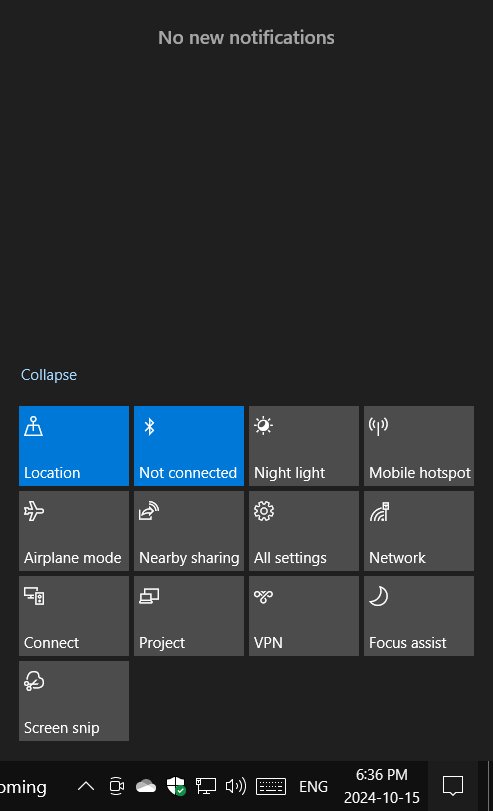
The Action Center holds two things: your recent notifications at the top and a grid of quick actions at the bottom.
- Press Windows key + A on the keyboard.
- Or select the notification button at the far right of the taskbar.
- On a touch screen, swipe in from the right edge of the screen.
- Select a notification to open the app that sent it.
- Select a quick action tile, such as Wi-Fi or Bluetooth, to switch that setting on or off.
The same panel is where Windows 10 keeps alerts you missed while you were away from the PC.
Ways to open Action Center in Windows 10
| Your situation | Use this | Why |
|---|---|---|
| Hands on the keyboard | Windows key + A | Opens the panel without touching the mouse |
| Mouse only | Notification button on the taskbar | One click at the far right of the taskbar |
| Tablet or touch screen | Swipe in from the right edge | Works when no keyboard is attached |
Windows settings notifications and actions page
Every notification switch in Windows 10 lives on one Settings page. Open it once and you can control the lot.
| Setting | Where it is | What it does |
|---|---|---|
| Get notifications from apps and other senders | Settings > System > Notifications & actions | Master switch for all app notifications |
| Show notifications on the lock screen | Same page, under Notifications | Lets alerts appear before you sign in |
| Show reminders and incoming VoIP calls on the lock screen | Same page, under Notifications | Keeps calls and reminders visible when the PC is locked |
| Allow notifications to play sounds | Same page, under Notifications | Turns notification sounds on or off |
| Get notifications from these senders | Same page, lower down | Per-app list of who can notify you |
| Edit your quick actions | Same page, top | Changes the tiles at the bottom of the Action Center |
How to allow notifications for an app in Windows 10
Turn the master switch on first, then pick the apps you want to hear from.
- Open Settings and select System.
- Select Notifications & actions in the left pane.
- Under Notifications, set Get notifications from apps and other senders to On.
- Scroll to Get notifications from these senders.
- Set the switch next to the app to On.
An app only appears in this list after it has tried to send at least one notification, so open the app once if it is missing.
How to manage notifications for specific apps
Each app has its own page with finer controls. Use it to keep an app's alerts without the pop-ups or the sound.
- Go to Settings > System > Notifications & actions.
- Under Get notifications from these senders, select the app's name, not just its switch.
- Choose whether the app shows banners, shows notifications in the action center, or plays a sound.
- Set how many of its notifications stay visible in the Action Center.
- Set its priority so important apps sit above the rest.
To stop one noisy app entirely, you can also turn off notifications for that app straight from the Action Center.
How to edit quick actions in Action Center
Quick actions are the tiles at the bottom of the panel. Keep the ones you use and drop the rest.
- Open Settings > System > Notifications & actions.
- Select Edit your quick actions.
- Select Add to put a new tile in the panel.
- Unpin any tile you no longer want.
- Press and hold or select a tile, then drag it to a new position.
- Select Done when the layout is right.
How to use Focus assist to silence notifications
Focus assist hides notifications for a while without changing any per-app setting.
- Open Settings and go to System > Focus assist.
- Select Off to receive every notification.
- Select Priority only to see notifications only from a list you customise.
- Select Alarms only to hide everything except alarms.
- Under Automatic rules, turn on the times and activities that should switch Focus assist on by itself.
By default, Focus assist turns on when you duplicate your display, play a game or use an app in full screen mode. You can also ask for a summary of what you missed when it turns off.
How to clear notifications in Action Center
- Open the Action Center with Windows key + A.
- Select the close button on a single notification to remove it.
- Select the close button next to an app's name to remove all of that app's notifications.
- Select Clear all notifications to empty the whole list.
Clearing only removes the current alerts. To stop future ones from an app, select the settings button on its notification and choose Turn off all notifications.
What is the purpose of notifications in Windows 10?
Notifications tell you something happened in an app without you having to open it. Windows 10 shows them in two places.
| Where it shows | When you see it | Controlled by |
|---|---|---|
| Banner | Briefly in the bottom-right corner as the event happens | Show notification banners, per app |
| Action Center | Stays in the list until you clear or act on it | Show notifications in action center, per app |
| Lock screen | Before you sign in | Show notifications on the lock screen |
| Sound | With the banner | Allow notifications to play sounds, or per app |
Test Windows 10 notification settings
- Ask the app you just allowed to send something, such as a new email or a calendar reminder.
- Watch for a banner in the bottom-right corner of the screen.
- Press Windows key + A and confirm the notification is listed under the app's name.
- If nothing arrives, open Settings > System > Focus assist and confirm it is set to Off.
Fix notifications not showing in Windows 10
No notifications show from any app
The master switch is off or Focus assist is hiding them.
- Go to Settings > System > Notifications & actions.
- Set Get notifications from apps and other senders to On.
- Open System > Focus assist and select Off.
One app's notifications never appear
That app is switched off or set not to show banners.
- Under Get notifications from these senders, set the app to On.
- Select the app's name and turn on banners and Action Center notifications.
Banners appear but the Action Center list stays empty
The app is allowed banners but not a place in the Action Center.
- Select the app under Get notifications from these senders.
- Turn on the option to show notifications in the action center.
- If the list is still empty on version 1809, apply the Action Center notifications fix for 1809.
Action Center icon missing from the taskbar
The system icon is turned off in taskbar settings.
- Right-click the taskbar and select Taskbar settings.
- Under Notification area, select Turn system icons on or off.
- Set the Action Center entry to On.
Windows 10 Action Center FAQ
How do I access notifications in Windows 10?
Press Windows key + A, select the notification button at the right end of the taskbar, or swipe in from the right edge on a touch screen. The Action Center opens with your recent notifications at the top and quick actions below.
How do I allow notifications in Windows 10?
Open Settings > System > Notifications & actions and set Get notifications from apps and other senders to On. Then turn on each app you want to hear from under Get notifications from these senders.
How do I enable notifications for an app?
Go to Settings > System > Notifications & actions, scroll to Get notifications from these senders and set the app's switch to On. Select the app's name to choose banners, Action Center entries and sounds for it.
How do I add an app to notifications in Windows 10?
An app joins the sender list after it tries to send its first notification. Open the app, allow its notifications if it asks, and it then appears under Get notifications from these senders, where you can switch it on.
How do I manage notifications in Windows 10?
Use Settings > System > Notifications & actions. The top switch controls all apps, the lock-screen and sound boxes sit below it, and each app in the sender list has its own page for banners, priority and how many alerts stay visible.
How do I get notifications from specific apps only?
Leave the master switch on and turn off every app you do not want under Get notifications from these senders. For a stricter filter, set Focus assist to Priority only and add just those apps to the priority list.
How do I show notifications on the lock screen?
Open Settings > System > Notifications & actions and tick Show notifications on the lock screen. Tick Show reminders and incoming VoIP calls on the lock screen too if you want calls and reminders visible before you sign in.
How do notifications work in Windows 10?
An app sends a notification, Windows shows it as a banner in the bottom-right corner, and then keeps it in the Action Center until you clear or open it. Your settings decide whether each step happens and whether a sound plays.
Getting the most from Windows 10 Action Center
Trim the sender list to the apps you actually need, keep your favourite quick actions at the top, and let Focus assist handle games and presentations. Fewer, better-sorted notifications make the Action Center useful instead of noisy. To silence everything at once, you can also turn off notifications in Windows 10.