The UEFI Firmware Settings tile is missing from Windows 11 and Windows 10 when Windows runs in legacy BIOS mode, because that tile only appears on a PC that booted in native UEFI mode.
This guide shows how to confirm your boot mode, reach the firmware another way, switch an MBR disk to GPT so the tile returns, and fix the rarer cases where UEFI mode is on but the tile still does not show.
UEFI firmware settings missing on Windows 11/10
If the tile is gone, you can still open the firmware menus with the manufacturer's startup key. This works in both UEFI and legacy BIOS mode.
- Shut down the PC completely.
- Press the power button.
- Press the manufacturer's setup key repeatedly as soon as the logo appears. Common keys are Esc, Delete, F1, F2, F10, F11 or F12.
- On a tablet or Surface, hold Volume up and press and release Power, then keep holding Volume up until the firmware screen appears.
- If the logo screen names a key, use that one. If it flashes past, look up your model on the manufacturer's support site.
To get the Windows tile back permanently, the PC has to boot in UEFI mode. The sections below show how to check the mode and switch it.
Why can't I find UEFI firmware settings in Windows?
| What you see | Likely cause | What to do |
|---|---|---|
| Disk partition style shows Master Boot Record (MBR) | Windows was installed in legacy BIOS (CSM) mode | Use the startup key, or convert the disk with MBR2GPT and switch the firmware to UEFI |
| Disk shows GUID Partition Table (GPT) but the tile is missing | The firmware or the BCD store hides the firmware menu entry | Use shutdown /r /fw, then check for a firmware update from the PC maker |
| Old PC with no UEFI option in its setup menus | The hardware only supports legacy BIOS | Use the startup key; the tile cannot appear on this PC |
| Tile missing only inside a virtual machine | The VM was created with BIOS firmware | Recreate the VM with UEFI firmware in your hypervisor |
How to access UEFI firmware settings on Windows 11
On a PC that booted in UEFI mode, Windows can restart straight into the firmware from the Windows Recovery Environment.
- Open Start or go to the sign-in screen.
- Select the Power button.
- Hold Shift and select Restart.
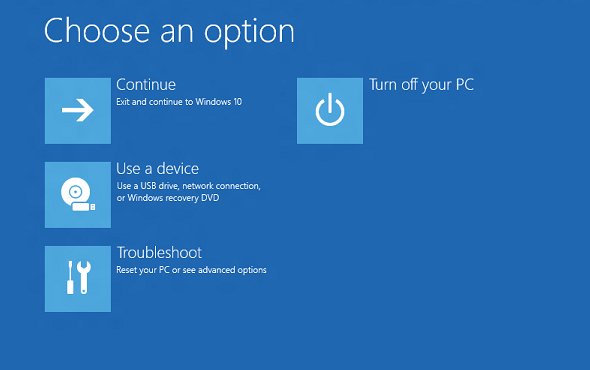
- On the blue screen, select Troubleshoot.
- Select Advanced options.
- Select UEFI Firmware Settings, then select Restart.
Once inside, the practical UEFI settings guide explains boot, Secure Boot and memory options.
Boot to UEFI firmware with the shutdown /fw command
The shutdown command can request a restart straight into the firmware interface. It skips the Advanced options menu, so it helps when the tile is hidden but the PC uses UEFI.
shutdown /r /fw /t 0Run it in an elevated Command Prompt or Terminal. /r restarts the PC, /fw makes the next restart go to the firmware user interface, and /t 0 removes the 30-second default delay.
You should see: The PC restarts and opens the firmware setup screen instead of loading Windows. On a legacy BIOS PC the command returns an error or simply restarts into Windows.
To cancel a pending firmware restart, run shutdown /a /fw during the countdown. To reach the Advanced options menu instead, use shutdown /r /o.
Check if Windows uses MBR or GPT (legacy BIOS or UEFI)
Windows installed in UEFI mode boots from a GPT disk, and legacy BIOS installs use MBR. The partition style of the system disk tells you which mode you have.
- Right-click Start and select Disk Management.
- In the bottom pane, right-click the disk that holds drive C: (usually Disk 0) and select Properties.
- Open the Volumes tab.
- Read the value next to Partition style.
- GUID Partition Table (GPT) means UEFI. Master Boot Record (MBR) means legacy BIOS, which explains the missing tile.
How to boot Windows computer into UEFI or BIOS firmware
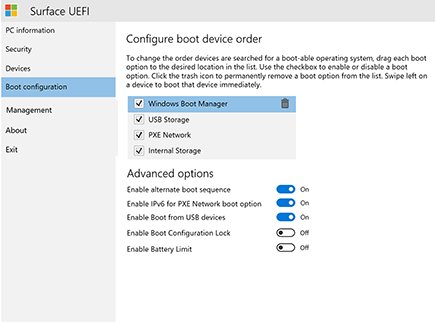
The firmware boot menu lists the same drive twice on many PCs, once per mode. The entry you pick decides whether Windows Setup or WinPE starts in UEFI or BIOS mode.
- Open the firmware menus with the startup key or the UEFI Firmware Settings tile.
- Go to the boot device menu.
- Pick the entry that names both the mode and the device, for example UEFI: USB Drive or BIOS: Network/LAN.
- Save and exit; the PC starts from that device in the chosen mode.
- After Windows is installed, it keeps booting in the mode it was installed with.
Some devices support only one mode. A few allow BIOS mode only after Secure Boot is turned off, which lowers boot security, so prefer UEFI.
Toggle from Legacy to UEFI with MBR2GPT
MBR2GPT.EXE ships in Windows\System32 and converts the system disk from MBR to GPT without deleting data. After the conversion, the firmware must be set to boot in UEFI mode, or Windows will not start.
- Back up your files and confirm in the firmware menus that the PC supports UEFI.
- If BitLocker is on, suspend protection first.
- Open Terminal (Admin) or an elevated Command Prompt.
- Run
mbr2gpt /validate /allowFullOSand confirm validation succeeds. - Run
mbr2gpt /convert /allowFullOS. - Restart, open the firmware menus with the startup key and change the boot mode from Legacy or CSM to UEFI.
- Save and exit. Windows now boots in UEFI mode and the UEFI Firmware Settings tile appears under Advanced options.
Validation fails if the disk has more than three primary partitions, an extended partition, or no active system partition. After a BitLocker conversion, delete and recreate the protectors before you resume it.
Fix UEFI firmware settings not showing
UEFI firmware settings not available in Advanced options
The PC booted Windows in legacy BIOS mode from an MBR disk.
- Check the partition style in Disk Management.
- If it shows MBR, use the startup key to reach the firmware.
- Convert the disk with MBR2GPT and switch the firmware to UEFI to restore the tile.
UEFI firmware settings doesn't appear on a GPT disk
Some OEM firmware loses the firmware menu entry after the BCD store is rebuilt during setup.
- Run
shutdown /r /fw /t 0from an elevated prompt. - If that fails, use the manufacturer's startup key.
- Update the PC firmware from the maker's support site, which Microsoft lists as the resolution.
Can't find UEFI firmware settings on Windows 10 with fast boot
Fast startup and quick POST can skip the window where the setup key works.
- Hold Shift while you select Restart to do a full restart into the recovery menu.
- Use Troubleshoot > Advanced options from there.
- If the tile is absent, use
shutdown /r /fw /t 0or the setup key during a cold boot.
UEFI firmware settings missing FAQ
What is UEFI firmware settings in Windows 11?
UEFI Firmware Settings is a tile under Troubleshoot > Advanced options that restarts the PC straight into its firmware setup. From there you change boot order, Secure Boot, virtualization and other hardware options without pressing a startup key.
Why is UEFI firmware settings not available?
It is not available when Windows boots in legacy BIOS mode, usually from an MBR disk. The tile only appears on PCs running in native UEFI mode. Some OEM firmware also hides it after the boot configuration is rebuilt.
Why can't I find UEFI firmware settings?
Most often, Windows was installed with legacy BIOS or CSM enabled. Check the system disk's partition style in Disk Management; MBR means legacy mode. Use the manufacturer's startup key to reach the firmware instead.
Why don't I have UEFI firmware settings on my PC?
Either the PC boots Windows in legacy BIOS mode or its hardware only supports BIOS. Very old PCs have no UEFI at all. Newer PCs can switch after the disk is converted to GPT with MBR2GPT.
How do I fix UEFI firmware settings missing on Windows 10?
Confirm the disk is MBR in Disk Management, run mbr2gpt /validate /allowFullOS, then mbr2gpt /convert /allowFullOS from an elevated prompt. Set the firmware to UEFI mode before Windows starts again.
Can I open UEFI settings without the Windows tile?
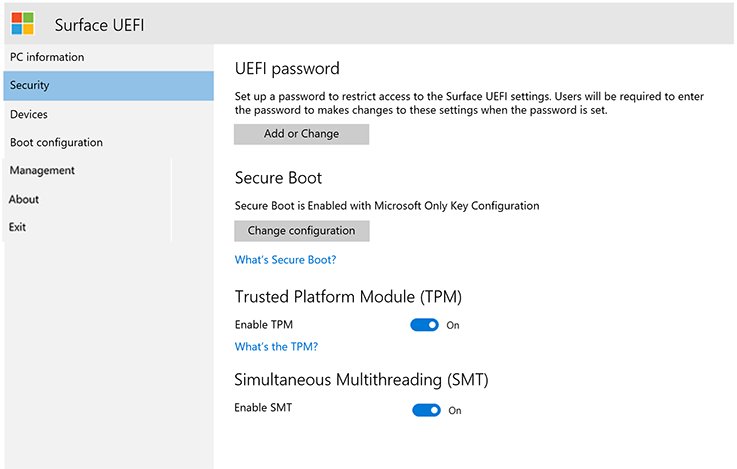
Yes. Press the manufacturer's setup key, such as F2, F10, F12, Esc or Delete, during startup. On Surface devices, hold Volume up while you press Power. On a UEFI PC, shutdown /r /fw also works.
Does converting MBR to GPT delete my files?
No. MBR2GPT converts the system disk without modifying or deleting data. Back up first anyway, suspend BitLocker, and switch the firmware to UEFI right after conversion or the PC will not boot.
Is UEFI firmware settings the same as BIOS?
It opens the same kind of setup screen. UEFI is the modern replacement for legacy BIOS, and Microsoft recommends installing Windows in UEFI mode because it includes more security features, such as Secure Boot.