BGInfo, a free Sysinternals tool from Microsoft, writes the computer name, IP address, OS version and other details onto the desktop wallpaper, then exits.
This guide covers the first run, building a text template, silent updates at startup, domain rollout through Group Policy, custom fields and the logon screen option.
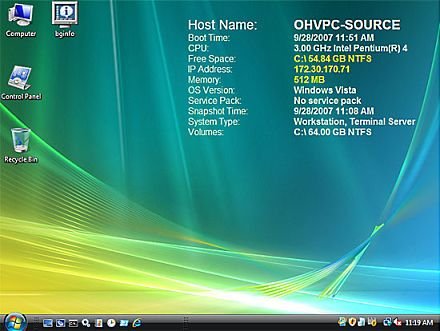
Display system information on desktop background with BgInfo
BGInfo needs no installer. It runs on Windows 10 and later and on Windows Server 2016 and later.
- Open the BgInfo page on Microsoft Learn (learn.microsoft.com/sysinternals/downloads/bginfo) and select Download BgInfo.
- Extract the archive to a folder such as
C:\Tools\BGInfo. - Double-click the BGInfo executable in that folder.
- Leave the window alone for 10 seconds to apply the default layout, or click any button to stop the countdown and edit it.
- Click Apply to write the new wallpaper, then OK to close BGInfo.
Because BGInfo only writes a bitmap and exits, it uses no memory or CPU after the wallpaper is set.
What the BGInfo buttons and menus control
| Control | What it does |
|---|---|
| Fields | Chooses which values appear and in what order. Network fields get one entry per network card. Custom adds your own fields. |
| Background | Sets the colour or wallpaper. Copy existing settings keeps the user's own wallpaper underneath the text. |
| Position | Places the text block. Limit Lines to wraps long values, Compensate for Taskbar position keeps text clear of the taskbar. |
| Desktops | Picks which desktops get the bitmap: User Desktop by default, plus the logon desktop for console or Terminal Services users. |
| Preview | Shows the background as it will look once applied. |
| Bitmap > Location | Sets where the output bitmap is saved. On Terminal Services servers use a per-user location. |
| File > Database | Logs each run to a .XLS, .MDB, .TXT file or SQL database to keep a history of systems. |
| File > Reset Default Settings | Clears all configuration and returns BGInfo to its install-time state. |
Create a BGInfo text template to display on the desktop
The template is the text box in the main window. Field names in angle brackets are replaced with live values when the wallpaper is drawn.
- Run BGInfo and click inside the main window to stop the timer.
- Select the text you do not need, such as service pack or boot time lines, and delete it.
- Pick a field such as IP Address in the Fields list and click Add to insert it at the cursor.
- Type your own labels in front of each field, for example
Host:before<Host Name>. - Select lines and change the font, size and colour with the toolbar above the text box.
- Click Preview to check the result on the desktop.
- Open File > Save As and save the layout as a
.bgifile, for exampleC:\Tools\BGInfo\office.bgi.
Without a .bgi file, BGInfo keeps its configuration in the registry under HKEY_CURRENT_USER\Software\Winternals\BGInfo, which is per user and harder to copy to other PCs.
Run BGInfo silently at startup with /timer:0
Once the layout is final, run it from the command line so no dialog appears. Put a shortcut with this command in the Startup folder so the details refresh at every sign-in.
C:\Tools\BGInfo\Bginfo.exe C:\Tools\BGInfo\office.bgi /timer:0 /silentLoads the saved template, applies it straight away without showing the configuration window, and suppresses error messages.
You should see: The wallpaper updates within a second or two and no BGInfo window opens.
BGInfo command line options
| Option | Effect |
|---|---|
| <path to .bgi> | Uses that configuration file and saves changes back to it on OK or Apply. |
| /timer:<seconds> | Sets the countdown. 0 applies without the dialog; 300 or more disables the timer. |
| /i<path> or /iq<path> | Imports settings from a saved configuration file. |
| /popup | Shows the information in a pop-up window without changing the desktop. |
| /taskbar | Adds a notification-area icon that opens the pop-up; the desktop is not changed. |
| /all | Changes the wallpaper for every user signed in, useful on shared or Terminal Services machines. |
| /silent | Suppresses error messages. |
| /log | Writes errors to a log file instead of a warning dialog, useful under Task Scheduler. |
| /rtf | Writes the output text, with formatting, to an RTF file. |
Applying BGInfo wallpaper to domain computers via GPO
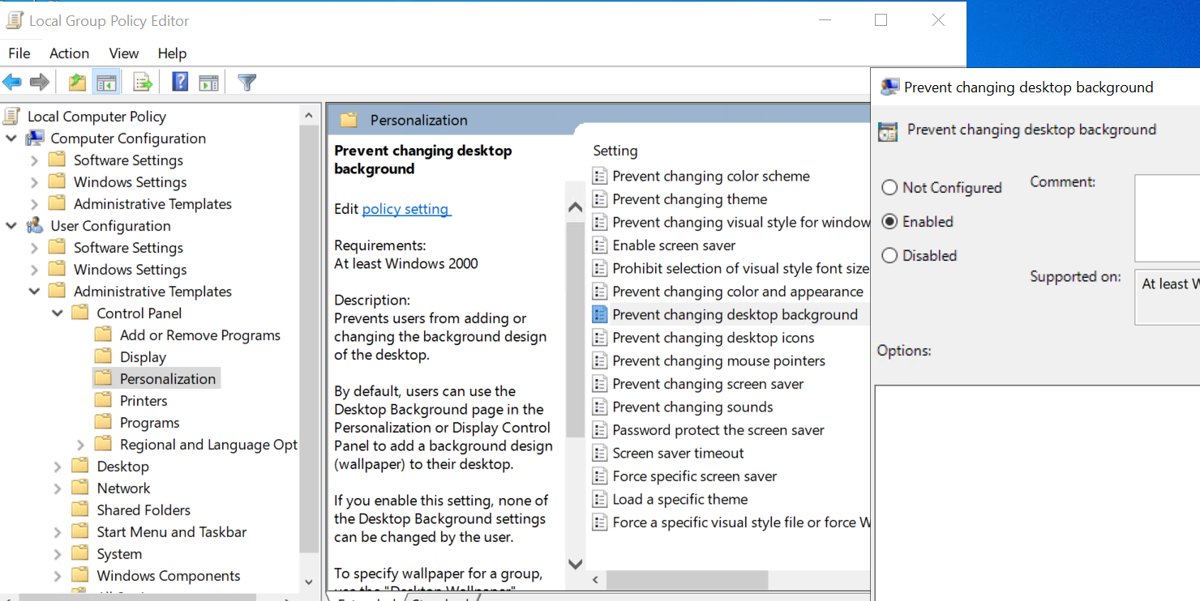
For many machines, store BGInfo and the .bgi file on a share every computer can read, then run it at user logon through Group Policy.
- Copy Bginfo.exe and your
.bgifile to a read-only share, such as the domain NETLOGON share. - Create a batch file on the same share containing
"\\domain\NETLOGON\Bginfo.exe" "\\domain\NETLOGON\office.bgi" /timer:0 /silent, replacing the paths with your own. - Open Group Policy Management, create a new GPO and link it to the organisational unit that holds the target users.
- Edit the GPO and add the batch file as a user logon script.
- Sign out and back in on a test machine, or run
gpupdate /forceand sign in again, to confirm the wallpaper appears.
If users must keep their own wallpaper, tick Copy existing settings under Background before saving the .bgi file. To keep long-running servers current, schedule the same command with Task Scheduler instead of relying on logon.
BGInfo: Get system info using VBS or PowerShell script
Values BGInfo does not list by default come from the Custom button under Fields. The Custom dialog lets you define a new field and pick its data source, including a script file.
- Click Custom next to the Fields list.
- Click New and type a short identifier, such as
Owner. - Choose the data source offered in the dialog, for example a VBScript file, then browse to the
.vbsfile on a share all PCs can read. - Click OK, select the new field in the list and click Add to place it in the template.
- Click Preview to confirm the script returns a value, then save the
.bgifile again.
PowerShell is not listed as a field source on the official BgInfo page. A common route is to have a PowerShell logon task write its result to a text file or registry value, then point a Custom field at that value.
Show system information on the Windows lock screen
BGInfo's Desktops button controls whether the bitmap also appears on the logon desktop shown before anyone signs in.
| Desktops option | Where the info appears | Use it for |
|---|---|---|
| User Desktop (default) | The signed-in user's wallpaper | Workstations and laptops |
| Logon Desktop for Console users | The logon screen before sign-in | Identifying a PC without signing in |
| Logon Desktop for Terminal Services users | The Terminal Services login screen | Servers running Remote Desktop Services |
| All desktops cleared | Nowhere; the database still updates | Silent inventory logging |
Run BGInfo as an administrator when you enable a logon desktop option, because it writes a system-wide setting.
Check BGInfo applied the wallpaper
- Press Win + D to show the desktop and confirm the text block matches your template.
- Compare the IP address shown with the output of
ipconfigin Command Prompt. - Run
Bginfo.exe /popupto see the same values in a window if the wallpaper is hidden by icons. - Restart once and confirm the values refresh after sign-in.
BGInfo not updating wallpaper fixes
The wallpaper shows old values
BGInfo only refreshes when it runs.
- Add the /timer:0 shortcut to the Startup folder or a logon script.
- Schedule the command with Task Scheduler for machines that stay on for weeks.
Text is dithered or colours look wrong
The bitmap colour depth does not match the display.
- Open the Bitmap menu.
- Select Match Display, or True Color, then click Apply.
An error appears when inserting an image
Configuration in the registry is limited to 64K per value on NT-based Windows.
- Use a smaller image with Edit > Insert Image.
- Save the layout to a .bgi file instead of relying on the registry.
Errors only when run from Task Scheduler
The dialog cannot be seen under the scheduler.
- Add
/logwith a file path to the command. - Open the log after the next run to read the error.
Changes made in BGInfo cannot be undone
The saved state is confused.
- Open File > Reset Default Settings.
- Rebuild the template and save it to a new .bgi file.
BGInfo desktop information FAQ
Is BGInfo free?
Yes. BGInfo is a free Sysinternals utility published by Microsoft on Microsoft Learn. It is a portable download, so there is no installer, and it runs on Windows 10 and later and Windows Server 2016 and later.
Does BGInfo run in the background?
No. BGInfo writes a new desktop bitmap and exits, so it uses no system resources afterwards. To keep the values current, run it again at startup, at logon or on a schedule.
Where does BGInfo store its settings?
By default BGInfo stores its configuration in the registry under HKEY_CURRENT_USER\Software\Winternals\BGInfo. Saving with File > Save As creates a .bgi file you can pass on the command line on any PC.
How do I run BGInfo without the 10-second countdown?
Add /timer:0 to the command line. BGInfo then applies the configuration straight away without showing its dialog. A value of 300 or more disables the timer completely.
Can BGInfo keep my own wallpaper?
Yes. Under Background, select Copy existing settings. BGInfo then draws its text on top of whatever wallpaper the signed-in user has chosen.
Can BGInfo show information without changing the desktop?
Yes. The /popup switch opens the information in a window, and /taskbar adds a notification-area icon that opens it. Neither option changes the wallpaper or updates the history database.
How do I remove BGInfo from the desktop?
Delete the BGInfo shortcut or logon script so it stops running, then pick a new wallpaper in Settings > Personalization > Background. File > Reset Default Settings clears BGInfo's own configuration.