To hard reset an iPad Pro, press and quickly release the volume button closest to the top button, press and quickly release the other volume button, then hold the top button until the Apple logo appears.
This guide covers the force restart for iPad Pro models with and without a Home button, a full factory reset, recovery mode for an iPad Pro stuck on the Apple logo, and fixes when the buttons do nothing.
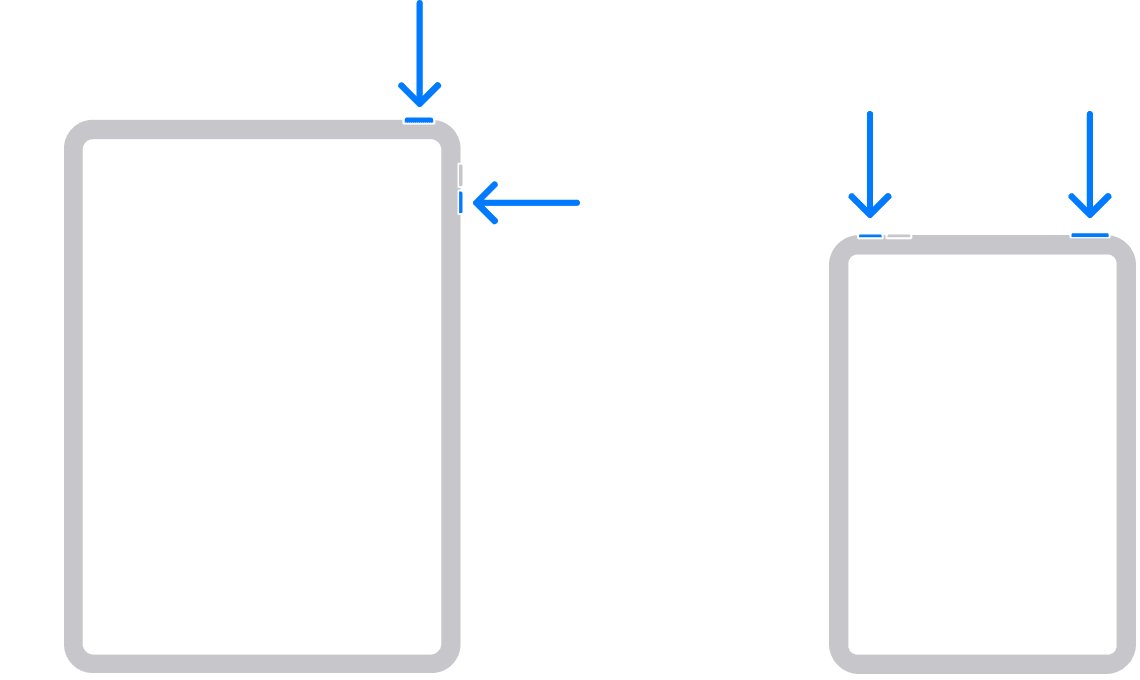
How to hard reset an iPad Pro without a Home button
Every iPad Pro with Face ID uses this button sequence. A force restart does not erase apps, photos or settings.
- Press and quickly release the volume button closest to the top button.
- Press and quickly release the volume button farthest from the top button.
- Press and hold the top button.
- Keep holding through the black screen and release when the Apple logo appears.
- Wait for the Lock Screen, then enter your passcode.
The press order is tied to the button's position, not its label, so it works the same whether you hold the iPad Pro in portrait or landscape.
Hard reset vs factory reset on iPad Pro
"Hard reset" is used for two different things. Pick the row that matches what you need.
| Your situation | Use this | What happens to your data |
|---|---|---|
| Screen frozen, black or not responding to touch | Force restart (hard reset) | Nothing is erased |
| iPad Pro works but feels slow or an app misbehaves | Normal restart from the buttons, Control Center or Settings | Nothing is erased |
| Selling, giving away or wiping the iPad Pro | Factory reset with Erase All Content and Settings | Everything is erased |
| Stuck on the Apple logo or a red or blue screen | Recovery mode with a computer, then Update | Update keeps your data; Restore erases it |
| Forgot the passcode | Recovery mode with a computer, then Restore | Everything is erased |
How to hard reset an iPad Pro with a Home button
The first iPad Pro models had a round Home button below the screen. They use a different force restart.
- Press and hold the Home button and the top button at the same time.
- Keep holding both buttons past the power off slider.
- Release both buttons when the Apple logo appears.
- Wait for the Lock Screen and enter your passcode.

How to restart an iPad Pro normally
Try a normal restart first when the screen still responds. It shuts the iPad Pro down cleanly.
- Press and hold either volume button and the top button until the power off slider appears (on a Home button model, hold only the top button).
- Drag the slider to the right.
- Wait 30 seconds for the iPad Pro to turn off.
- Press and hold the top button until you see the Apple logo.
In iPadOS 18 and later you can also swipe down from the top-right corner to open Control Center, then touch and hold the power icon in the top-right corner. In Settings, go to General > Shut Down.
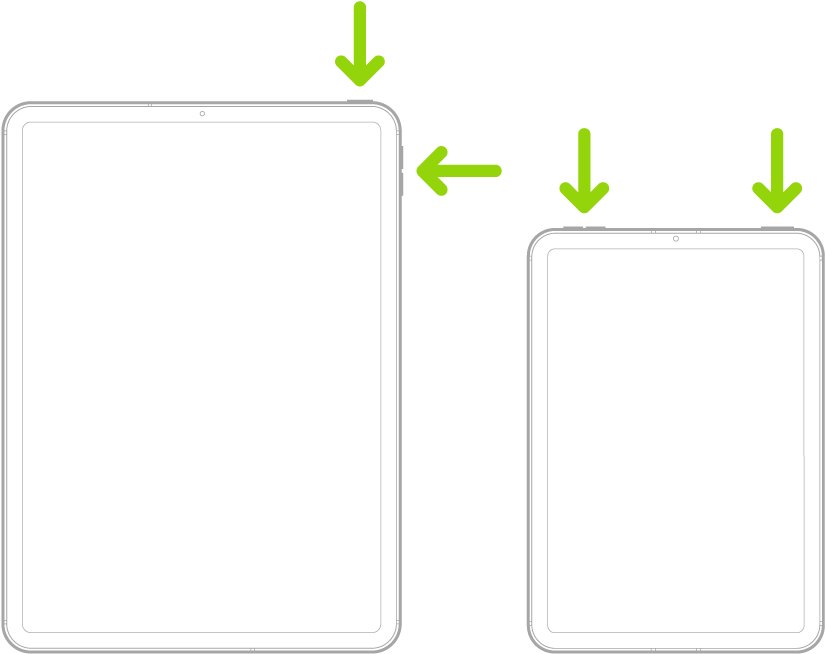
How to factory reset an iPad Pro from Settings
A factory reset erases everything and returns the iPad Pro to the setup screen. Back it up to iCloud or a computer first. The full iPad factory reset walkthrough covers every model and backup option.
- Open Settings and tap General.
- Tap Transfer or Reset iPad.
- Tap Erase All Content and Settings, then tap Continue.
- Choose whether to keep or delete the eSIM on cellular models.
- Enter your device passcode, then your Apple Account password.
- Wait for the reset to finish and the setup screen to appear.
Hard reset an iPad Pro stuck on the Apple logo with recovery mode
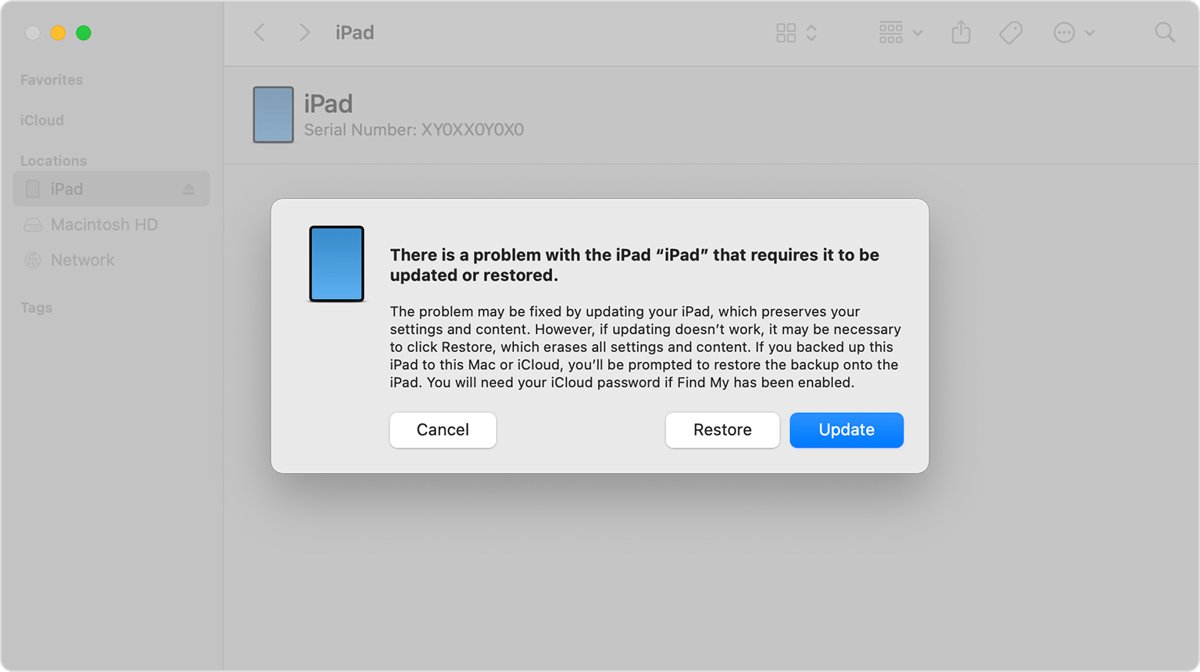
Use this when the iPad Pro shows the Apple logo or a red or blue screen and never reaches the Lock Screen. You need a Mac, or a Windows PC with the Apple Devices app for Windows or iTunes.
- Connect the iPad Pro to the computer with a cable.
- On a Mac with macOS Catalina or later, open Finder; on a PC, open Apple Devices or iTunes.
- Press and quickly release the volume button closest to the top button.
- Press and quickly release the volume button farthest from the top button.
- Press and hold the top button past the Apple logo until the recovery-mode screen appears.
- Select Update when the computer offers Restore or Update.
- If the download takes more than 15 minutes and the iPad Pro leaves recovery mode, repeat steps 3 to 5.
On a Home button iPad Pro, hold the Home button and top button together until the recovery-mode screen appears. Choose Restore only if Update fails or you forgot the passcode, because Restore erases the iPad.
How to tell the iPad Pro hard reset worked
- Look for the Apple logo; it confirms the force restart was triggered.
- Check that the Lock Screen appears and accepts your passcode.
- Open the app that froze and confirm it responds to touch.
- After a factory reset, confirm the iPad Pro shows the setup screen.
iPad Pro hard reset not working: fixes
Nothing happens when you hold the top button
The volume presses were too slow, or the battery is fully drained.
- Press each volume button once and release it immediately, then hold the top button until the Apple logo appears.
- Connect the iPad Pro to its charger and let it charge for up to an hour.
- Repeat the force restart while it is still connected to power.
The power off slider appears instead of a restart
Both a volume button and the top button were held together, which is the shut-down shortcut.
- Let go of all buttons and tap Cancel or wait for the slider to time out.
- Press and release each volume button separately before you hold the top button.
iPad Pro restarts but stays stuck on the Apple logo
iPadOS cannot finish starting up.
- Connect the iPad Pro to a computer.
- Put it in recovery mode using the steps above.
- Choose Update to reinstall iPadOS without erasing your data.
Factory reset asks for an Apple Account password you do not know
Find My and Activation Lock protect the iPad Pro.
- Reset your Apple Account password from another trusted Apple device or Apple's account recovery page.
- Return to Erase All Content and Settings and enter the new password.
Buttons do not respond and recovery mode never appears
A hardware fault with the buttons, battery or display.
- Try a different cable and computer.
- Contact Apple Support or an Apple Authorized Service Provider for service.
iPad Pro hard reset FAQ
What's a hard reset on an iPad Pro?
A hard reset is a force restart. It cuts power to the running software and boots iPadOS again, which clears a frozen screen. It does not delete apps, photos, messages or settings, so it is safe to try first.
Does a hard reset erase my iPad Pro?
No. A force restart keeps all your data. Only a factory reset with Erase All Content and Settings, or a Restore in recovery mode, erases the iPad Pro.
How do I hard reset an iPad with a Home button?
Press and hold the Home button and the top button together, and release both when the Apple logo appears. This applies to older iPad Pro, iPad Air, iPad mini and standard iPad models with a Home button.
How do I hard reset an iPhone?
On an iPhone 8 or later, press and release Volume Up, press and release Volume Down, then hold the side button until the Apple logo appears. Older iPhones use different buttons; the iPhone force restart steps for every model list them.
How long should I hold the top button?
Hold it until the Apple logo appears. Keep holding when the screen goes black; letting go too early cancels the force restart.
How do I hard reset this device if I forgot the passcode?
A force restart will not remove a passcode. You need to erase the iPad Pro, by restoring it in recovery mode with a computer, then set it up again from a backup.
Can I hard reset an iPad Pro without buttons?
You can restart it without buttons by going to Settings, General, Shut Down, or from Control Center in iPadOS 18 and later. A true force restart for a frozen screen always needs the physical buttons.
Should you force restart or factory reset an iPad Pro?
Use the force restart (tap the near volume button, tap the far one, hold the top button) for any frozen iPad Pro, and keep the factory reset for wiping the device. The force restart fixes most freezes without touching your data, while a factory reset erases everything and needs your Apple Account password.