To run a Shortcuts automation while your iPhone is locked, open the shortcut, tap Edit, tap the info button, tap Privacy and turn on Allow Running When Locked.
This guide covers the current Shortcuts layout, the older Automation tab on earlier iOS versions, alarm-triggered automations, and the fixes when an automation still asks for permission.
Allow Shortcuts automations to run when iPhone is locked
In current versions of iOS, the automation trigger and the lock-screen permission both live inside the shortcut itself.
- Open the Shortcuts app on your iPhone or iPad.
- Tap the shortcut that holds your automation trigger.
- Tap Edit, then tap the info button.
- Tap Privacy.
- Turn on Allow Running When Locked.
From now on the automation runs without asking, and it does not send a notification when it is triggered.
Run a Shortcuts automation when an alarm goes off
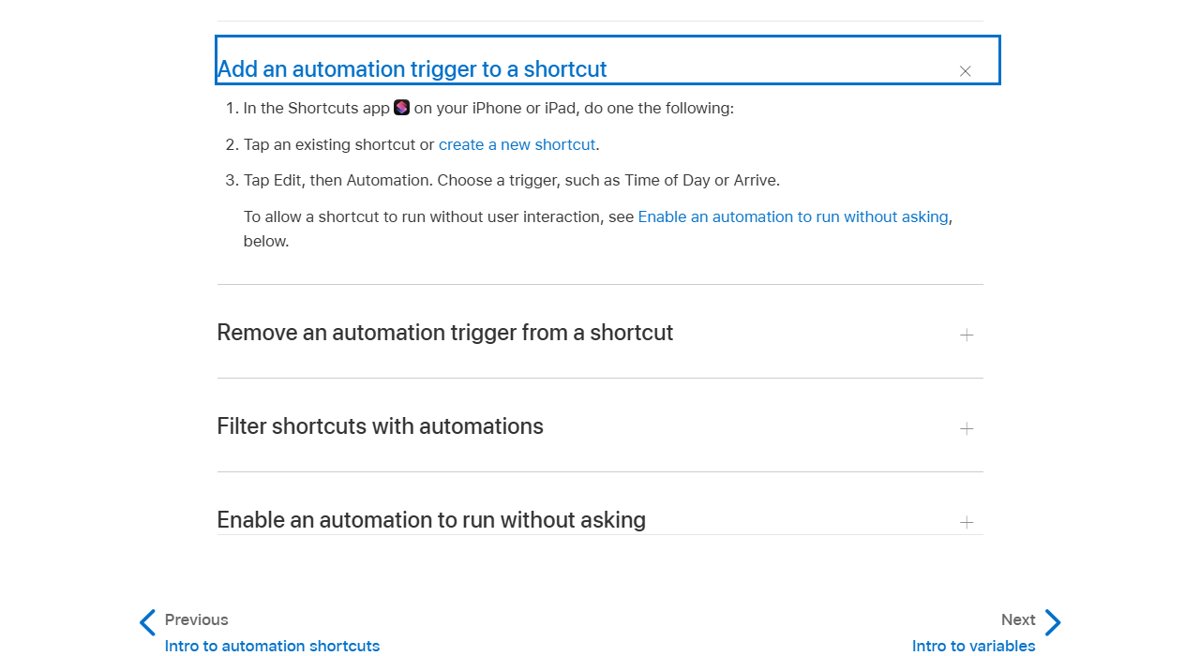
Alarm is one of the triggers Apple lists as able to run automatically, so an alarm automation can fire on a locked phone once the permission above is on.
- Open the Shortcuts app and tap an existing shortcut, or create a new one.
- Add the actions you want to run, such as starting a playlist or turning on a Focus.
- Tap Edit, then Automation.
- Choose the Alarm trigger and pick the alarm or the option that covers any alarm.
- Tap Edit, the info button, then Privacy, and turn on Allow Running When Locked.
- Set your alarm and lock the phone to test it.
Turning off the passcode does not replace this setting. The permission is stored per shortcut, so each automation needs it switched on.
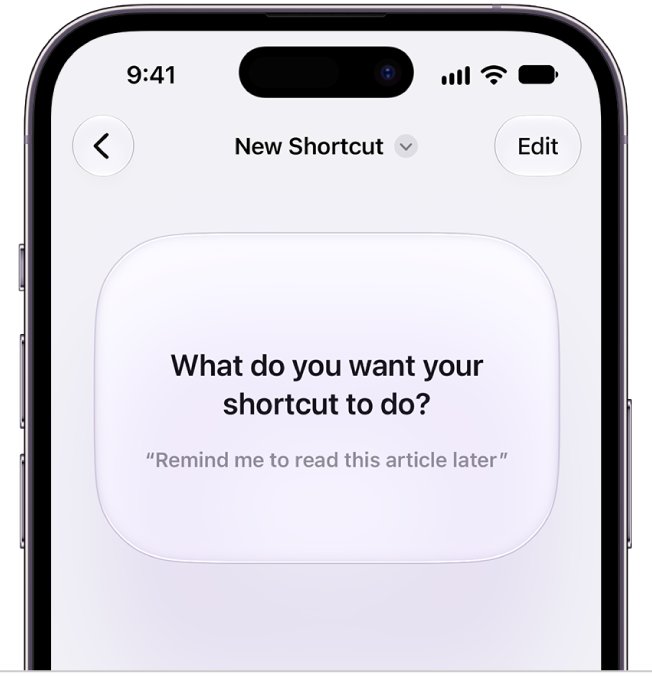
Turn off Ask Before Running on older iOS versions
Earlier iOS releases keep automations on a separate Automation tab, and the lock-screen permission is called Ask Before Running.
- Open the Shortcuts app and tap Automation at the bottom of the screen.
- Tap the automation you want to run on its own.
- Turn off Ask Before Running.
- Tap Don't Ask to confirm.
- Tap Done.
Which Shortcuts automations can run without asking?
| Trigger group | Triggers that can run automatically |
|---|---|
| Time and sleep | Time of Day, Alarm, Sleep |
| Location and travel | Arrive, Leave, CarPlay |
| Communication | Email, Message, Transaction |
| Connections | Wi-Fi, Bluetooth, NFC, Apple Watch Workout |
| Device state | App, Airplane Mode, Do Not Disturb, Low Power Mode, Battery Level, Charger, Sound Recognition |
| Cannot run automatically (older iOS) | Before I Commute |
Apple also notes that individual actions inside the shortcut may need their own permission to run automatically.
Check that the automation is turned on
- Open the Shortcuts app and tap Automation. On iPhone, tap the back button first if you are inside a folder.
- Tap the filter button and choose Turned On.
- Confirm your automation appears in the list.
- Lock the phone and trigger the event, for example by letting a test alarm ring.
A working automation runs silently. No confirmation banner appears when it runs on its own.
Shortcuts automation not running when iPhone is locked
The automation still asks for permission on the Lock Screen
Allow Running When Locked (or Ask Before Running on older iOS) is set the wrong way for that shortcut.
- Open the shortcut and tap Edit, then the info button.
- Tap Privacy and turn on Allow Running When Locked.
- On older iOS, open the Automation tab, turn off Ask Before Running and tap Don't Ask.
The automation runs only after you unlock the phone
One of the actions has its own permission prompt.
- Open the shortcut and tap Edit.
- Run it once with the phone unlocked and approve each permission prompt.
- Lock the phone and trigger the automation again.
The automation never runs on a second device
Automations are device-specific. They back up to iCloud but sync to other devices turned off.
- Open the Shortcuts app on the other device and tap Automation.
- Filter by Turned Off and open the automation.
- Turn the trigger back on and set Allow Running When Locked.
Stop a Shortcuts automation from running automatically
- Open the Shortcuts app and tap the shortcut.
- Choose its automation trigger, such as Alarm or Time of Day.
- Remove the trigger. The shortcut stays, but it no longer runs on its own.
Shortcuts automations on a locked iPhone FAQ
Can Shortcuts automations run when the iPhone is locked?
Yes. Turn on Allow Running When Locked in the shortcut's Privacy settings. Triggers such as Alarm, Time of Day, Wi-Fi and Charger can then run without unlocking the phone.
Why does my automation keep asking before running?
The permission is off for that shortcut. Open it, tap Edit, the info button and Privacy, then turn on Allow Running When Locked. On older iOS, turn off Ask Before Running instead.
Does turning off the passcode let automations run?
No. Removing the passcode does not change the automation's own permission. The prompt goes away only when Allow Running When Locked or Ask Before Running is set correctly.
Why does my screen lock so quickly?
iPhone locks on its own if you do not touch the screen for a minute or so. You can change how long it waits before locking in the Settings app.
Why does my screen keep locking while I look at it?
Attention Aware Features may be off. With it on, iPhone does not dim or lock while it detects your attention. Find it in Settings under Face ID & Passcode.
How do I lock the iPhone screen manually?
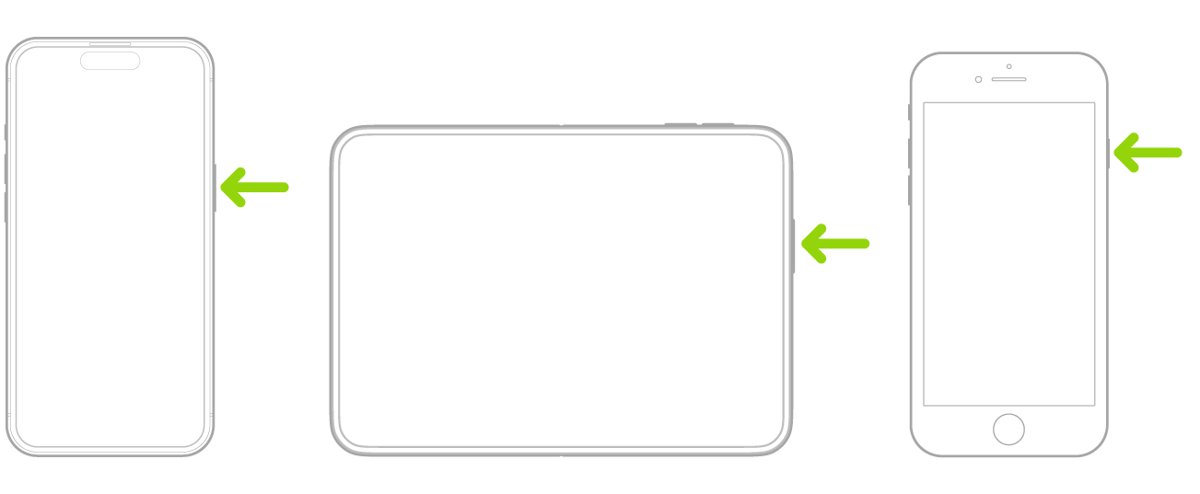
Press the side button. The display turns off and iPhone locks, unless Always On Display is turned on, in which case the dimmed screen stays visible.
Do automations sync to my iPad?
They back up to iCloud and sync to your other devices, but they arrive turned off. Turn each one on again on the device where you want it to run.