Firefox Nightly 67 gained two new privacy protections in February 2019: blocking known fingerprinting scripts and known cryptomining scripts. Fingerprinters build a profile of your browser and device to track you without cookies. Cryptominers use your computer’s CPU to mine cryptocurrency, which slows the PC and drains the battery. Mozilla built both blocklists with Disconnect, the same partner behind Firefox’s tracking protection list. The new options landed in Nightly on February 12, 2019, and were turned off by default at first.
Why block them
Mozilla’s April 2019 post explained both threats. Fingerprinting scripts collect details about your browser and device to identify you across sites, even when you clear cookies. Cryptomining scripts run in the background and use your CPU to mine cryptocurrency, which slows the computer and can raise your electricity bill. Neither asks for permission.
Enable the protections through about:config
In early Nightly builds the options were hidden. Mozilla’s own QA steps (Bug 1527891) turned them on by setting four preferences to true:
- Type about:config in the address bar and accept the warning.
- Set privacy.trackingprotection.cryptomining.enabled to true.
- Set privacy.trackingprotection.fingerprinting.enabled to true.
- Set browser.contentblocking.cryptomining.preferences.ui.enabled to true.
- Set browser.contentblocking.fingerprinting.preferences.ui.enabled to true.
The last two make the new checkboxes appear in Firefox’s privacy settings. Mozilla’s bug for showing them in about:preferences was fixed for Firefox 67 on February 19, 2019. New to these settings? Our about:config guide explains how to search for and toggle preferences.
Enable them from the settings page
Once the options are visible, Mozilla’s steps are:
- Open the Firefox menu and choose Preferences (now Settings).
- Click the Privacy & Security tab.
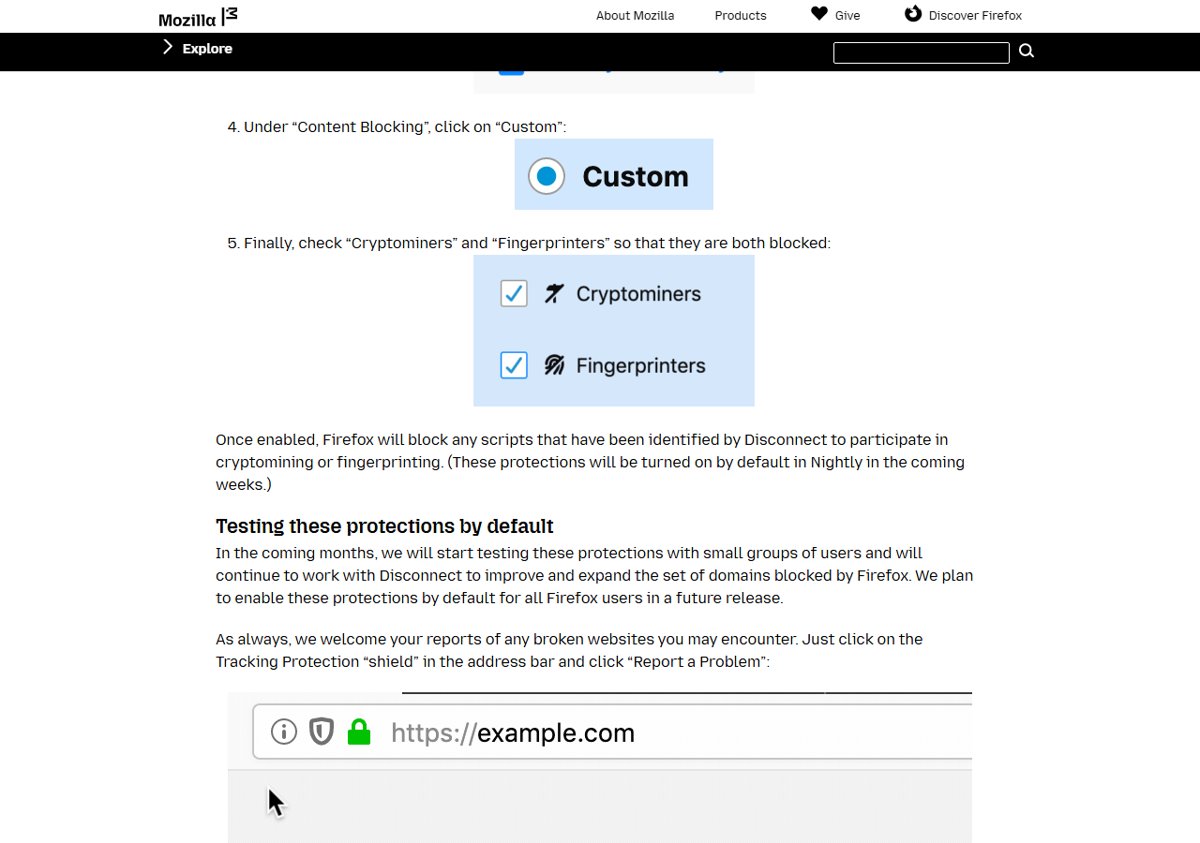
- Under Content Blocking, click Custom.
- Check Cryptominers and Fingerprinters so both are blocked.
Test that blocking works
Mozilla’s testers used a test page that loads known fingerprinting and cryptomining scripts. To check your own setup:
- Open a page that is known to load fingerprinting or cryptomining scripts. Mozilla’s QA used a dedicated test page for this.
- Click the shield icon on the left of the address bar.
- Look for Fingerprinters and Cryptominers in the panel. When they are blocked, Firefox lists them with a “Blocking” status.
- Untick the options in settings, reload the page and check the panel again to compare.
Mozilla warned in its March 2019 Nightly update that the feature was “still experimental” and “might break some sites”. If a site breaks, click the shield and choose Report a Problem, or turn protection off for that site.
Today: on by default
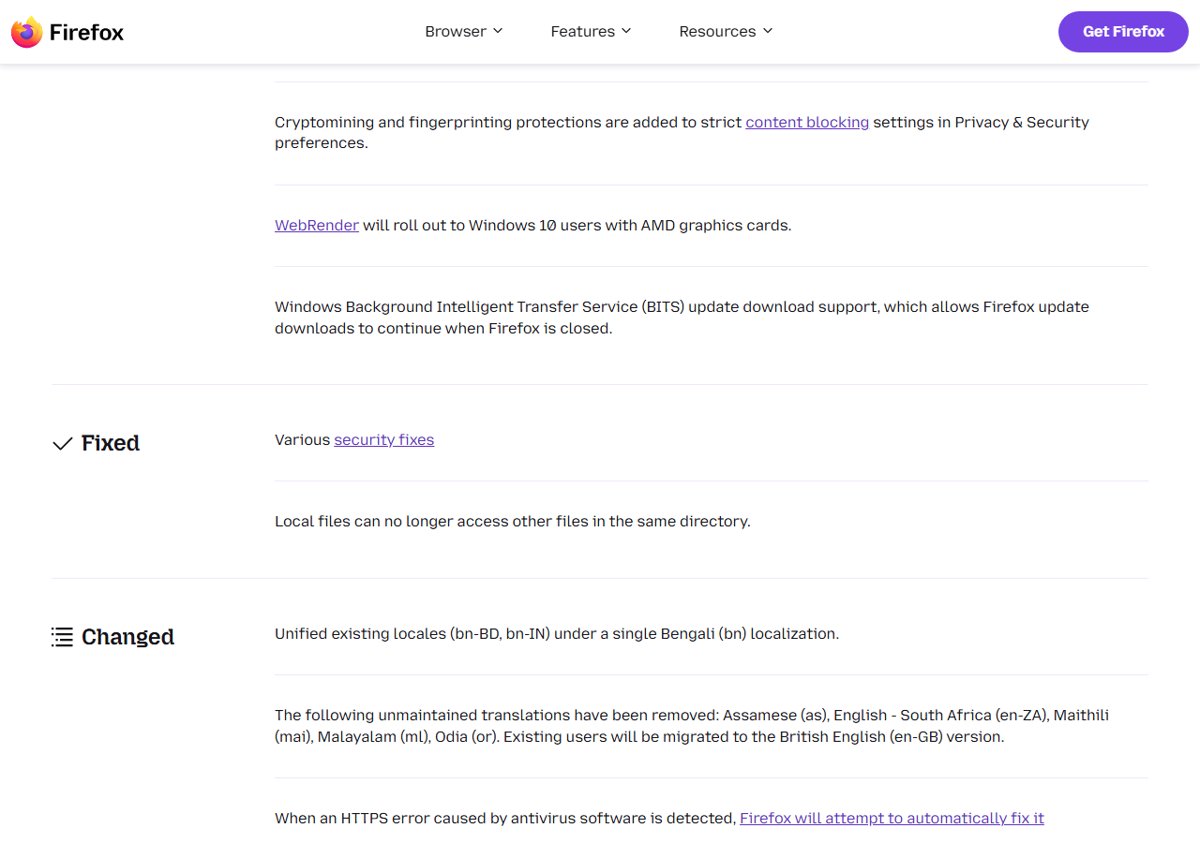
Mozilla made both protections available in Beta 67 and Nightly 68 in April 2019. Firefox 68 then added them to the Strict content blocking setting. Current Firefox goes further: Enhanced Tracking Protection in Standard mode blocks cryptominers and fingerprinters on all sites by default, along with social media trackers and cross-site tracking cookies.
For the rest of your PC’s security, see these ways to protect a Windows computer from viruses.