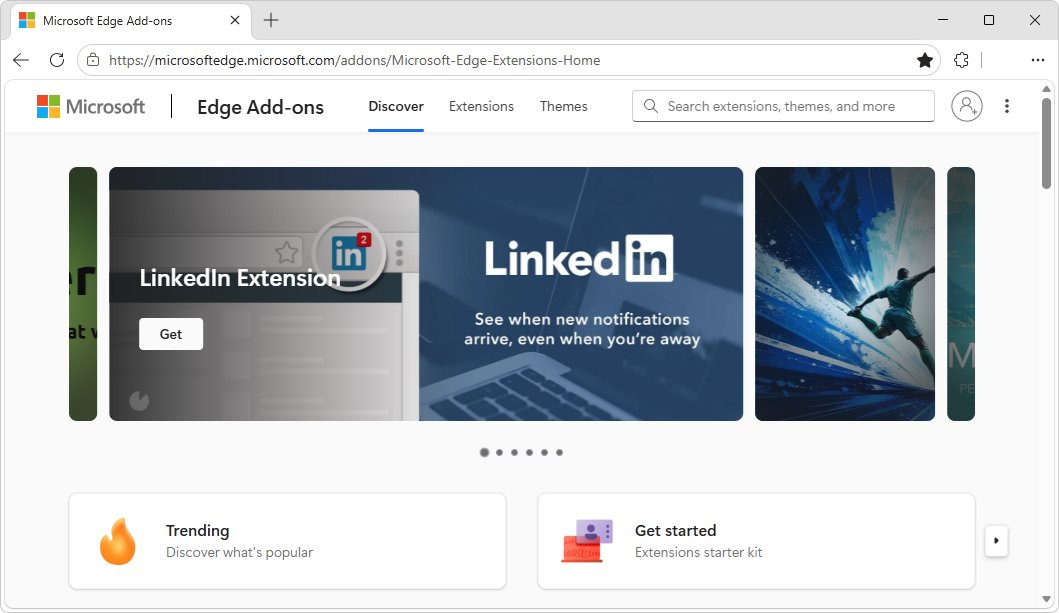
The OneNote Web Clipper, Microsoft’s extension for saving web pages straight into your OneNote notebooks, is available for the Chromium-based Microsoft Edge from the Microsoft Edge Add-ons store. With it you can capture a whole page, a region, a clean article view or selected PDF pages in a couple of clicks. Here is how to install and use it.
How to install OneNote Web Clipper in Microsoft Edge
- Open the OneNote Web Clipper listing on the Microsoft Edge Add-ons store. Microsoft’s support page links to it.
- Click Get.
- Follow the on-screen prompts and accept the permissions the clipper needs to work with Edge.
Sign in to the clipper
- Open any website and click the OneNote Web Clipper icon.
- Sign in with your Microsoft account in the purple pop-up.
- Confirm the requested permissions if asked. You can change them later in your Microsoft account settings.
Clip modes explained
- Full Page: saves a screenshot that looks exactly like the whole page.
- Region: saves a screenshot of only the area you select.
- Article: saves editable text and images. The preview toolbar lets you highlight text, switch between serif and sans-serif fonts, and change the text size.
- PDF Document: when a PDF is open, choose a page range to clip only the pages you need.
Microsoft notes that you can also save YouTube videos: right-click the video, open the extension and save it as an article.
How to clip a page to OneNote
- Open the page and click the OneNote Web Clipper icon.
- Choose a clip mode.
- Pick a Location. The list shows the notebooks on your OneDrive, including shared notebooks. Expand a notebook to choose a section.
- Optionally click Add a note to write a comment with the clip.
- Click Clip. The clip is saved to the section you picked.
Why use the clipper instead of bookmarks?
A bookmark only stores a link, and the page behind it can change or disappear. A clip keeps a copy of the content in your notebook, next to your own notes, and the Article mode strips ads and menus so the text is easy to read later. Clips in a shared notebook are also visible to everyone you share it with.
Once your clips are in OneNote, a few OneNote productivity tips help you organize them. Your notebooks live in OneDrive, so you can also keep OneDrive files available offline.