Canon IJ Scan Utility is not a standalone download: you get it by downloading the Print Driver and Scan Utility Installer or the Driver Setup Package for your printer model from Canon's Software & Drivers page.
This guide walks through finding the right package for Windows or Mac, installing it, running a test scan, and fixing download, install and folder-permission errors. IJ Scan Utility handles Canon's scans, while Windows keeps its own printer and scanner preferences for every device.
Step-by-step guide to downloading Canon IJ Scan Utility
This is the short route. Each step is expanded in the numbered sections below.
- Open Canon USA's support site at support.usa.canon.com (or your country's Canon support site).
- Type your printer or scanner model into the search box and select it when it appears.
- Select Software & Drivers and confirm your Windows or macOS version.
- Find the Print Driver and Scan Utility Installer or the Driver Setup Package and select Download.
- Double-click the downloaded file and follow the on-screen instructions; IJ Scan Utility installs with the drivers.
Alternative methods: Downloading through Canon's official website vs. third-party sources
| Your situation | Use this | Why |
|---|---|---|
| Windows PC, any Canon inkjet or scanner | Canon Software & Drivers page for your model | IJ Scan Utility only ships inside the model's driver package, so this is the one complete source |
| PIXMA, G, TS, TR series or MAXIFY GX printer on Windows | Canon PRINT app for Windows | Canon lists it as an alternative way to scan from Windows on these series |
| Mac | macOS package on the same Software & Drivers page | Canon publishes separate Mac downloads of IJ Scan Utility and IJ Scan Utility Lite |
| Tablet with a Snapdragon processor | Canon's Snapdragon setup instructions | Canon says the standard Windows driver steps do not apply to these tablets |
| A download site that offers "IJ Scan Utility" on its own | Avoid it | Canon does not publish the utility as a standalone file, so a single-file copy is not the official package and may be outdated or bundled |
Understanding the Canon IJ Scan Utility: What it is and why you need it
IJ Scan Utility is Canon's scanning program for its inkjet printers and scanners. It sends scans of documents and photos from the device to your computer.
| Question | Answer |
|---|---|
| What it does | Scans documents and photos from a Canon printer or scanner to your computer. |
| How you get it | It installs automatically with the Print Driver and Scan Utility Installer or Driver Setup Package, the same download that carries the model's Canon printer drivers. |
| Standalone download? | No. Canon states it is not a standalone download. |
| Name on newer packages | Canon's newer Windows article calls it Scan Utility and notes the program was previously IJ Scan Utility. |
| Mac versions | IJ Scan Utility for older models and IJ Scan Utility Lite, each with its own Canon download article. |
| Save formats | Documents as PDF or JPEG; photos as JPEG or TIFF. |
Other makers ship their own equivalents, such as Epson Scan 2 and Brother iPrint&Scan, and none of them drives a Canon scanner.
Prerequisites: System requirements and preparations before download
| Check | Why it matters |
|---|---|
| Exact model name | Canon packages are per model; the wrong one may install no scanner driver. |
| Operating system and version | Software & Drivers lists packages per Windows or macOS version. |
| Processor type | Canon's standard Windows steps do not apply to tablets with Snapdragon processors. |
| USB cable or same network | The installer may ask you to connect the Canon printer to your laptop by USB, and network scanning needs the PC on the same network. |
| Administrator account | Driver installers change system files, so sign in with an account that can approve installs. |
| Printer turned on | The installer looks for the device during setup. |
Step 1: Identify your Canon model
- Find the model name printed on the printer, its box or its manual, for example PIXMA TR4720.
- On Windows, you can also open Settings > Bluetooth & devices > Printers & scanners and read the name of an already-added Canon printer.
- Write down the full model name, including the letters and digits, before you search.
Step 2: Visit the Canon official support website
- Open a browser and go to support.usa.canon.com if you are in the United States.
- Outside the US, open the Canon support site for your country from Canon's global site, since packages and languages can differ by region.
- Stay on Canon's own domain for the whole download.
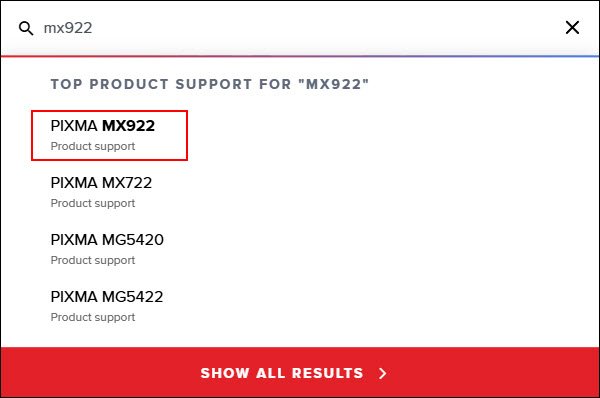
Step 3: Search for your model
- Type the printer or scanner model into the search box on the support page.
- Wait for your model to appear in the suggestions.
- Click the exact model, not a similar one with a different suffix.
Step 4: Select the correct operating system
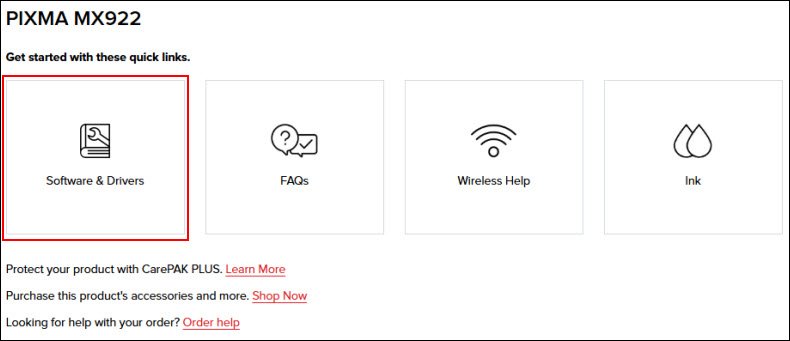
- On the model's page, select Software & Drivers.
- Check the operating system the page detected.
- If it is wrong or missing, pick your Windows or macOS version from the list.
Step 5: Download the Canon IJ Scan Utility
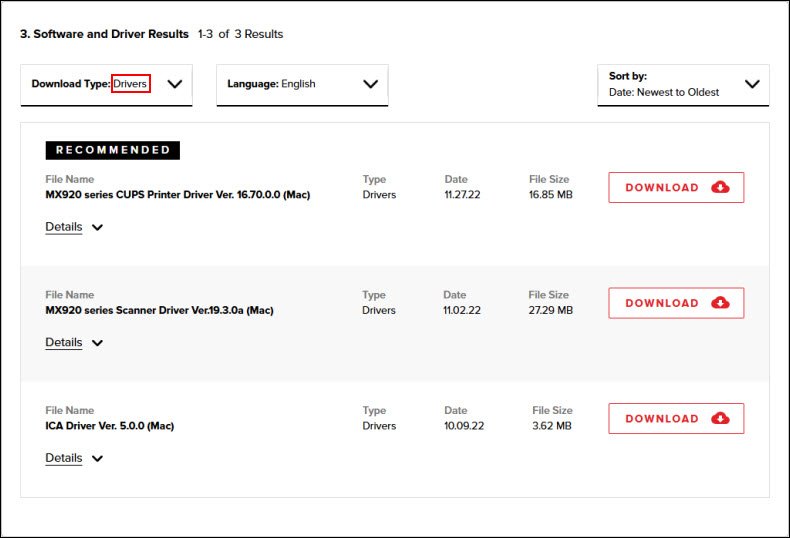
- Scroll to the drivers list for your operating system.
- Find the Print Driver and Scan Utility Installer or the Driver Setup Package, whichever your model offers.
- Click Download and wait for the file to finish.
- Open your browser's downloads list or the Downloads folder if you cannot see the file.
Step 6: Install the software
- Double-click the downloaded file to start the installer.
- Approve the Windows permission prompt if it appears.
- Follow the on-screen instructions to install the drivers.
- Connect the printer with a USB cable only when the installer asks for it.
- Finish the installer; IJ Scan Utility is installed along with the drivers.
Step 7: Test the utility
- Place a document or photo face down on the platen (scanner glass).
- Open IJ Scan Utility from the Start menu by searching for IJ Scan Utility or Scan Utility.
- Click Settings… to set paper size, resolution, PDF options and the save folder, then click OK.
- Click Document or Photo to start scanning.
- Open the save folder and check the file; click Cancel during a scan if you need to stop it.
Post-installation checks
- Open Settings > Bluetooth & devices > Printers & scanners on Windows 11 and confirm the Canon model is listed.
- Select the printer and look for Scanner settings, which shows Windows also sees the scanner.
- Run one document scan and one photo scan in IJ Scan Utility.
- Confirm the document saved as PDF or JPEG and the photo as JPEG or TIFF in the folder set under Settings….
Installing the Canon IJ Scan Utility: Tips for a smooth process
| Tip | What to do |
|---|---|
| Ensure compatibility first | Match the package to the exact model and to your OS version on Software & Drivers. On a Mac, check whether the model uses IJ Scan Utility or IJ Scan Utility Lite. |
| Download from official sources | Use only Canon's support site; the utility is never offered by Canon as a separate file. |
| Prepare your system | Sign in as an administrator, turn the printer on, and have the USB cable ready in case the installer asks for it. |
| Follow the installation steps carefully | Read each installer screen, accept the components it lists, and connect the USB cable only at the prompt. |
| Restart if prompted | Some driver packages ask for a restart before the scanner appears in Windows. |
Updating and maintaining the Canon IJ Scan Utility for optimal performance
- Return to your model's Software & Drivers page after a major Windows or macOS update.
- Compare the package version listed there with the one you installed.
- Download and run the newer Print Driver and Scan Utility Installer or Driver Setup Package if one is listed.
- Open IJ Scan Utility, click Settings…, and check that your saved scan settings and save folder are still correct.
Troubleshooting common download and installation issues for Canon IJ Scan Utility
Problem: Download fails or pauses
An interrupted connection or a browser that blocked the file.
- Check the internet connection and click Download again on the Software & Drivers page.
- Open the browser's downloads list and resume or keep the file if the browser paused it.
- Look in the Downloads folder; the file may already be there.
Problem: Installation errors or freezes
The installer is waiting for the device, or the package does not match the model.
- Turn the printer on and connect it by USB if the installer asks.
- Close the installer, restart the PC and run the downloaded file again.
- Confirm you downloaded the package for your exact model and OS version, and download it again if not.
Problem: Compatibility issues
Wrong OS selection, an unsupported processor, or the wrong Mac utility.
- Recheck the operating system selected on Software & Drivers.
- On a Snapdragon tablet, use Canon's Snapdragon setup instructions instead of the standard package.
- On a PIXMA, G, TS, TR or MAXIFY GX model, scan with the Canon PRINT app for Windows if the driver package will not install.
- On a Mac, download IJ Scan Utility Lite if your model is not listed for IJ Scan Utility.
"You don't have required privileges to access the folder" in IJ Scan Utility
Windows Security Controlled folder access is blocking IJ Scan Utility from saving to a protected folder such as Documents or Pictures.
- Note the folder IJ Scan Utility is trying to save to.
- Open Windows Security > Virus & threat protection > Manage ransomware protection.
- Select Allow an app through Controlled folder access.
- Select Add an allowed app and browse to IJ Scan Utility, then scan again.
Allowing one app keeps Controlled folder access switched on for everything else, so only add the Canon utility you installed from Canon's site.
Canon IJ Scan Utility download FAQ
Is Canon IJ Scan Utility a standalone download?
No. Canon includes IJ Scan Utility in the Print Driver and Scan Utility Installer or the Driver Setup Package for each printer model. Download that package from your model's Software & Drivers page and the utility installs with the drivers.
Is Canon IJ Scan Utility free?
Yes. IJ Scan Utility comes free with the driver package on Canon's Software & Drivers page for your printer or scanner. You only need the device and a supported Windows or macOS version.
Where do I find IJ Scan Utility after installing it?
On Windows 10 and 11, open Start and search for IJ Scan Utility or Scan Utility, since Canon's newer packages use the shorter name. You can also browse the All apps list in the Start menu.
Does IJ Scan Utility work on a Mac?
Yes. Canon publishes Mac downloads of IJ Scan Utility for older printer and scanner models and IJ Scan Utility Lite for others. Pick macOS on your model's Software & Drivers page to see which one it lists.
Can IJ Scan Utility scan to PDF?
Yes. IJ Scan Utility saves documents as PDF or JPEG and photos as JPEG or TIFF. Click Settings… before scanning to set the file type, PDF options, resolution and save folder.
Why does IJ Scan Utility say I don't have privileges to access the folder?
Windows Security Controlled folder access is blocking it from saving to a protected folder. Allow IJ Scan Utility through Controlled folder access in Windows Security, or save scans to a folder outside the protected list.
Can I scan with a Canon printer without IJ Scan Utility?
Yes. PIXMA, G, TS, TR and MAXIFY GX owners can scan from Windows with the Canon PRINT app, and Microsoft's Windows Scan app works with any Canon scanner that Windows has detected.
Is it safe to download IJ Scan Utility from third-party sites?
Avoid them. Canon does not release IJ Scan Utility as a separate file, so a standalone copy is not Canon's official package. Download the full driver package for your model from Canon's own support site.
Final tips
Download the Print Driver and Scan Utility Installer or Driver Setup Package for your exact model from Canon's Software & Drivers page, and skip any site that offers IJ Scan Utility as a single file. The utility only works with the drivers it ships with, and the model-specific package is the only version Canon supports and updates.