Open Print server properties from Settings > Bluetooth & devices > Printers & scanners, select the Drivers tab, and click Add to install a printer driver while the printer is still in its box or on another desk.
The quick steps below cover Windows 11 and Windows 10, plus the INF route with pnputil, a placeholder printer queue, the admin-rights question, and fixes for drivers that refuse to install. Once the hardware is unboxed, the Windows printer setup hub walks you from connection to first print.
Option 6: Use Add Printer Driver Wizard without the printer connected
The Add Printer Driver Wizard only adds the driver to Windows. It does not create a printer, so nothing has to be plugged in or on the network.
You can also open the wizard directly by running rundll32 printui.dll,PrintUIEntry /id from the Run box.
- Select Start > Settings > Bluetooth & devices > Printers & scanners.
- Under Related settings, select Print server properties.
- Open the Drivers tab and select Add….
- On the Welcome to the Add Printer Driver Wizard page, select Next.
- On the Processor Selection page, select the architecture of the PC the printer will use (x64 for most PCs, ARM64 for ARM-based PCs), then select Next.
- On the Printer Driver Selection page, select Windows Update to load the full printer list, or Have Disk… to point at a downloaded driver folder.
- Select the manufacturer on the left and the printer model on the right, then select Next.
- Select Finish. The driver now appears under Installed printer drivers on the Drivers tab.
Downloading the Windows Update printer list takes a few minutes. Wait for it rather than cancelling, or the model list stays short.
Which printer driver install option works without the printer?
Microsoft lists six ways to get a printer driver onto Windows. Only some of them work before the printer is present, because the others wait for Windows to detect the device first.
| Option | Works with no printer attached? | When to use it |
|---|---|---|
| Option 1. Use Windows Update (recommended) | Indirectly | Windows Update installs the driver when it detects the printer. Without the printer, reach the same catalogue through the Windows Update button in the Add Printer Driver Wizard. |
| Option 2. Download and install printer drivers from the manufacturer's website | Yes, for INF packages | You want the vendor's full driver or the model is missing from Windows Update. Some full installers pause until the printer is connected. |
| Option 3. Install software that came with the printer | Sometimes | There is no internet on the PC. Disc drivers are often older than the vendor's download. |
| Option 4. Use Device Manager | No | The printer is already connected and listed, and you want to point it at a downloaded driver folder. |
| Option 5. Reinstall the printer | No | An installed printer misbehaves; removing and re-adding it pulls a fresh driver. |
| Option 6. Use Add Printer Driver Wizard | Yes | Pre-loading a driver on a PC before the printer arrives. Microsoft calls it the legacy route, but it is the one built for this job. |
| pnputil with an INF file | Yes | Staging the vendor driver in the driver store from Command Prompt, or scripting it for several PCs. |
| Placeholder printer on an existing port | Yes | You want a full printer queue ready, with the driver installed, before the hardware exists. |
Checking hardware and operating system compatibility
A driver built for the wrong processor architecture or Windows version installs nothing, or fails with a vague error. Confirm three things before you download anything.
| Check | Where to look | What it decides |
|---|---|---|
| Processor architecture | Settings > System > About, then System type under Device specifications | ARM devices show ARM based processor and need ARM64 drivers; other PCs need x64 drivers |
| Windows version | Windows 11 or Windows 10, as shown in Settings > System > About | Which download to pick on the manufacturer's driver page |
| Exact printer model | The printer label, box or purchase receipt | A driver for a similar model number often installs but prints garbage or misses features |
| Administrator rights | Your own admin account, or an administrator who can type the password | Installing a printer driver needs admin rights or an admin password at the prompt |
Microsoft notes that some ARM PCs, including Copilot+ PCs, cannot install printers with the manufacturer's installer. On those, use the Windows-provided routes in this guide unless the vendor publishes ARM-specific guidance.
Locating and downloading the correct HP drivers and other manufacturer drivers
Printer manufacturers publish their drivers on their own support sites, and that is the only place to download them from. The same steps apply to HP, Canon printer drivers, Epson, Brother or KYOCERA printer drivers.
- Note the full model number from the printer label or the purchase information.
- Open the manufacturer's official support site, for example support.hp.com for HP printers.
- Go to the Support or Drivers section and enter the model name or serial number.
- On the model's page, select your Windows version if the site asks.
- Prefer a package listed as a basic, INF or print driver when the site offers one; a full software installer may wait for the printer to be connected.
- Download the package. Most browsers save it in the Downloads folder.
Label printers work the same way; DYMO drivers for Windows 11 also come from the vendor's own download page.
Extracting and unzipping driver files to find the INF
The wizard's Have Disk button, Device Manager and pnputil all need a folder that contains an .inf file, not a packed download.
- Open File Explorer and go to the Downloads folder.
- If the driver is a .zip file, right-click it, select Extract All, choose a short path such as
C:\Drivers\Printer, and select Extract. - Open the extracted folder and look for a file ending in .inf.
- If the .inf sits in a subfolder named after an architecture, note the x64 or ARM64 folder that matches your PC.
- Keep this folder. The same path is used by Have Disk, Device Manager and pnputil.
A package that is a single .exe with no .inf inside is a full installer. Run it with the printer nearby, or use the Windows Update list in the wizard instead.
Option 3: Install software that came with the printer
A disc in the box can carry the driver and setup software. Microsoft warns that disc drivers may be out of date, so treat the disc as the fallback for a PC with no internet connection.
- Insert the disc and open it in File Explorer.
- Check the printer's documentation for which file starts setup.
- If setup asks for the printer, cancel it and browse the disc for a driver folder that contains an .inf file.
- Use that folder with Have Disk… in the Add Printer Driver Wizard.
- Once the PC is online, replace the driver with the current one from the manufacturer's website.
Install a printer driver from an INF file with pnputil
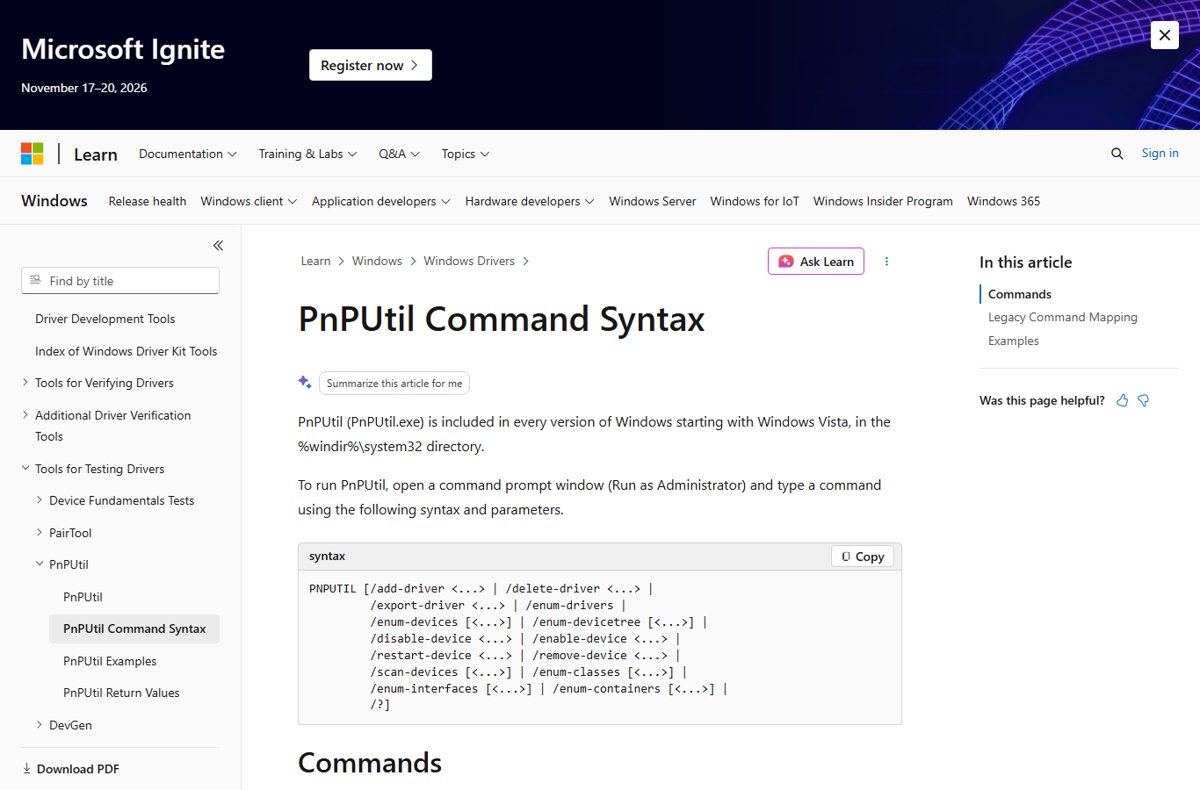
pnputil adds driver packages to the Windows driver store. A staged driver is picked up automatically when the printer is later plugged in or found on the network. Run it from an elevated Command Prompt (Run as administrator).
pnputil /add-driver C:\Drivers\Printer\*.inf /subdirs/add-driver adds every matching .inf in the folder to the driver store, and /subdirs also searches subfolders. Adding /install installs the driver on any matching device already present, which does nothing while the printer is absent. The command exists in Windows 10 version 1607 and later, including Windows 11.
You should see: pnputil /enum-drivers lists the manufacturer's package among the third-party drivers in the store.
To install a print driver straight from an INF without the wizard, Windows also offers rundll32 printui.dll,PrintUIEntry /ia with the /f (INF path) and /m (model name) parameters. The PrintUIEntry part is case sensitive.
Add a placeholder printer with the driver on an existing port
This creates a complete printer queue with the right driver before the hardware exists. When the printer arrives, add it normally and Windows reuses the installed driver.
- Go to Settings > Bluetooth & devices > Printers & scanners and select Add device next to Add a printer or scanner.
- Next to The printer that I want isn't listed, select Add manually (or Add a new device manually).
- Choose Add a local printer or network printer with manual settings and select Next.
- Select Use an existing port, pick a port such as LPT1 from the list, and select Next.
- Select Windows Update to refresh the model list, or Have Disk to use your extracted driver folder.
- Select the manufacturer and model, then select Next.
- Type a name for the printer, select Do not share this printer, and select Next.
- Select Finish without printing a test page, since nothing is attached.
When the real printer is connected, add the printer in Windows 11 from Printers & scanners. If Windows asks which driver to use, choose Use the driver that is currently installed, then remove the placeholder queue.
Installing drivers manually via Device Manager once the printer is connected
Option 4, Device Manager, needs the printer listed as a device, so it is the follow-up step on the day the printer is connected rather than a way to install ahead of time.
- Right-click Start and select Device Manager.
- Expand Printers (or Print queues) and find the printer.
- Right-click it and select Update driver.
- Select Browse my computer for drivers.
- Select Browse…, choose the extracted driver folder, select OK, then select Next.
- Select Close. If you see The best drivers for your device are already installed, the staged driver is already in use.
Updating and installing additional drivers if needed
Option 1 and Option 5 both rely on the printer being present, so they come after the pre-installed driver has done its job.
| Situation | What to do |
|---|---|
| A Find drivers button appears next to the newly added printer | The printer works with reduced features. Install the full driver through Windows Update or the manufacturer's package. |
| Optional printer driver updates are offered | Go to Settings > Windows Update > Advanced options > Optional updates, tick the driver and select Download and install. Optional drivers are never installed automatically. |
| Printing still fails after the driver update (Option 5. Reinstall the printer) | Select the printer in Printers & scanners, select Remove, add it again with Add device, then check Windows Update. |
| The printer also scans or faxes | Install the manufacturer's scan or fax software separately; the print driver alone does not add it. |
Ensuring proper functionality after installation
Check the driver before the printer arrives, and check the printer on the day it is connected.
- Open Print server properties and select the Drivers tab; the model should be listed under Installed printer drivers.
- For a pnputil install, run
pnputil /enum-driversand look for the manufacturer's package in the list. - When the printer is connected, open Printers & scanners and confirm it appears without a Find drivers button.
- Print a test page from the printer's properties.
- Print a page from a real app to confirm duplex, color and tray options match the model.
You can also list every installed printer to confirm the placeholder queue and the real printer use the same driver.
How do I install a printer driver without admin rights?
You cannot on a current, patched Windows PC. Since the August 10, 2021 updates (KB5005652), Windows requires administrator privilege to install printer drivers by default.
| Your situation | What works |
|---|---|
| Home PC with a standard account | Enter an administrator username and password when Windows prompts during the driver install. |
| Work or school PC | Ask IT to install the driver or deploy the printer; many organisations push printers through policy. |
| Printer shared from another PC or print server | An administrator still has to approve the first driver install on your PC. |
Microsoft documents a registry value that relaxes this rule and warns that it leaves the PC exposed to a known print vulnerability. Leave it at the default and use an administrator account instead.
Troubleshooting common printer driver installation issues
The model is missing from the Add Printer Driver Wizard list
The wizard is showing only the inbox drivers, not the Windows Update catalogue.
- Select Windows Update on the Printer Driver Selection page.
- Wait until the list finishes downloading; it can take several minutes.
- If the model is still missing, download the vendor's INF package and use Have Disk….
Have Disk finds no driver in the folder
The folder holds an installer .exe or the driver for a different architecture.
- Confirm the folder contains an .inf file, extracting the download first if needed.
- Point Have Disk at the architecture subfolder that matches System type in Settings > System > About.
- Download the INF or basic driver package from the manufacturer if the current one is installer-only.
The manufacturer's installer will not finish without the printer
Full software installers often detect the printer as part of setup.
- Cancel the installer.
- Use the Add Printer Driver Wizard with Windows Update for the same model.
- Run the full installer later, with the printer connected, if you need the vendor's scan or maintenance tools.
The printer will not install on an ARM PC
Some manufacturer installers do not support ARM PCs such as Copilot+ PCs.
- Skip the manufacturer's installer.
- Go to Settings > Bluetooth & devices > Printers & scanners and select Add device once the printer is on the network.
- Let Windows use its built-in class driver unless the vendor publishes an ARM64 driver.
Windows asks for an administrator password
Printer driver installs require admin rights by default since 2021.
- Enter an administrator's credentials at the prompt.
- On a managed PC, ask IT to install the driver for you.
Printer driver install tips and warnings
| Type | Advice |
|---|---|
| Tip | Pre-install both x64 and ARM64 drivers in the wizard if the printer will be shared with ARM PCs. |
| Tip | Keep the extracted INF folder; Have Disk, Device Manager and pnputil can all reuse it. |
| Tip | Name a placeholder queue clearly, such as the model plus "placeholder", so it is easy to remove later. |
| Warning | Download drivers only from the printer manufacturer's site or Windows Update, never from driver download portals or driver updater tools. |
| Warning | Do not lower the Point and Print admin restriction to get a driver installed; ask an administrator instead. |
| Warning | A driver for a neighbouring model number may install cleanly and still print wrong or lose features. |
Keeping printer drivers updated for optimal performance in Windows 11
Microsoft is winding down third-party printer drivers. Since January 15, 2026, no new printer drivers are published to Windows Update for Windows 11, and since July 1, 2026, Windows prefers its inbox IPP class driver for Mopria-certified printers.
| Your printer | How updates arrive | What to do |
|---|---|---|
| Mopria-certified network or USB printer | The Microsoft IPP Class Driver ships with Windows | Keep Windows updated; extra features come from the vendor's Print Support App in the Microsoft Store |
| Older printer on a vendor driver | Existing Windows Update drivers can still be updated case by case | Check Optional updates after each feature update, and the vendor site for newer packages |
| Printer on a disc driver | No automatic updates | Replace it with the vendor's current download |
Printer driver without the printer FAQ
Can I install a printer driver without the printer connected?
Yes. Use the Add Printer Driver Wizard from Print server properties, stage the vendor's INF with pnputil, or add a placeholder printer on an existing port. Each puts the driver on Windows so the printer works as soon as it is connected.
Does the Add Printer Driver Wizard install the printer too?
No. Microsoft states the wizard only adds the driver to Windows. To get a printer you can print to, add the printer from Printers & scanners once it is connected, or create a placeholder queue with Add a local printer or network printer with manual settings.
Can I install a printer driver without admin rights?
Not by default. Windows updates released since August 10, 2021 require administrator privilege to install printer drivers. Enter an administrator's password when prompted, or ask IT to install the driver. Microsoft advises against relaxing this setting because it reopens a known vulnerability.
Where do I find Print server properties in Windows 11?
Go to Settings > Bluetooth & devices > Printers & scanners and scroll to Related settings, then select Print server properties. The Drivers tab there lists every installed printer driver and holds the Add button for the Add Printer Driver Wizard.
Which processor option should I pick in the Add Printer Driver Wizard?
Pick the architecture of the PC that will print. Check Settings > System > About under System type. ARM-based PCs need ARM64; other current Windows 11 PCs use x64. Select both if the driver will serve both kinds of PC.
Can I install a printer driver from the CD without the printer?
Often yes. Browse the disc for a folder containing an .inf file and point Have Disk in the Add Printer Driver Wizard at it. Disc drivers are frequently out of date, so update from the manufacturer's site once the PC is online.
Why does Windows Update not offer my printer driver?
Windows Update installs printer drivers when it detects the printer, and since January 15, 2026 it publishes no new printer drivers for Windows 11. Use the Windows Update button inside the Add Printer Driver Wizard, or download the driver from the manufacturer.
Do I still need a driver for a new printer on Windows 11?
Often not. Mopria-certified printers work with the Microsoft IPP Class Driver built into Windows, and Windows prefers it since July 1, 2026. Install a vendor driver only for features the inbox driver lacks or for an older printer.
Verdict: the best way to install a printer driver without the printer
Use the Add Printer Driver Wizard with its Windows Update list first, and fall back to the vendor's INF package through Have Disk or pnputil. Both routes put the driver in Windows with nothing connected, need no third-party tools, and let Windows pick the driver up automatically on the day the printer is plugged in or joins the network.