The Windows 11 Camera app saves every photo and video to the Camera Roll folder inside your Pictures folder, and the Photos app does not keep its own copy: it shows the files already in Pictures plus any folders you add.
This guide shows the fastest way to open Camera Roll, how the Photos app finds content, how to change where new photos and videos are saved, and what to do when Camera Roll is missing.
Open the Camera app save folder in one click
The Camera app can take you straight to the folder that holds the photo or video you just captured.
- Select Start, type Camera, and open the Camera app.
- Select the thumbnail at the bottom-right corner to open your last photo or video.
- Select the ellipsis (…) in the top-right corner.
- Select Open Folder. File Explorer opens the folder where the file was saved, normally Pictures > Camera Roll.
Where are Camera photos stored on Windows 11?
Photos and videos captured with the built-in camera or a webcam go to the Camera Roll folder by default. Which drive holds it depends on one Storage setting and on whether OneDrive backs up Pictures.
| What you captured | Default location | When it is somewhere else |
|---|---|---|
| Photo in the Camera app | Pictures > Camera Roll (C:\Users\<UserName>\Pictures\Camera Roll) | Another drive is chosen under New photos and videos will save to |
| Video in the Camera app | Pictures > Camera Roll, the same folder as photos | Same Storage setting applies |
| Document or whiteboard scan | Camera Roll, shown as a thumbnail after capture | Same Storage setting applies |
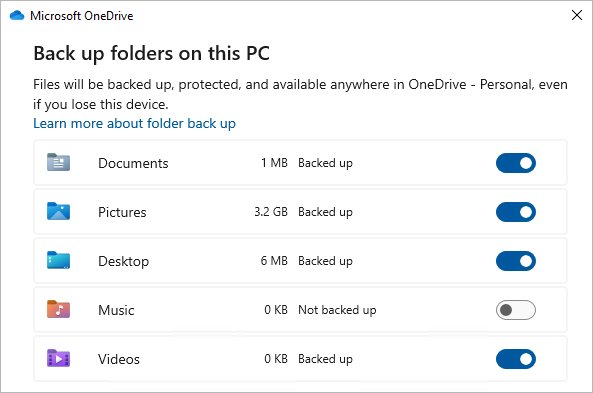
| Any capture with OneDrive backing up Pictures | The Pictures folder inside your OneDrive folder | OneDrive folder backup moves Pictures, including Camera Roll |
How to find photos & videos taken with Camera app in Windows
Use File Explorer when the Camera app is closed or you want to browse older captures.
- Select Start > File Explorer.
- Select Pictures in the left pane.
- Open the Camera Roll folder.
- Switch the view to Large icons or Details to sort photos and videos by date.
- Double-click a file to open it in the Photos app or Media Player.
To jump from Camera straight into Photos instead, select the Photos icon in the top-left corner of the Camera app while you view a capture.
Where does the Windows Photos app store content
The Windows 11 Photos app is a viewer and editor, not a storage location. By default it shows all the photos in your Pictures folder, which includes Camera Roll, and it only shows other places after you add them.
| Source shown in Photos | Where the files actually live | How it gets there |
|---|---|---|
| Pictures folder and Camera Roll | C:\Users\<UserName>\Pictures on your PC | Shown by default |
| Folders you add | Wherever that folder sits, such as D:\Photos | Gallery in the folders tab, then Add folder |
| OneDrive | Your OneDrive cloud storage | Connect your Microsoft account in Photos |
| iCloud Photos | Apple's iCloud | Install and sign in to iCloud for Windows, then use the iCloud Photos tab |
| Imported phone or camera photos | The folder you pick during import | Import, then your connected device |
Change where new photos and videos are saved in Windows 11
Windows decides the Camera Roll drive, not the Camera app. Change it in Storage settings when the C: drive is full or you want captures on another drive.
- Select Start > Settings > System > Storage.
- Select Advanced storage settings, then Where new content is saved.
- Under New photos and videos will save to, pick the drive you want.
- Select Apply.
- Take a test photo in the Camera app and use Open Folder to confirm the new location.
On Windows 10 the same option sits under Settings > System > Storage > Change where new content is saved. If you pick an external drive, keep it connected or the Camera app cannot save.
Add a folder to the Photos app in Windows 11
Add a folder when your photos live outside Pictures, for example on a second drive you picked as the save location.
- Open the Photos app from Start.
- Select Gallery in the folders tab on the left sidebar.
- Select Add folder.
- Choose the folder that holds your photos and confirm.
- Wait for Photos to index the folder, then browse it in Gallery.
Import phone photos with the Photos app and choose where they save
- Connect the phone to the PC with a USB cable that can transfer files.
- Unlock the phone. Windows cannot find a locked device.
- Select Start > Photos.
- Select Import, then select your connected device.
- Pick the items to import and select the folder where they should be saved, then finish the import.
Check that Camera app photos save to the right folder
- Take one photo and record a few seconds of video in the Camera app.
- Select the thumbnail, select the ellipsis (…), then Open Folder.
- Confirm both files sit in the Camera Roll folder on the drive you chose.
- Open the Photos app and confirm the new photo appears at the top of the Pictures view.
Camera app not saving photos or Camera Roll missing: fixes by symptom
"Camera roll is missing" error 0xA00F4275 when you take a picture
The save location points to a drive or folder Windows can no longer reach.
- Select Start > Settings > System > Storage > Advanced storage settings > Where new content is saved.
- Under New photos and videos will save to, select another location and select Apply.
- Change it back to This PC (C:) and select Apply again.
- Take a test picture.
Camera Roll folder deleted or not there at all
The folder was removed, so the Camera app has nowhere to write.
- Open File Explorer, select This PC, then your OS disk, usually OSDisk (C:).
- Select New > Folder and name it Camera Roll.
- Right-click the new folder, select Show more options, then Include in library > Camera Roll.
- Take a test picture.
Camera app takes the photo but the file never appears
Your account lacks write permission on the Camera Roll folder.
- In File Explorer, select Pictures, right-click Camera Roll, and select Properties.
- Open the Security tab and select your user name under Group or user names.
- Confirm Allow is selected next to Write, editing the permissions if needed.
- Take a test picture.
Photos from Camera Roll stop syncing to OneDrive
OneDrive storage is full, so new files cannot upload or sync.
- Select the OneDrive cloud icon in the notification area and check the storage warning.
- Free up OneDrive space or add storage.
- Wait for the Camera Roll files to finish syncing.
Camera light is on or an app is using the camera
Another app has camera access while it runs.
- Select Start > Settings > Privacy & security > Camera.
- Review the apps listed under Let apps access your camera and turn off any you do not trust.
- Under Let desktop apps access your camera, select a listed app to see which file used the camera.
Select an app to open this file keeps popping up in Windows 11: how to disable it for photos and videos
The prompt appears when you open a photo or video from Camera Roll and no default app is set for that file type.
"Select an app to open this file" appears every time you open a JPG photo
Windows has no default app assigned to that image file type.
- Select Start > Settings > Apps > Default apps.
- In the search bar, type .jpg and select the result.
- Choose Photos (or another viewer) from the list.
- Repeat for .png or any other image type that triggers the prompt.
The prompt appears when you open a Camera app video
No default app is set for the video file type, such as .mp4.
- Open Settings > Apps > Default apps.
- Type .mp4 in the search bar and select the result.
- Choose Media Player or Photos from the list.
- Open the video again from Camera Roll to confirm the prompt is gone.
The app didn't start in the required time on Windows 11: fix the Photos or Camera app
When Photos or Camera will not open, Windows can repair the app first and reset it if repair is not enough. Your photos in Camera Roll are not deleted by either option.
Photos or Camera shows "The app didn't start in the required time"
The app is failing to start, so repair or reset it from Settings.
- Select Start > Settings > Apps > Installed apps.
- Select the More icon next to Photos or Camera.
- Select Advanced options.
- Select Repair and try opening the app.
- If it still fails, return to the same page and select Reset.
Windows 11 Camera app save location FAQ
Where do Camera app photos go in Windows 11?
Camera app photos go to the Camera Roll folder inside Pictures, usually C:\Users\<UserName>\Pictures\Camera Roll. If OneDrive backs up Pictures, Camera Roll sits inside the OneDrive Pictures folder instead.
Where does Windows 11 save videos from the Camera app?
Videos recorded in the Camera app save to the same Camera Roll folder as photos. In the app, select the video thumbnail, the ellipsis (…), then Open Folder to see the file in File Explorer.
Does the Photos app save its own copies of pictures?
No. The Photos app shows the files in your Pictures folder, folders you add through Gallery > Add folder, and connected OneDrive or iCloud Photos. The files stay where they already are.
How do I change where the Camera app saves pictures?
Open Settings > System > Storage > Advanced storage settings > Where new content is saved. Pick a drive under New photos and videos will save to and select Apply. The Camera app itself has no save-location setting.
Where do I find the Camera app in Windows 11?
Select Start, type Camera, and open it from the search results. The app is built into Windows 11 and works with a built-in camera or any connected webcam.
Why is my camera on when I am not using it?
An app or a Windows feature such as Windows Hello face sign-in is using it. Open Settings > Privacy & security > Camera to see which apps have access and turn off any you do not want.
How do I see what is using my camera?
Go to Settings > Privacy & security > Camera. Store apps appear with their own toggles, and under Let desktop apps access your camera you can select a listed desktop app to see the file that used the camera.
How does an app get access to the camera in Windows 11?
Windows allows it only when Camera access and Let apps access your camera are on, plus the app's own toggle for Microsoft Store apps. Desktop apps share one switch, Let desktop apps access your camera.
Why do apps want access to my photos?
Photo and video editors need to read the files you want to edit and need a place to save the new versions. In Settings > Privacy & security > Pictures, you choose which apps can use your Pictures library.
Do I need the Camera app?
You need it to take photos, record video, scan QR codes and barcodes, or scan documents and whiteboards with your webcam. Video-call apps use the camera directly and do not need the Camera app open.