To set up a Windows print server, install the Print and Document Services role on Windows Server, add the printer driver and a TCP/IP port, create a shared print queue, and deploy it to users with Group Policy.
This guide walks through all seven steps in Server Manager, Print Management and PowerShell, then covers how to test the queue and fix the connection problems Windows 11 clients hit most. Users on client PCs who only need to add or adjust a single printer can start with Windows printer setup basics.
Step-by-step setup process
Here is the whole job at a glance. Each step has its own section below with the exact clicks and commands.
- Install the Print and Document Services role with the Print Server role service, then restart the server.
- Open Print Management and add the printer driver under Drivers.
- Create a TCP/IP printer port that points at the printer's IP address.
- Add the printer on the server, then share it (and publish it to Active Directory if you use a domain).
- Create an Active Directory security group for the people who should get the printer.
- Use Deploy with Group Policy in Print Management to push the printer connection through a GPO filtered to that group.
- Add users to the group, then sign in on a client and print a test page.
Why use a print server?
A print server holds every shared print queue in one place, so drivers, permissions and monitoring are handled once instead of on every PC.
| Benefit | What the Print Server role provides |
|---|---|
| Central management | The Print Management console manages many printers and print servers from one window |
| Monitoring | Watches print queues and can notify you when a queue stops processing jobs |
| Automatic deployment | Pushes printer connections to users or computers through Group Policy |
| Driver delivery | Clients get the driver from the server through Point and Print when they connect |
| Migration | Moves printers to and from other Windows print servers (Printbrm.exe handles Print and Fax Services migration) |
| Optional role services | Internet Printing (IPP and a web page for print jobs) and LPD Service for UNIX clients, which is deprecated |
Windows Server print server or a shared printer on Windows 11
A full print server is meant for a domain. A small office without Windows Server can add a printer to a Windows 11 PC and share it from there instead.
| Your situation | Use this | Why |
|---|---|---|
| Active Directory domain, many users or printers | Windows Server with the Print Server role | Group Policy deployment, central drivers and queue monitoring |
| Server Core installation | Print Server role installed with PowerShell, managed remotely | Print Server runs on Server Core; manage it from Print Management on another machine |
| Two to five PCs, no domain | Share the printer from a Windows 11 PC | Settings > Bluetooth & devices > Printers & scanners > Printer properties > Sharing |
| Need email alerts and Extended View | Server with a GUI installation | These Print Management features do not work with the Minimal Server Interface |
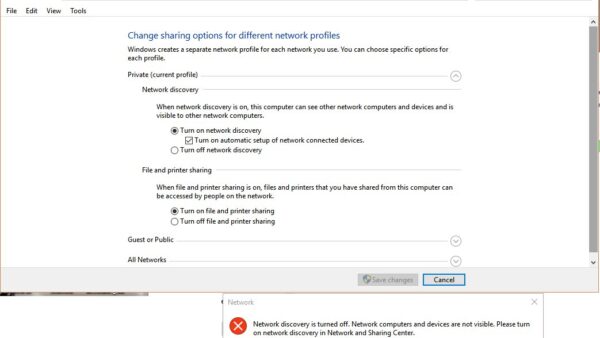
A shared printer on Windows 11 only works while that PC is on, connected, and set to a Private network with Network discovery and File and printer sharing turned on.
Windows print server requirements
| Requirement | Why it matters |
|---|---|
| Administrator account with a strong password | Server Manager asks you to confirm this before it adds the role |
| Static IP address on the server | Clients and GPOs refer to the server by name or address, so it must not change |
| Latest Windows updates installed | Another prerequisite Server Manager checks before installing the role |
| Printer's IP address or host name | Needed for the TCP/IP printer port |
| Active Directory domain and Group Policy Management Console | Required only for the security group and Group Policy steps |
| Domain Admins or delegated rights | Linking GPOs needs modify permission on the site, domain or OU |
1. Install Print and Document Services
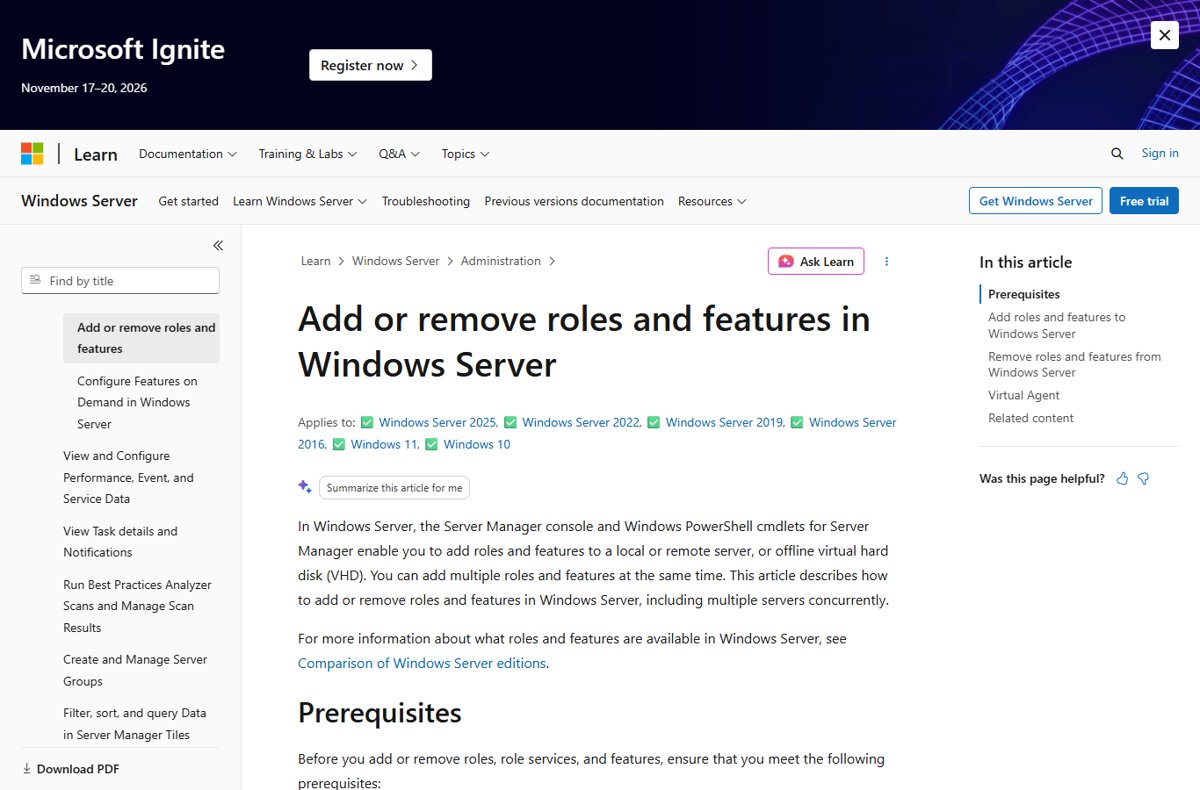
Install the role from Server Manager. Print Server is the only role service you need for a standard print server.
- Open Server Manager and select All Servers in the navigation pane.
- Select Manage > Add Roles and Features, confirm the prerequisites, then select Next.
- Choose Role-based or feature-based installation and select Next.
- On Select destination server, pick the server (the local server is the default) and select Next.
- On Select server roles, tick Print and Document Services, select Add Features, then Next twice.
- On Select role services, keep Print Server ticked and select Next.
- On Confirm installation selections, select Install.
- Restart the server when installation finishes.
Add Internet Printing only if users need to print over IPP from a browser; it also installs the Web Server role.
Install the Print Server role with PowerShell
Use this on Server Core, or when you script server builds. Run it in an elevated PowerShell window.
Install-WindowsFeature Print-Server -IncludeManagementToolsInstalls the Print Server role service. -IncludeManagementTools adds the Print Management snap-in, which Install-WindowsFeature leaves out by default.
You should see: The output lists Success as True. Restart the server to finish the installation.
2. Add printer drivers
Microsoft recommends v4 drivers on a print server wherever possible. A v4 driver also means you do not need to add drivers for other processor architectures.
- In Server Manager, select Tools > Print Management.
- Expand Print Servers, then expand your server name.
- Right-click Drivers and select Add Drivers.
- Select a driver with v4 or Class Driver in its name, and finish the wizard.
- Confirm the driver now appears in the Drivers list.
PowerShell equivalent, run with administrator rights: Add-PrinterDriver -Name "Driver Name". Add -ComputerName "printServer" to install it on a remote print server.
The same Print Management console handles queues, drivers and alerts later.
3. Set up the printer port
Create a TCP/IP port that points at the printer before you add the printer itself. Add-Printer fails if the port or driver does not exist yet.
Add-PrinterPort -Name "TCPPort:" -PrinterHostAddress "192.168.100.100"Creates a TCP/IP printer port named in -Name that sends jobs to the address in -PrinterHostAddress. Replace the address with your printer's IP address or host name.
You should see: The command returns without an error, and the new port appears under Ports on the server in Print Management.
4. Connect your printer and share it
Now add the printer on the server, tied to the driver and port, and share it so clients can find it. On a domain, add -Published to list it in Active Directory.
Add-Printer -Name "Office-Printer" -DriverName "Driver Name" -PortName "TCPPort:" -Shared -ShareName "Office-Printer" -Published-Name is the queue name on the server. -DriverName and -PortName must match the driver and port you created. -Shared shares the queue; -ShareName sets the network name, and the printer name is used if you leave it out. -Published publishes the printer in the directory.
You should see: The printer appears under Printers in Print Management, and \\ServerName\Office-Printer resolves from a client PC.
Keep the share name short and without spaces; users type it in the \\ServerName\ShareName format when they add the printer manually.
5. Create a security group
A security group controls who receives the printer. Create it in Active Directory, with PowerShell on a machine that has the Active Directory management tools installed.
New-ADGroup -Name "Office-Printer Users" -SamAccountName OfficePrinterUsers -GroupCategory Security -GroupScope Global -Path "CN=Users,DC=contoso,DC=com"Creates a global security group. -Path is the container or OU where the group is stored; change the DC values to your domain.
You should see: The group appears in Active Directory Users and Computers in the container you named.
6. Create a Group Policy
Print Management writes the printer connection into a GPO for you. Then limit the GPO to your security group with security filtering.
- In Print Management, select Printers under your print server.
- Right-click the printer and select Deploy with Group Policy.
- Select Browse and choose or create the GPO that will store the printer connection, then select OK.
- Tick The users that this GPO applies to (per user) or The computers that this GPO applies to (per machine), select Add, then OK.
- In the Group Policy Management Console, link the GPO to the domain or OU that holds the users or computers.
- Select the GPO under Group Policy Objects, and on the Scope tab select Add under Security Filtering.
- Type the group name, select OK, then select Authenticated Users and Remove so only group members get the printer.
Per-machine connections are added when a user signs in. Per-user connections are added during background policy refresh. Removing the printer from the GPO removes it from clients at the next refresh or sign-in.
7. Add users to the group
Membership decides who gets the printer, so this is the step you repeat whenever someone joins the team.
- Open Active Directory Users and Computers and select the user account.
- Open its properties and select the Member Of tab.
- Select Add.
- Type the group name, select Check Names, then OK.
- Select OK to close the properties dialog.
To add several accounts at once, run Add-ADGroupMember -Identity OfficePrinterUsers -Members user1, user2 in PowerShell.
Test the print server from a Windows 11 client
- On the server, open Server Manager and select Print Services; the server should be listed and Print Spooler should show Running.
- On a client, sign in as a member of the group and open Settings > Bluetooth & devices > Printers & scanners.
- Check the deployed printer is listed; if not, select Add device, then Add manually.
- Choose Select a shared printer by name, type
\\ServerName\Office-Printerand follow the prompts. - Print a test page from the printer's page in Settings.
From PowerShell on a client, Add-Printer -ConnectionName \\ServerName\Office-Printer adds the same connection.
Fix Windows print server connection problems
Windows 11 clients cannot connect to the shared printer
Since Windows 11 version 22H2, print connections use RPC over TCP by default, and a firewall is blocking it.
- Make sure TCP port 135 (RPC Endpoint Mapper) is open to the print server.
- Open the dynamic port range 49152-65535 on the server, or configure RPC to use a fixed port range.
- Avoid switching back to RPC over Named Pipes; Microsoft does not recommend it.
Clients cannot install printers or connect after the server restarts
The Print Spooler service on the server has stopped.
- Open Services, right-click Print Spooler and select Restart.
- Or run
net stop spoolerand thennet start spoolerin an elevated Command Prompt. - Update the printer driver if the spooler keeps stopping.
The server refuses client connections
Group Policy setting Allow Print Spooler to accept client connections is disabled.
- Open the GPO that applies to the server and go to Computer Configuration > Administrative Templates > Printers.
- Set Allow Print Spooler to accept client connections to Enabled or Not Configured.
- Share at least one printer; when the policy is not configured, the spooler accepts connections once a printer is shared.
The deployed printer does not appear for a user
The user is not in the security group, or policy has not applied yet.
- Check the user's Member Of tab shows the group.
- Have the user sign out and sign back in so the new membership and policy apply.
- Confirm the GPO is linked to the OU that contains the user or computer.
Clients cannot find the printer by name
Name resolution or sharing settings on the network are blocking discovery.
- On the client, type
\\ServerNamein the File Explorer address bar to test access. - Fix name resolution if the server does not open.
- Add the printer manually with Select a shared printer by name.
Printer driver changes that affect Windows print servers
Microsoft is phasing out third-party printer drivers in favour of the inbox IPP class driver for Mopria-compliant printers. Plan driver choices for new queues with this timeline in mind.
| Date | Change for Windows 11 and Windows Server 2025 and later |
|---|---|
| January 15, 2026 | No new printer drivers published to Windows Update |
| July 1, 2026 | Driver ranking always prefers the Windows IPP inbox class driver |
| July 1, 2027 | Third-party printer driver updates no longer allowed, except security fixes |
Mopria-certified printers keep working through the Microsoft IPP Class Driver, and multi-function devices keep print, fax and scan over IPP, IPP Fax Out and WS-Scan or eSCL.
Windows print server FAQ
What role do I install for a Windows print server?
Install Print and Document Services in Server Manager and keep the Print Server role service selected. It includes the Print Management console. Internet Printing and LPD Service are optional extras, and LPD Service is deprecated.
Can I install a print server on Server Core?
Yes. Run Install-WindowsFeature Print-Server in PowerShell and restart. Manage the server remotely by adding it to Print Management on another computer, since Server Core has no local Print Management console.
Can a Windows 11 PC act as a print server?
For a small network, yes. Share the printer from Printer properties > Sharing in Settings, keep the network set to Private, and turn on File and printer sharing. It lacks Group Policy deployment and central monitoring.
How do I deploy a printer to users with Group Policy?
In Print Management, right-click the printer, select Deploy with Group Policy, choose a GPO, and tick per-user or per-machine. Link the GPO to the right OU and filter it to a security group.
Which ports does a Windows print server need open?
Windows 11 22H2 and later clients use RPC over TCP for printing. Open TCP port 135 for the RPC Endpoint Mapper and the dynamic range 49152-65535, or configure RPC to use a fixed port range.
Should I use v3 or v4 printer drivers on the server?
Use v4 drivers wherever possible. They install without extra architecture drivers, and clients get them through enhanced Point and Print. Use a v3 driver only when the printer has no v4 or class driver.