To find your WiFi password on Windows 11, open Settings > Network & internet > Properties and select Show next to Wi-Fi network password.
This guide covers Windows 10, the Command Prompt method, Mac, iPhone and Android, plus what to do when no device will reveal the password.
How to find my WiFi password: step-by-step guide
This works on any Windows 11 PC that is connected to the network, or has connected to it before, because Windows remembers the key for every Wi-Fi network you join.
- Press Windows key + I to open Settings.
- Select Network & internet.
- Select Properties at the top of the page for your current Wi-Fi connection.
- Next to Wi-Fi network password, select Show.
- Read or copy the password, or let another device scan the QR code shown with it.
For a network you are not connected to right now, open Network & internet > Wi-Fi > Manage known networks, select the network, then select Show next to Wi-Fi network password.
WiFi password recovery methods compared
Every method below reads a password a device already saved. None of them can reveal the password of a network the device never joined.
| Your device | Fastest method | What you get |
|---|---|---|
| Windows 11 PC | Settings > Network & internet > Properties > Show | Password in plain text, plus a QR code |
| Windows 10 PC | Network and Sharing Center > Wireless Properties > Security > Show characters | Password in plain text |
| Any Windows PC, by command | netsh wlan export profile with key=clear |
Password in the exported profile file |
| Mac on macOS Sequoia or later | Passwords app > Wi-Fi | Current and previously saved network passwords |
| iPhone or iPad on iOS 16 or later | Settings > Wi-Fi > Info > Password | Password after Face ID, Touch ID or passcode |
| Android phone | Settings > Network & internet > Internet > network > Share | A QR code another device can scan |
Why is finding your WiFi password difficult?
The password lives only on the router and on the devices that joined it. Each operating system hides it behind a different screen and a different security check.
| Reason | What it means for you |
|---|---|
| Devices save the password only after joining | You need a PC, Mac or phone that has already connected to that network |
| Passwords are protected by your sign-in | iPhone and Mac ask for Face ID, Touch ID or a passcode before revealing it |
| Windows encrypts saved keys | Exported Wi-Fi profiles hide the key unless you add key=clear |
| Older software lacks the option | iPhone needs iOS 16 or iPadOS 16.1 or later to show saved Wi-Fi passwords |
| Android shares rather than shows | The Share option gives a QR code for another device to scan |
Find the WiFi password on Windows 10
Windows 10 shows the password in the old wireless properties dialog. The PC must be connected to the network.
- Open Settings and select Network & Internet > Status > Network and Sharing Center.
- Next to Connections, select your Wi-Fi network name.
- In Wi-Fi Status, select Wireless Properties.
- Select the Security tab.
- Tick Show characters to reveal the password in the security key box.
WLAN profile: find the WiFi password with CMD
Windows stores each network you join as a WLAN profile. Exporting a profile with key=clear writes the password into an XML file, which works for every saved network at once.
Run Command Prompt as administrator, then run the commands in order.
netsh wlan show profiles
netsh wlan export profile name="YourNetworkName" folder="C:\WiFiProfiles" key=clear
The first command lists every saved Wi-Fi profile, so you can copy the exact network name. The second exports that profile to the folder; key=clear stores the security key in plain text instead of encrypted. Create the folder first, and leave out name= to export every profile.
You should see: An XML file named after the interface and profile appears in the folder. Open it in Notepad; the password sits between the <keyMaterial> tags.
Delete the XML file when you are done, because anyone who opens it can read the password.
Find the WiFi password on a Mac
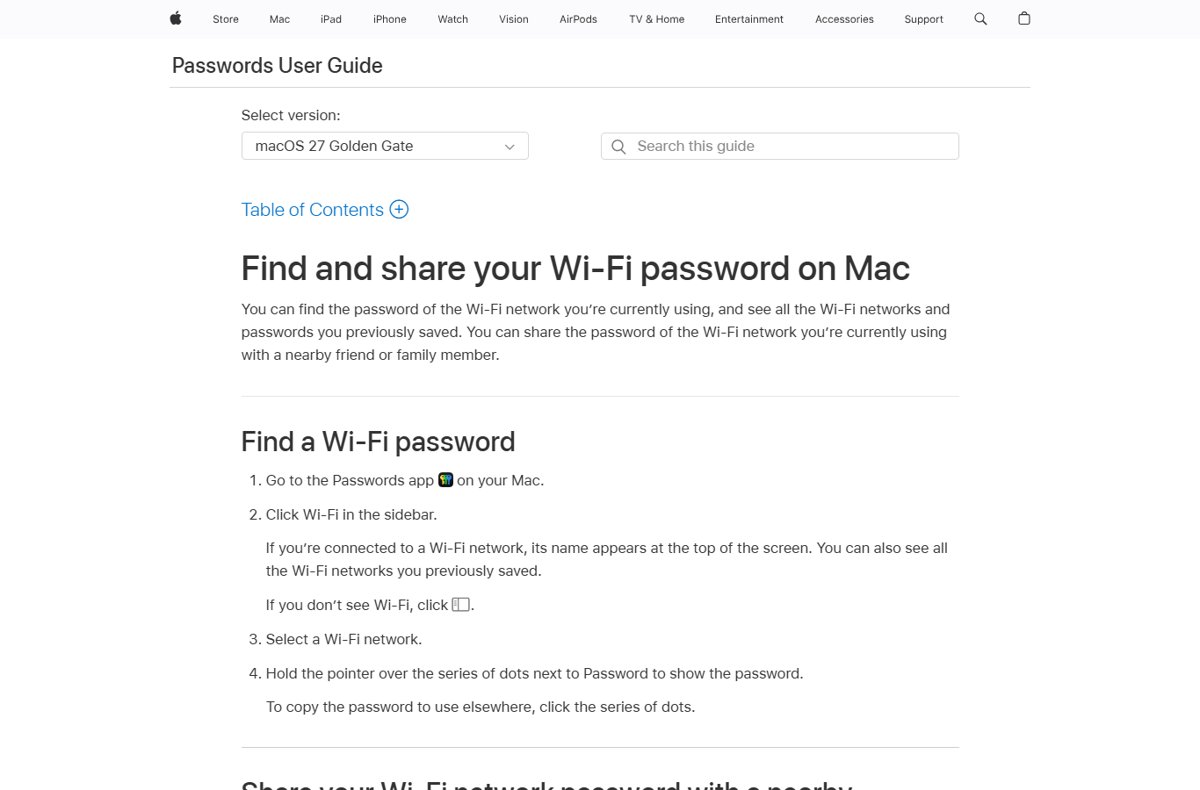
The Passwords app on macOS Sequoia and later shows the current network and every network the Mac saved before.
- Open the Passwords app on your Mac.
- Click Wi-Fi in the sidebar.
- Select the Wi-Fi network; the current one appears at the top.
- Hold the pointer over the dots next to Password to show it.
- Click the dots to copy the password, or click Show Network QR Code for someone to scan.
Find the WiFi password on iPhone
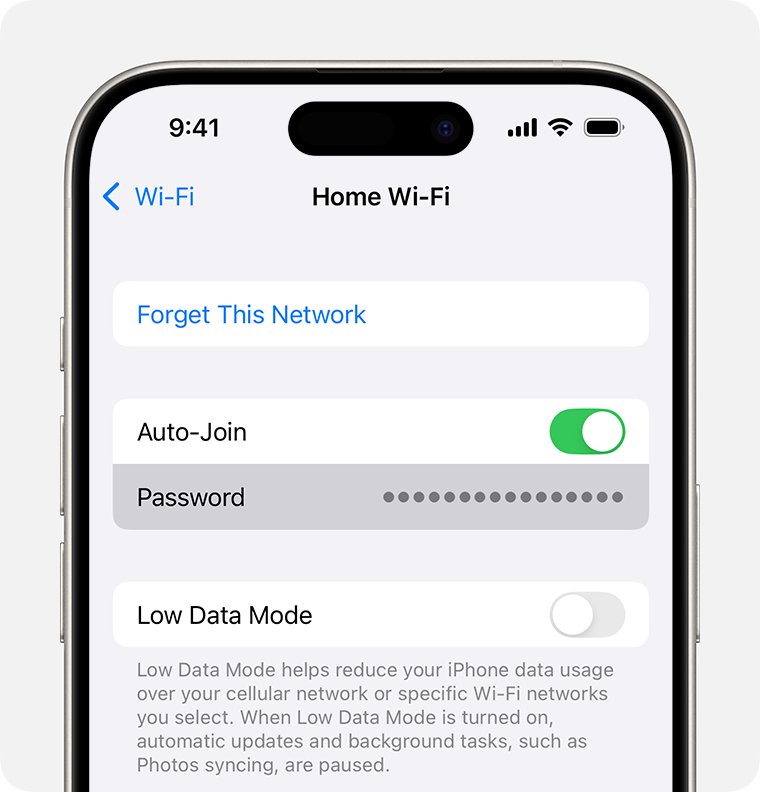
iOS 16, iPadOS 16.1 and later let you reveal saved Wi-Fi passwords with your passcode, Face ID or Touch ID.
- Open the Settings app and tap Wi-Fi.
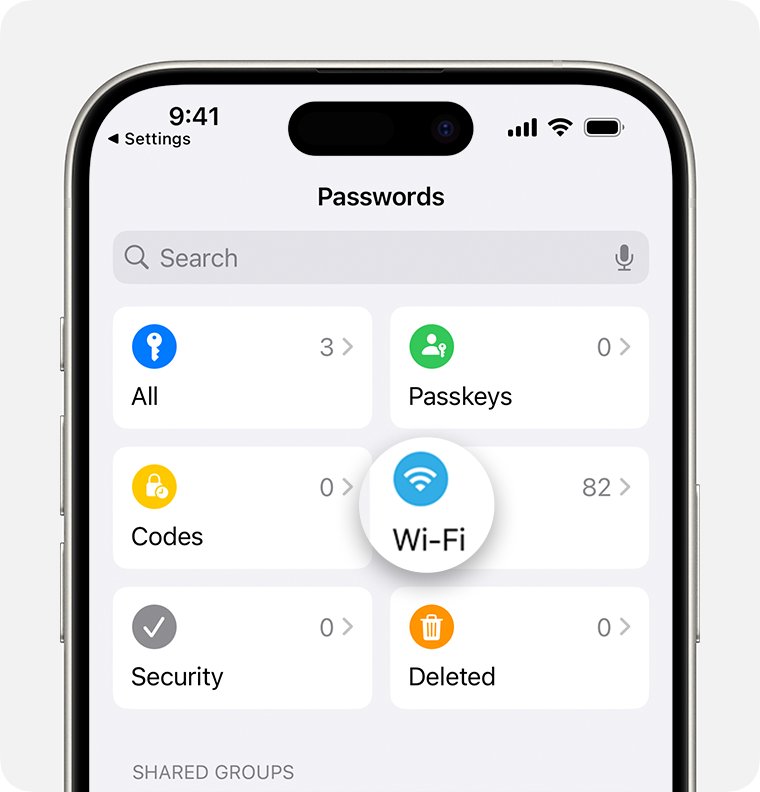
- Find the network you are using and tap the Info button next to it.
- Tap the Password field.
- Unlock with your passcode, Face ID or Touch ID to reveal the password.
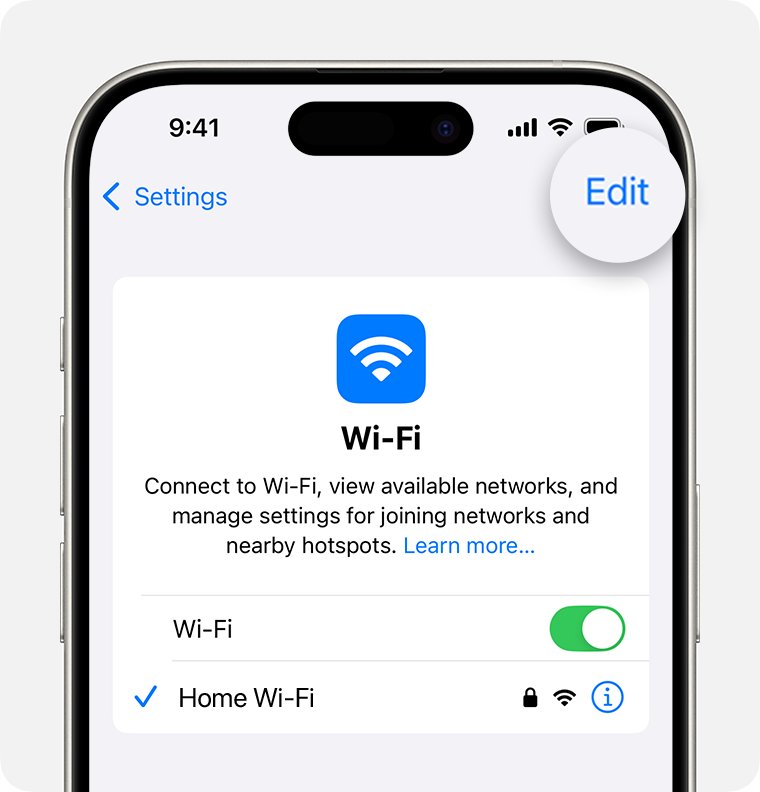
- For an older network, tap Edit on the Wi-Fi screen, unlock, then tap the Info button next to the network and tap Password.
On iOS 18, the Passwords app also lists saved Wi-Fi passwords. You can also share your WiFi password from iPhone to a nearby Apple device without reading it out.
Find the WiFi password on your Android phone
Android shares a saved network as a QR code. Some of these steps work only on Android 12 and later.
- Open your phone's Settings app.
- Tap Network & internet > Internet.
- Tap your Wi-Fi network.
- Tap Share.
- Have the other device scan the QR code to join the network.
Alternative solutions when no device shows the password
If every device has forgotten the network, the password has to come from the router or the person who manages it.
| Situation | What to do | Why |
|---|---|---|
| Another Apple device is already connected | Tap the network on the new device and accept Share Password on the connected one | Passes the password without revealing it |
| A Windows 11 PC or Android phone is connected | Scan the Wi-Fi QR code from Properties or Share | The new device joins without typing |
| No device remembers the network | Check the router label or manual, or sign in to the router's admin page | The router holds the current password |
| Router rented from your internet provider | Use the provider's app or account page, or contact support | Providers manage their own router settings |
| Work or school network | Ask the IT department | These networks often use sign-in accounts, not one shared password |
Tips for managing WiFi passwords
| Tip | How |
|---|---|
| Store it once, find it anywhere | Turn on iCloud Keychain so Wi-Fi passwords sync across your Apple devices |
| Share by QR code, not by text message | Use the QR code in Windows 11, the Mac Passwords app or Android Share |
| Use a long passphrase | WPA2 personal networks accept 8 to 63 characters; longer is harder to guess |
| Change it when people move out | Update it in the router, then reconnect each device |
| Delete exported profile files | Remove any XML file created with key=clear after reading it |
When it is time for a new one, change your Wi-Fi password on the router and reconnect your devices.
MAC addresses: find your Wi-Fi adapter's MAC address
A router's device list and MAC filter identify each device by its MAC address. Run getmac in Command Prompt to see the address of every network adapter; you can also find the MAC address on Mac, iPhone or Android from their settings.
getmac /fo table /nh /vgetmac returns the MAC address of each network card. /fo table formats the output as a table, /nh hides the column headers and /v adds verbose details such as the adapter name.
You should see: One line per adapter appears; the Wi-Fi line shows its physical address as six pairs of characters.
Changing your MAC address with random hardware addresses
Windows can use random hardware addresses so public networks cannot track your device by its real MAC address. Your Wi-Fi hardware must support the feature.
- Open Settings > Network & internet > Wi-Fi.
- Turn on Random hardware addresses to use them on all networks.
- To use them on one network only, select Manage known networks and choose the network.
- Turn on Random hardware addresses for that network; it applies the next time you connect.
If your router filters devices by MAC address, a random address can block the connection. Turn the option off for that network if it stops connecting.
Check that the WiFi password you found is correct
- On a second device, open its Wi-Fi list and select the same network name.
- Type the password exactly, including uppercase letters and symbols.
- Confirm the device shows Connected and can open a website.
- If it is rejected, check that you picked exactly the network name the first device saved.
Still not working? Fix a WiFi password that will not show
Your network does not appear in the netsh list
This PC never connected to that network, or its profile was removed.
- Run
netsh wlan show profilesagain and check the exact spelling of each profile. - Use another device that has joined the network.
- If none has, get the password from the router or its administrator.
There is no Show button for the Wi-Fi network password
The PC is not connected to that network right now.
- Open Network & internet > Wi-Fi > Manage known networks.
- Select the network from the saved list.
- Select Show next to Wi-Fi network password.
The exported file shows a long encrypted key
The profile was exported without key=clear.
- Open Command Prompt as administrator.
- Run the export command again with
key=clearat the end. - Open the new XML file and read the
<keyMaterial>value.
iPhone has no Password field
The iPhone runs a version older than iOS 16.
- Update the iPhone to iOS 16 or later with Software Update, if the model supports it.
- Return to Settings > Wi-Fi > Info and tap Password.
Frequently asked questions about finding your WiFi password
How do I find my WiFi password on my computer?
On Windows 11, open Settings > Network & internet > Properties and select Show next to Wi-Fi network password. On a Mac, open the Passwords app and click Wi-Fi. Both need a computer that has joined the network.
How do I find my WiFi password on Windows 10?
Open Network and Sharing Center, select your Wi-Fi name next to Connections, then select Wireless Properties. On the Security tab, tick Show characters to reveal the password.
How do I find my WiFi password on iPhone?
Open Settings > Wi-Fi, tap the Info button next to your network, then tap Password and unlock with Face ID, Touch ID or your passcode. This needs iOS 16 or later.
Can I find my WiFi password on my phone?
Yes. An iPhone on iOS 16 or later shows it under Settings > Wi-Fi > Info > Password. Android shows a QR code under Settings > Network & internet > Internet > your network > Share that another device can scan.
How do I know the WiFi password when connected?
Any connected device can reveal it. On Windows 11 select Show under Properties in Network & internet; on iPhone tap Password in the network's info screen; on a Mac use the Passwords app's Wi-Fi section.
Can I find my WiFi password on my laptop if it never connected?
No. A laptop only stores passwords for networks it has joined. Use a phone or PC that has connected, or read the password from the router label, the router's admin page or your internet provider's app.
What if my network does not appear in the netsh list?
The PC has no saved profile for that network, so there is no password to read. Check the spelling in netsh wlan show profiles, then use another device that has joined the network or get the password from the router.
Is using key=clear safe?
It is safe on your own PC, but it writes the password into a readable XML file. Anyone who opens that file sees the key, so delete the exported file once you have copied the password.
Quick summary: the fastest way to find your WiFi password
Use the device that is already connected: Settings > Network & internet > Properties on Windows 11, the Passwords app on a Mac, or Settings > Wi-Fi > Info on iPhone. Each one shows the saved password in a few taps, while the CMD export and the router route are only needed when no connected device can display it.


![Rockstar Games Launcher not working on Windows PC [Fix]](https://techdows.com/wp-content/uploads/2026/10/Rockstar-Games-Launcher-not-working-on-Windows-PC-Fix-600x338.jpg)