To reset the Mail cache on iPhone, remove the email account in Settings > Apps > Mail > Mail Accounts and add it again, which makes Mail download a fresh copy of your mail.
iOS has no single "clear cache" button for Mail, so this guide covers every route that does the same job, plus the cache controls for Outlook, Messages, Safari and other apps.
Fastest way to reset the Mail cache on iPhone
Removing an account deletes its downloaded messages and attachments from the iPhone only. Mail stored on the server (iCloud, Gmail, Outlook.com, Exchange or IMAP) stays where it is and downloads again after you sign back in.
- Open the Settings app.
- Tap Apps, then tap Mail.
- Tap Mail Accounts, then tap the account whose mail looks wrong or takes up space.
- Tap Sign Out or Delete Account and confirm.
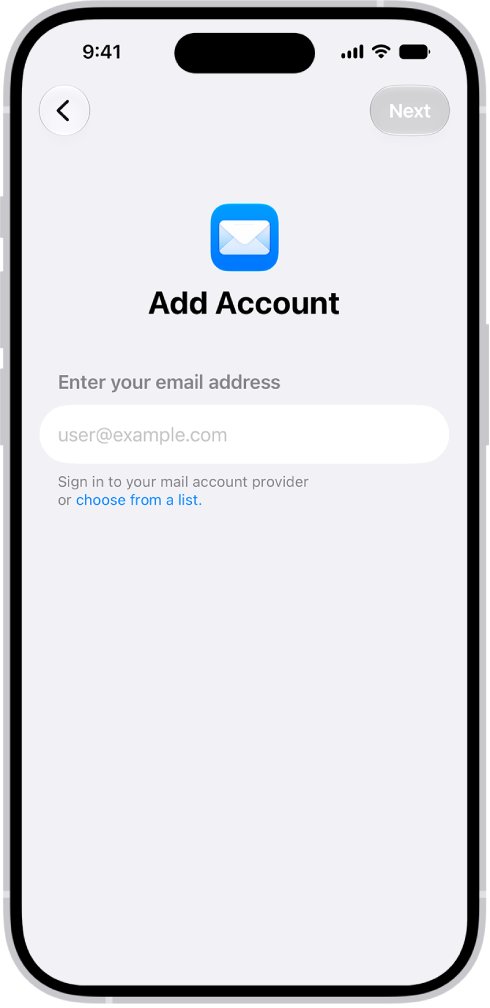
- Go back to Mail Accounts and tap Add Account.
- Enter your email address, tap Next, then enter the account details.
- Open Mail and leave it on Wi-Fi while the mailboxes download again.
For an iCloud account, you can instead turn off Use on this iPhone and turn it back on, which keeps you signed in to iCloud for everything else.
Does iPhone Mail have a clear cache option?
No. Apple states that cached and temporary files are removed by the system when it needs space, and the system cannot delete cached files on request. What you can control is the data each app keeps.
| What is stored | Where it lives | How to clear it |
|---|---|---|
| Downloaded emails and attachments | Mail app, per account | Remove and re-add the account |
| Mail app and all its local data | Mail app | Delete Mail in iPhone Storage, then reinstall it |
| Deleted emails in Trash | Trash mailbox | Empty Trash or shorten the Remove interval |
| Outlook app data | Outlook for iOS | Reset Account inside Outlook |
| Texts and attachments | Messages app | Delete attachments or set Keep Messages |
| Web history, cookies and cache | Safari | Clear History and Website Data |
| Temporary system cache | iOS | Managed by iOS; a restart can release some of it |
Which Mail cache fix should you use on iPhone?
| Your situation | Use this | Why |
|---|---|---|
| One account shows old, missing or duplicate emails | Remove and re-add that account | Rebuilds that account's local copy only |
| Every account in Mail misbehaves or Mail is huge | Delete and reinstall Mail | Removes all Mail data and settings on the device |
| Mail storage is large but working | Empty Trash and delete old attachments | Keeps your accounts signed in |
| You use Microsoft Outlook, not Apple Mail | Reset Account in Outlook | Microsoft's own refresh for the app |
| Messages takes the space, not Mail | Delete attachments or change Keep Messages | Texts and photos are stored separately from email |
| Websites load stale pages | Clear Safari website data | Safari's cache is separate from Mail |
Remove and re-add an email account in iPhone Mail
Use this when one account shows wrong folders, old messages or emails that will not download from the server. Removing the account also removes it from other apps that use it, such as Calendar or Contacts, until you add it back.
- Make sure you know the account password, or have a sign-in code ready for accounts with two-step verification.
- Go to Settings > Apps > Mail > Mail Accounts.
- Tap the account, then tap Delete Account (or Sign Out for some account types).
- Restart the iPhone so any leftover temporary data is released.
- Return to Mail Accounts, tap Add Account and sign in again.
Removing an account does not cancel or close it. It only takes the account off this iPhone.
Delete and reinstall the Mail app to clear all Mail data
Deleting a built-in Apple app also deletes its related user data and configuration files, so this clears Mail's local data for every account at once. Your mail on the server is not affected.
- Go to Settings > General > iPhone Storage.
- Wait for the list to load, then tap Mail.
- Check how much space Mail uses, then tap Delete App and confirm.
- Open the App Store and search for Mail using the exact name.
- Tap the download icon and wait for Mail to reinstall.
- Open Mail and sign in to any accounts that do not reappear.
You can also touch and hold the Mail icon on the Home Screen, tap Remove App, then tap Delete App.
Clear deleted emails from Trash on iPhone
Deleted emails stay in Trash until the account removes them, and they still count toward Mail storage. Shortening the interval keeps Trash small without signing out.
- Go to Settings > Apps > Mail > Mail Accounts.
- For iCloud, tap iCloud, then tap Mailbox Behaviors.
- For any other account, tap the account, tap Account Settings, then tap Advanced.
- Tap Remove and pick a shorter time interval.
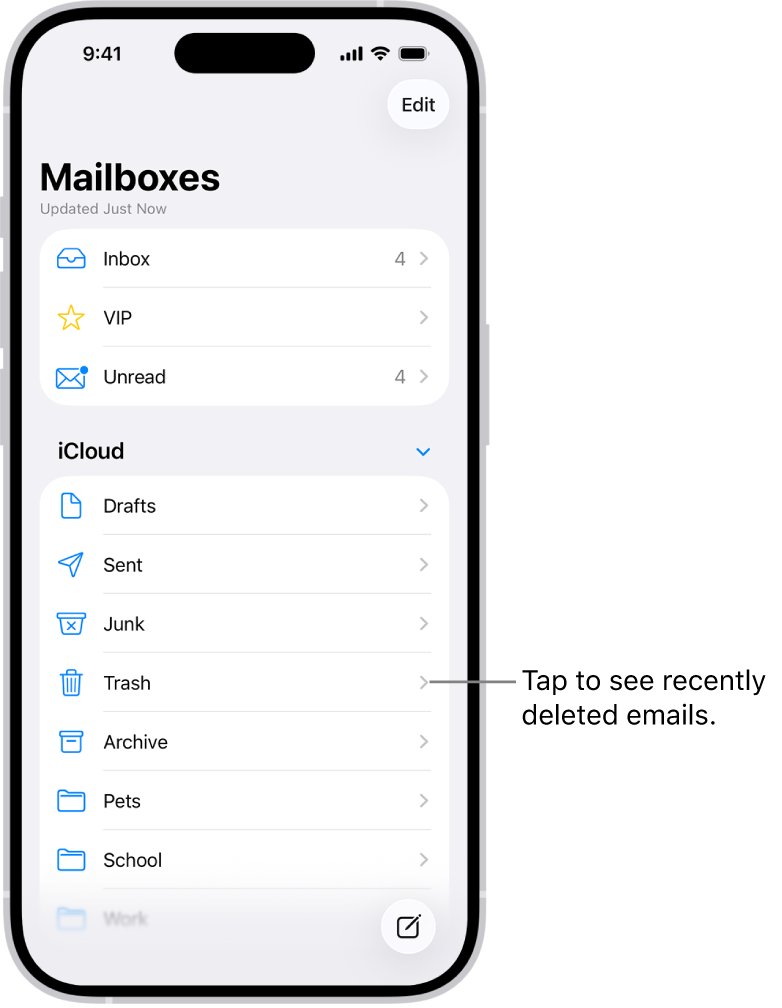
- To empty Trash now, open Mail, go to Mailboxes, tap Trash, tap Select, select the messages, and delete them.
Some providers override this setting. iCloud, for example, never keeps deleted messages longer than 30 days.
How to clear Outlook cache on iPhone
Microsoft Outlook for iOS keeps its own data, separate from Apple Mail. Microsoft's fix for incomplete or wrong data is to restart the app first, then reset the account.
- Swipe up from the bottom of the screen and pause to open the app switcher.
- Swipe the Outlook card up to close it, then open Outlook again.
- If the data is still wrong, open Settings inside Outlook.
- Select the email account that shows the problem.
- Tap Reset Account and let Outlook download the account again.
How to clear message cache on iPhone
Photos, videos and other attachments in Messages are often the largest item in iPhone Storage. Deleted texts go to Recently Deleted for up to 30 days before the space is freed.
- Open Messages and open a conversation with many photos or videos.
- Tap the contact or group icon at the top, then tap a category such as Photos.
- Tap Edit, tap Select, choose the attachments, tap the delete icon and confirm.
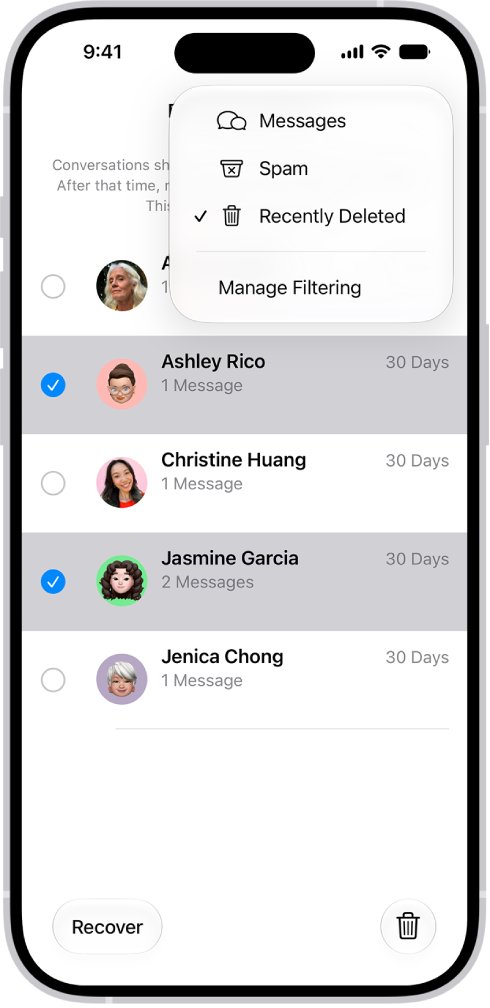
- In the conversation list, open Recently Deleted, select conversations and tap Delete to free the space now.
- To stop old texts building up, go to Settings > Apps > Messages > Keep Messages and choose a shorter period than Forever.
Any option other than Forever removes older conversations and their attachments automatically. With Messages in iCloud on, deletions apply to all your devices.
How to clear cache on iPhone settings for Safari
Links you open from an email load in Safari, so a stale page after tapping a link is a Safari cache issue, not a Mail one.
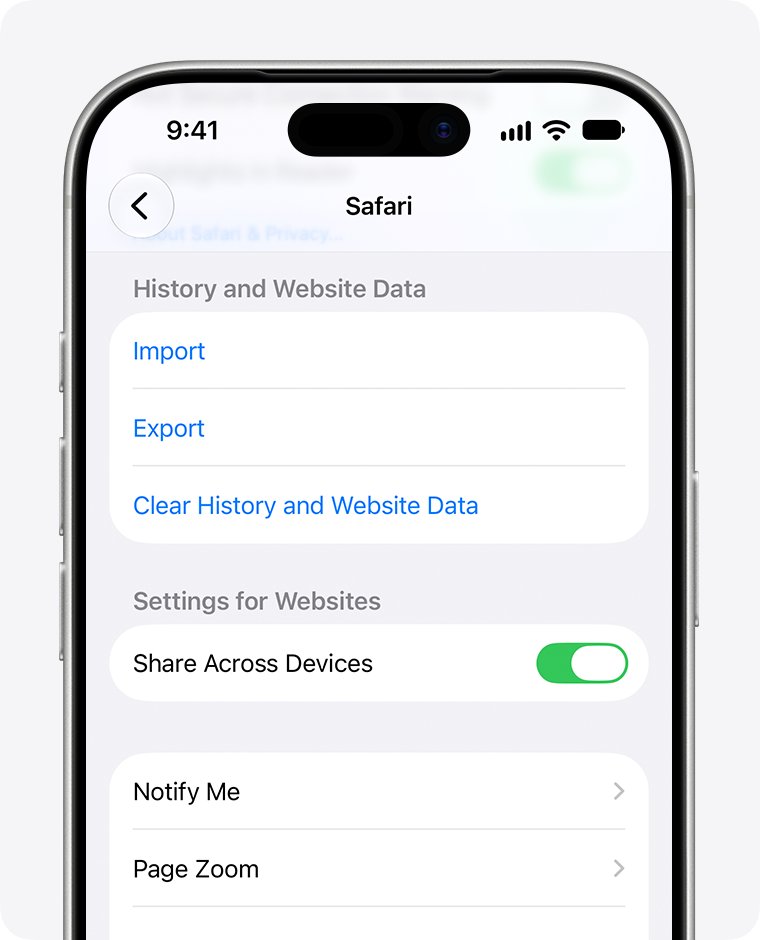
- Go to Settings > Apps > Safari.
- Tap Clear History and Website Data, choose a timeframe, then tap Clear History.
- To keep history but remove cookies and cache, tap Advanced > Website Data instead.
- Tap Remove All Website Data, then tap Remove Now.
How to reset app cache on iPhone with Offload App
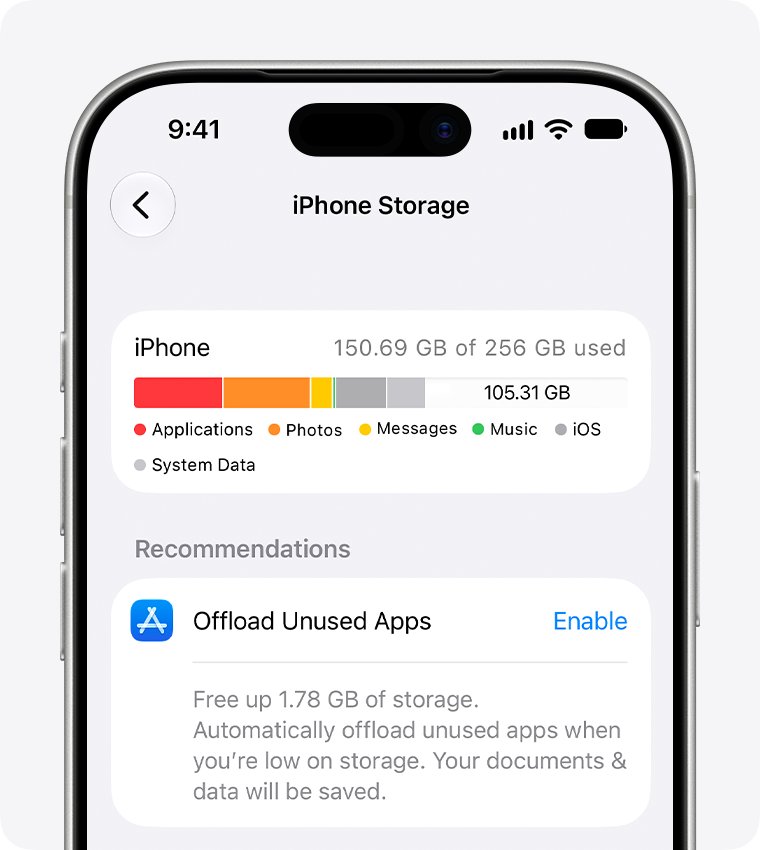
Offloading frees the storage an app uses but keeps its documents and data. Deleting removes the app and its data. Choose Delete App when you want a truly fresh start.
- Go to Settings > General > iPhone Storage.
- Tap the app that uses the most space.
- Tap Offload App to keep its data, or Delete App to remove the data too.
- Tap the app's icon on the Home Screen, or find it in the App Store, to reinstall it.
- To let iOS do this automatically when storage is low, go to Settings > Apps > App Store and turn on Offload Unused Apps.
How to check Mail storage on iPhone after clearing it
- Go to Settings > General > iPhone Storage.
- Wait for the bar at the top to finish calculating.
- Tap Mail and compare the size with the figure before you started.
- Open Mail and check that the inbox and folders show current messages.
- Open an older email with an attachment and confirm it downloads and opens.
The figure can take a moment to update after you delete data. Apple notes that cached and temporary data might not count toward an app's listed usage.
iPhone Mail cache problems and fixes
Mail still uses a lot of space after removing an account
Other accounts or Trash still hold downloaded messages, or the storage figure has not refreshed.
- Remove and re-add each remaining account one at a time.
- Empty Trash in every account.
- Restart the iPhone, then check iPhone Storage again.
Old or missing emails after clearing the cache
Mail is still downloading, or the fetch schedule waits for Wi-Fi and charging.
- Connect to Wi-Fi and keep Mail open for a few minutes.
- Go to Settings > Apps > Mail > Mail Accounts > Fetch New Data.
- Choose a timed schedule under Fetch instead of Automatically for accounts without Push.
The Delete App option is missing for Mail
Some Apple apps can be removed from the Home Screen but not deleted, depending on iOS version and region.
- Use the remove and re-add account method instead.
- Restart the iPhone after removing the accounts.
Clear History and Website Data is gray in Safari
There is no data to clear, or Screen Time web content restrictions are on.
- Check whether Screen Time web content restrictions are on for this iPhone.
- Ask the person who manages Screen Time to allow website data changes.
Outlook still shows wrong data after Reset Account
The problem is on the account or server side, not in the app's cache.
- Sign in to the same account in a web browser and check whether the mail looks the same there.
- If the web view is also wrong, contact your email provider or IT admin.
iPhone Mail cache FAQ
How do I clear mail cache on iPhone?
Go to Settings > Apps > Mail > Mail Accounts, tap the account, tap Delete Account, then add it again. This removes downloaded messages from the iPhone and fetches a fresh copy from the server.
How do I clear email cache on iPhone without losing emails?
Emails stored on an IMAP, Exchange, iCloud or Gmail server are not lost when you remove the account from the iPhone. Only POP accounts can keep mail on the device alone, so check your account type before removing it.
How to reset cache on iPhone?
iOS manages its own temporary cache and cannot clear it on request. You can clear an app's stored data by deleting and reinstalling the app, clear Safari with Clear History and Website Data, and restart the iPhone.
How to reset app cache on iPhone?
Go to Settings > General > iPhone Storage, tap the app, and choose Delete App, then reinstall it from the App Store. Offload App frees the app's storage but keeps its documents and data, so it does not reset the app.
How to clear cache on iPhone settings?
Settings has cache controls for Safari under Settings > Apps > Safari > Clear History and Website Data. For other apps, use Settings > General > iPhone Storage to offload or delete them.
How to clear outlook cache on iPhone?
Close and reopen Outlook first. If the data is still wrong, open Settings inside Outlook, select the email account, and tap Reset Account.
How to clear message cache on iPhone?
Delete large attachments from conversation details, empty Recently Deleted in Messages, and set Settings > Apps > Messages > Keep Messages to a period shorter than Forever to remove older texts automatically.
How to reset cache on iPhone 14?
The steps are the same on iPhone 14 and every other iPhone running current iOS. The menu names depend on the iOS version, not the iPhone model.
How to reset cache on iPad?
iPad uses the same tools: remove and re-add email accounts in Mail settings, and use Settings > General > iPad Storage to delete or offload apps.
How to delete cache from iPhone without deleting apps?
Clear Safari website data, empty Trash in Mail, delete Messages attachments, and restart the iPhone. These free space without removing any app.
Best way to reset the Mail cache on iPhone
Remove and re-add the problem account first, and delete and reinstall Mail only when every account is affected. Re-adding one account rebuilds its local copy in minutes and leaves your other accounts and settings alone, while reinstalling Mail resets all of them.
If Mail still freezes after a reset, a soft reset of the iPhone usually clears it, and a force restart helps when the screen stops responding. Large files are better sent with Mail Drop so they do not fill Sent mail on the iPhone.