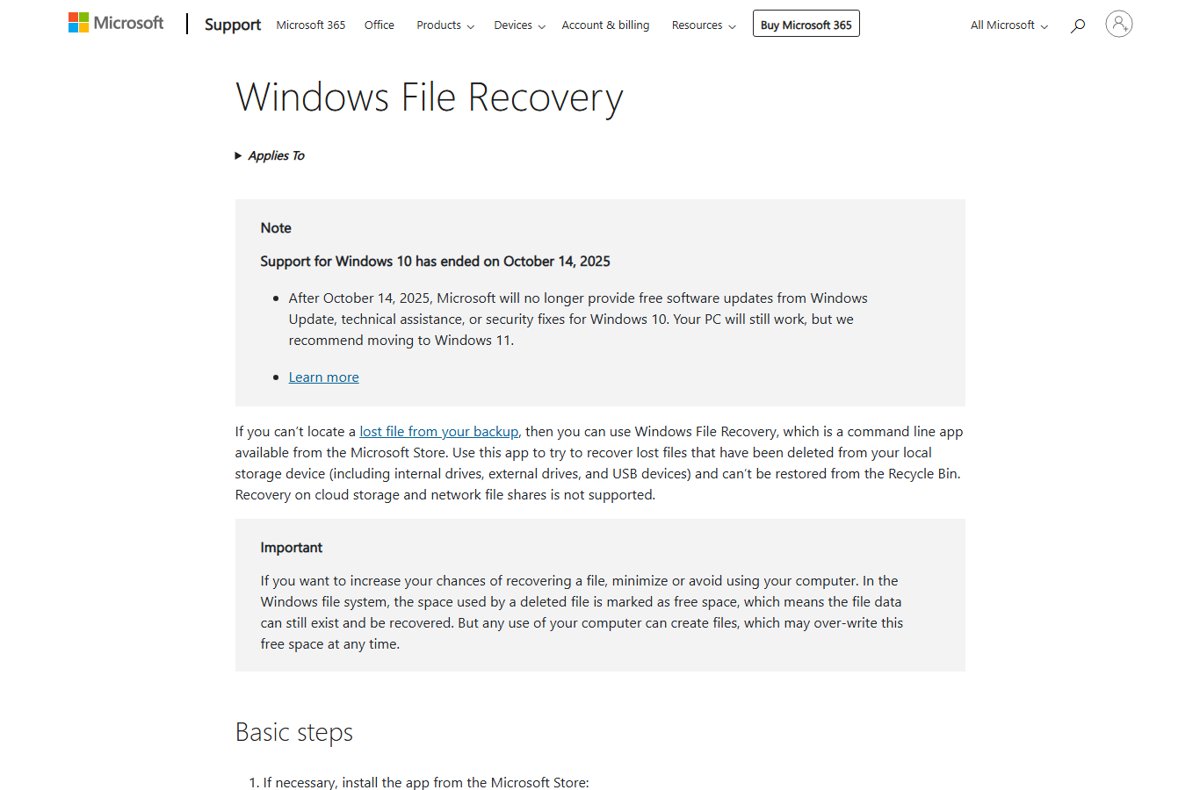
Install the free Windows File Recovery app from the Microsoft Store, open it, and run a command such as winfr C: E: /regular /n \Users\<username>\Documents\ to copy deleted files from the lost drive to a different one.
This guide covers setup, the command format, choosing Regular or Extensive mode, ready-made commands for SSDs, USB drives and SD cards, and fixes for the common errors.
Set up Windows File Recovery and restore deleted files fast
Stop using the affected drive as soon as you notice the loss. Every new file you save can overwrite the space that still holds the deleted data.
- Open Microsoft Store, search for Windows File Recovery and select Get.
- Plug in a second drive, such as a USB flash drive, to receive the recovered files.
- Type Windows File Recovery in Start search and open the app.
- Select Yes when Windows asks to allow the app to make changes.
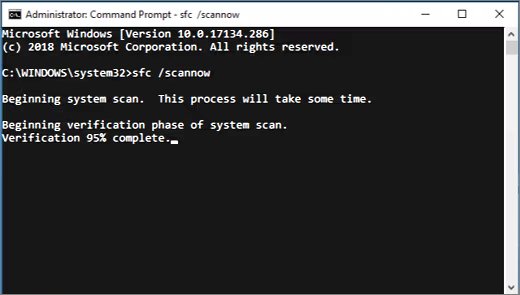
- Type a command in the format
winfr source-drive: destination-drive: /mode /switchesand press Enter. - Press Y to confirm and start the scan.
- Open the Recovery_ folder that the app creates on the destination drive.
Press Ctrl + C at any time to stop a scan that is running.
Windows File Recovery prerequisites
| Requirement | Detail |
|---|---|
| Operating system | Windows 11 or Windows 10; support for Windows 10 itself ended on October 14, 2025 |
| App | Windows File Recovery, free from the Microsoft Store |
| Permissions | Administrator approval when the app starts |
| Second drive or partition | The destination must differ from the drive you are recovering from |
| Free space | Enough room on the destination for every file the scan finds; clean up system files first if C: will receive them |
| Drive letter | The source drive must show up with a letter in File Explorer |
What Windows File Recovery can recover
The app restores files deleted from local storage that are no longer in the Recycle Bin. It reads internal drives, external drives and USB devices.
| Storage or situation | Supported? | Notes |
|---|---|---|
| Internal SSD or hard drive (NTFS) | Yes | Regular mode for recent deletions, Extensive mode otherwise |
| USB flash drive | Yes | Small drives formatted FAT or exFAT need Extensive mode |
| SD card | Yes | FAT and exFAT cards support Extensive mode only |
| Formatted disk | Yes | Use Extensive mode |
| Corrupted disk | Yes | Use Extensive mode |
| Cloud storage such as OneDrive | No | Use the service's own recycle bin instead |
| Network file shares | No | Not supported by the app |
Step 1: Install the Windows File Recovery app
- Select Start and open Microsoft Store.
- Type Windows File Recovery in the search box and press Enter.
- Open the Windows File Recovery listing published by Microsoft.
- Select Get and wait for the download to finish.
- Close the Store; the app now appears in the Start menu.
Install the app before a loss if you can. Downloading it after a deletion writes new data to the system drive.
Step 2: Understand the basic command format
Every recovery uses the same pattern: the drive you lost files from, the drive that receives them, a mode, and optional filters.
winfr source-drive: destination-drive: [/mode] [/switches]source-drive: is the drive where the files were lost. destination-drive: is where the copies go. /regular or /extensive picks the mode. /n adds a filter by file name, path, type or wildcard, and you can repeat /n to add more.
You should see: The app shows a summary of the source, destination and mode, then asks you to press Y to continue.
Type drive letters with a colon and put a space between the source and destination. Wrap any path that contains spaces in quotes.
Step 3: Check the file system of the drive
The file system decides which mode you can use, so check it before you build the command.
- Press Windows + E to open File Explorer.
- Select This PC in the left pane.
- Right-click the drive that held the deleted files and select Properties.
- Read the File system line on the General tab.
- Note whether it says NTFS, FAT32 or exFAT.
Step 4: Choose the right recovery mode
Regular mode is quick and works on healthy NTFS drives. Extensive mode scans deeper, works on every file system, and takes much longer.
| File system | Your situation | Use this mode | Why |
|---|---|---|---|
| NTFS | Deleted recently | Regular mode (/regular) |
Fastest scan of a healthy drive |
| NTFS | Deleted a while ago | Extensive mode (/extensive) |
Finds older file fragments |
| NTFS | After formatting the disk | Extensive mode | The file table no longer lists the files |
| NTFS | Corrupted disk | Extensive mode | Regular mode needs an intact drive |
| FAT or exFAT (SD cards, small flash drives) | Any | Extensive mode | Regular mode does not support these file systems |
| Not sure | Any | Regular first, then Extensive | Regular finishes quickly if it works |
Step 5: Open Windows File Recovery as administrator
- Select Start and type Windows File Recovery.
- Select the app in the search results.
- Select Yes in the User Account Control prompt.
- Wait for the Command Prompt window that shows the winfr usage text.
- Type
winfr /?and press Enter to list the basic switches.
Step 6: Recover a deleted file or folder from an SSD
These commands recover from the C: drive to a USB drive mounted as E:. Replace <username> with your Windows account folder name, which is listed under Users when you open the C drive in File Explorer.
| Goal | Command | What it does |
|---|---|---|
| Recover your Documents folder | winfr C: E: /regular /n \Users\<username>\Documents\ |
Restores the deleted contents of Documents to a Recovery folder on E: |
| Recover all PDF and Word files from C: | winfr C: E: /regular /n *.pdf /n *.docx |
Restores every deleted .pdf and .docx file it finds on C: |
| Recover one file with spaces in its name | winfr C: E: /regular /n "\Users\<username>\Documents\Quarterly Statement.docx" |
Quotes keep the path together |
| Regular mode found nothing | Run the same command with /extensive in place of /regular |
Deeper scan of the same drive |
Always add /n filters when the source is the system drive. Without them the scan returns thousands of unrelated Windows files.
Step 7: Recover files from a USB drive or SD card
Here the removable drive is the source, so the destination can be your C: drive. Open the SD card in File Explorer first to check its letter; these examples use E:.
- Connect the USB drive or SD card and note its drive letter in File Explorer.
- Open Windows File Recovery and select Yes at the prompt.
- Recover photos from an SD card with
winfr E: C: /extensive /n *.jpg /n *.png. - Recover files containing the word invoice with
winfr E: C: /extensive /n *invoice*. - Recover pictures from a specific folder by naming its path, for example
winfr C: E: /extensive /n \Users\<username>\Pictures\*.JPEG /n \Users\<username>\Pictures\*.PNG. - Press Y to start and leave the drive connected until the scan ends.
FAT and exFAT cards only work with /extensive. A Regular-mode command on them will not recover anything.
Step 8: Review the recovered files
- Open File Explorer and go to the destination drive.
- Open the folder named Recovery_ followed by the date and time of the scan.
- Browse the subfolders, which mirror the original paths where the app could read them.
- Open a few recovered files to confirm they are intact and not blank or garbled.
- Copy the good files to their final location, then delete the Recovery folder to free space.
A file that opens with an error was partly overwritten before the scan. Run Extensive mode once more or restore it from a backup.
Windows File Recovery advanced switches
Type winfr /! to see the advanced syntax. The switches below change what the scan returns and how it behaves.
| Switch | What it does | Modes |
|---|---|---|
/n <filter> |
Filters by file name, path, type or wildcard | All |
/p:<folder> |
Saves the log file to a folder you choose | All |
/a |
Accepts all prompts, for use in scripts | All |
/u |
Recovers undeleted files, such as items still in the Recycle Bin | NTFS, Segment |
/k |
Recovers system files | NTFS, Segment |
/o:<a|n|b> |
Overwrites always (a), never (n) or keeps both (b) when a file already exists | NTFS, Segment |
/e |
Removes the default file type exclusion filter | NTFS, Segment |
/y:<types> |
Recovers chosen extension groups | Signature |
/# |
Lists the extension groups and the file types in each | Signature |
Useful tips for Windows File Recovery
| Tip | Why it matters |
|---|---|
| 1. Use filters to reduce clutter | /n *.docx or a folder path returns only what you need instead of every recoverable file |
| 2. Keep the destination drive separate | Writing recovered files to the source drive can overwrite the data you are trying to save |
| 3. Try again with Extensive mode | Files Regular mode misses are often still found by the deeper scan |
| 4. SSD recovery can be hit-or-miss | Free space on a solid-state drive is often overwritten quickly, so success drops with time |
| 5. Use /? for help | winfr /? shows the basic syntax and winfr /! shows every advanced switch |
| Do not create a new partition after data loss | Repartitioning writes to the disk and lowers the chance of recovery |
Windows File Recovery troubleshooting notes
Problem: “Source and Destination cannot refer to the same physical partition”
The command uses the same drive, or the same partition, for both source and destination.
- Connect a USB flash drive or external disk.
- Note its drive letter in File Explorer.
- Run the command again with that letter as the destination, for example
winfr C: E: /regular /n *.pdf.
Problem: No files were recovered
Regular mode could not see the files, a filter did not match, or the space was overwritten.
- Run the same command with
/extensiveinstead of/regular. - Check that each
/npath starts after the drive letter, such as\Users\<username>\Documents\. - Loosen the filter, for example
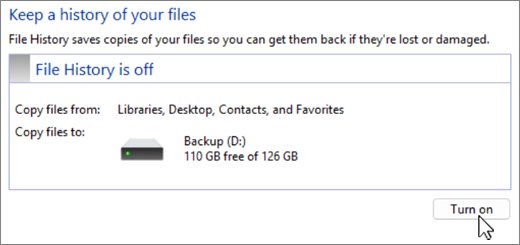
*invoice*instead of an exact file name. - Restore from File History, OneDrive or another backup if the scan still finds nothing.
Problem: Recovery is taking a long time
Extensive mode reads the whole drive, which takes a long time on large disks.
- Leave the scan running and keep the PC awake.
- Press Ctrl + C to stop it if you need to narrow the search.
- Add
/nfilters for the file types or folders you need and run it again.
Problem: Too many unwanted files are returned
The command has no filter, so the app recovers everything it can read.
- Delete the large Recovery folder from the destination.
- Add
/nfilters such as/n *.jpgor a folder path. - Run the filtered command again.
Problem: Destination drive is full
The recovered files need more space than the destination has free.
- Choose to skip the file or abort when the app reports the destination is full.
- Free space on the destination, or connect a larger drive.
- Choose resume to continue, or rerun the command with tighter
/nfilters.
Windows File Recovery FAQ
Is Windows File Recovery free?
Yes. Windows File Recovery is a free Microsoft app distributed through the Microsoft Store. It runs on Windows 11 and Windows 10 and works entirely from the command line, with no graphical interface.
Can Windows File Recovery restore files from an SD card?
Yes. SD cards usually use FAT or exFAT, so you must use Extensive mode, for example winfr E: C: /extensive /n *.jpg. Regular mode only supports NTFS drives.
Can Windows File Recovery recover files from an SSD?
Sometimes. Solid-state drives often overwrite free space quickly after a deletion, so recovery chances fall fast. Stop using the drive, scan as soon as possible, and try Extensive mode if Regular mode finds nothing.
Where does Windows File Recovery save recovered files?
It saves them in a folder named Recovery_ followed by the date and time, on the destination drive you typed in the command. The destination must be a different drive or partition from the source.
What is the difference between Regular and Extensive mode?
Regular mode is a fast scan for recently deleted files on healthy NTFS drives. Extensive mode is a slower, deeper scan for older deletions, formatted or corrupted disks, and FAT or exFAT devices.
Can I recover files to the same drive?
No. The source and destination must be different drives or partitions, or the app returns a same-partition error. Use a USB flash drive or external disk as the destination if your PC has only one drive.
Does Windows File Recovery work with OneDrive or network drives?
No. The app supports local internal, external and USB storage only. For OneDrive, restore files from the OneDrive recycle bin on the web instead.
How do I stop a Windows File Recovery scan?
Press Ctrl + C in the app window. The scan stops, and any files already recovered stay in the Recovery folder on the destination drive.
Bottom line: should you set up Windows File Recovery?
Install Windows File Recovery now, before you need it, and start every recovery with a filtered Regular-mode command on NTFS drives or an Extensive-mode command on SD cards and FAT or exFAT flash drives. The app is free and made by Microsoft, but recovery depends on how little the drive has been written to since the deletion, so speed and a separate destination drive matter more than any switch.