To clear the print spooler on Windows 11, stop the Print Spooler service in Services, delete every file in C:\Windows\System32\spool\PRINTERS, then start the service again.
This guide covers the Services method, the print queue in Settings, a three-line CMD fix, a reusable batch file, and what to do when files will not delete or the spooler keeps stopping. If clearing the spooler doesn't get jobs moving, the Windows 11 printer guide lists the next checks.
Clear printer spooler on Windows 11
Use this when cancelling jobs in the print queue does nothing and new documents pile up behind a stuck one. You need an administrator account.
- Press Windows key + R, type
services.msc, and press Enter. - Scroll down to Print Spooler, right-click it, and select Stop.
- Open File Explorer and go to
C:\Windows\System32\spool\PRINTERS. - Select every file in the folder and delete it.
- Back in Services, right-click Print Spooler and select Start.
- Send your document to the printer again.
Delete only the files inside PRINTERS, not the folder itself. Those files are the queued print jobs, so anything you deleted needs to be printed again.

Cancel print jobs or clear the spool folder: which to use
| Your situation | Use this | Why |
|---|---|---|
| One or two jobs are stuck and cancel works | Cancel jobs in the print queue | No admin tools, no service restart |
| Jobs say Deleting or Cancelling and never go | Clear the spool folder in Services | Removes the job files the spooler cannot release |
| You clear the queue often | Batch file or CMD commands | Stops, empties and restarts in one go |
| Printing froze but the queue looks empty | Restart the Print Spooler service | Resets the service without touching files |
| The spooler crashes again after clearing | Remove old or duplicate printer drivers | Faulty drivers are a common cause of spooler crashes |
Cancel all print jobs from the Windows 11 print queue
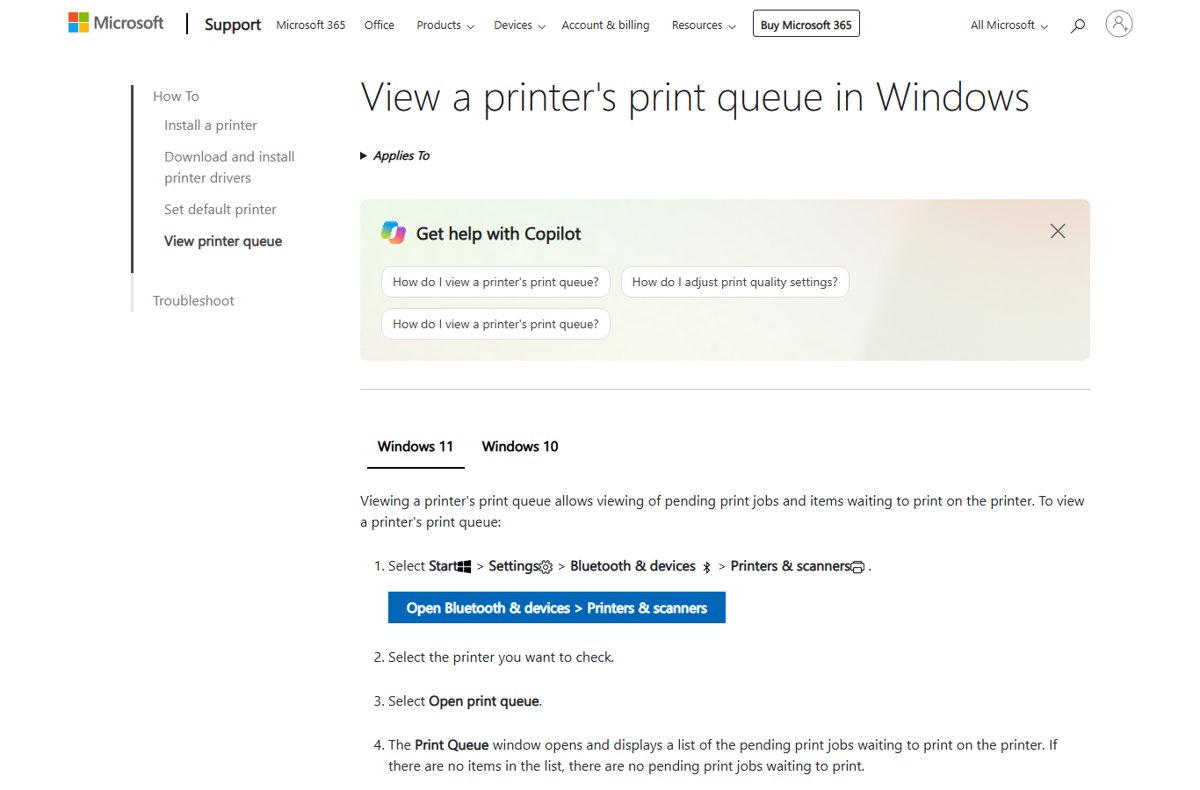
- Select Start > Settings > Bluetooth & devices > Printers & scanners.
- Select your printer.
- Select Open print queue.
- Right-click each print job and select Cancel.
- Repeat until the queue window lists no jobs.
If a job will not leave the list, use the spool folder method above. If the printer itself is missing from this page, list the installed printers to confirm Windows still sees it.
Clear print spooler in Windows 11 using CMD
The same three actions take three commands. Search for cmd, right-click Command Prompt, and select Run as administrator first.
- Type
net stop spoolerand press Enter to stop the Print Spooler service. - Type
del /q /f C:\Windows\System32\spool\PRINTERS\*and press Enter to delete every queued job without a prompt. - Type
net start spoolerand press Enter to start the service again. - Print a document to confirm the queue is moving.
In the del command, /q skips the confirmation prompt and /f removes read-only files as well. Deleted files cannot be recovered.
Create a batch file to clear the print spooler
A batch file saves typing if a printer keeps jamming the queue. It runs the same commands as the CMD method.
- Open Notepad.
- Type
net stop spooleron the first line. - Type
del /q /f C:\Windows\System32\spool\PRINTERS\*on the second line. - Type
net start spooleron the third line. - Save the file as
clear-spooler.bat, and check the name does not end in .txt. - Right-click the saved file and select Run as administrator whenever the queue sticks.
What the print spooler folder contains
| Item | Detail |
|---|---|
| Folder | C:\Windows\System32\spool\PRINTERS |
| What the files are | Print jobs waiting in the queue, including .shd files |
| Service that uses them | Print Spooler, service name spooler |
| Safe to delete? | Yes, once the Print Spooler service is stopped |
| What you lose | Any queued documents, which you resend after the spooler restarts |
| What stays | Installed printers and their drivers |
The Print Spooler service normally starts with Windows and runs until shutdown. If you only need to bounce the service without deleting anything, restart the Print Spooler instead.
How to check the print spooler is cleared
- Open
C:\Windows\System32\spool\PRINTERSand confirm the folder is empty. - Open
services.mscand confirm Print Spooler shows Running. - Open Settings > Bluetooth & devices > Printers & scanners, select the printer, and select Open print queue.
- Confirm the queue lists no pending jobs.
- Print a short document and watch it leave the queue.
Print spooler not clearing or keeps stopping on Windows 11
Files in the PRINTERS folder will not delete
The Print Spooler service is still running and holds the job files open.
- Open
services.mscand confirm Print Spooler is stopped. - Or run
net stop spoolerin an administrator Command Prompt. - Delete the files again, then start the service.
Print spooler keeps stopping on Windows 11
Conflicting, outdated or duplicate printer drivers crash the spooler.
- Select Start, type Device Manager, and open it.
- Expand Print queues or Printers.
- Uninstall old, unused or duplicate printer entries.
- Install the latest driver for your printer from the manufacturer's website.
- Restart the Print Spooler service.
Stuck job comes back after clearing the spooler
The printer or PC still holds the job in memory.
- Turn off the printer and wait at least 60 seconds.
- Turn the printer back on.
- Select Start > Power > Restart on the PC.
- Print again.
Print Spooler service won't start
A Group Policy setting disables it, or Windows logged a startup error for the print provider.
- On a work or school PC, ask your administrator whether policy disables the Print Spooler.
- Open Event Viewer and check the logs for print spooler errors.
- Update the printer driver, then try starting the service again.
Printer still not responding after clearing the queue
A connection, error state or driver problem rather than a stuck job.
- Check the cable, or that a wireless printer is on a working Wi-Fi network.
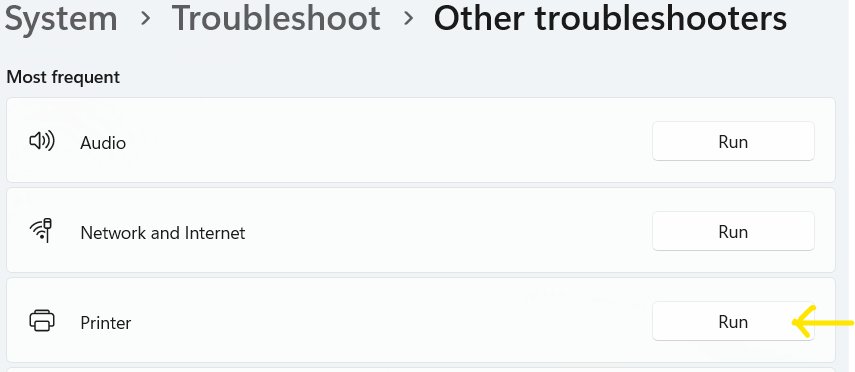
- Open Settings > System > Troubleshoot > Other troubleshooters.
- Select Run next to Printer and follow the prompts.
- Remove the printer and add it in Windows 11 again if the troubleshooter finds nothing.
Clear print spooler Windows 11 FAQ
How do I clear the print spooler in Windows 11?
Stop the Print Spooler service in services.msc, delete every file in C:\Windows\System32\spool\PRINTERS, then start the service again. Resend any documents you still need printed.
How do I clear the print spooler in Windows 11 with CMD?
Open Command Prompt as administrator and run net stop spooler, then del /q /f C:\Windows\System32\spool\PRINTERS\*, then net start spooler. The queue is empty once the service starts again.
How do I clear the print spooler in Windows 10?
The steps match Windows 11. Stop Print Spooler in Services, empty the C:\Windows\System32\spool\PRINTERS folder, and start the service. The CMD commands and batch file also work unchanged on Windows 10.
How do I clear the print queue in Windows 11?
Open Settings > Bluetooth & devices > Printers & scanners, select the printer, select Open print queue, then right-click each job and select Cancel. If jobs refuse to cancel, clear the spool folder instead.
Is it safe to delete print spooler files?
Yes, as long as the Print Spooler service is stopped first. The files in the PRINTERS folder are queued print jobs, so deleting them only removes those jobs. Printers and drivers stay installed.
Where are print spooler files stored in Windows 11?
Queued print jobs are stored in C:\Windows\System32\spool\PRINTERS. The folder should be empty when nothing is waiting to print.
Does restarting the print spooler clear the queue?
Restarting the Print Spooler service can clear stuck jobs and temporary faults. If the same job stays in the queue afterwards, stop the service, delete the files in the PRINTERS folder, and start it again.
Why does the print spooler keep stopping in Windows 11?
Conflicting, outdated or duplicate printer drivers are a common cause. Remove unused printer entries in Device Manager, install the latest driver from the printer maker, and restart the Print Spooler service.
Bottom line: cancel first, clear the spool folder second
Cancel jobs in the print queue first, and clear the spool folder only when a job refuses to leave. Cancelling keeps other queued documents, while clearing the folder removes every waiting job. If the spooler keeps jamming, fix the printer driver rather than clearing the queue every day.