Notepad has no word counter, so copy the text and run Get-Clipboard | Measure-Object -Word in PowerShell, or paste it into Microsoft Word and read the status bar.
This guide covers the character count Notepad does show, three ways to get a real word count, the Windows 11 Notepad features worth knowing, and fixes for high CPU and memory use.
How to count words in Notepad
Microsoft's Notepad release notes list a character count in the status bar, but no word count. The quickest built-in workaround is PowerShell, which ships with Windows 11 and Windows 10 and counts words in whatever text you copy.
- In Notepad, select the text you want to count, or press Ctrl + A to select the whole document.
- Press Ctrl + C to copy it.
- Press the Windows key, type
PowerShelland press Enter. - Type
Get-Clipboard | Measure-Object -Word -Line -Characterand press Enter. - Read the number under Words. The same output also shows Lines and Characters.
Because the command reads the clipboard, it counts only what you copied, which makes it the easiest way to count words in a selected paragraph.
Which Notepad word count method should you use?
| Your situation | Use this | Why |
|---|---|---|
| You only need the length in characters | Notepad status bar | Windows 11 Notepad shows the character count for the document and for any selection |
| You need a word count right now, no other apps | PowerShell with Get-Clipboard | Built into Windows and counts exactly the text you copied |
| The text is already saved as a .txt file | PowerShell with Get-Content | Counts the whole file without opening or copying it |
| You have Microsoft Word or Word for the web | Paste into Word | The Word status bar shows words for the selection and the whole document |
See the character count in the Notepad status bar
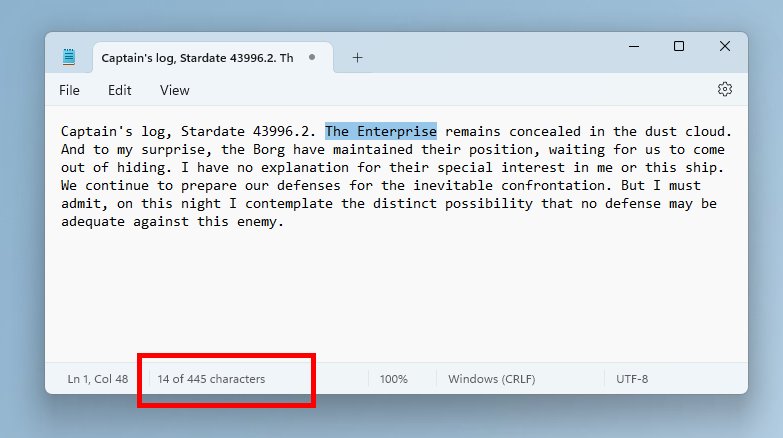
Microsoft added a character count to the Notepad status bar in Notepad version 11.2311.29.0 for Windows 11. It is the only text statistic Notepad displays itself.
- Open the document in Notepad.
- Look at the status bar along the bottom of the window. With nothing selected, it shows the character count for the entire document.
- Select a word, sentence or paragraph. The status bar now shows the character count for the selection and for the whole document.
- If no status bar appears, open the View menu and turn on Status bar.
If your Notepad shows only line and column numbers, it is an older Notepad build. Use the PowerShell or Word method below to get the count.
Count words in a saved Notepad file with PowerShell
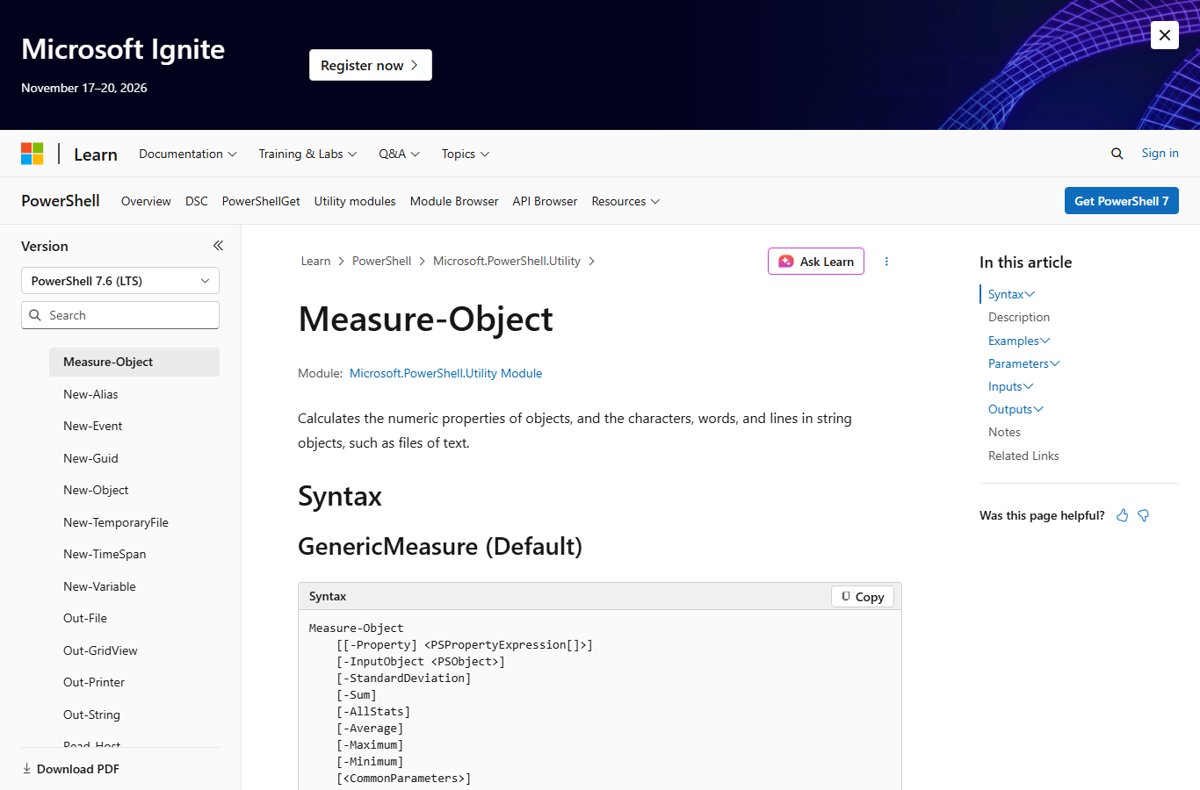
Measure-Object counts lines, words and characters in text. Point Get-Content at the .txt file and pipe it to the cmdlet. Replace the path with the location of your own file.
Get-Content "C:\Users\YourName\Documents\notes.txt" | Measure-Object -Word -Line -CharacterGet-Content reads the file line by line, and Measure-Object counts across all lines. -Word returns the word total, -Line the number of lines, and -Character the number of characters. Add -IgnoreWhiteSpace to leave spaces out of the character total.
You should see: A small table appears with Lines, Words and Characters columns, and the Words column holds the word count for the file.
Keep the quotation marks around the path so folder names with spaces still work.
Paste Notepad text into Microsoft Word to see the word count
- In Notepad, press Ctrl + A, then Ctrl + C to copy the text.
- Open a blank document in Microsoft Word, or in Word for the web in Editing view.
- Press Ctrl + V to paste.
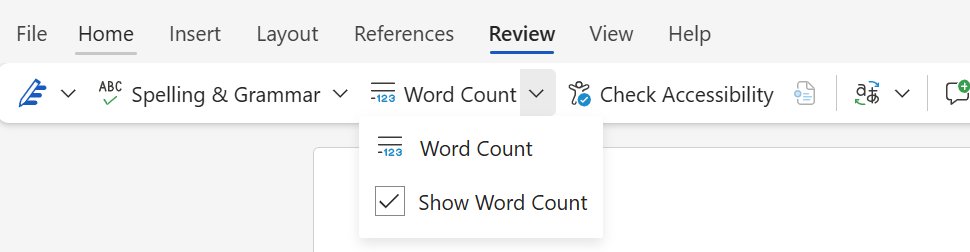
- Read the word count in the status bar at the bottom of the window.
- Select part of the text to see the word count for that selection next to the total.
- If the status bar has no count, go to Review > Word Count and tick Show Word Count.
The word count in Microsoft Word can also show pages, characters, paragraphs and lines, which helps when an essay or form has a limit counted in characters with spaces.
Check that the Notepad word count is correct
- Type
One, Twoon the first line in Notepad,Threeon the second andFour Fiveon the third. - Press Ctrl + A, then Ctrl + C.
- Run
Get-Clipboard | Measure-Object -Word -Linein PowerShell. - Confirm the output shows 3 under Lines and 5 under Words, matching Microsoft's documented example.
- Compare the count on your real text with the Word status bar if you need a second opinion on a long document.
New features in Notepad in Windows 11
Notepad has changed far more since 2021 than in the previous two decades, starting with the redesigned Windows 11 Notepad. These are the features Microsoft has announced for the Windows 11 app.
| Feature | What it does | Announced |
|---|---|---|
| Redesigned interface and dark mode | Windows 11 styling, dark mode that follows your system theme, a new Settings page with font options, multi-level undo | December 2021 |
| Tabs | Open and organise several files in one Notepad window | January 2023 |
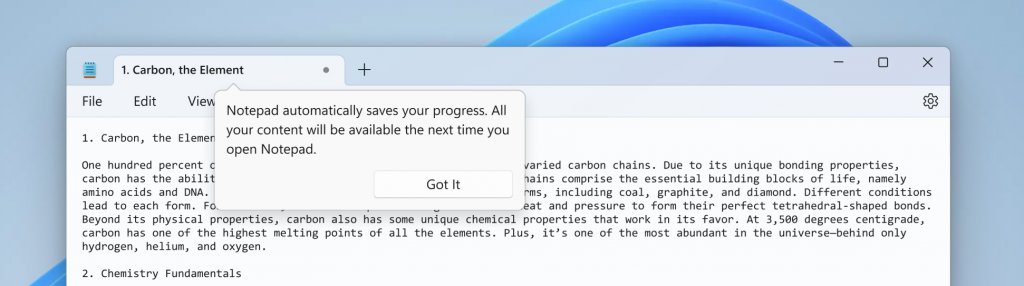
| Session restore | Reopens previous tabs and unsaved edits when you start Notepad again; can be turned off in app settings | August 2023 |
| Character count | Shows the character count for the document and for the selection in the status bar | December 2023 |
| Spellcheck and autocorrect | Underlines misspelled words, offers suggestions and fixes common typos; off by default for log and code files | March 2024 |
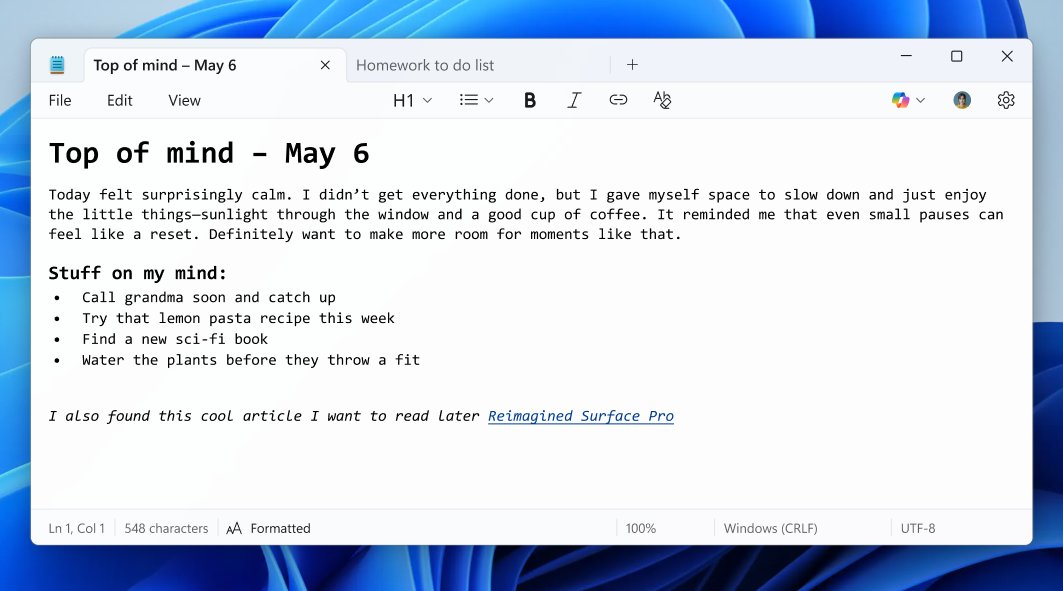
| Text formatting and Markdown | Bold, italic, links, lists and headings, with a toggle between formatted view and Markdown syntax | May 2025 |
| Write, Rewrite and Summarize | AI text tools that need a Microsoft account sign-in; Rewrite can stream results locally on Copilot+ PCs | November 2025 (streaming) |
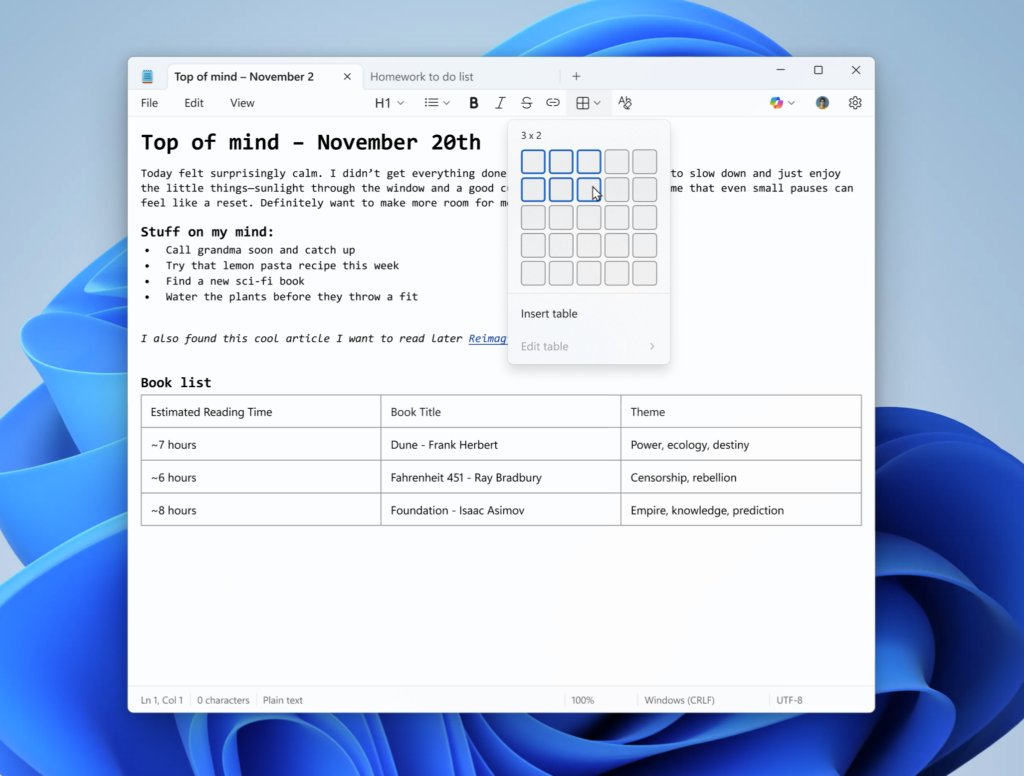
| Tables | Insert tables in a document, or create them with Markdown syntax | November 2025 |
None of these updates adds a word counter, which is why the workarounds above are still needed.
Notepad tips and tricks for Windows users
| Tip | How to do it |
|---|---|
| Open a new tab | Press Ctrl + N or select the Add tab (+) button |
| Zoom the text in or out | Press Ctrl + Plus or Ctrl + Minus, or hold Ctrl and turn the mouse wheel; Ctrl + 0 restores the default zoom |
| Delete the previous word | Press Ctrl + Backspace |
| See spelling suggestions from the keyboard | Move the cursor to the underlined word and press Shift + F10 |
| Turn spellcheck off for one file | Right-click in the document and switch it off from the context menu |
| Switch between formatted text and Markdown syntax | Use the View menu or the toggle button in the status bar |
| Remove all formatting | Clear it from the formatting toolbar or the Edit menu |
| Show or hide the status bar | Open the View menu and select Status bar |
Beyond shortcuts, Windows has several built-in Notepad help options if a feature is not where you expect.
Notepad high CPU and memory usage in Windows 11: fix it
Notepad uses high CPU or memory in Task Manager
A damaged app installation or a large backlog of restored tabs can keep Notepad busy.
- Save your work, then close tabs you no longer need with the X on each tab.
- Select Start > Settings > Apps > Installed apps.
- Find Notepad, select the More icon (three dots) next to it and choose Advanced options.
- Select Repair and reopen Notepad to check CPU and memory use.
- If the problem continues, return to the same page and select Reset.
- If Notepad is missing or still misbehaves after a reset, install Windows Notepad again from Microsoft Store.
No word count or character count shows in Notepad
Notepad never shows a word count, and the character count needs the status bar and a recent Notepad version.
- Open the View menu and make sure Status bar is turned on.
- Update Notepad through Microsoft Store to get the character count added in version 11.2311.29.0.
- For a word count, copy the text and run
Get-Clipboard | Measure-Object -Wordin PowerShell.
Notepad word count FAQ
Can Notepad count words?
No. Windows Notepad shows a character count in its status bar but has no word count feature. To count words, copy the text and run Get-Clipboard | Measure-Object -Word in PowerShell, or paste it into Microsoft Word and read the status bar.
How do I check the word count of selected text in Notepad?
Select the text, press Ctrl + C, then run Get-Clipboard | Measure-Object -Word in PowerShell. The command counts only the copied selection. Pasting the selection into Word gives the same answer in the Word status bar.
How do I show the character count in Notepad?
Turn on the status bar from the View menu in Windows 11 Notepad. It shows the character count for the whole document, and when you select text it shows the selection's count alongside the total. The feature arrived in Notepad version 11.2311.29.0.
How do I count the number of words in a Notepad file without Word?
Use PowerShell. Run Get-Content followed by the file path, then pipe it to Measure-Object -Word. The Words column in the result is the total for the file. PowerShell is built into Windows 11 and Windows 10, so nothing else is required.
Can Notepad++ count words?
Notepad++ is a separate editor from the Notepad++ project, not Microsoft's Notepad, and its counting tools are described in its own user manual. Any plain-text file it saves can also be counted with Get-Content and Measure-Object -Word in PowerShell.
Is there a word count with Notepad in Windows 10?
No. Notepad on Windows 10 has no word count either. The PowerShell Measure-Object method and the Microsoft Word status bar both work on Windows 10, so use either one to count words in text written in Notepad.
Why do people use Notepad when WordPad exists?
WordPad no longer exists on current Windows. Microsoft removed it from all editions starting with Windows 11, version 24H2, and recommends Notepad for plain text such as .txt files and Microsoft Word for rich text documents like .doc and .rtf.
Does the PowerShell count include line and character totals?
Yes, when you ask for them. Adding -Line and -Character to Measure-Object returns Lines, Words and Characters in one table. Add -IgnoreWhiteSpace if the limit you are checking counts characters without spaces.
Bottom line: the best way to count words in Notepad
Use Get-Clipboard | Measure-Object -Word in PowerShell for a quick count of copied Notepad text, and the Notepad status bar when a character count is all you need. Notepad itself counts only characters, while PowerShell is already on every Windows 11 and Windows 10 PC and counts exactly the text you copy, including a single selected paragraph.