To spot real Apple communication, check that the sender and every link match Apple, confirm any purchase in your own purchase history, and treat any request for your password, verification code or gift cards as a scam.
This guide covers the signs of fake Apple emails, texts and calls, how to check a receipt and a link, where to report scams, and what to do if you already clicked.
How to check if an Apple email or text is real
Never act on the message itself. Check it from the outside, through apps and sites you open yourself.
- Look at the sender's email address or phone number and confirm it matches Apple, not a lookalike name.
- Check whether the message reached the email address or phone number you actually gave Apple.
- Hover over any link on a Mac, or touch and hold it on iPhone, and confirm the URL belongs to Apple's website.
- For a receipt, confirm it shows your current billing address.
- Open reportaproblem.apple.com yourself, sign in and check whether the purchase is listed.
- If anything does not match, do not reply, tap links or open attachments. Forward the email to [email protected].
How to identify an Apple scam email
Apple lists the same warning signs for email and text. One sign is enough to stop and verify.
| Warning sign | What it looks like |
|---|---|
| Sender does not match | The address or number does not match the company it claims to be from |
| Wrong contact details | It reached an email or phone number you never gave Apple |
| Mismatched link | The link text looks right but the real URL is not Apple's website |
| Unfamiliar layout | It looks clearly different from earlier Apple messages you received |
| Requests personal data | It asks for a card number, password, security code or similar |
| Unsolicited attachment | It arrived unexpected and carries a file to open |
| Urgency and threats | It claims your account is hacked or charged and pushes you to act now |
What Apple will never ask you for
These requests mark a message or call as fake, whatever the caller ID or logo shows.
| Request | Apple's position |
|---|---|
| Your Apple Account password or verification code | Apple never asks for these to provide support |
| Signing in to a website someone sends you to | Apple will never ask you to log in to any website |
| Tapping Accept on a two-factor authentication prompt for someone else | Apple will never ask you to do this |
| Your device passcode | Apple will never ask you to provide it |
| Turning off two-factor authentication or Stolen Device Protection | Apple will never ask you to disable any security feature |
| Social Security number, mother's maiden name, full card number or CCV code by email | Apple purchase emails never ask for these |
| Payment in Apple Gift Cards | Never use Apple Gift Cards to pay other people |
Real Apple message or scam: what to do in each case
| What you received | What to do | Why |
|---|---|---|
| Receipt for a purchase you do not remember | Check purchase history at reportaproblem.apple.com | A real charge appears there; a fake receipt does not |
| Email asking you to update payment details | Update only in Settings or the App Store, never from the link | Apple says to change account info only in its own apps |
| Text saying your Apple Account is locked | Open Settings or account.apple.com yourself | Your real account status shows there |
| Call from Apple Support you did not request | Hang up and contact Apple Support through its own support page | Scammers spoof Apple's caller ID |
| Browser pop-up saying your device has a virus | Close the tab or window | These pop-ups are fraudulent ads |
| Two-factor code you did not request | Do not share it and change your password | Someone may be trying to sign in to your account |
How to verify an App Store or Apple Music receipt email
Fake receipts are a common Apple phishing message. A genuine receipt includes your current billing address, which scammers are unlikely to have.
- Do not tap anything in the email.
- Check that the receipt shows your current billing address.
- Open a browser and type reportaproblem.apple.com yourself.
- Sign in to your Apple Account.
- Search for the item or the amount charged.
- If the purchase is not listed and you use only one Apple Account, treat the email as phishing and report it.
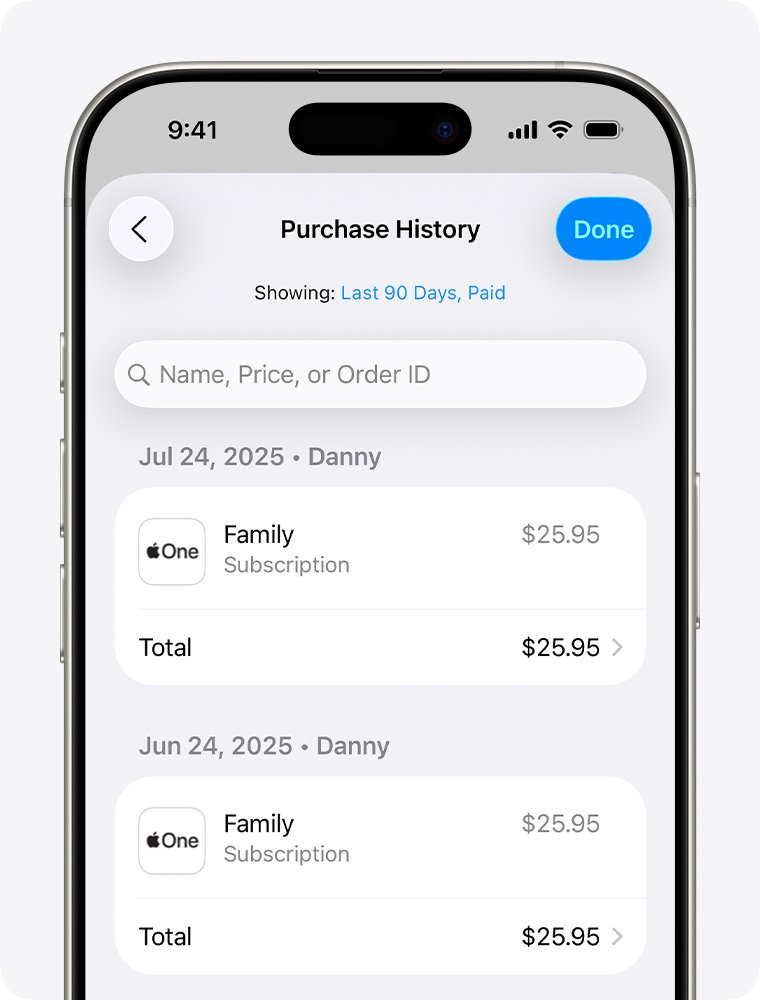
On iPhone you can also check your past App Store purchases: open the App Store, tap your photo or initials, then Apps & Purchase History > Purchase History.
How to check a link in an Apple email before you tap it
- On a Mac, hold the pointer over the link without clicking and read the URL in the status bar.
- If Safari shows no status bar, choose View > Show Status Bar.
- On iPhone or iPad, touch and hold the link to preview its address.
- Confirm the domain is Apple's own website, not a name with extra words or characters.
- If it is not Apple's domain, close the message and report it.
Even a correct-looking link is not a reason to sign in. Apple asks you to update account details only in Settings on your device or at account.apple.com, typed yourself.
How to handle a fake Apple Support call
Scammers use fake caller ID that shows Apple's name or number, quote personal details to sound real, and claim your account or Apple Pay was attacked.
- Hang up if you did not ask Apple to call you.
- Do not read out any code, password or passcode, even if the caller says it stops an attack.
- Open support.apple.com/contact yourself, or the Apple Support app, to reach Apple.
- In the U.S., report the call to the Federal Trade Commission at reportfraud.ftc.gov.
- If you shared any account details, change your Apple Account password now.
How to report Apple phishing emails, texts and calls
| What you received | Where to report it |
|---|---|
| Suspicious email that claims to be from Apple | Forward it to [email protected]; on a Mac use Message > Forward As Attachment |
| Text message that claims to be from Apple | Take a screenshot and email it to [email protected] |
| Spam in Messages | Tap Report Junk under the message, then block the sender |
| Suspicious FaceTime call or FaceTime link | Email a screenshot of the call information or link to [email protected] |
| Spam in an iCloud.com, me.com or mac.com inbox | Mark it as Junk or move it to the iCloud Junk folder |
| Harassment or impersonation in iCloud Mail | Send it to [email protected] |
| Scam phone call (U.S.) | Report it at reportfraud.ftc.gov or to local law enforcement |
How to update your Apple Account details safely
When a message says your payment or account details need updating, go around it. Apple names the only places to make these changes.
- Close the message without tapping its links.
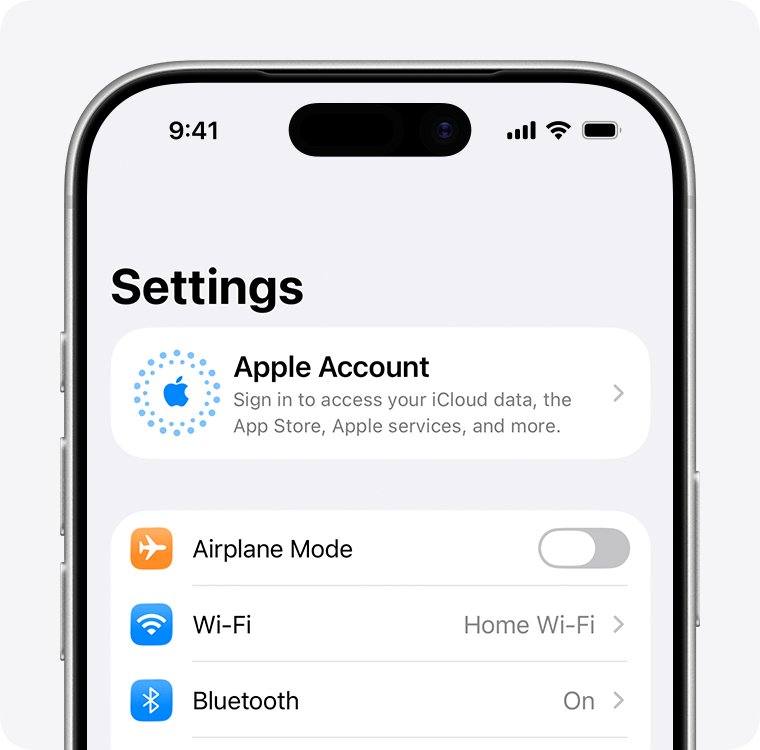
- On iPhone or iPad, open Settings and tap your name.
- On a Mac, open the App Store or System Settings; on a Windows PC, use the Apple app you buy from.
- To change your password, use Settings on your device or type account.apple.com into a browser yourself.
- Check that the details shown match what you expect.
How to check your Apple Account is still secure
- Sign in at account.apple.com in a browser you opened yourself.
- Select Devices and confirm you recognize every device listed. Remove any you do not.
- Check that your email addresses and phone numbers are ones you control.
- Confirm two-factor authentication is on.
- Review recent purchases at reportaproblem.apple.com.
What to do if you clicked an Apple scam link
You entered your Apple Account password on a fake site
The scammer now has your password and may try to sign in.
- Change your Apple Account password immediately, using a strong and unique password.
- Make sure two-factor authentication is turned on.
- Sign in at account.apple.com, open Devices and remove any device you do not recognize.
- Correct any personal or security information you did not set.
Your password stopped working after a scam message
Someone else changed it.
- Reset your Apple Account password.
- If you cannot reset it or sign in to account.apple.com, go to iforgot.apple.com to start account recovery.
- Ask your carrier to confirm no SMS forwarding is set on the phone number linked to your account.
You received a verification code you did not request
Someone may be trying to sign in with your password.
- Do not share the code with anyone, including a caller who claims to be Apple.
- Change your Apple Account password.
- Check Devices at account.apple.com for devices you do not recognize.
You entered card details on a fake Apple page
The card number may now be used for fraud.
- Change your Apple Account password immediately.
- Contact your bank or card issuer about the card.
- Check reportaproblem.apple.com for any purchase you did not make.
A pop-up says your iPhone or Mac has a virus
Fraudulent ads try to make you call a number or download software.
- Do not call the number or tap the link.
- Close the tab or the whole browser window.
- Install software only from the App Store or the developer's own website.
Spam invitations keep appearing in Calendar
You received or subscribed to a spam calendar.
- Report unwanted invitations as Junk in iCloud.
- If you subscribed to a spam calendar by mistake, delete that calendar.
Apple scam and Apple Support contact FAQ
How do I talk to Apple?
Go to support.apple.com/contact in your browser, or open the Apple Support app. Both offer chat, phone and repair options. The contact page also lists the Apple Support phone number for your country or region.
How do I talk to an Apple representative?
Start at support.apple.com/contact, choose your product and issue, and pick chat or a call. The Apple Support app offers the same chat option. Use only these routes, never a number from an email or text.
How do I speak to someone at Apple about a scam?
Contact Apple through support.apple.com/contact or the Apple Support app. To report the scam itself, forward the email or a screenshot of the text to [email protected]. U.S. scam calls also go to reportfraud.ftc.gov.
How do I reach apple.com safely?
Type apple.com or support.apple.com into the address bar yourself instead of tapping a link in a message. Scam links can look right while pointing to a different site, so check the address before you sign in.
Does Apple call you about your account?
Treat any unrequested call that claims to be Apple Support as a scam and hang up. Scammers spoof Apple's caller ID. Apple will never ask for your password, passcode or two-factor code over the phone.
Does Apple ask for verification codes by text or email?
No. Apple never asks you to share a verification code to get support. Codes appear on your trusted devices or arrive by text when you sign in yourself, and they are only for you to type in.
How can I tell if an Apple receipt is real?
A genuine App Store, iTunes Store or Apple Music receipt includes your current billing address. Confirm the purchase at reportaproblem.apple.com. If it is not listed there, the receipt is most likely phishing.
Where do I forward fake Apple emails?
Forward them to [email protected]. On a Mac, select the message and choose Message > Forward As Attachment so Apple receives the header details. For texts, email a screenshot to the same address.
What should I do if I gave a scammer my Apple password?
Change your Apple Account password immediately and confirm two-factor authentication is on. Then sign in at account.apple.com, review Devices and remove any you do not recognize.