The Verification failed message in Apple Music on Windows 11 usually clears once you confirm Apple's sign-in service is up, set the Windows clock to automatic, and sign in again with a working Apple Account password and verification code.
This guide covers what each version of the message means, the fixes in the order worth trying, how to confirm the sign-in worked, and what to do when verification codes never arrive.
How to fix Verification failed in Apple Music on Windows
Work through these checks in one sitting. Most sign-in failures come from a service outage, a wrong clock, or a code that was never entered.
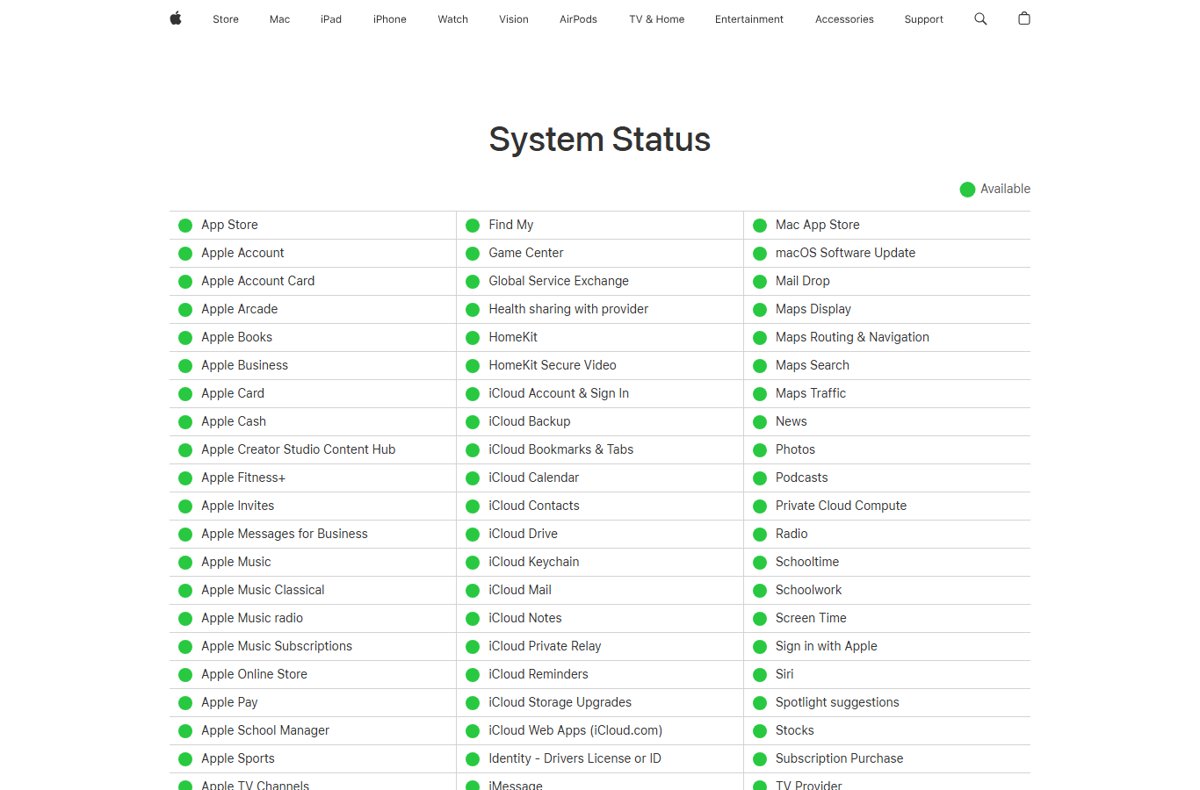
- Open Apple's System Status page in your browser and confirm Apple Account and iCloud Account & Sign In show as available.
- Open Start > Settings > Time & language > Date & time and turn on Set time automatically and Set time zone automatically.
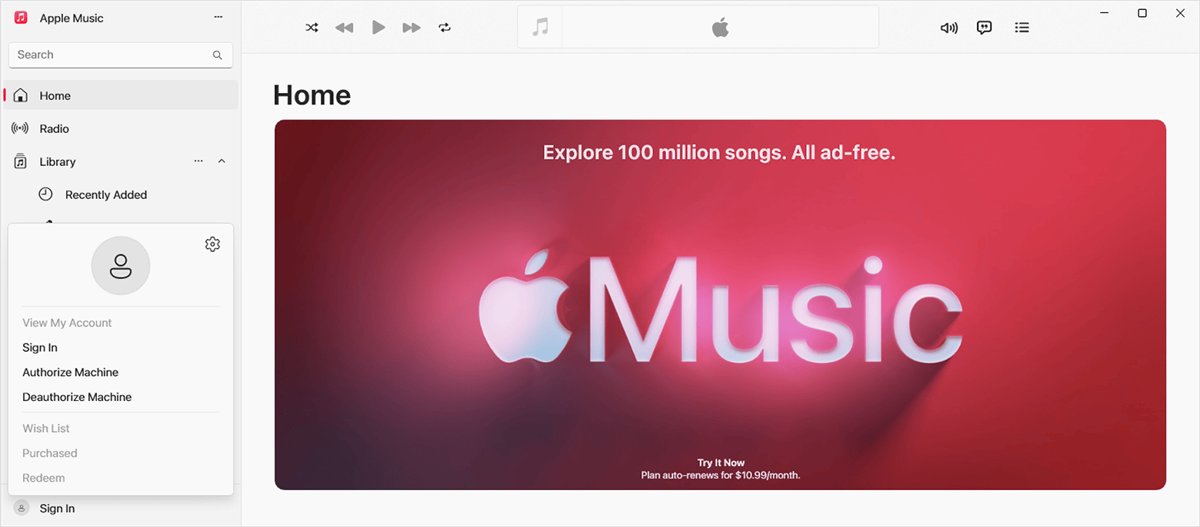
- Open the Apple Music app and select your name at the bottom of the sidebar, then Sign Out if it shows a partial sign-in.
- Select Sign In at the bottom of the sidebar, then select Sign In again.
- Enter your Apple Account email or phone number and password.
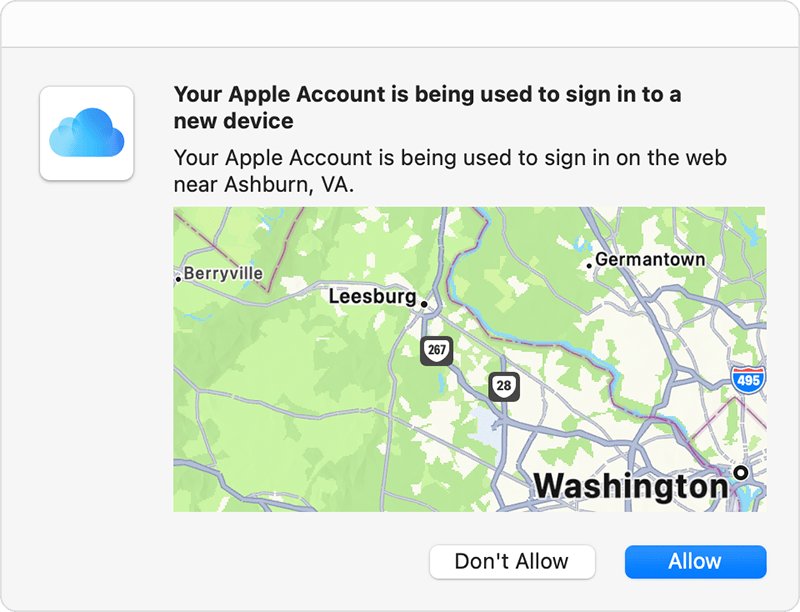
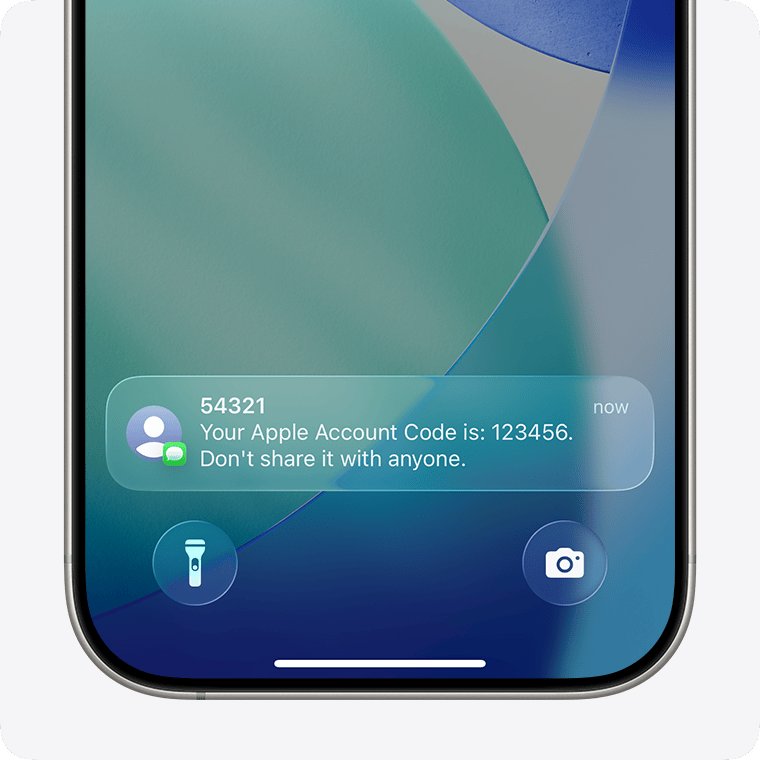
- When the six-digit verification code appears on your iPhone, iPad or Mac, choose Allow and type the code into Apple Music.
If the message still appears, match what you see to the table below and use that fix.
What does the Verification failed message mean?
Apple shows Verification Failed when it cannot confirm a sign-in. The text after it tells you which problem you have.
| Message text | What it points to | Where to start |
|---|---|---|
| Verification Failed. This action cannot be completed at this time. | The sign-in request did not complete; Apple does not publish one cause for this wording | System Status, clock, password, then app repair |
| Verification Failed. This device can only be used with Apple Accounts from [organization name]. | The device is managed by a school or business that requires a work or school account | Contact the administrator who provided the device |
| This Apple Account has been disabled for security reasons | Too many wrong password or account details | Reset your Apple Account password |
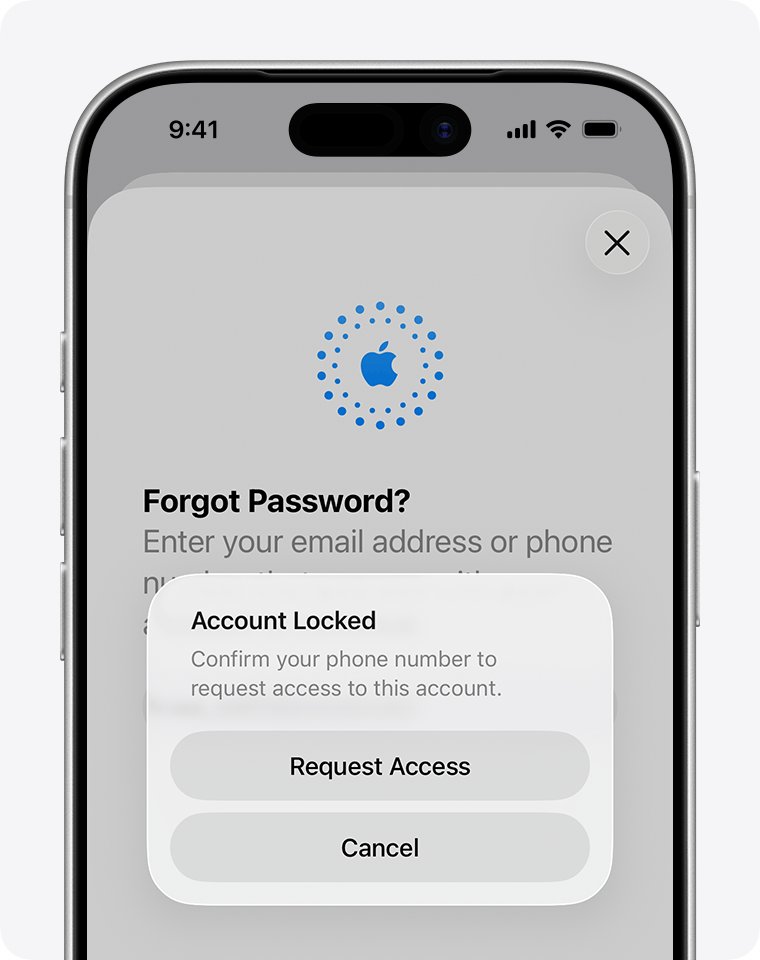
| Your Apple Account is locked or not active | Apple locked the account | Select Request Access in the alert |
| Your Media & Purchases account has been disabled | Purchases are switched off for the account | Select Continue in the alert to request reactivation |
Which Apple sign-in fix should you try first?
| Your situation | Try this | Why |
|---|---|---|
| Sign-in worked yesterday and fails today on every device | Check Apple System Status | An outage blocks every sign-in until Apple fixes it |
| Only the Windows PC fails | Fix the date and time, then repair the app | A wrong clock or damaged app data affects only that PC |
| You are not sure the password is right | Reset the password with Forgot password? | A changed password must be entered fresh on every device |
| No verification code appears | Use Didn't Get a Code? for a text or call | The code can go to your trusted phone number instead |
| The PC belongs to work or school | Ask the administrator | Managed devices can block personal Apple Accounts |
| Reinstalling did not help | Sign in through the Apple TV app or a different network | Signing in to one app signs you in to the other |
What you need to sign in to Apple Music on Windows 11
| Item | Why it matters |
|---|---|
| Apple Music app from the Microsoft Store | Apple installs it through the Microsoft Store by searching for Apple Music and selecting Get |
| Apple Account email or phone number | Any email address or phone number on the account works to sign in |
| Current Apple Account password | Changing the password on another device means typing the new one here |
| A trusted device or trusted phone number | Two-factor authentication sends the six-digit code there |
| Working internet connection | The app must reach Apple's servers to verify the sign-in |
Check Apple System Status for Apple Account sign-in
Before you change anything on the PC, rule out an Apple outage. Apple lists each service with a status colour.
- Open a browser and go to
https://www.apple.com/support/systemstatus/. - Find Apple Account and iCloud Account & Sign In in the list.
- Check that both show a green circle for Available.
- If either shows an issue, wait until Apple marks it resolved, then sign in again.
Set Windows 11 date and time automatically
A clock that is wrong by minutes or a wrong time zone can break secure sign-ins in any app. Letting Windows set the time and time zone removes that variable.
- Open Start > Settings.
- Select Time & language > Date & time.
- Turn on Set time automatically.
- Turn on Set time zone automatically. Daylight saving time then adjusts on its own.
- Close Settings and sign in to Apple Music again.
Reset your Apple Account password from Apple Music
If you changed your password recently or are unsure of it, reset it through Apple's own flow. Apple sends you to a trusted device or asks for recovery details such as a code sent to your trusted phone number.
- Open the Apple Music app.
- Select Sign In at the bottom of the sidebar, then select Sign In.
- Select Forgot password?.
- Follow the onscreen instructions to verify your identity.
- Set a new password, then sign in to Apple Music with it.
If you have an iPhone, iPad or Mac already signed in to the account, changing the password there is faster and may avoid account recovery.
Repair or reset the Apple Music app in Windows 11
When the account works on other devices but not on the PC, the app's local data is the next suspect. Try Repair first and use Reset only if Repair does not help.
- Open Start > Settings > Apps > Installed apps.
- Find Apple Music and select its More icon.
- Select Advanced options.
- Select Repair and wait for it to finish, then try to sign in.
- If sign-in still fails, return to the same page and select Reset.
- Open Apple Music and sign in again.
Update Windows 11 and the Apple Music app
Apple's own sign-in advice for a Windows PC is to update the operating system and check for the latest updates to Apple's apps.
- Open Start > Settings > Windows Update.
- Select Check for updates and install what is offered.
- Open the Microsoft Store and update Apple Music from your library if an update is listed.
- Restart the PC.
- Open Apple Music and sign in.
Sign in through the Apple TV app or another network
Apple notes that signing in to your Apple Account in the Apple TV app on Windows also signs you in to Apple Music. A second network rules out a blocked connection.
- Install the Apple TV app from the Microsoft Store if you do not have it.
- Open the Apple TV app and sign in with the same Apple Account.
- Open Apple Music and check whether your name now shows at the bottom of the sidebar.
- If both apps fail, connect the PC to a different Wi-Fi network or a phone hotspot.
- Try the sign-in again on that network.
How to check Apple Music sign-in worked
- Open the Apple Music app.
- Confirm your name appears at the bottom of the sidebar instead of Sign In.
- Check that the name shown belongs to the Apple Account you meant to use.
- Play a song from your library or open the iTunes Store to confirm purchases load.
Fix Apple verification codes not arriving and account errors
Not receiving verification texts from Apple
No trusted device is nearby, or the Messages filter hides the text.
- On the verification code screen, select Didn't Get a Code? or Can't get to your devices?.
- Choose to have the code sent to your trusted phone number as a text or phone call.
- On an iPhone that filters Unknown Senders, check that folder for the code.
- To get codes in the main inbox, open Settings > Apps > Messages, tap Allow Notifications under Unknown Senders and turn on Time Sensitive notifications.
No sign-in notification on a trusted device
The trusted device is off, offline or does not meet Apple's minimum system requirements.
- Turn on and unlock the iPhone, iPad or Mac signed in to the account.
- Connect it to the internet.
- Start the sign-in again on the PC and choose Allow when the notification appears.
- If no notification arrives, request a text or call instead.
Lost access to trusted devices and the trusted phone number
Two-factor authentication has no way to deliver a code.
- If you will have the device or number back within a few days, wait and sign in then.
- Otherwise select Didn't Get a Code?, then Can't use [phone number].
- Follow the onscreen steps to start account recovery, which can take a few days or longer.
Verification failed: device can only be used with accounts from an organization
The device is enrolled in Apple School Manager or Apple Business and requires a work or school account.
- Contact the school or business administrator that provided the device.
- If you bought the device yourself from Apple or an authorized reseller, contact Apple Support.
Account disabled or locked message after several attempts
Apple locked the account after too many wrong entries.
- Reset your Apple Account password with Forgot password?.
- If the alert offers Request Access, select it to ask for access.
- Sign in to Apple Music with the new password.
Apple Music Verification failed FAQ
Why does it say verification failed?
Verification failed means Apple could not confirm the sign-in. Common reasons are an Apple service outage, a wrong PC clock, an outdated password, a missed verification code, or a device managed by a school or business that blocks personal accounts.
How do I fix failed verification?
Check Apple's System Status page, turn on Set time automatically in Windows, sign out and back in to Apple Music, and enter the six-digit code from your trusted device. If it still fails, reset the password, then repair the app.
Why does my verification always fail?
Repeated failures usually point to the same cause each time: a wrong password saved in your head, a clock that keeps drifting, or damaged app data. Reset the password once, let Windows set the time, and use Repair on the Apple Music app.
What does verification failed mean on iPhone?
On an iPhone it can mean the sign-in could not be completed, or that the device belongs to a school or business. The managed version says the device can only be used with Apple Accounts from a named organization; contact that administrator.
Why am I not receiving verification texts?
Apple shows the code on trusted devices first. Select Didn't Get a Code? to have it sent to your trusted phone number by text or call, and check the Unknown Senders folder in Messages if you filter senders.
Why am I not getting verification messages from Apple at all?
Your trusted device may be off or offline, or the trusted phone number may be out of date. Turn on and unlock the device, or request a text or call; if you cannot use any trusted number, start account recovery.
Why am I not getting verification emails?
Apple's two-factor sign-in sends codes to trusted devices and phone numbers, not by email. Use Didn't Get a Code? on the code screen. For other Apple emails, check the junk or spam folder of the account's email address.
Why can I not receive verification texts on a new phone number?
Codes only go to trusted phone numbers already on the account. Sign in on a trusted device and add the new number, or choose Can't use [phone number] to start account recovery if no trusted number works.
Does reinstalling Apple Music fix Verification failed?
Not when the cause is the account, the clock or an outage, because those stay the same after a reinstall. Check those first, then use Repair or Reset in Advanced options for the Apple Music app.
Is a verification code the same as two-step verification?
Apple's six-digit code is part of two-factor authentication, its version of two-step verification. You need it each time you sign in on a new device or browser.