To install WSL 2 on Windows 11 or Windows 10 version 2004 and later, open PowerShell as administrator, run wsl --install, and restart your PC; the command enables the required features and installs Ubuntu on WSL 2.
This guide covers that command, choosing a different Linux distro, the manual and Control Panel routes for older builds, WSL 1 versus WSL 2, file access in both directions, uninstalling, and fixes for common install errors.
How to install Windows Subsystem for Linux (WSL 2)
This one command works on Windows 11 and on Windows 10 version 2004 (build 19041) and later. New installs made this way use WSL 2 by default.
- Select Start, type PowerShell, right-click Windows PowerShell and select Run as administrator.
- Type
wsl --installand press Enter. - Wait while Windows enables the WSL features and downloads the Ubuntu distribution.
- Restart your PC when the command finishes.
- Open Ubuntu from the Start menu and wait while its files decompress on first launch.
- Create a Linux username and password when prompted; these are separate from your Windows account.
The command only works when WSL is not installed at all. If it prints the WSL help text instead, WSL is already present and you only need to add a distro, as shown below. You can also download the WSL package separately if you prefer a standalone installer.

WSL 2 requirements for Windows 10 and Windows 11
| Requirement | Detail | How to check |
|---|---|---|
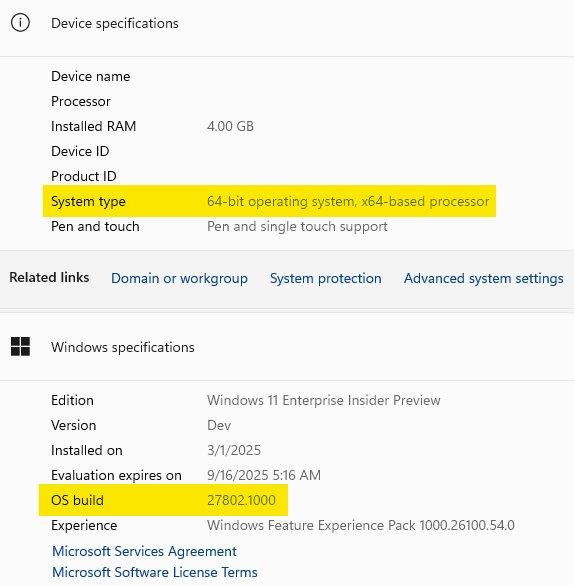
| Windows version for wsl –install | Windows 11, or Windows 10 version 2004 (build 19041) and later | Press Win + R, type winver and select OK |
| Windows version for WSL 2 on older Windows 10 | x64: version 1903 or 1909 with build 18362.1049 or later; ARM64: version 2004 or later | winver shows the build number after the dot |
| Hardware virtualization | Must be enabled in the PC's BIOS or UEFI firmware | Error 0x80370102 during setup means it is off |
| Administrator rights | Needed to run the install command and enable Windows features | PowerShell title bar reads Administrator |
| Virtual Machine Platform feature | Required for WSL 2; wsl --install turns it on for you |
Listed in Turn Windows features on or off |
Which WSL install method fits your Windows build?
| Your situation | Use this | Why |
|---|---|---|
| Windows 11 or Windows 10 2004+, nothing installed yet | wsl --install in admin PowerShell |
One command enables features, sets WSL 2 and installs Ubuntu |
| WSL is already installed and you want another distro | wsl --install -d <DistroName> |
Adds a distro without touching the existing setup |
| Windows 10 1903 or 1909 | Manual install with DISM commands | wsl --install is not available on these builds |
| The PowerShell feature command fails | Turn Windows features on or off in Control Panel | The graphical feature list installs the same optional components |
| Install hangs at 0.0% | wsl --install --web-download -d <DistroName> |
Downloads the distro first instead of using the Microsoft Store |
Installing Linux distros on Windows (WSL)
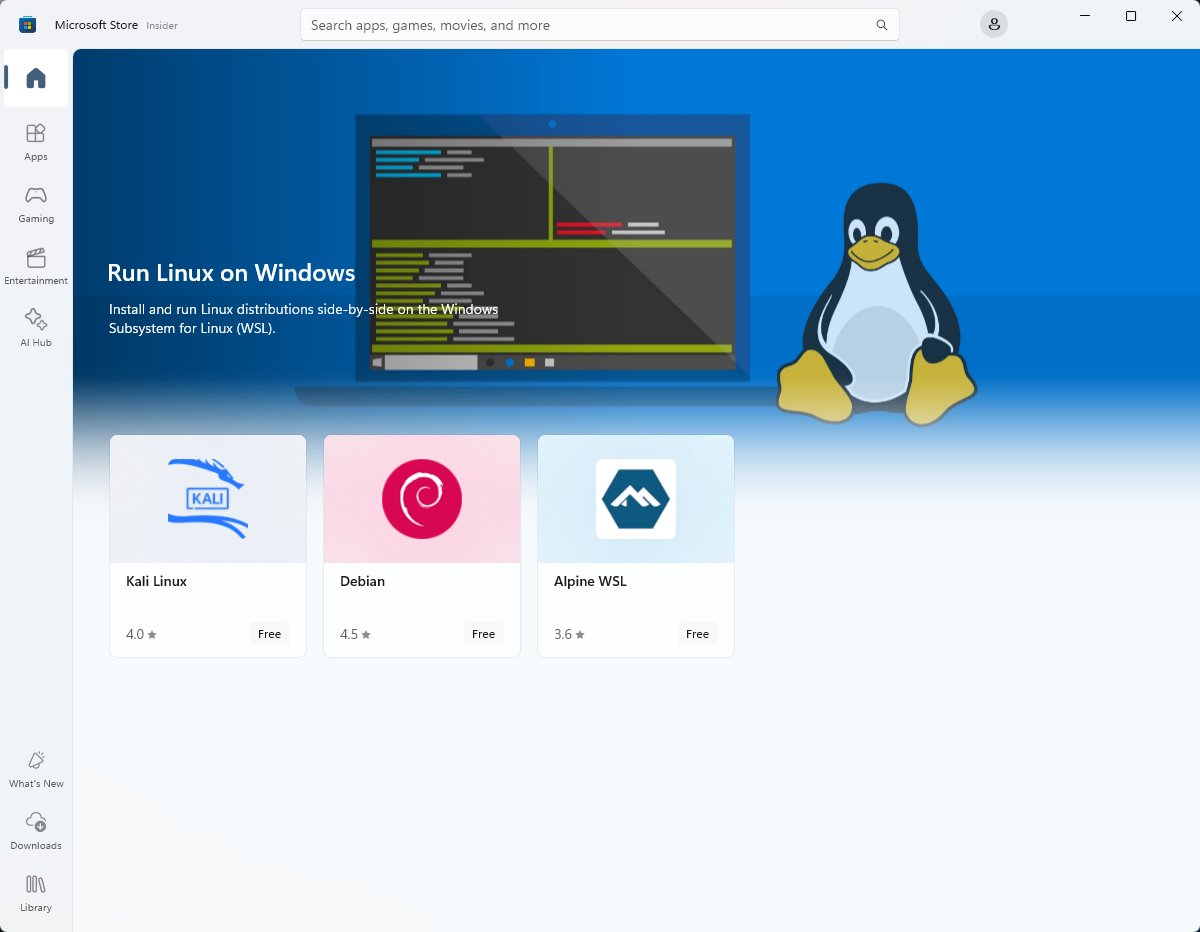
Ubuntu is the default, but WSL can install Debian, Kali Linux, openSUSE, Fedora, Arch, Alpine, Oracle Linux and other distributions. You can run as many side by side as you like.
- Open PowerShell or Windows Terminal.
- Run
wsl --list --online(short formwsl -l -o) to see the distro names WSL accepts. - Run
wsl --install -d <DistroName>, replacing<DistroName>with a name from the list, such asDebian. - Launch the new distro from the Start menu and create its username and password.
- Run
wsl --set-default <DistroName>if you want the plainwslcommand to open this distro.
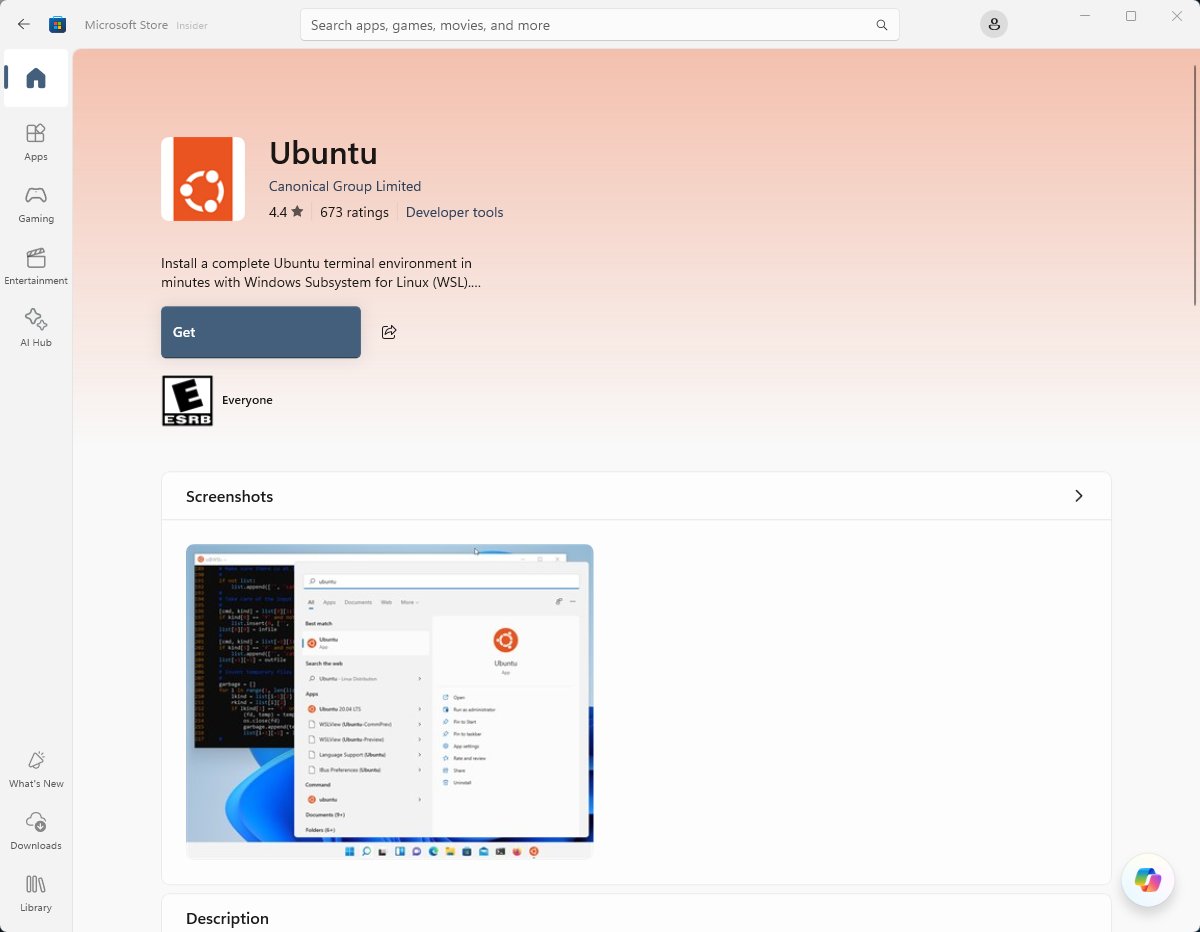
Distros are also listed in the Microsoft Store, where installing one works like any other Store app.
Install Windows Subsystem for Linux with PowerShell on older Windows 10 builds
Use these DISM commands on Windows 10 version 1903 or 1909, or anywhere wsl --install is not supported. Run them in PowerShell opened with Run as administrator.
- Run
dism.exe /online /enable-feature /featurename:Microsoft-Windows-Subsystem-Linux /all /norestartto enable WSL. - Run
dism.exe /online /enable-feature /featurename:VirtualMachinePlatform /all /norestartto enable the Virtual Machine Platform. - Restart your PC.
- Install the WSL 2 Linux kernel update package for your PC's architecture (x64 or ARM64) from Microsoft's manual installation page.
- Run
wsl --set-default-version 2so new distros use WSL 2. - Install a distro from the Microsoft Store, then launch it and create your Linux user.
Install Windows Subsystem for Linux with Control Panel
Microsoft suggests the graphical feature list when the PowerShell enable command fails.
- Select Start, type Turn Windows features on or off, and open it.
- Tick Windows Subsystem for Linux.
- Tick Virtual Machine Platform for WSL 2.
- Select OK and wait while Windows installs the components.
- Restart when prompted.
- Open PowerShell and run
wsl --install -d Ubuntu, or install a distro from the Microsoft Store.
Should I use WSL 1 or WSL 2?
| Factor | WSL 1 | WSL 2 |
|---|---|---|
| Architecture | Translation layer, no real Linux kernel | Real Linux kernel in a lightweight managed virtual machine |
| System call compatibility | Partial | Full, so apps such as Docker run |
| Speed on Linux files | Slower | Much faster for git clone, npm install and apt operations |
| Speed on files in Windows folders (/mnt/c) | Faster | Slower across the file system boundary |
| Linux GUI apps | Not supported | Supported |
| Serial port access | Supported | Not supported; USB devices work through USBIPD-WIN |
| Networking | Shares the host network directly | Uses NAT by default |
Microsoft recommends WSL 2 for most people. Pick WSL 1 only when your project files must stay in Windows folders or you need serial port access.
Check a distro's version with wsl -l -v, and switch it with wsl --set-version <DistroName> 1 or 2. Back up large distros first, because the conversion can take a while and can fail.
Basic commands for WSL on Windows
Run these from PowerShell or Command Prompt. Replace the names in angle brackets with your own distro or user.
wsl --list --verbose(orwsl -l -v) lists installed distros, whether each is running, and its WSL version.wsl --statusshows the default distro, default version and other configuration details;wsl --versionshows component versions.wsl --updateupdates WSL to the latest release.wsl --set-default <DistroName>changes which distro the plainwslcommand opens.wsl --distribution <DistroName> --user <UserName>opens a specific distro as a specific user.wsl ~starts the default distro in your Linux home directory.wsl --shutdownstops every running distro and the WSL 2 virtual machine;wsl --terminate <DistroName>stops one distro.wsl --export <DistroName> <FileName>saves a tar backup, andwsl --import <DistroName> <InstallLocation> <FileName>restores it as a new distro.wsl --helplists every option.
How to use Windows Subsystem for Linux (WSL) after installing
- Open your distro by typing its name, such as Ubuntu, in the Start menu, or run
wslin PowerShell to open the default distro in the current window. - Update the package lists and installed packages with
sudo apt update && sudo apt upgradeon Ubuntu or Debian; Windows does not do this for you. - Run a single Linux command from PowerShell without opening a shell, for example
wsl ls -la. - Install Windows Terminal from the Microsoft Store to keep each distro, PowerShell and Command Prompt in separate tabs.
- Type
exitto leave a WSL shell opened inside PowerShell.
How do I access the Linux file system from Windows, and Windows files from Linux?
| Direction | Where to go | Example |
|---|---|---|
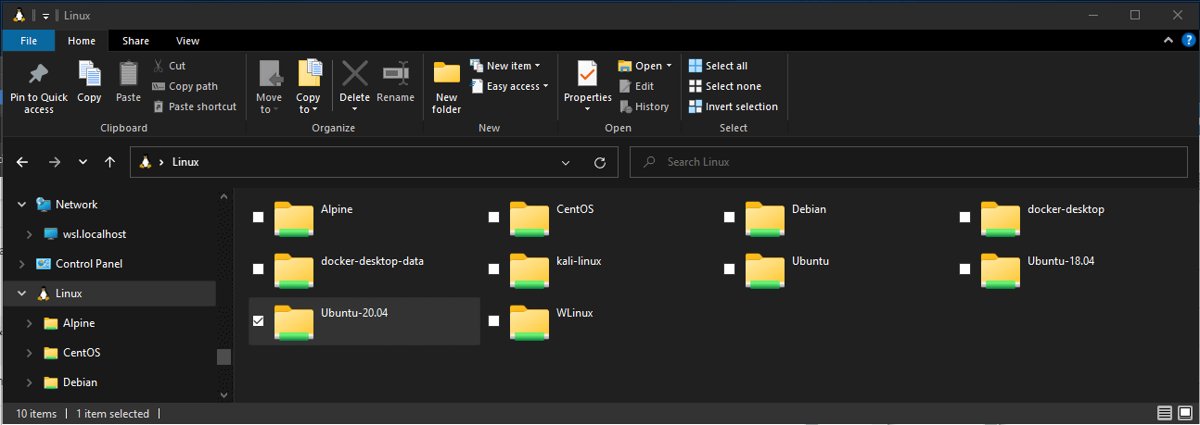
| Linux files from Windows | Type \\wsl$ in the File Explorer address bar to see every distro's root file system |
\\wsl$\Ubuntu\home\<user> |
| Current Linux folder in File Explorer | Run explorer.exe . inside the distro (keep the period) |
Opens the folder you are in |
| Windows files from Linux | Windows drives are mounted under /mnt |
C:\Users\<user>\Project is /mnt/c/Users/<user>/Project |
| Best place for project files | The Linux file system, such as /home/<user>/Project |
Faster than working on /mnt/c in WSL 2 |
Windows paths are case-insensitive and Linux paths are case-sensitive, so FOO.txt and foo.txt are two different files inside WSL.
How to check WSL 2 installed correctly
- Open PowerShell and run
wsl -l -v. - Confirm your distro is listed and the VERSION column shows 2.
- Run
wsl --statusand check that the default version is 2. - Run
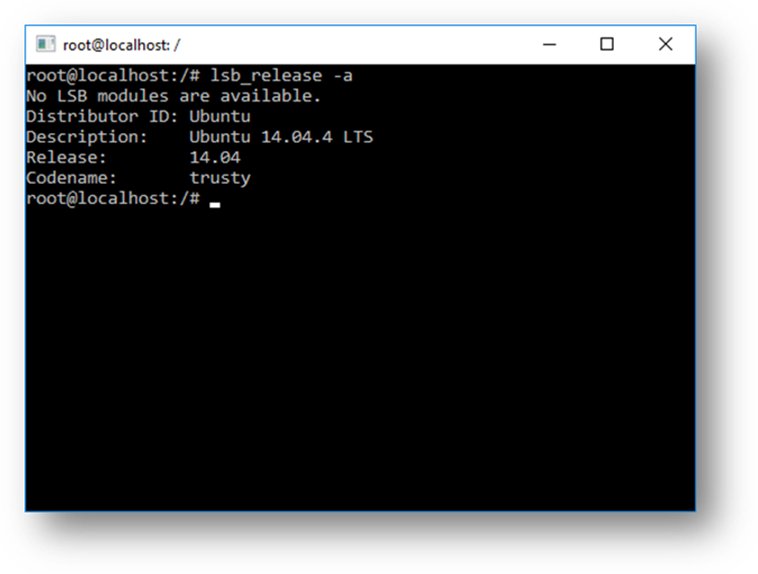
wsl lsb_release -aon Ubuntu or Debian to see the distro release details printed from Linux. - Type
\\wsl$in File Explorer and confirm the distro's folder opens.
Fix WSL install errors and the wsl.localhost is not accessible message
\\wsl.localhost is not accessible, or \\wsl$ will not open in File Explorer
The 9P file server that shares Linux files with Windows did not start, or the distro is not running.
- Open your distro from the Start menu so it is running.
- Inside the distro, run
dmesg | grep 9pand look for the line 9p: Installing v9fs 9p2000 file system support. - If errors appear, run
wsl --shutdownin PowerShell, wait a few seconds, then reopen the distro. - Try the
\\wsl$path in File Explorer again, or runexplorer.exe .from inside the distro.
Error 0x80370102: the virtual machine could not be started because a required feature is not installed
Virtual Machine Platform is off or hardware virtualization is disabled in firmware.
- Open Turn Windows features on or off, tick Virtual Machine Platform, select OK and restart.
- Enable virtualization in the BIOS or UEFI settings, usually under the CPU options, following your PC maker's instructions.
- If Windows itself runs in a Hyper-V VM, run
Set-VMProcessor -VMName <VMName> -ExposeVirtualizationExtensions $trueon the host in admin PowerShell.
wsl –install shows the help text instead of installing
WSL is already installed, so the command expects a distro name.
- Run
wsl --list --onlineto see available distros. - Run
wsl --install -d <DistroName>to install one.
Install stuck at 0.0%
The Microsoft Store download is not completing.
- Press Ctrl + C to cancel the stalled command.
- Run
wsl --install --web-download -d <DistroName>to download the distro directly.
Error 0x80040154 after a Windows update
The update turned the Windows Subsystem for Linux feature off.
- Open Turn Windows features on or off and tick Windows Subsystem for Linux again.
- Select OK, restart, and reopen the distro.
How do I uninstall Windows Subsystem for Linux?
Unregistering a distro permanently deletes all of its files, settings and installed software. Export it first with wsl --export if you want a backup.
- Run
wsl -lin PowerShell to see the exact distro names. - Run
wsl --unregister <DistroName>for each distro you want to remove. - Open Settings > Apps > Installed apps and uninstall the distro app, such as Ubuntu, like any other Microsoft Store app.
- To remove WSL itself, open Turn Windows features on or off, clear Windows Subsystem for Linux and Virtual Machine Platform, select OK and restart.
Why install Windows Subsystem for Linux, and what else can you do with it?
| Use | What WSL gives you | Requirement |
|---|---|---|
| Linux command-line tools | Bash, sed, awk, grep and distro package managers on Windows without a dual boot or a separate VM | Any WSL version |
| Web and open source development | Test code and build scripts in the same Linux environment you deploy to | Any WSL version |
| Linux GUI apps | Run X11 and Wayland apps such as GIMP or VLC in Windows windows | WSL 2 and a GPU driver with vGPU support |
| VS Code with WSL | Edit on Windows while code runs in Linux, opened with code . |
VS Code with the WSL extension |
| Docker containers | Remote development containers through Docker Desktop | WSL 2 |
| Mixed Windows and Linux commands | Pipe output between them, such as wsl ls -la | findstr "git" |
Any WSL version |
Once Linux is running, package managers built for it work as they do on a Linux PC; for example, you can install Homebrew on Linux and WSL for extra developer tools.
WSL 2 install FAQ
How do I install Windows Subsystem for Linux in Windows 11?
Open PowerShell as administrator, run wsl –install, and restart your PC. The command enables Windows Subsystem for Linux and Virtual Machine Platform, sets WSL 2 as the default, and installs Ubuntu. Open Ubuntu from Start afterwards to create your Linux user.
Does wsl –install install WSL 2 or WSL 1?
WSL 2. New Linux installations made with wsl –install are set to WSL 2 by default. You can confirm this with wsl -l -v, and change a distro with wsl –set-version followed by the distro name and 1 or 2.
Which Windows 10 version do I need for WSL 2?
The wsl –install command needs Windows 10 version 2004, build 19041 or later. WSL 2 also runs on x64 Windows 10 versions 1903 and 1909 with build 18362.1049 or later, but those builds need the manual DISM install steps.
How do I upgrade a distro from WSL 1 to WSL 2?
Run wsl -l -v to see the current version, then wsl –set-version <DistroName> 2, for example wsl –set-version Ubuntu 2. Back up large distros with wsl –export first, because the conversion can take time and occasionally fails.
How do I install a Linux distro other than Ubuntu?
Run wsl –list –online to see the available names, then wsl –install -d followed by the name, such as Debian. You can also install distros from the Microsoft Store. Each one runs independently, and wsl –set-default picks the one the wsl command opens.
Where are WSL files stored and how do I open them?
Each distro has its own Linux file system. Type \\wsl$ in the File Explorer address bar to browse all of them, or run explorer.exe . inside the distro to open the current folder. Windows drives appear in Linux under /mnt, such as /mnt/c.
How do I update WSL?
Run wsl –update in PowerShell to get the latest WSL release. This does not update the Linux packages inside your distro; on Ubuntu or Debian run sudo apt update && sudo apt upgrade for that.
How do I completely remove WSL?
Run wsl –unregister for each distro, which deletes its data, then uninstall the distro apps from Installed apps. Finally clear Windows Subsystem for Linux and Virtual Machine Platform in Turn Windows features on or off and restart.
Bottom line: the simplest way to set up WSL 2
Run wsl –install from an administrator PowerShell window on Windows 11 or Windows 10 version 2004 and later, restart, and create your Linux user. The single command enables both required features, sets WSL 2 as the default and installs Ubuntu, so the manual DISM and Control Panel routes are only needed on older Windows 10 builds or when the command fails.