The Windows Registry is the central database where Windows stores settings for users, apps and hardware, and Registry Editor (Regedit) is the built-in tool that lets you view and change it.
This guide explains hives, keys, values and value types, then shows how to export a backup, make one change at a time, confirm it, and roll it back if something breaks.
Quick answer: how to open Regedit and edit the Windows Registry safely
Back up the exact key you plan to change before you touch it. A saved .reg file is your undo button.
- Select Start, type
regedit.exe, and press Enter. - Select Yes if User Account Control asks for permission.
- Browse in the left pane to the key named in the instructions you are following.
- Select that key, then open the File menu and select Export.
- In the Export Registry File dialog, choose a folder, type a name in File name, and select Save.
- Make the single change your instructions describe, then close Registry Editor and restart if they say so.
Microsoft recommends changing settings through the Windows interface first and editing the registry only when a documented fix calls for it.
What the Windows Registry stores
Microsoft describes the registry as a central hierarchical database that holds the information needed to configure the system for users, applications and hardware. Windows reads it constantly while it runs.
| Kind of data | Examples | Where it usually lives |
|---|---|---|
| User profile settings | Folders, screen colors, Control Panel choices | HKEY_CURRENT_USER |
| Installed applications | Which programs are installed and what file types each can create | HKEY_LOCAL_MACHINE\Software |
| File associations | Which program opens a file when you double-click it | HKEY_CLASSES_ROOT (merged view) |
| Hardware | Devices present on the system and the ports in use | HKEY_LOCAL_MACHINE\HARDWARE and \SYSTEM |
| Startup hardware profile | The hardware profile used at system startup | HKEY_CURRENT_CONFIG |
| Drivers and services | Many device driver and service parameters, often as DWORD values | HKEY_LOCAL_MACHINE\SYSTEM |
The registry replaced most of the text-based .ini files and MS-DOS configuration files such as Autoexec.bat and Config.sys that older versions of Windows used.
What Regedit actually does
Regedit is a viewer and editor for the live registry. It does not tune or clean anything by itself; it only changes what you tell it to change.
| Regedit action | What it changes | Risk level |
|---|---|---|
| Locate a subtree, key, subkey or value | Nothing; read only | None |
| Add a subkey or value | Creates a new setting an app or Windows may read | Low if the instructions are exact |
| Change a value | Alters an existing setting immediately | Medium |
| Rename a subkey or value | Breaks anything that looks for the old name | Medium |
| Delete a subkey or value | Removes the setting and everything under it | High |
| Export (File > Export) | Nothing; writes a .reg copy to disk | None |
| Import (File > Import) | Writes every key and value in the .reg file back into the registry | Medium to high |
Changes take effect as soon as you make them; there is no Save button and no undo inside Regedit.
Other Microsoft tools write to the same database: Group Policy (gpedit.msc), .reg files, Windows Script Host scripts, WMI and the console tool reg.exe.
Hives, keys, and values
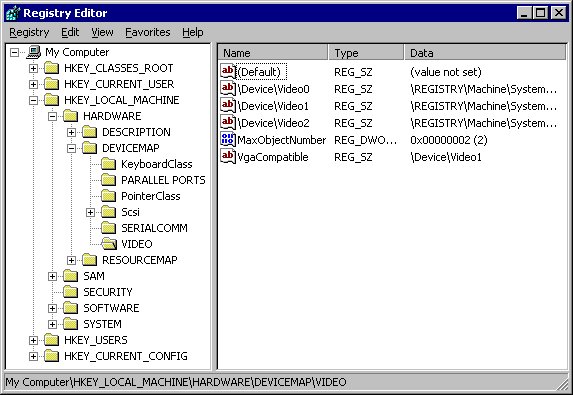
The registry is a tree. Each node is a key, each key can hold subkeys and values, and each value is a name paired with data.
| Term | What it is | Example or limit |
|---|---|---|
| Root (predefined) key | One of the top-level folders in the left pane of Regedit | HKEY_LOCAL_MACHINE, abbreviated HKLM |
| Hive | A group of keys, subkeys and values with its own supporting files on disk | HKEY_LOCAL_MACHINE\Software is stored in a file named Software |
| Key | A folder-like node in the tree; names are not case sensitive and cannot contain a backslash | Key names can be up to 255 characters |
| Subkey | A key inside another key; its name is unique within its parent | HARDWARE\DEVICEMAP\VIDEO |
| Value | A value name plus its data, shown in the right pane | MaxObjectNumber under the VIDEO subkey |
| Depth | How deep the tree can go | Up to 512 levels |
Most hive files sit in %SystemRoot%\System32\Config. Your own HKEY_CURRENT_USER data is stored in Ntuser.dat inside your user profile, which is why each account has separate settings.
The registry hives you will see most often
Regedit shows five root keys. Instructions online almost always start in one of the first two.
| Root key | Short form | What it holds |
|---|---|---|
| HKEY_CURRENT_USER | HKCU | Settings for the account that is signed in now: folders, colors, Control Panel choices |
| HKEY_LOCAL_MACHINE | HKLM | Settings for the whole computer, for every user |
| HKEY_CLASSES_ROOT | HKCR | A merged view of file associations from HKLM\Software\Classes and HKCU\Software\Classes |
| HKEY_USERS | HKU | Every user profile currently loaded; HKEY_CURRENT_USER is one subkey of it |
| HKEY_CURRENT_CONFIG | HKCC | The hardware profile the computer used at startup |
On 64-bit Windows, settings that 32-bit programs use appear under HKEY_LOCAL_MACHINE\Software\WOW6432Node. If a guide gives a path for a 32-bit app and you cannot find it, look there.
When you connect Regedit to a remote computer, only HKEY_USERS and HKEY_LOCAL_MACHINE appear.
Common Registry value types
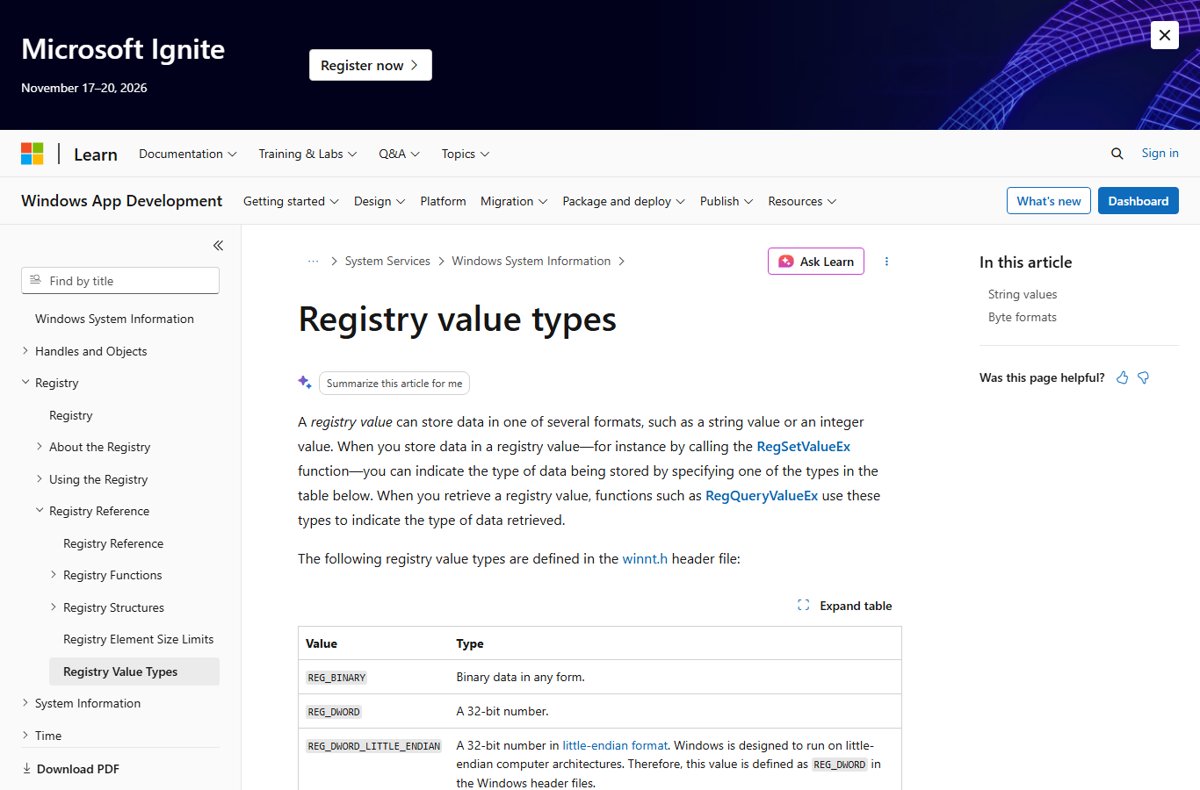
When you create a value, Regedit asks for its type. Pick the type the instructions name, because a program reading the wrong type ignores the value or misreads it.
| Name in Regedit | Data type | What it holds |
|---|---|---|
| String Value | REG_SZ | A text string, such as a path or a name |
| DWORD (32-bit) Value | REG_DWORD | A 32-bit number; most on/off switches use 0 and 1 |
| QWORD (64-bit) Value | REG_QWORD | A 64-bit number |
| Binary Value | REG_BINARY | Raw binary data, shown in hexadecimal; common for hardware information |
| Multi-String Value | REG_MULTI_SZ | A list of several strings, such as a set of names or paths |
| Expandable String Value | REG_EXPAND_SZ | Text containing variables such as %PATH% that are filled in when a program reads it |
A DWORD can be entered in hexadecimal or decimal. For a 0 or 1 switch the result is identical, but for larger numbers the base matters, so match the base your instructions use.
Most switches you are asked to create are DWORDs, and you can add a DWORD value from the right-click New menu in any key.
Create a System Restore point before editing the registry
A restore point captures system files, registry settings and installed programs, so it can recover Windows even if a bad edit stops Regedit from opening normally. It does not touch your personal files.
- Select Start, search for Create a restore point, and open the result.
- On the System Protection tab, select Configure if protection is off for your system drive.
- Choose Turn on system protection, set the disk space slider, and select Apply.
- Back on the System Protection tab, select Create.
- Type a description such as "Before registry edit" and select Create.
How to export a backup before editing
Export the key you are about to change. For a quick fix that is all you need; a full export is slow to restore and overwrites every setting you have changed since.
- Open Registry Editor from Start by typing
regedit.exeand pressing Enter. - In the left pane, select the key or subkey you plan to edit.
- Select File > Export.
- In the Export Registry File dialog, pick a folder you can find later.
- Type a descriptive name in File name, for example the key name and today's date.
- Select Save and confirm the .reg file now appears in that folder.
Back up a registry key with reg export in Command Prompt
The reg export command does the same job once you open Command Prompt, or from a script. The key must start with a valid root (HKLM, HKCU, HKCR, HKU or HKCC), and the file must end in .reg.
reg export "HKCU\Control Panel\Desktop" DesktopBackup.regCopies the Desktop key and every subkey and value under it into DesktopBackup.reg in the current folder. Quotes are required because the key name contains a space; add /y to overwrite an existing file without a prompt.
You should see: The command returns exit code 0 on success and 1 on failure, and DesktopBackup.reg appears in the current folder.
A safe Registry troubleshooting workflow
Treat every edit as a test you can reverse. One change, one check, one decision.
- Confirm the fix comes from the vendor's own documentation and applies to your Windows version.
- Check whether a setting in Settings, Control Panel or Group Policy does the same job, and use that instead if it exists.
- Create a restore point, then export the exact key you will touch.
- Make one change only: one value created, changed or deleted.
- Restart the app, sign out, or restart Windows, whichever the fix requires.
- Test the original problem and note whether it changed.
- If nothing improved, import your .reg backup to put the key back before you try the next idea.
Check a Windows Registry change worked with reg query
Regedit shows the value you typed, but reg query confirms what Windows will actually read, including the type.
reg query "HKCU\Control Panel\Desktop" /v WallPaperDisplays the WallPaper value under the Desktop key with its type and data. Replace the key and the name after /v with the ones you edited. Leave out /v to list every value in the key; add /reg:32 or /reg:64 to read a specific registry view.
You should see: The output lists the key path, then a line with the value name, its type (for example REG_SZ) and the data you set.
If the value shows the new data but the behavior has not changed, the setting usually needs a sign-out or restart to load.
When Registry editing can help
Editing the registry makes sense when there is no interface for a setting and an official source tells you the exact key, value, type and data.
| Your situation | Edit the registry? | Why |
|---|---|---|
| A Microsoft or vendor support article gives exact registry steps for your problem | Yes, follow it exactly | Microsoft says to follow documented registry instructions exactly |
| Microsoft documents the registry value behind a policy setting you need | Yes, using the documented value | Group Policy writes these settings to the registry anyway |
| You need to apply the same setting on several PCs | Yes, through a tested .reg file or reg command | One reviewed file gives the same result everywhere |
| An app's own documentation lists a registry option with no menu equivalent | Yes | The vendor supports that value |
| You want a feature-specific tweak for a new Windows release | Only from a verified source | Keys change between builds |
Release-specific changes, such as the Windows 11 26H2 registry tweaks, are worth checking against your build before you apply them.
How to restore the Windows Registry from a backup
Use the .reg file for a single key, and a restore point when Windows itself is unstable.
- To restore one key, open Registry Editor and select File > Import.
- In the Import Registry File dialog, browse to your backup, select it, and select Open. Double-clicking the .reg file and confirming the prompt does the same thing.
- To roll back the whole system, press Windows key + R, type
rstrui.exe, and press Enter. - Select Next, choose the restore point you created, and select Scan for affected programs if you want to see what changes.
- Select Next, then Finish; Windows restarts when the restore point is applied.
- If Windows will not start, open the Windows Recovery Environment and select Troubleshoot > Advanced options > System Restore. Have your BitLocker recovery key ready if the drive is encrypted.
Importing a .reg file adds and overwrites the values it contains. It does not delete values you created after the export, so remove those by hand if they caused the problem.
When you should not edit the Registry
Microsoft warns that incorrect registry changes can cause serious problems that may require reinstalling Windows, and that it cannot guarantee those problems can be solved.
| Situation | Do this instead |
|---|---|
| The same option exists in Settings, Control Panel or Group Policy | Use the interface; it validates the value for you |
| The instructions come from an unknown site and give no source | Find the vendor's own documentation first |
| The tweak promises general speed or cleanup | Skip it; such tweaks rarely cite an official source |
| The PC is managed by work or school | Ask the administrator; policy refresh can undo or block your change |
| You have no backup of the key and no restore point | Make both first |
| You are told to delete a whole key under HKLM\SYSTEM or HKLM\SAM | Stop; those hives hold core system and account data |
Common Windows Registry editing mistakes to avoid
| Mistake | What goes wrong | How to avoid it |
|---|---|---|
| Editing under HKEY_CLASSES_ROOT to change your own file associations | Windows writes the change to HKLM\Software\Classes, which affects all users | Edit HKCU\Software\Classes for your account only |
| Choosing the wrong value type | A program ignores a String Value where it expects a DWORD | Match the type the instructions name |
| Mixing up hexadecimal and decimal | Numbers above 9 end up with the wrong data | Select the base your instructions use before typing |
| Looking for a 32-bit app's key in the 64-bit view | The key appears to be missing | Check HKLM\Software\WOW6432Node |
| Making several changes at once | You cannot tell which one fixed or broke something | Change one value, test, then continue |
| Merging a .reg file you have not read | It can overwrite many keys in one click | Open it in Notepad and read every line first |
| Deleting a key instead of a value | Every subkey and value under it disappears | Select the value in the right pane, not the key in the left |
A .reg file is plain text, so open it in Notepad to review it instead of double-clicking it. The PowerToys Registry Preview tool also displays a .reg file as a tree before you apply it.
Windows Registry and Regedit FAQ
What is the Windows Registry used for?
The Windows Registry stores the configuration Windows needs while it runs: user profile settings, installed programs and the file types they open, hardware present on the PC, and the ports in use. Windows and apps read it constantly, which is why a wrong change can have wide effects.
Is it safe to edit the registry with Regedit?
It is safe when you follow exact, documented instructions and back up first. Export the key you will change, create a restore point, and change one value at a time. Microsoft warns that incorrect edits can require reinstalling Windows, so avoid undocumented tweaks.
How do I back up the entire registry?
Create a System Restore point, which captures registry settings with system files and installed programs. For extra cover, export each key you plan to change with File > Export, which restores faster and touches nothing else.
What is the difference between HKEY_CURRENT_USER and HKEY_LOCAL_MACHINE?
HKEY_CURRENT_USER holds settings for the account that is signed in, stored in that profile's Ntuser.dat file. HKEY_LOCAL_MACHINE holds settings for the whole computer that apply to every user.
Do registry changes need a restart?
Some do and some do not. Regedit writes the change immediately, but Windows or an app may only read the value when it starts. If a change has no effect, sign out or restart Windows before deciding it failed.
How do I undo a registry change?
Import the .reg backup you exported before the change, using File > Import in Regedit or by double-clicking the file. If Windows is unstable, run System Restore with rstrui.exe or from the Windows Recovery Environment and choose the restore point you created.
What does a DWORD value mean in the registry?
A DWORD is a REG_DWORD value: a 32-bit number. Many driver, service and feature switches use it, typically 0 for off and 1 for on. Regedit lets you enter the data in hexadecimal or decimal.
Where are the registry files stored on disk?
Most hive files are in %SystemRoot%\System32\Config, including SAM, SECURITY, SOFTWARE, SYSTEM and DEFAULT. Each user's HKEY_CURRENT_USER data is in Ntuser.dat inside that user's profile folder. Change their contents through Regedit or reg.exe, never by editing the files.
Bottom line: should you edit the Windows Registry?
Edit the registry only when an official source gives the exact key, value, type and data, and only after you have exported that key and created a restore point. Regedit applies every change instantly with no undo, so the .reg backup and restore point are what make an edit reversible; one change at a time tells you exactly what worked.


![Troubleshooting headphone detection on Windows 11, 10 [Step-by-step]](https://techdows.com/wp-content/uploads/2026/10/Troubleshooting-Headphone-Detection-on-Windows-11-10-Step-By-Step-500x338.jpg)