Reset this PC restores Windows 11 to factory settings without losing files when you choose Keep my files: Windows is reinstalled, your personal files stay, and installed apps and settings are removed.
This guide covers the reset from Settings and from Windows RE, what each option keeps, how to check your WinRE version, and what to do when the reset fails.
How to reset this PC in Windows 11
Back up anything important first, and have your BitLocker recovery key ready if the drive is encrypted.
- Open Settings and select System > Recovery.
- Under Recovery options, select Reset PC next to Reset this PC.
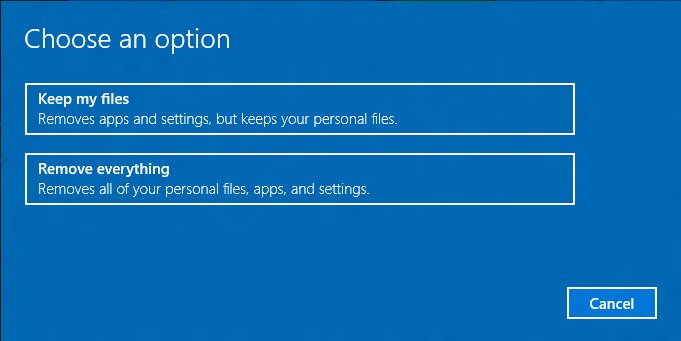
- Choose Keep my files to keep your personal files.
- Choose Cloud download for a fresh copy of Windows, or Local reinstall to use the files already on the PC.
- Review the settings, leave Restore preinstalled apps on if you want the manufacturer's apps back, and confirm the reset.
- Leave the PC alone until the Windows sign-in screen appears, then sign in.
The screen can stay black for 15 minutes or longer and the PC may restart by itself. Restarting it manually during the process can make the reset fail.
What does Reset this PC do?
Reset this PC reinstalls Windows from scratch. The two choices decide what happens to your data, and the two download options decide where the new copy of Windows comes from.
| Option | What it does | What you keep |
|---|---|---|
| Keep my files | Reinstalls Windows and removes apps and settings | Personal files and user accounts |
| Keep my files + Restore preinstalled apps | Also reapplies the PC manufacturer's apps and customisations | Personal files plus the factory apps |
| Remove everything | Reinstalls Windows and removes personal files, apps, settings and all user accounts | Nothing |
| Remove everything + Clean data | Also cleans the drive so files are harder to recover; takes longer | Nothing |
| Cloud download | Downloads a fresh copy of Windows with the latest updates | Same as the option chosen above |
| Local reinstall | Rebuilds Windows from files on the PC; faster on slow internet, may lack recent updates | Same as the option chosen above |
Keep my files does not keep apps you installed yourself, including Microsoft Store apps. Reinstall them after the reset.
Reset vs restore PC: which Windows 11 recovery option to use
| Your situation | Use this | What happens to your files and apps |
|---|---|---|
| Problems started after a recent update | Uninstall the update | Files, apps and settings kept |
| You have a restore point from before the problem | System Restore | Files kept; system changes after the restore point undone |
| Windows files are damaged but you want to keep apps | Reinstall Windows using Windows Update | Files, apps and settings kept |
| You upgraded Windows in the last 10 days | Go back to the previous version | Files kept; apps and settings added after the upgrade removed |
| Nothing else worked, or you want a clean slate with your data | Reset this PC > Keep my files | Files kept; apps and settings removed |
| You are selling, gifting or returning the PC | Reset this PC > Remove everything + Clean data | Everything removed |
Microsoft lists Reset this PC as the most disruptive of these options, so try lighter fixes such as repairing Windows without losing files first. If only Wi-Fi or Ethernet is broken, reset network settings instead.
What to prepare before you reset Windows 11
| Item | Why it matters |
|---|---|
| Backup of important files | Keep my files is designed to keep them, but a failed reset can still cost data |
| BitLocker recovery key | Encrypted PCs ask for it, especially when you reset from Windows RE |
| List of installed apps and licence keys | Every app you installed is removed and must be reinstalled |
| Power adapter connected | The reset can run well over an hour with long black-screen periods |
| Internet connection | Needed for Cloud download |
Reset this PC from Windows RE when Windows 11 will not start
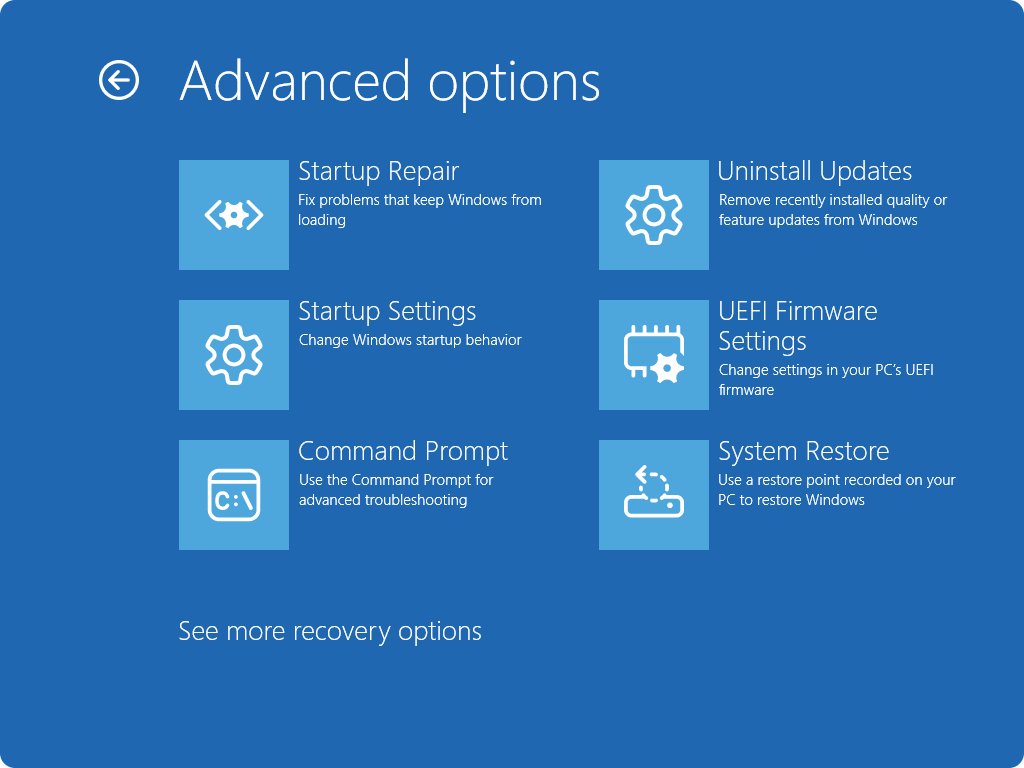
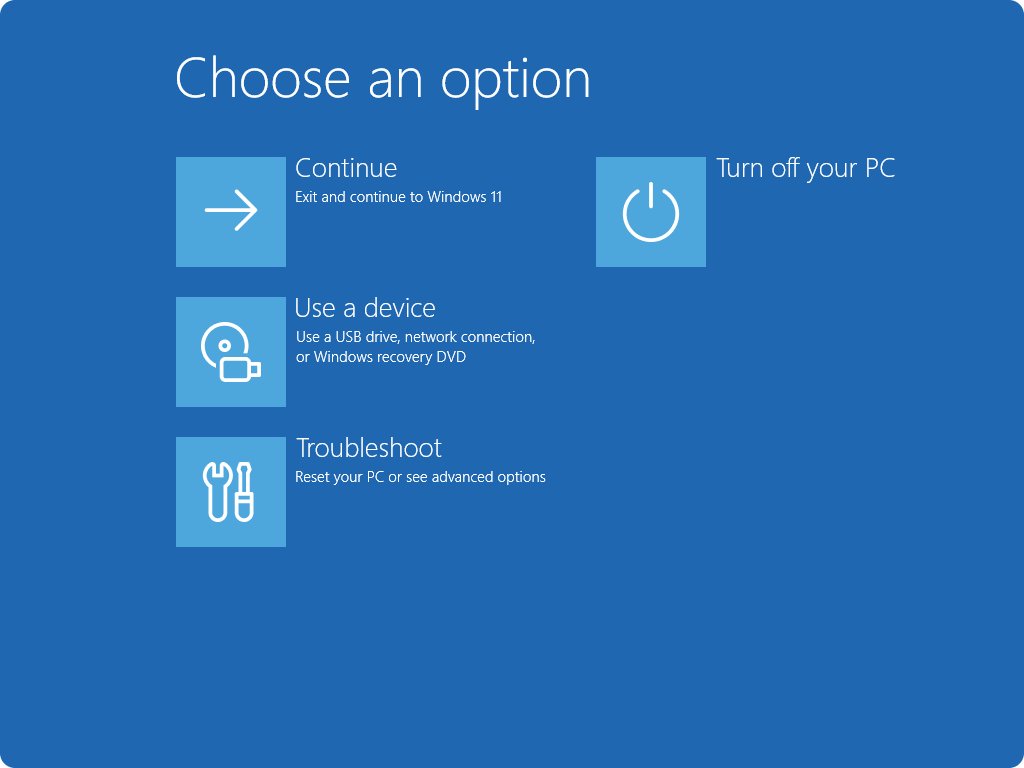
Windows RE opens on its own after Windows fails to start correctly several times. You can also open it on purpose from the sign-in screen.
- On the sign-in screen, select Power, then hold Shift while you select Restart.
- On the Choose an option screen, select Troubleshoot.
- Select Reset this PC.
- Choose Keep my files or Remove everything.
- Enter your BitLocker recovery key if asked.
- Pick Cloud download or Local reinstall and follow the prompts to start the reset.
From a working desktop, the same menu opens through Settings > System > Recovery > Advanced startup > Restart now. A PC booted from a USB recovery drive does not offer Keep my files; it can only recover from the drive, which removes everything.
How to use Reset this PC in Windows 10
Windows 10 has the same options under a different Settings path. Microsoft ended Windows 10 support on October 14, 2025.
- Select Start > Settings > Update & Security > Recovery.
- Under Reset this PC, select Get started.
- Choose Keep my files or Remove everything.
- Choose Cloud download or Local reinstall.
- Follow the prompts to start the reset.
Windows 10 users who want every screen explained can reset Windows 10 to factory settings with the full walkthrough.
How to check WinRE version in Windows 11
Reset from Windows RE depends on a working recovery image. Checking its version tells you whether recent WinRE updates have installed.
- Right-click Start and open Terminal or Command Prompt as administrator.
- Run
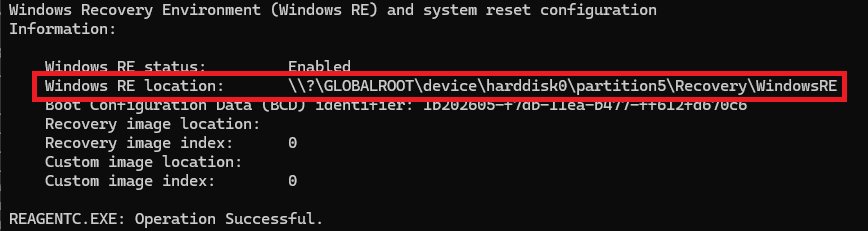
reagentc /infoand confirm the Windows RE status is enabled; note the Windows RE location path. - Run
Dism /Get-ImageInfo /ImageFile:<location>\winre.wim /index:1, replacing<location>with that path, for example\\?\GLOBALROOT\device\harddisk0\partition5\Recovery\WindowsRE. - Read the version number in the DISM output, for example 10.0.22621.4742.
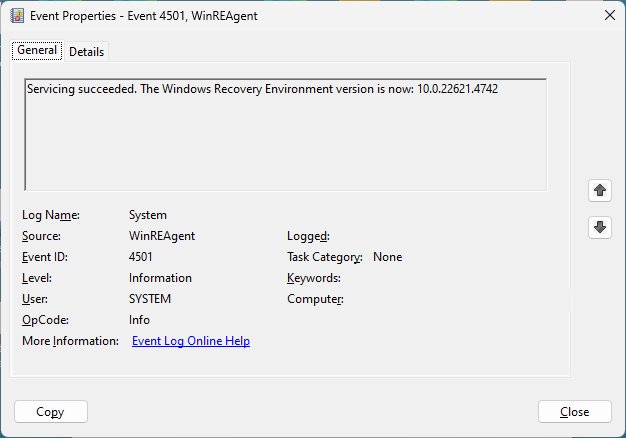
Without a command line, open Event Viewer, expand Windows Logs > System, and search for WinREAgent. Event ID 4501 shows the version WinRE was last updated to through Windows Update.
How to restore your computer after a reset
- Sign in and open File Explorer to confirm your Documents, Desktop and Pictures folders still hold your files.
- Open Settings > Windows Update and install all available updates, especially after a Local reinstall.
- Reinstall your apps from the Microsoft Store or each vendor's own website.
- Copy back anything that was only in your backup.
- Reconfigure printers, Wi-Fi networks and personal settings that the reset cleared.
Fix Reset this PC when your computer will not reset
The reset fails or stops partway
Local Windows files are damaged, or the PC was restarted during the reset.
- Start the reset again and choose Cloud download instead of Local reinstall.
- Do not press the power button while the screen is black; wait at least 15 minutes.
- If it fails from Settings, run it from Windows RE with Troubleshoot > Reset this PC.
- As a last resort, reinstall Windows with installation media.
Reset this PC is missing or Windows RE will not open
Windows RE is disabled on the PC.
- Open Command Prompt as administrator.
- Run
reagentc /infoand check the Windows RE status. - If it shows disabled, run
reagentc /enable. - Run
reagentc /infoagain, then retry Advanced startup.
Windows RE asks for a BitLocker recovery key
The drive is encrypted and the reset needs the key to unlock it.
- On another device, sign in to the Microsoft account linked to the PC and find the recovery key.
- Enter the key on the BitLocker screen.
- Continue with Reset this PC.
Cloud download is not offered
Cloud download is not supported on LTSC editions of Windows.
- Choose Local reinstall.
- Install Windows updates once the reset finishes.
Should you reset your PC before selling or returning it?
Yes. Back up your files, then run Reset this PC with Remove everything and Clean data turned on before the PC leaves your hands. Keep my files leaves your personal files and account on the drive, while Clean data makes deleted files harder to recover. Microsoft notes that this erasure is aimed at consumers and does not meet government or industry erasure standards.
Reset this PC in Windows 11 frequently asked questions
What does Reset this PC do?
It reinstalls Windows. With Keep my files, your personal files and user accounts stay while apps and settings are removed. With Remove everything, personal files, apps, settings and accounts are all removed.
Does factory resetting your computer delete everything?
Only if you choose Remove everything. Keep my files keeps your personal files, but it still removes every app you installed and resets Windows settings, so back up first either way.
How do I restore my computer after a reset?
Sign in, install Windows updates, reinstall your apps from the Microsoft Store or vendor sites, and copy back any files from your backup. Settings such as Wi-Fi networks and printers need to be set up again.
How do I completely reset my PC?
Open Settings > System > Recovery, select Reset PC, choose Remove everything, and turn on Clean data in the settings. This removes all files, apps and accounts and makes the old data harder to recover.
Should I completely reset my PC?
Only when lighter fixes have failed or you are passing the PC on. Uninstalling an update, System Restore or reinstalling Windows through Windows Update fix many problems while keeping your apps.
What is the difference between reset and restore on a PC?
System Restore rolls system files and settings back to a restore point and keeps your files and most apps. Reset this PC reinstalls Windows and removes all installed apps, optionally keeping your personal files.
Is it good to reset your PC?
It is a reliable fix for persistent software problems, but it costs time because every app must be reinstalled. Use it after lighter recovery options fail, not as routine maintenance.
Can I reset my PC without losing my files?
Yes. Choose Keep my files in Reset this PC. Windows is reinstalled and your personal files and accounts stay, but installed apps and settings are removed. Back up important files anyway in case the reset fails.